Update a member account
Last updated: October, 2026
As an admin, you can manage your community members with ease. You can modify individual members’ profile information, update their access, and handle subscription billing seamlessly.
Once a member has been invited or joined the community, you can modify their profile. To get started:
Click Audience in the left sidebar, then select Audience.
On the Manage audience page, navigate to the preferred tab and use the filters to search for a member.
Click the member's name to open the edit account page. Alternatively, hover over the member entry, click More actions (three dots) and select Edit.
The Edit account page will open, where you can access various tabs and options.
💡 Tip: To experience your community exactly as a specific member does, you can utilize the View as feature. It allows you to navigate and preview access to spaces without compromising the member's privacy. For more information, see Preview your community as a member.
💡 Tip: Click the More actions (three dots) at the top-right corner to access options such as messaging a member, copying their profile link, previewing the community as the member, and deactivating the member account.
Modify member information
On the Info tab, you can update a member's basic information, tags, and profile fields. You can also utilize various options to remove the member from your community.
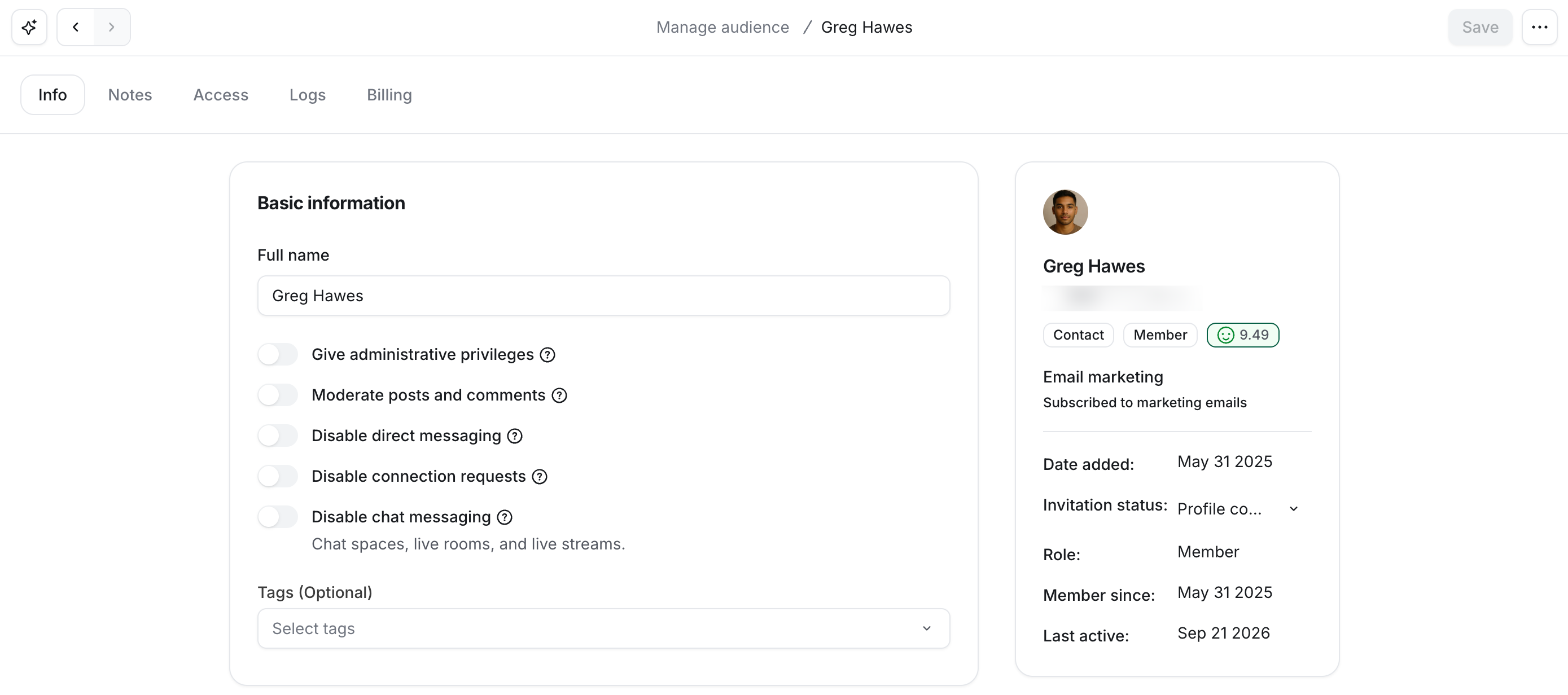
Basic information
Update a member’s basic information, such as full name. Additionally, you can add or update member tags.
To add a tag, click on the field and select it from the provided list. You can also type the name in the field to quickly search it and then select the appropriate tag from the list.
To remove a tag, click X next to the specific tag.
Permissions
-
Give administrative privileges: Enable this toggle if you wish to make the member an admin of your community.
❗Important: Please use this option with caution. When enabled, members with admin privileges will gain unrestricted access to content management options, all space and community settings, including community billing, community plans, and member management.
Moderate posts and comments: Turn on this toggle to automatically flag all future posts and comments from this member for review by admins or moderators.
Disable direct messaging: Turn on this toggle to disable direct messaging for the member. For more information, see Disable direct messages for your account.
Disable connection requests: Turn on this toggle to prevent a member from sending connection requests.
Disable chat messaging: Turning on this toggle prevents the member from sending messages in chat spaces, live rooms, or live streams. With this setting turned on, members can still message admins directly.
Profile fields
In the Profile fields section, you can update the information in the fields for the member.
💡 Tip: With custom profile fields, as an admin, you can view and modify any profile field that is hidden from the member on their profile.
Remove member
When you need to remove a member and revoke their access from your community, you have three options:
Deactivate: Restrict their access to the community while keeping the content a member has posted in the community, such as posts, comments, and messages in chat spaces and group DMs.
Delete: Permanently remove the member and their content from the community.
Ban: Permanently remove the member, delete their content, and block the IPs they used within the last 30 days, preventing them from accessing your community using a blocked IP.
📚 For more information about these removal options and how they function, please see our guide here.
Notes
On the Notes tab, add internal notes to any member or non-member contact to record interactions, document relationships, and share context with other admins. Notes are visible only to community admins. Moderators and members cannot view saved notes.
To save a note, enter your text in the note editor and select Add note.
Key things to know about notes
Notes are displayed newest first.
You can only edit notes you create.
Each note contains information on the author and a timestamp.
The note editor supports rich text, emojis and entity links.
Access
You can update a member's access to spaces and space groups in your community and provide moderation privileges using the Access page.
Update space access
On the Access tab, you can view and manage member’s access to community spaces directly from their account.
Under the Active section, you can see which spaces the member has access to through access groups and manual space grants (listed under Manually added).
You can:
Add or remove access groups.
Manually grant access to spaces.
Remove manually added spaces.
📚 For more information on viewing and managing access directly from a member’s account, see our guide here.
History
The History tab shows every access group a member has been removed from, with one row per access group, sorted by most recently removed. Each row displays the original entry point, who or what removed the access, and when it happened. This tab is read-only and has no row actions, providing a clean audit trail directly from the member profile.
Moderation
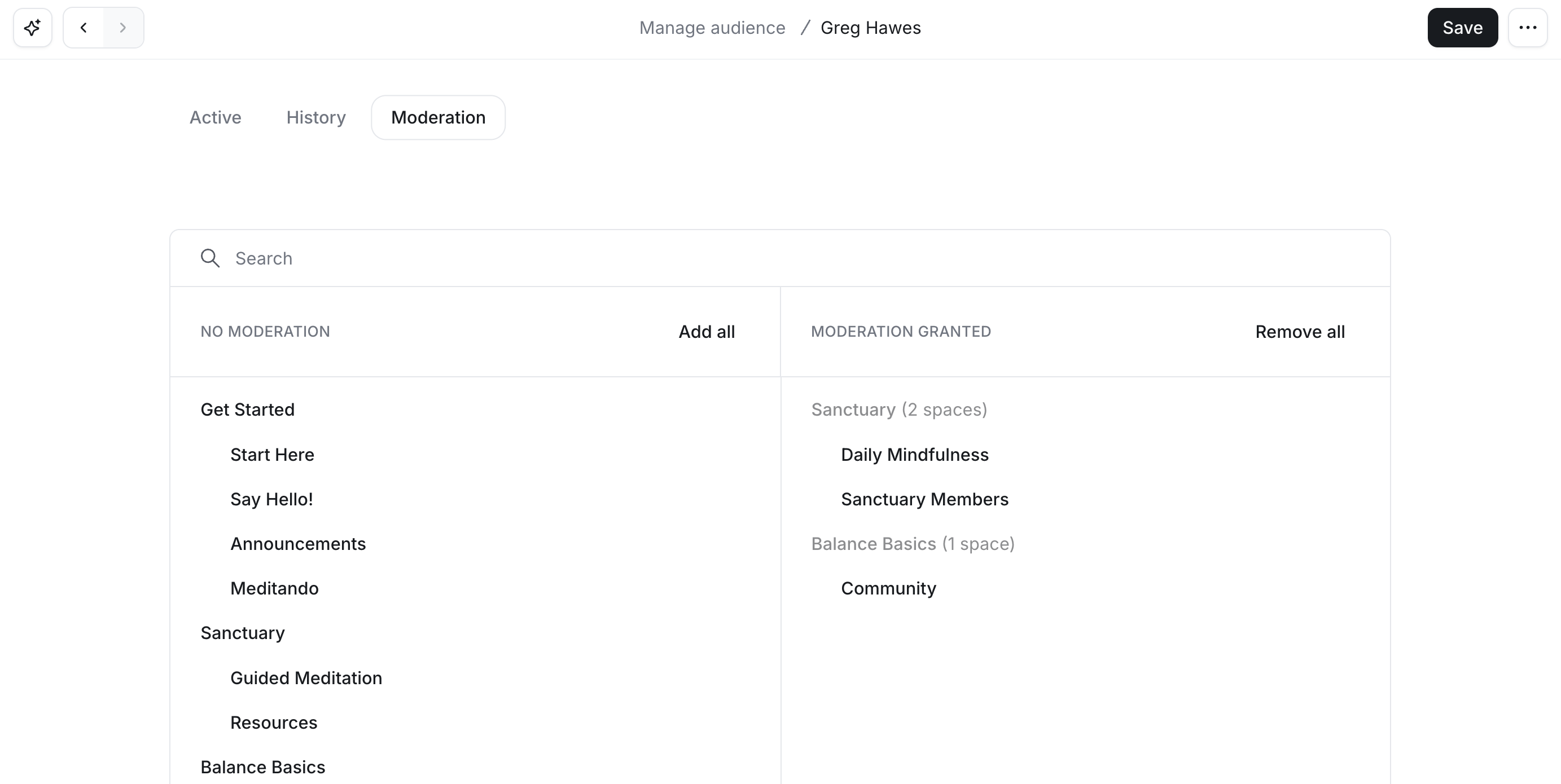
You can update the member’s moderation privileges by visiting the Moderation tab.
-
To grant moderation privileges:
Hover over the space or space group in the No moderation column and click Add to move them to the Moderation granted column.
(Optional) If you wish to provide privileges to all current spaces in your community, click Add All located next to the No moderation column header.
-
To remove the moderation privilege:
Hover over a space or space group in the Moderation granted column and click Remove.
-
(Optional) If you wish to remove privileges to all current spaces in your community, click Remove all next to the Moderation granted column header.
View activity logs
In the Logs tab, you can view activity logs associated with a member. These logs provide insights into various events that took place for the member, such as access to spaces or space groups, updates to member tags, posts, and more.
ℹ️ Note: If you are on the Professional, or Business plan, you can still access basic activity logs for members through their profiles. The basic logs include up to 10 entries with three columns: event, performed by, and date.
📚 To learn more about the activity logs feature and its availability, please see our detailed guide here.
Billing
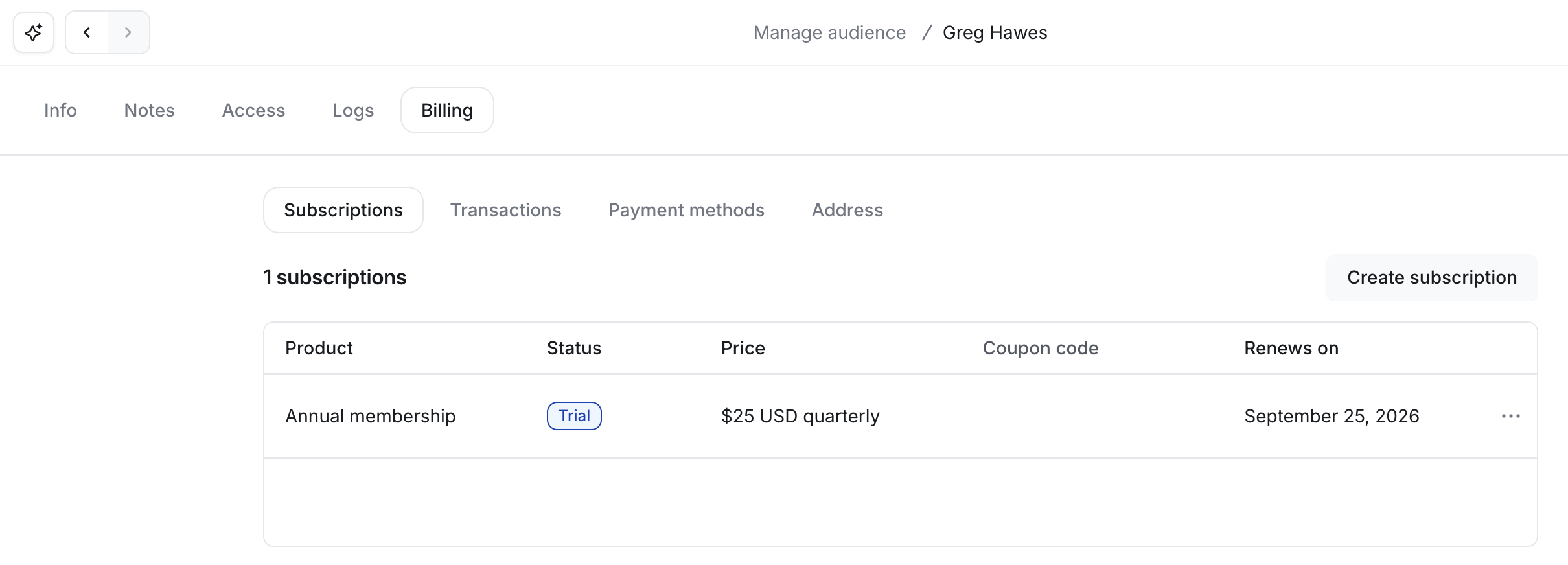
If you have paywalls set up or your members are subscribed to your community via Circle paywalls, you can perform the following actions on the Billing page from a member's profile:
Create a new subscription
Extend a trial end date
View and manage subscriptions
View and manage transactions
-
Update the billing information
📚 For more information, see Create and manage paywall subscriptions from member profiles.