Deactivate, delete, or ban members
Last updated: October, 2026
As an admin, you have multiple options when removing a member. This article explains how deactivation, deletion, and banning work and helps you choose the best action for each situation.
About removing members
When you need to remove a member from your community, you have three options: deactivate, delete, or ban. Each of these options serves a different purpose and has varying outcomes.
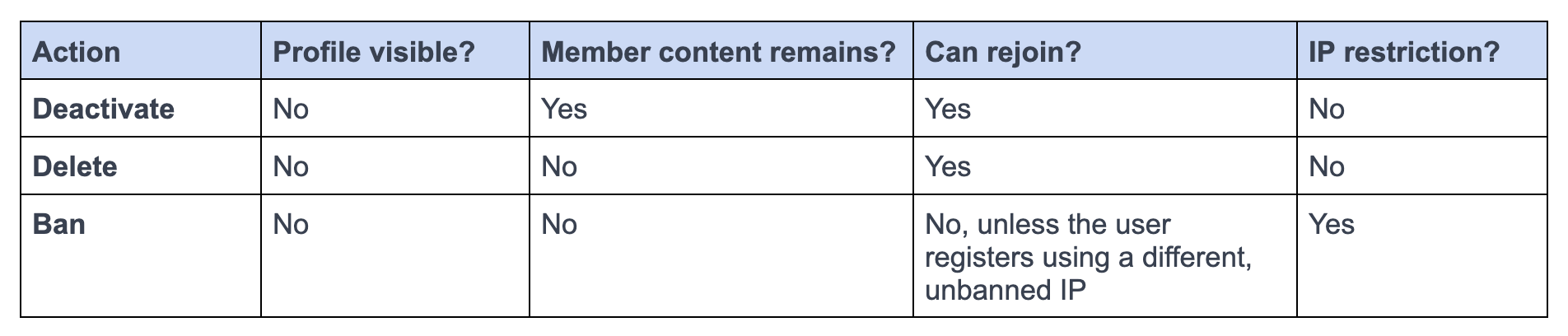
Accessing member removal options
Click Audience in the left sidebar, then select Audience.
On the Manage audience page, navigate to the preferred tab and use the filters to search for a member.
Click the member's name to open the edit account page. Alternatively, hover over the member entry, click More actions (three dots) and select Edit.
-
Scroll to the bottom of the Info page and choose one of the removal options.
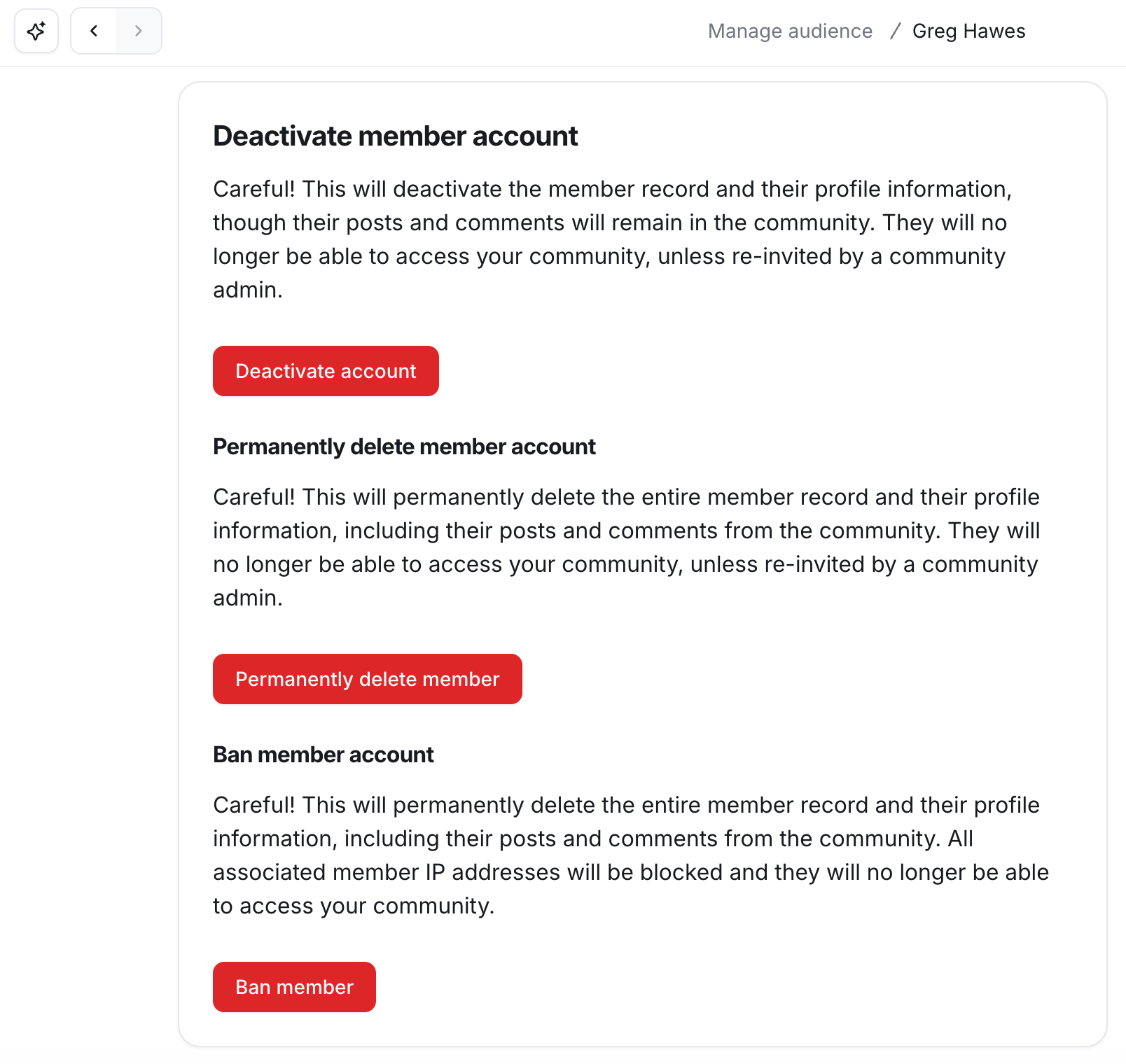
Key things to know about member removal
Before we explore the removal options, please review the following key points:
-
Who you can remove: You can remove any member with any role, including moderators or admins, even those invited but not yet joined.
Notifications: Members will not receive a notification when their account is removed.
-
Removal permissions: Only admins have the authority to remove members from your community.
💡 Tip: You have the option to prevent members from deactivating their own community accounts. If you have enabled the “Allow my members to deactivate their account” toggle in your community settings, members can deactivate it directly from their account settings. See Deactivating your member account.
Activity logs: When a member is deactivated, deleted, or banned, the action is recorded, and you can see the log entry in the Activity logs.
Let’s take a look at each option in detail.
Deactivating a member
Deactivating a member restricts their access without deleting their content, allowing potential reactivation.
Before deactivating a member account: What you should know
We recommend going through the following information before deactivating a member account.
Member’s profile visibility: Deactivated members’ profiles are not accessible to admins and other members.
Member’s content: Any content a member has posted in the community, such as posts, comments, and messages in chat spaces and group DMs, will remain in the community even after the member account is deactivated.
Paywall membership: If a member has an active paywall subscription or installment plan, you'll need to cancel it manually before deactivating their individual account from the community. If you're using other bulk removal methods to deactivate accounts, like workflows or EasyCSV, the subscription is canceled automatically, effective immediately.
-
Loss of member data: It is important to note that upon deactivating a member account, they will lose the following:
Course progress
Profile field information
Activity score
Event RSVPs
Moderation privileges
Tags
Bookmarks that they created
Contacts: Deactivating a member removes them from your Contacts list, not just from Members.
-
Account reactivation: A deactivated member’s account can be reactivated in a couple of ways, including being invited by an admin, using an invite link, or purchasing a paywall.
ℹ️ Note: Members cannot re-register and join your community on their own using the same email (connected to their deactivated account) through the public sign-up process (e.g., clicking the "Join" button on your community page or signing up on the authentication screen). They will have to rejoin using one of the methods mentioned above.
To learn about how to reactivate a member account in detail, see Re-invite a deactivated member.
When it comes to deactivating member accounts, you have the following options:
Deactivate individual member accounts.
Deactivate members using workflows, Zapier, or EasyCSV.
Deactivate individual member accounts
You can individually deactivate members from the community. When you are editing a member’s account, follow these steps:
Click Audience in the left sidebar, then select Audience.
On the Manage audience page, navigate to the preferred tab and use the filters to search for a member.
Click the member's name to open the edit account page. Alternatively, hover over the member entry, click More actions (three dots) and select Edit.
Navigate to the Info tab.
Scroll to the bottom and click Deactivate account.
In the confirmation dialog, enter the required keyword as instructed and click Confirm.
Deactivate members in bulk using workflows
You can create an automation, a bulk action, or a scheduled workflow to deactivate specific members in your community.
For an automation workflow, start by selecting your preferred trigger and then choose Remove member(s) from community action.
For a bulk action or scheduled workflow, set your audience filters and then choose Remove member(s) from community action.
Deactivate members in bulk using EasyCSV
Integration with EasyCSV helps you perform various bulk tasks in your community, including removing members (deactivation).
To get started with removing members in bulk using EasyCSV:
-
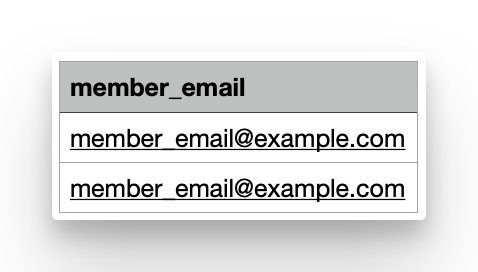
Prepare your CSV file. You can export a community member list based on filters from the Manage audience page. To use it with EasyCSV, you only need a single column named member_email that contains the email addresses of existing members.
Get the Admin v1 token from your community settings.
-
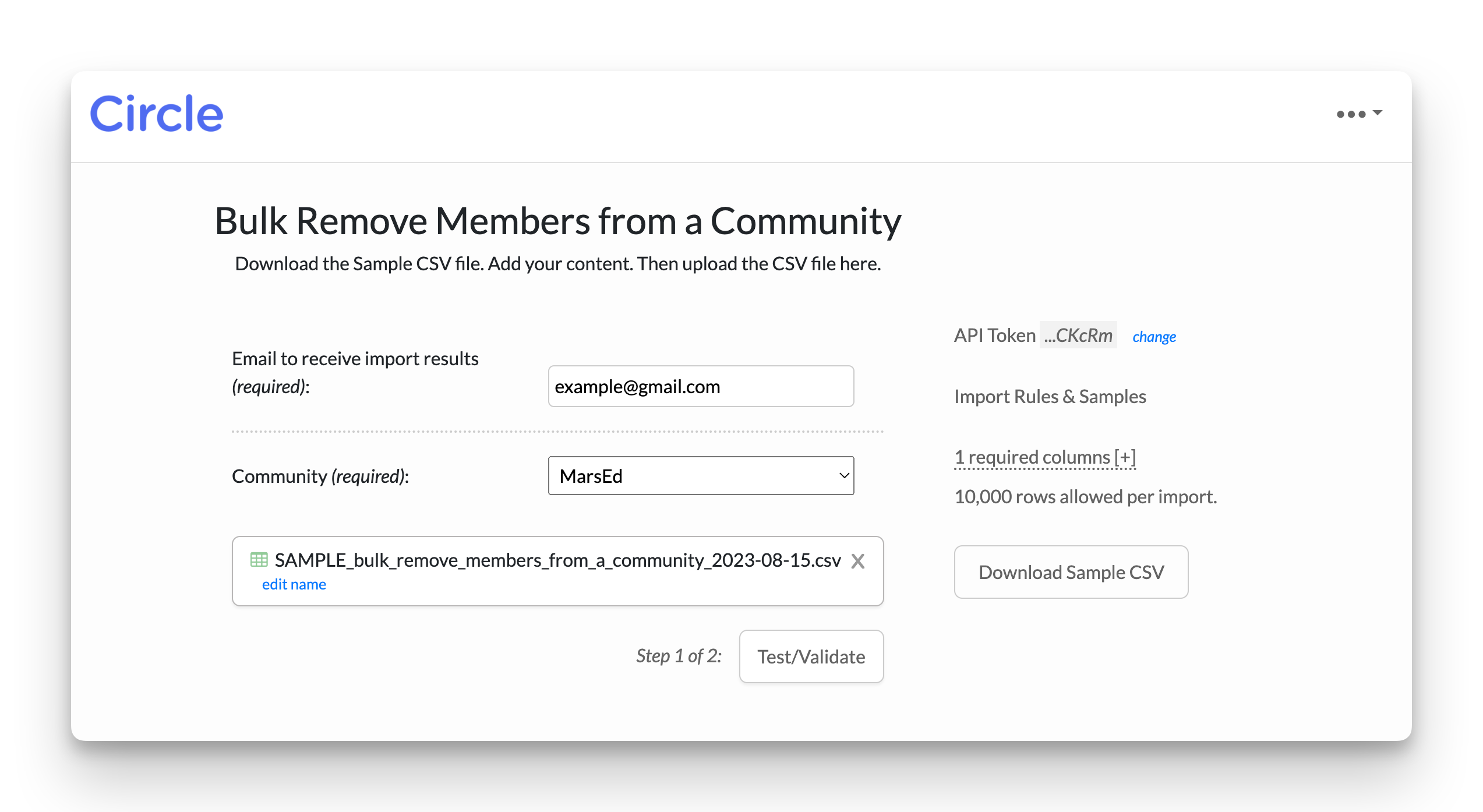
Go to EasyCSV’s Bulk remove members from a community page, and upload a CSV file.
-
Add your email address to receive the import result.
Click Test/Validate and then click Import records to perform the action.
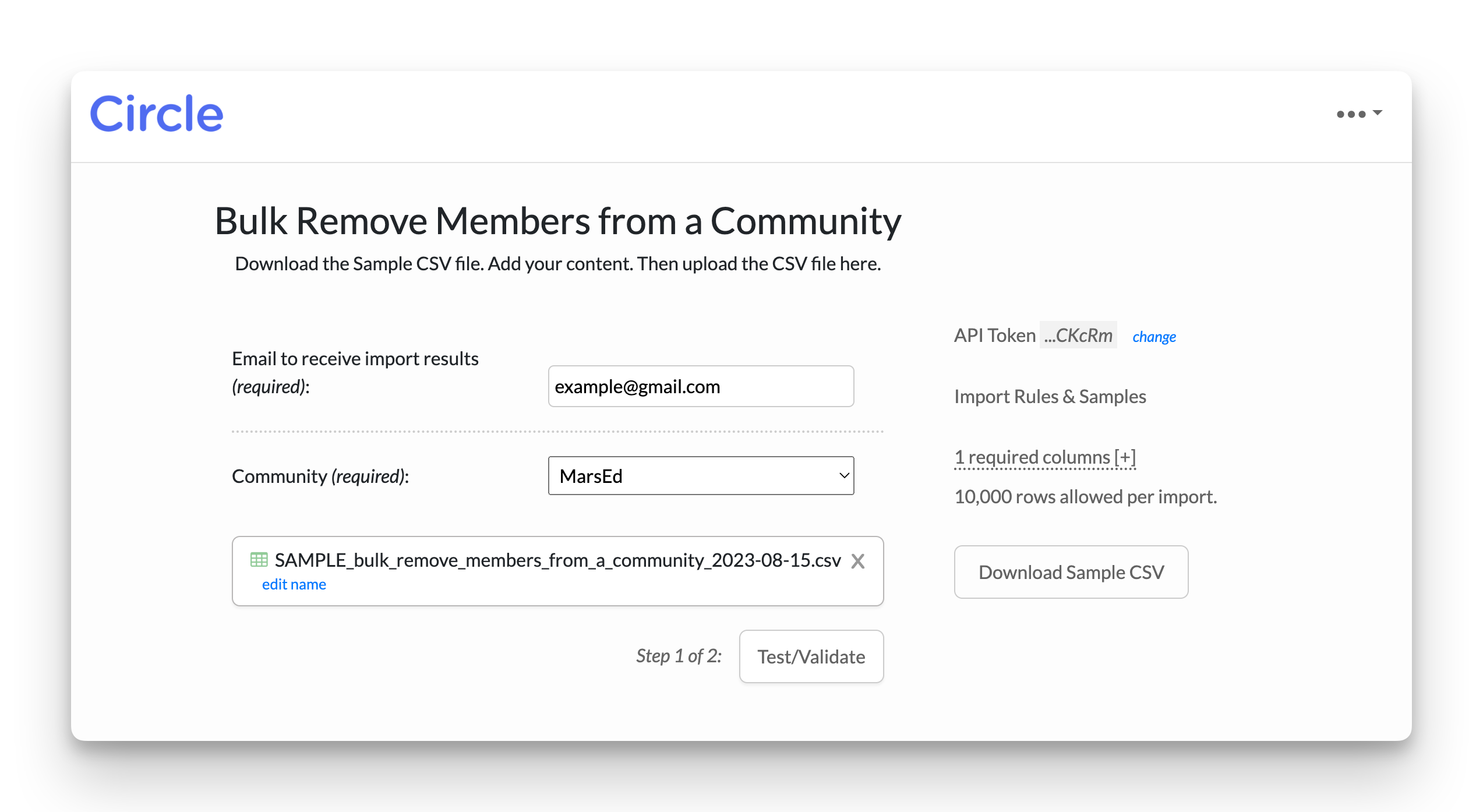
📚 For more information about EasyCSV, see Use EasyCSV to perform bulk actions.
Deactivate members using third-party automations
You can use third-party automation platforms such as Zapier (Remove member action) or Integrately (Remove member from your community in Circle action) to automate deactivating members from your community based on specific trigger events.
Deleting a member
Deleting a member permanently removes their account and erases their content from the community.
Account deletion is appropriate when a member requests complete removal from the community. It is also useful for eliminating inactive or spam accounts, helping to maintain an organized and relevant community environment.
Before deleting a member account: What you should know
We recommend going through the following information before deleting a member account.
Member’s profile and data: Deleted members’ profiles and content, including posts, comments, and messages are permanently erased.
-
Account reactivation: You can re-invite a deleted member at any time in your community using various invitation methods. Deleted members can also rejoin the community on their own if they have access to an invite link or paywall checkout URL.
❗ Important: Please note that when a previously deleted member signs up again, it will create a new community profile, just like a first-time member.
Delete a member
Currently, you can only delete members individually through your community. When you are editing a member’s account, follow these steps:
Click Audience in the left sidebar, then select Audience.
On the Manage audience page, navigate to the preferred tab and use the filters to search for a member.
Click the member's name to open the edit account page. Alternatively, hover over the member entry, click More actions (three dots) and select Edit.
Navigate to the Info tab.
Scroll to the bottom and click Permanently delete member.
-
In the confirmation dialog, enter the required keyword as instructed and click Confirm.
If the member is currently subscribed to a paywall membership, you will be asked to cancel their subscription first.
Banning a member
Banning a member permanently deletes their data and blocks their IP address, preventing them from accessing the community in the future.
Banning is ideal for violations, such as repeated abuse, harmful behavior, or other breaches of community guidelines. It is also an effective way to prevent problematic users from returning under the same IP address.
Before banning a member account: What you should know
We recommend going through the following information before banning a member account.
Member’s profile and data: Banned members’ profiles and content, including posts, comments, and messages, are permanently erased.
-
Account ban & IP restrictions: Bans are imposed on all IP addresses the member used in the 30 days before the ban.
It’s important to note that once a member's IP addresses are banned, admins cannot unban them. To lift a ban, please contact Circle support.
The list of banned IPs is not visible to community admins.
If a banned member tries to access the community, they will encounter a 401 error.
If the banned member belongs to multiple communities on Circle using the same email, their access to other communities will not be affected.
-
Account reactivation: Banned members cannot sign up again using an IP address that was blocked.
❗ Important: If a banned member uses a different, unblocked IP address, they can re-register as a new member with the same email. They can sign up using any of the methods available to them, similar to how reactivation works with other removal options as long as they use an unblocked IP address.
Ban a member
You can only ban members individually through your community at the moment. When you are editing a member’s account, follow these steps:
Click Audience in the left sidebar, then select Audience.
On the Manage audience page, navigate to the preferred tab and use the filters to search for a member.
Click the member's name to open the edit account page. Alternatively, hover over the member entry, click More actions (three dots) and select Edit.
Navigate to the Info tab.
Scroll to the bottom and click Ban member.
-
In the confirmation dialog, enter the required keyword as instructed and click Confirm.
If the member is currently subscribed to a paywall membership, you will be asked to cancel their subscription first.