Cancel member subscriptions
Last updated: August, 2026
While members can cancel their own subscriptions, Circle paywalls provide greater flexibility to admins in managing paywall subscriptions. In this article, we will guide you through the steps to cancel or resume member subscriptions in your community.
Key information regarding cancelations
When a member's subscription with a recurring price is canceled, their access will be revoked only from the spaces and space groups that are gated behind that specific paywall. This also applies when you cancel an installment price while payments are still remaining.
Canceling a subscription does not automatically deactivate their account. They will retain access to any spaces or space groups that are not part of the paywall subscription. If there are open spaces within your community, the members can still join them.
Since one-time fee paywall purchases provide lifetime access, the option for canceling the subscription is not available. To revoke a member's access to paywalled spaces, you must manually remove them through their member account. If you want to revoke a member's access entirely from the community, you can deactivate their member account.
Similarly, if you wish to remove a member's access from paywalled spaces after their installments are completed, you will also need to manually remove it from their member account.
You can use workflows to cancel member subscriptions for those who have purchased a paywall with a recurring subscription.
Cancel member subscriptions manually
As an admin, you can manually cancel a member subscription conveniently from the member profile or the subscriptions page!
To cancel a member subscription:
Click Payments in the left sidebar, then select Subscriptions.
Click the More actions (three dots) beside the member entry and select Cancel.
-
Select one of the cancel options (see below for more details).
Cancel immediately: This option stops the subscription right away.
End of current period: Choose this option to allow the subscription to continue until the current billing period ends.
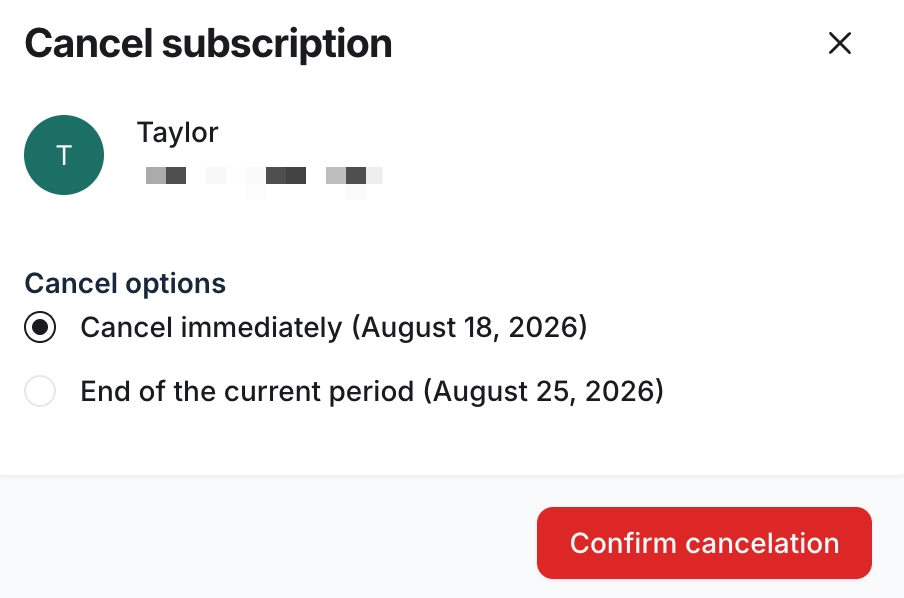
If you have chosen Cancel immediately, select the refund option (see below for more details).
Click Confirm cancelation.
Let’s go through both cancelation options in more detail.
Cancel immediately
You can opt to cancel a member’s paywall subscription, effective immediately, with or without a refund. This option is available when you cancel a member's subscription with either installments or recurring subscription pricing.
❗Important: Canceling the subscription immediately is irreversible. If the member wishes to resume the subscription, they will need to go through the checkout process and subscribe to paywall again.
When you choose this option:
Subscription: The subscription is terminated with immediate effect.
Member access: The member loses access to the paywall and its contents as soon as you confirm the cancelation.
When canceling a member’s subscription immediately, you have the following option for providing a refund:
No refund: No refund will be applied to this subscription.
Prorated refund: The refund applied will be proportional to the remaining subscription time. The refund includes both payment charges and credit balances, if applicable.
Full refund: The last invoice will be refunded, including payment charges and credit balances, if any. The application fees applied from the transaction are also included here.
When you refund a member payment through your Circle community, you’ll automatically get Circle’s transaction fees refunded in your payout. Please note that this only applies to Circle’s transaction fees. If you issue a refund directly through your Stripe dashboard, Circle's transaction fees won't get refunded.
💡 Tip: If you would like to provide a custom refund amount for any paywall transaction manually, see Refund member payments.
Cancel at the end of the current period
If a member is subscribed to a paywall with a recurring subscription, you also have the option to cancel their paywall subscription at the end of their current billing cycle.
Here's what happens when you choose this option:
Subscription: The member's subscription remains active until its next renewal date (shown in brackets), but it will not be renewed after that date.
Member access: The member continues to have access to the paywalled content during the remaining subscription time. However, after the end of the current period, the member will lose access to the paywall and its contents as soon as you confirm the cancelation.
Please be aware that if a member's subscription has already been canceled with time remaining, it is not possible to cancel it immediately. In such cases, the member or the admin can only resume the subscription.
Cancel member subscriptions using workflows
If you need to automate or bulk cancel member subscriptions, workflows are an excellent choice. These cancellation workflows currently only work for recurring paywall subscriptions. Depending on the action you select, you can initiate the cancellation to take effect either immediately or at the end of the member’s current billing cycle.
To set up cancelation workflow:
To create a new automation, bulk action, or scheduled bulk action workflow, click Workflows in the left sidebar, then select Workflows.
Set up the entry rule for the workflow.
Go to the workflow action. In the Choose an action dropdown menu, select Cancel paywall subscription.
In the Select paywall dropdown menu, choose the paywall.
Click Continue and execute it when ready.
📚 Once the workflow is executed, you can see the task results by navigating to the workflow history. For more information, see View task history of workflows.
Resume subscription
You can resume a member subscription that is set to be canceled at the end of the current period with time remaining on the subscription.
To resume a canceled subscription:
Click Payments in the left sidebar, then select Subscriptions.
Click the More actions (three dots) next to the member entry, then select Resume.
Click Resume subscription to confirm the change.