Set up failed payment settings and customer emails in Stripe
Last updated: March 25, 2026
Control how Circle handles failed payments through your connected Stripe account. This helps you decide how lenient or strict your payment retry process should be and how to set up cancellations after retries are exhausted.
About failed payment configurations
Stripe’s failed payment configuration lets you customize how often Stripe retries failed payments, how long it waits before canceling a subscription or installment plan, and what notifications customers receive along the way.
These configurations apply to the following paywall pricing:
Subscriptions
Installments
Here’s what you can manage through Stripe:
Send customer emails about renewals, failed payments, and expiring cards.
Configure retry attempts and timing when a payment fails.
Set up to cancel the subscription (or installment plan) when retries are exhausted, so Circle automatically revokes access to paywalled content.
❗Important: These settings apply universally to all paywalls with subscription and installment prices, including trials.
How to access the subscription and email settings
To access the subscription and email configuration settings, follow these steps:
-
Navigate to your Stripe account dashboard that is connected to your community paywalls.
-
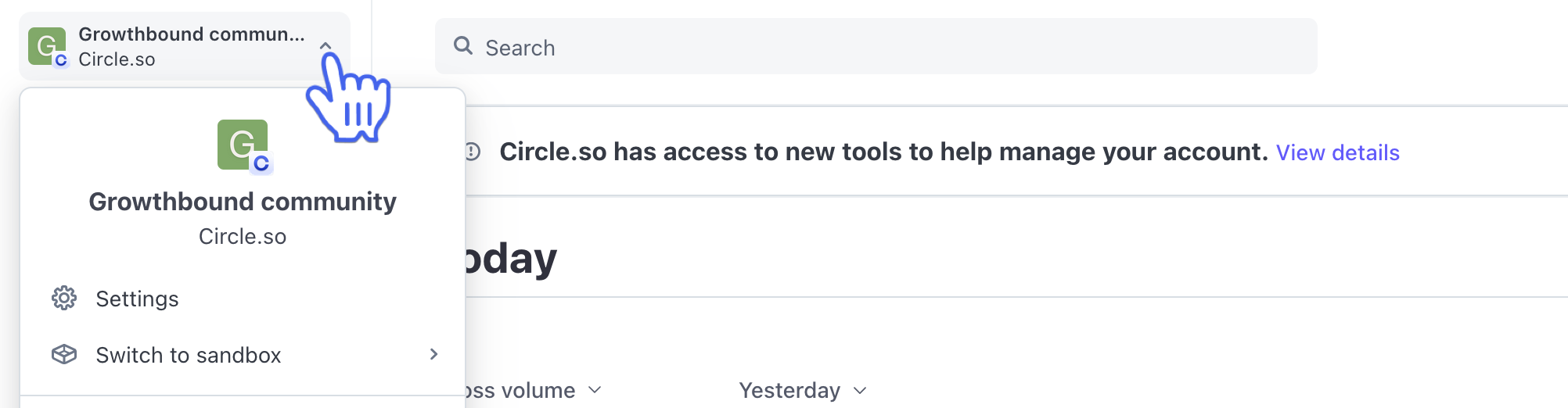
❗Important: If you have multiple businesses under your account on Stripe, please ensure that you are viewing the correct business dashboard. You can switch between your businesses by clicking the business name in the top-left corner and selecting the one connected to Circle paywalls.
-
-
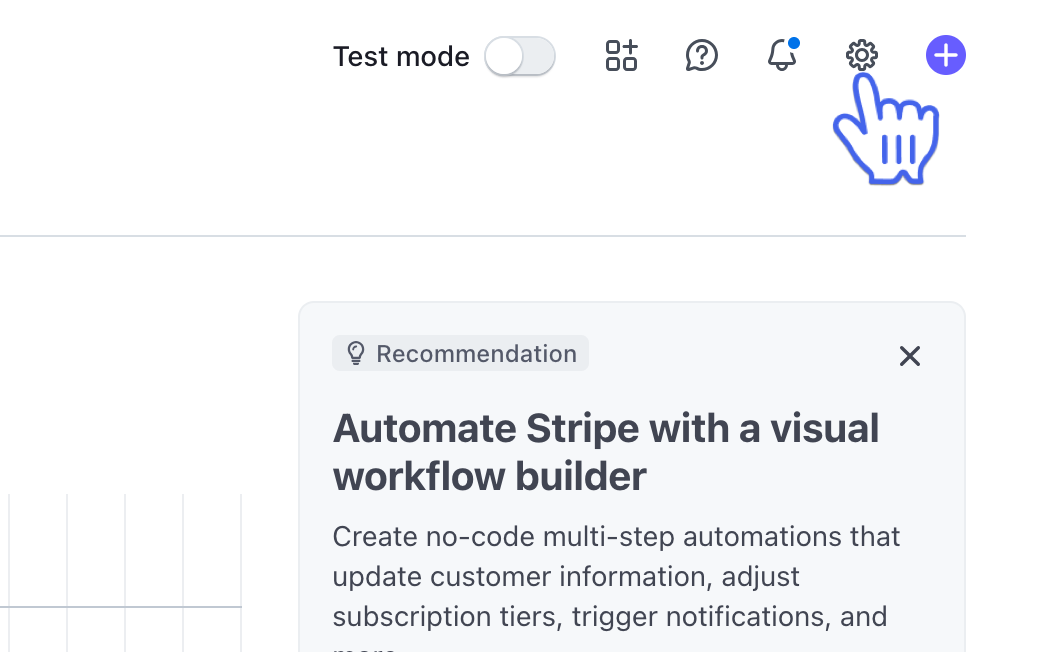
Click the Settings (Gear icon) in the top right corner to navigate to the menu.
Select Billing and then click Subscriptions and emails. Alternatively, go directly to this link: https://dashboard.stripe.com/settings/billing/subscriptions.
Set up customer emails
Stripe enables you to send automated emails to your members, reducing payment failures and enhancing communication.
Customer emails
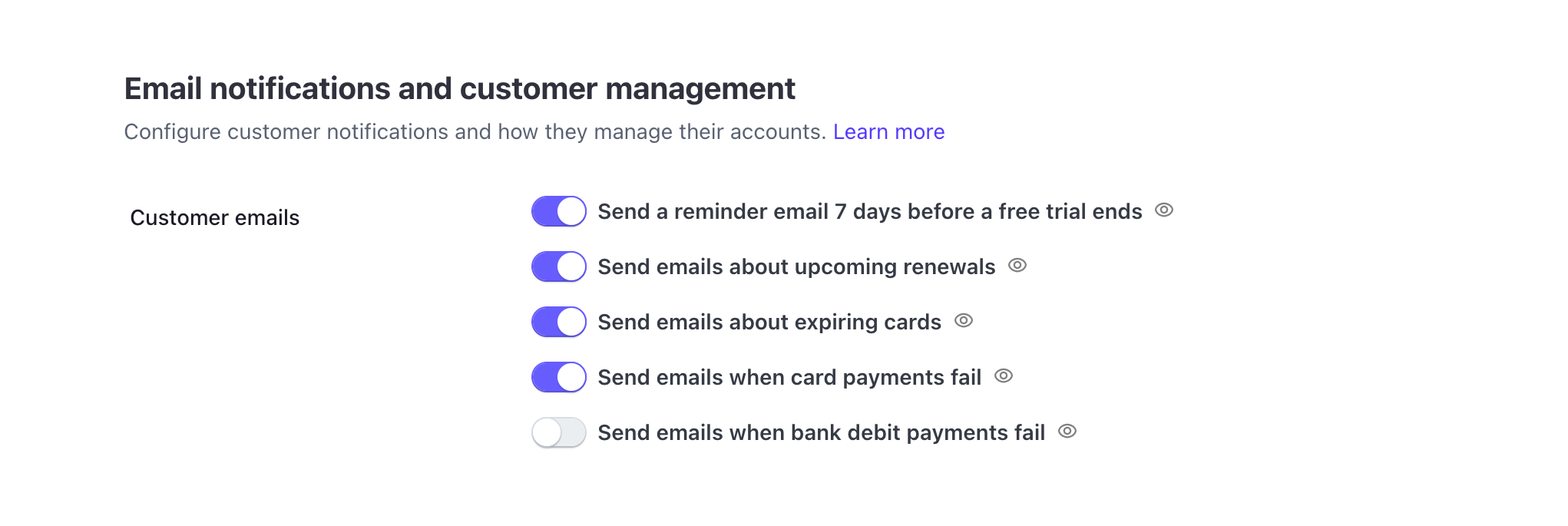
To enable or disable various emails from Stripe, go to the Email notifications and customer management. In the Customer emails section, you can enable the following options:
Send a reminder email 7 days before a free trial ends: This email automatically notifies members that their trial is about to end and payment will begin soon. This helps set clear expectations and gives them time to cancel or update their payment method before being charged.
Send emails about upcoming renewals: Stripe will email members before their plan renews, reminding them of the upcoming charge. The timing depends on the event you configure under the "Upcoming renewal events" setting (See Prevent failed payments section below).
Send emails about expiring cards: Alert members one month prior to their card expiration so they can update their payment method. This helps avoid interruptions in paid access.
-
Send emails when card payments fail: Notify members every time their recurring payment fails during a charge attempt. Members can update their payment method by clicking the link in the email, which helps resolve issues quickly before the subscription is canceled.
-
❗Please note that this notification only applies to payments in the following scenarios:
The member is already subscribed to a paywall, and upon their recurring payment, Stripe’s attempt to charge them fails.
The member is already subscribed to a trial paywall and has added a payment method, but their initial payment for the subscription fails. If there is no payment method added to a member’s account, Stripe won’t send a failed card payment email.
-
Add a payment method info link in customer emails
You can include a link in these customer emails mentioned above that takes members directly to the payment method settings in their community account.
To do this:
In the Payment method updates section, select Use your own custom link.
-
Add your community billing page URL using this format: [your-community-URL]/account/billing?tab=paymentMethods
-
For example, “https://community.circle.so/account/billing?tab=paymentMethods”
-
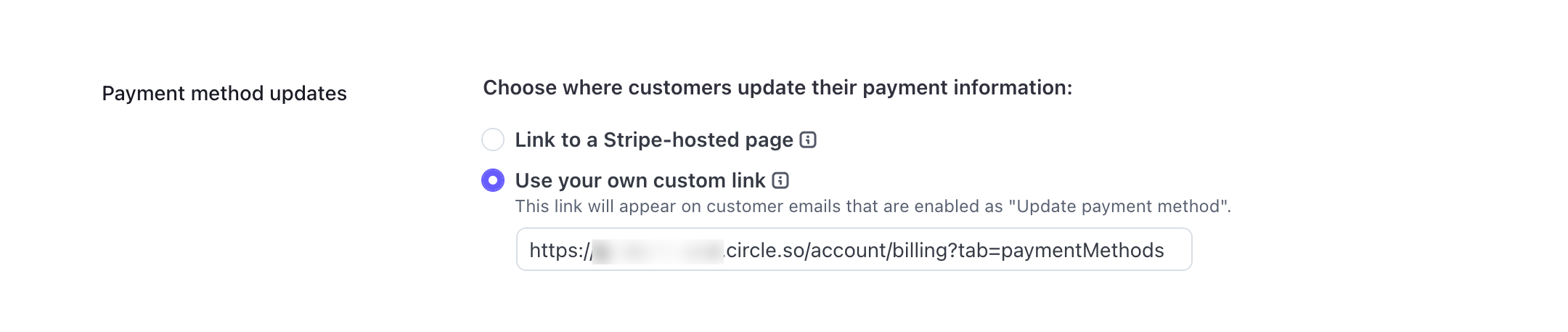
When enabled, members who click “Update payment method” in the email will be redirected to their Circle billing page, where they can update their payment details.
Add a subscription management link in customer emails
You can include a link in these customer emails mentioned above that takes members directly to the subscription settings in their community account.
To do this:
In the Subscription management section, enable Include a link for customers to manage their subscriptions toggle.
Select Use your own custom link.
-
Add your community billing page URL using this format: [your-community-URL]/account/billing?tab=subscriptions
-
For example, “https://community.circle.so/account/billing?tab=subscriptions”
-

When enabled, members who click “Manage your subscriptions” in the email will be redirected to their Circle billing page, where they can manage their subscription.
Prevent failed payments
Under Prevent failed payments, you can configure a renewal event for recurring payments.
Choose your preferred timeframe using the dropdown menu, then click Save.
Please note that the renewal event will only be created if the billing period is longer than 7 days.
Manage failed payments
This section controls what happens after a payment attempt fails, including retry attempts and the final subscription status.
❗ Important: Any changes made here apply to both active subscriptions and trials in your community.
Set up a retry schedule
To set up a custom schedule for payment attempts:
Select the Use a custom retry policy for subscriptions.
-
Add retry options from the dropdown as per your preferences. You can configure up to three retries over a maximum of 27 days.
-
💡 Tip: If you would like to implement a stricter policy around failed payments, you can set the custom retry policy to one day after the attempt to charge the customer (this is the earliest option).
-
Click Save.
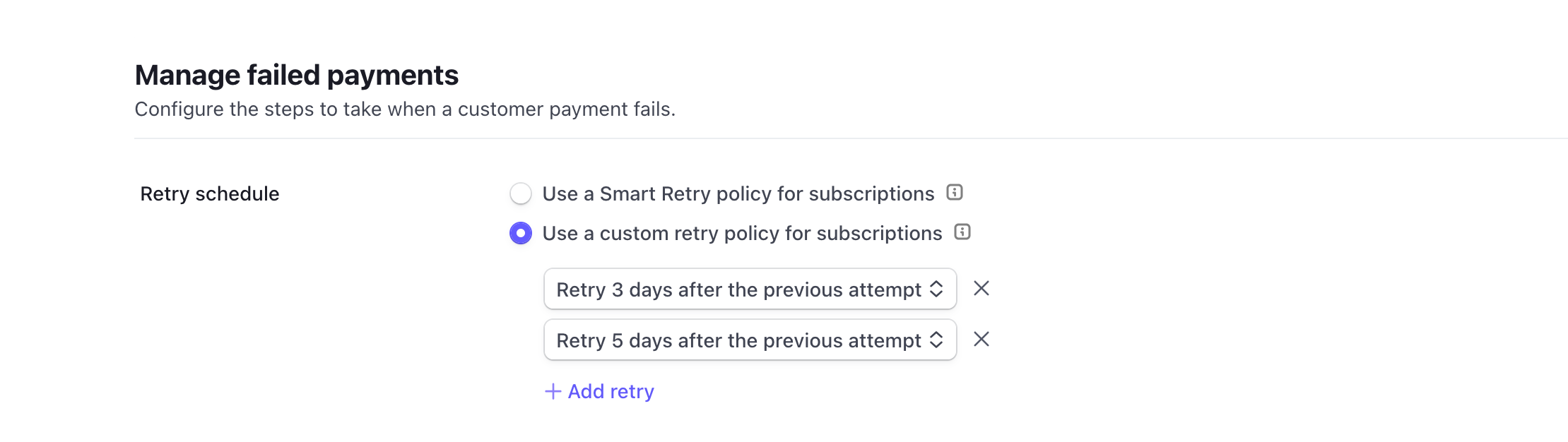
Alternatively, you can select Use a Smart Retry policy for subscriptions option, which uses Stripe’s machine learning to optimize retry timing. You can still choose how many retry attempts occur within the selected timeframe.
Set subscription status for failed payments
Once all retries are exhausted, Stripe needs to know what to do next.
In the Subscription status dropdown, choose Cancel the subscription to ensure failed subscriptions are properly closed. This allows Circle to automatically revoke the member’s access to paywalled content.
As a result of this configuration, here’s what happens:
Stripe charges the member’s payment method.
If the charge fails (no card on file or payment declined), the subscription or installment plan moves to Past due.
Stripe retries the charge according to your configured retry schedule.
If all retries fail, the subscription automatically changes to Canceled.
How canceled subscriptions affect Circle access
When a subscription is canceled:
Circle automatically revokes access to all paywalled spaces and space groups tied to that subscription.
The member’s Circle account remains active.
The member will continue to have access to non-paywalled spaces and any space groups they belong to. If there are open spaces visible to members within your community, the member will still have the option to join those spaces.
Automate workflow actions for subscription or installment cancellations
You can also automate actions when a member’s subscription or installment plan is cancelled, either immediately or at the end of the billing cycle.
For example, you might want to:
Add them to free content: Allow continued access to limited open spaces or discussions to encourage reactivation later.
Add a tag: Assign tags to members, such as “Canceled subscription,” to segment them for future campaigns or win-back offers.
Send them an email or DM: Reach out to understand why they canceled, collect feedback, or share renewal options.
Remove them from your community (deactivate their account): Remove their access to your community when they cancel the subscription.
To set this up:
When a subscription is scheduled to cancel: Use the Subscription scheduled to cancel event as your trigger and add your desired action.
When a subscription is cancelled immediately: Use the Subscription canceled event as your trigger and add your desired action.
📚 To learn more about automation workflows, see Set up a custom automation workflow.