Gate spaces behind paywalls
Last updated: August, 2026
About paywalled spaces
You can offer access to multiple spaces as part of a Circle paywall purchase. By gating these spaces behind a paywall, you can create premium content accessible only to members who purchase a membership or are manually added by the admin or moderator.
This ensures that only authorized users can access and engage in these spaces, enhancing the value of your membership offerings. In this article, we’ll walk you through the process of setting up space access, adding them to paywalls, and customizing the lock screens to create a seamless user experience for your members.
Set space access
The first and most crucial step is to ensure that all the spaces you plan to add to your paywall are set to private or secret so that non-space members cannot access them without making a paywall purchase.
To set up space access:
Navigate to the space from the sidebar.
Click the Space settings (three dots) icon in the top-right corner of the space, and select Access.
-
In the Access section, select Private or Secret.
Click Save changes.
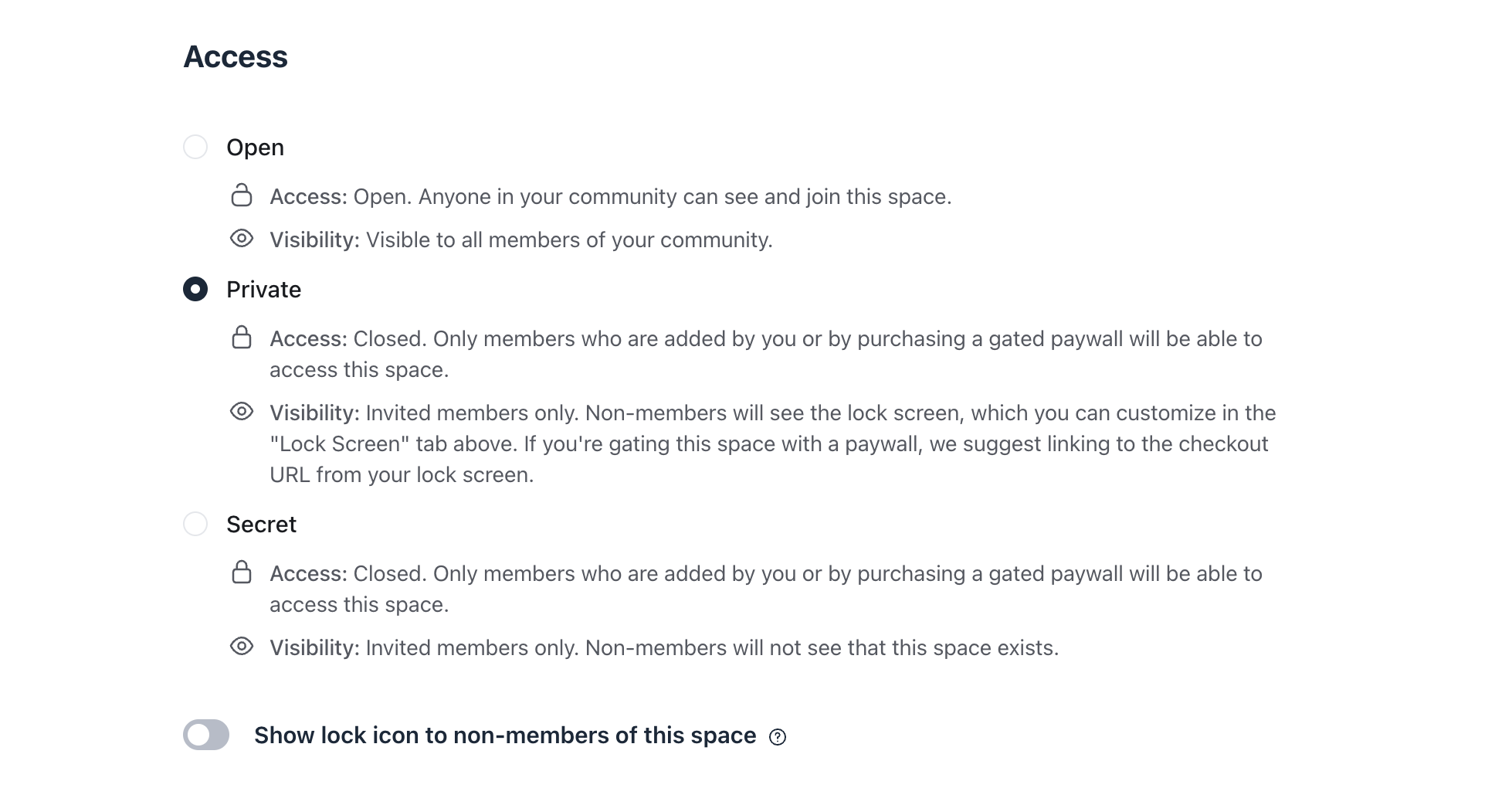
Repeat the above steps for all spaces you will add to the paywall.
Add spaces to the paywall access
Access groups control which spaces are available to paid members. To gate a space behind a paywall, add it to the access group linked to that paywall.
To add a space to an access group:
Click Audience on the left sidebar and select Access groups.
On the Access groups page, locate the access group and click the name to access the setup.
Navigate to the Access tab. You’ll find a table with two columns: No access (spaces or space groups not assigned to the access group) and Access (spaces or space groups currently added to the group).
Hover over the space or space group's name in the No access column.
Click Add to move it to the Access column.
Click Save changes and confirm the action.
📚 To learn more, see Update the access setup for an access group.
Set up lock screens
To further enhance the exclusivity of your paywalled spaces, you can set up a lock screen for each private space that greets non-space members or visitors (if your community is public) when they attempt to access these restricted spaces.
On the lock screen, you can include enticing page blocks such as a banner, media-rich description, and paywalls. The paywalls page block allows you to showcase up to six paywalls that provide access to the space. Each paywall card displays key details such as pricing, a brief description, and an option for users to purchase access directly from the lock screen.
📚 To learn more about the lock screen, see Setting up a lock screen.