View all member subscriptions
Last updated: August, 2026
The subscriptions page in your paywall settings offers a comprehensive overview of all member subscriptions. In this article, we will guide you through all the available options to view and manage both recurring subscriptions and installments in your community.
To get started, click Payments in the left sidebar, then select Subscriptions.
Search subscriptions
To access all your recurring and installment-type member subscriptions, head over to the All tab. Alternatively, you can streamline your view by visiting the Active or Canceled tabs to filter subscriptions based on their status.
💡 Tip: You can export the subscription data from any tab within the subscriptions page. Navigate to a specific tab, use filters to narrow down data (optional), and then click Export CSV in the top-right corner. To learn more about these exports, see Export member subscriptions and transactions data.
Within these tabs, you'll find vital subscription details, including the subscriber's name, paywall term, subscription start and renewal dates, and more.
When it comes to finding the precise subscriptions you're looking for, you can narrow down subscriptions within any tab by using the following filters:
Name and email: Filter subscriptions based on member name and email.
Status: Choose one or more subscription statuses, including active, trialing, past due, or canceled, to narrow down your selection.
Paywall: Search for subscriptions tied to a specific paywall by selecting its name.
Start date: Select from predefined date ranges or define a custom range to focus on subscriptions activated within a specific timeframe.
Subscription ID: Directly search for subscriptions based on their unique identification number.
Total amount paid: Select the minimum and maximum amount paid to filter by the payment amount.
Currency: Select one or more paywall currencies to filter subscriptions by currency.
💡 Tip: To sort the data within the table, simply click the relevant column headers.
ℹ️ Note: If you are looking for information on one-time fee purchases, please navigate to the Transactions page. For more information, see View all member transactions.
View subscription details
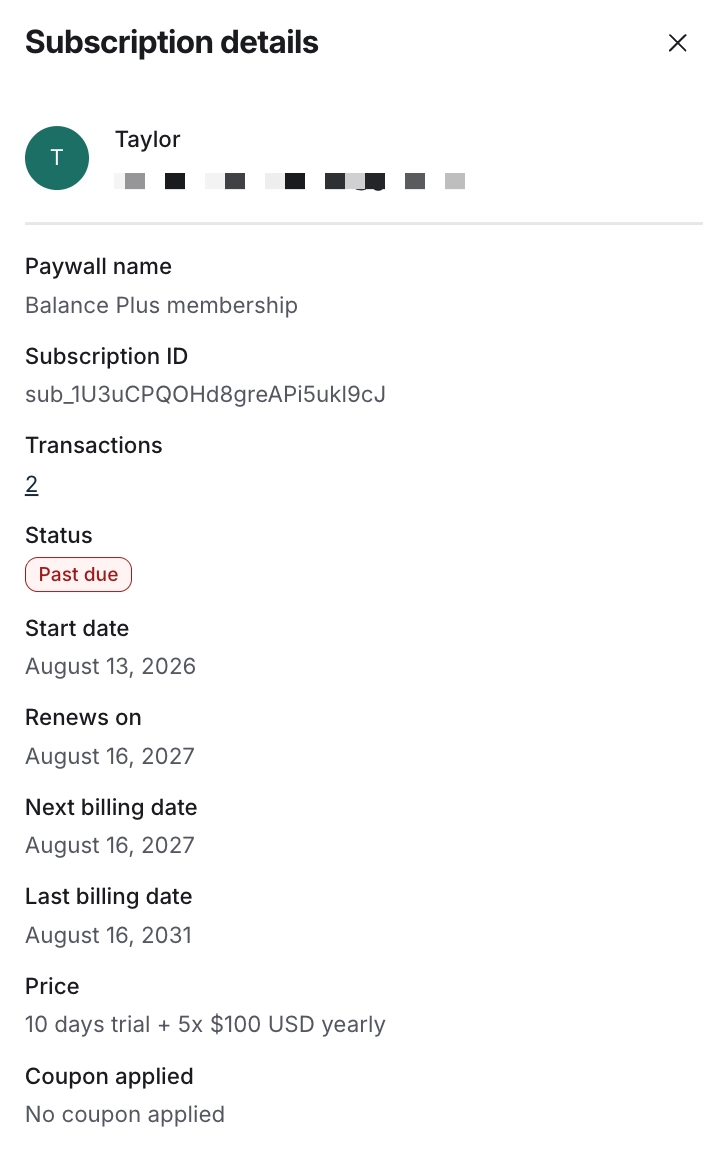
To view a member’s subscription details, click the More actions (three dots) icon beside the member entry and select Details.

Here, you can view the following information:
Member name and email
Paywall name
Subscription ID
Transactions
Status (Active, Trial, Past due, Cancels at [date], Canceled)
Start date
Renews on (renewal date if the subscription is active)
Ended on (end date if the subscription is canceled)
Price
Coupons applied
💡 Tip: Clicking the number under the Transactions will redirect you to the Transactions page where you can view details of all the transactions for this subscription.
Understand different subscription statuses
Let’s take a look at what each status means for paywall purchases with subscription or installment pricing:
Active: This status indicates that a member currently has an active paywall subscription, granting them access to community content (spaces).
-
Trial: When a member's subscription is in trial status, they can access paywalled spaces without charge until the trial period ends.
At the end of the trial, Stripe will charge the member for the subscription amount. If the payment fails, it will be moved to the Past due status.
Stripe will retry charges based on the retry schedule set in your Stripe account. For more details, see the information on the Past due status below.
Completed: Once a member has paid all installments for the paywall purchase with installment pricing, the status will automatically be set to Completed.
-
Cancels at [date]: If a member's subscription is set to cancel at the end of their current billing cycle with time remaining, you'll see this status along with an end date. Until that date, the member will retain access to paywalled spaces.
Admins can resume a member subscription that is in the Cancels at status. To learn more about resuming subscriptions, see this guide.
Similarly, a member can restart their subscription through their billing settings if it's in the Cancels at status. For more information, see Manage your membership subscriptions.
-
Canceled: This status means the member's subscription is no longer active. Once the member subscription is moved to the Canceled status, the member loses access to community content they received via the paywall.
Members have the ability to renew the paywall subscription that has been canceled in the past. For more information, see Manage your membership subscriptions.
-
Past due: When Stripe attempts to charge a member after their trial ends or a recurring payment for their subscription, and their payment fails for any reason, their status moves to Past due.
The member's subscription remains in this state until Stripe retries the payment, as per the retry schedule set in your Stripe account. This retry schedule applies to both trials and active subscriptions.
In addition to the retry schedule, you can also configure automated Stripe emails for upcoming renewals, expiring cards, and failed payments, notifying them to update their failed payment method. For more information about setting up a retry schedule and emails, see Automatically remove member's paywall access upon cancellation or failed payments.
If Stripe fails to charge a member within the retry schedule, it will move to canceled status, and the member will lose access to paywall content.
Manage subscriptions
When it comes to managing your members' subscriptions, you have several choices at your disposal depending on paywall configuration and subscription status:
Change billing cycle: When a member’s paywall subscription has multiple pricing options.
Change plan: When a member’s paywall subscription is part of a subscription group.
Cancel subscription: When a member has an active subscription.
Resume subscription: When a member has a canceled subscription that is still active with time remaining.
To access these subscription management options, click More actions (three dots) beside the member entry.
📚 To learn more about subscription management, check out the following articles: