Change the billing date, billing cycle or plan for member subscriptions
Last updated: August, 2026
As an admin, you can conveniently make changes to the billing date, billing cycle or plan on behalf of a member who has purchased a paywall with a recurring subscription. In this article, we will guide you through the steps to make these adjustments for your members.
About making changes to member subscriptions
You can modify members’ subscriptions in three main ways:
Billing date: If a member needs extra time before their next subscription renewal you can change their billing date directly from the Subscriptions page. When you update the billing date, the subscription cycle resets to start on the new date. For example, if a monthly subscription runs from March 1 to April 1 and you move the billing date to March 15, the new billing period becomes March 15 to April 15.
Billing cycle: If the paywall to which the member is currently subscribed offers multiple pricing options, such as monthly, quarterly, or yearly billing, you can switch to a different billing frequency. For example, you could change a member’s billing cycle from $15 a month to $40 every quarter.
Plan: If a member is subscribed to a paywall that is part of a subscription group, you can change their subscription to a different paywall within the same group. For example, you upgrade a member’s paywall from Basic to Premium. If the new paywall has multiple pricing options, you can also choose your preferred billing cycle.
ℹ️ Note: When you are in the process of changing plans, please note that archived paywalls are excluded from the paywall options. Similarly, if a paywall is archived, you will be unable to change the billing cycle.
Key things to know before making changes
Availability of the billing cycle change option: You and your member will see this option only if the paywall offers more than one pricing option. If the paywall has just one pricing option, the billing cycle change option won’t appear.
-
Availability of plan change option: You and your member will only see the option to change plans if the paywall is part of a subscription group and there’s at least one other active paywall in the group. For more information about subscription groups, see Set up subscription groups.
If the option doesn’t appear, double-check the setup of both the original paywall and the one you want to move the member to. Make sure they are both part of the same subscription group, and the paywall you want to move the member to is active.
Upfront payments: You can adjust a member's billing cycle or plan, whether or not the new option includes an upfront payment. If the new billing cycle or plan requires an upfront payment, the member will be charged this amount in full (no proration applies to upfront payment) immediately once the change is confirmed.
-
Prorated charges or credits: When adjusting a member's subscription, prorated charges or credits may apply. These depend on the number of days the member used the current plan and the remaining days on the new subscription.
❗Important: This proration only applies to the recurring pricing amount. If the member’s original purchase included an upfront payment, they won’t receive a prorated credit for that upfront amount when making changes to the subscription.
To get started:
Click the community name or logo in the top-left corner and select Paywalls.
Navigate to the Subscriptions page in the Paywalls menu in the left sidebar.
Change the billing date
On the subscriptions page, utilize filters at the top, such as name, email, or paywall, to find the member.
Click More actions (three dots) beside the member entry and select Change billing date.
-
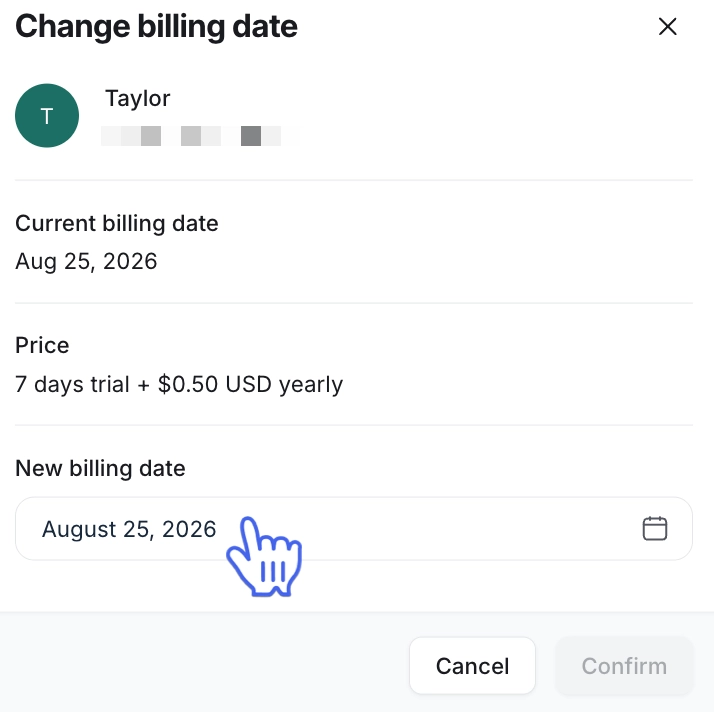
Under New billing date, click the date field and select a new date.
ℹ️ Note: You can move the billing date up to two years ahead.
-
Review the changes and click Confirm.
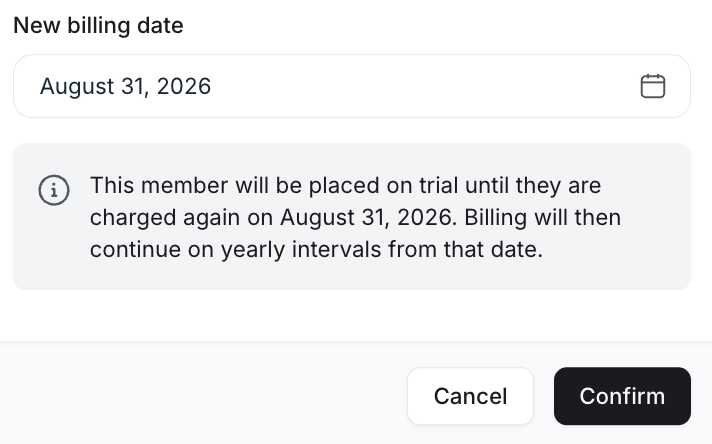
ℹ️ Note: When you change a member’s billing date, the subscription remains active and is placed on a trial until the new billing date. The member will be automatically charged on the new date.
Change the billing cycle
On the subscriptions page, utilize filters at the top, such as name, email, or paywall, to find the member.
Click More actions (three dots) beside the member entry and select Change billing cycle.
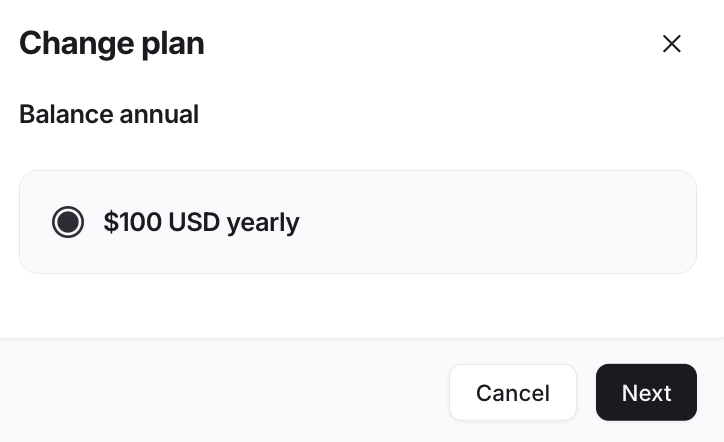
Select new pricing and click Next.
If you wish to offer a discount, click Add coupon code to enter the code, and then click Apply.❗Important: If a member has already applied a coupon for their initial purchase and it's still valid, it will transfer to the new billing cycle. However, if you decide to apply a new coupon instead, it will override the previously applied coupon.
Review charges and amount due information. For more information about proration, see Understanding prorated charges and credits for subscription changes.
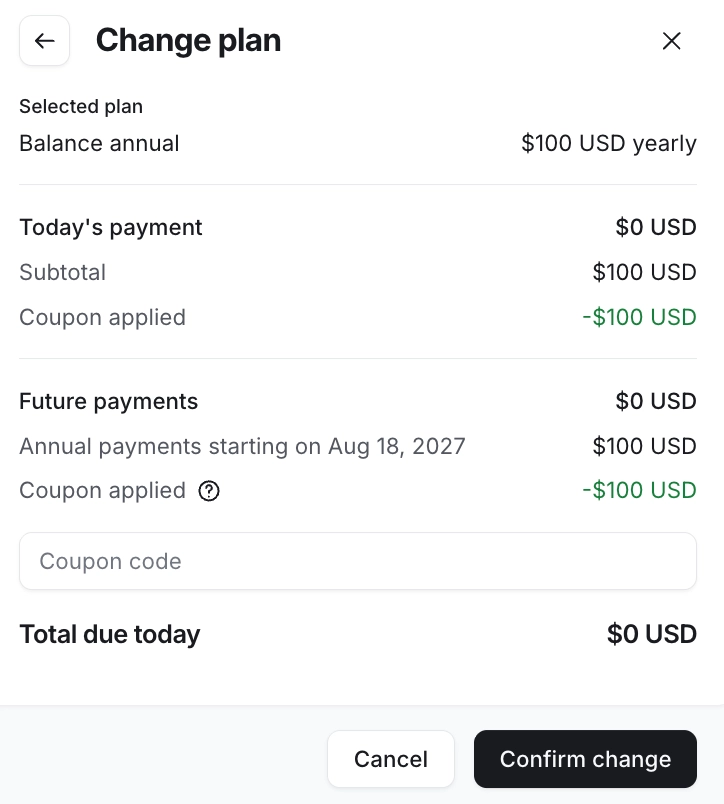
Click Confirm change.
Change the paywall plan
On the subscriptions page, utilize filters at the top, such as name, email, or paywall, to find the member.
Click the More actions (three dots) icon beside the member entry and select Change Plan.
-
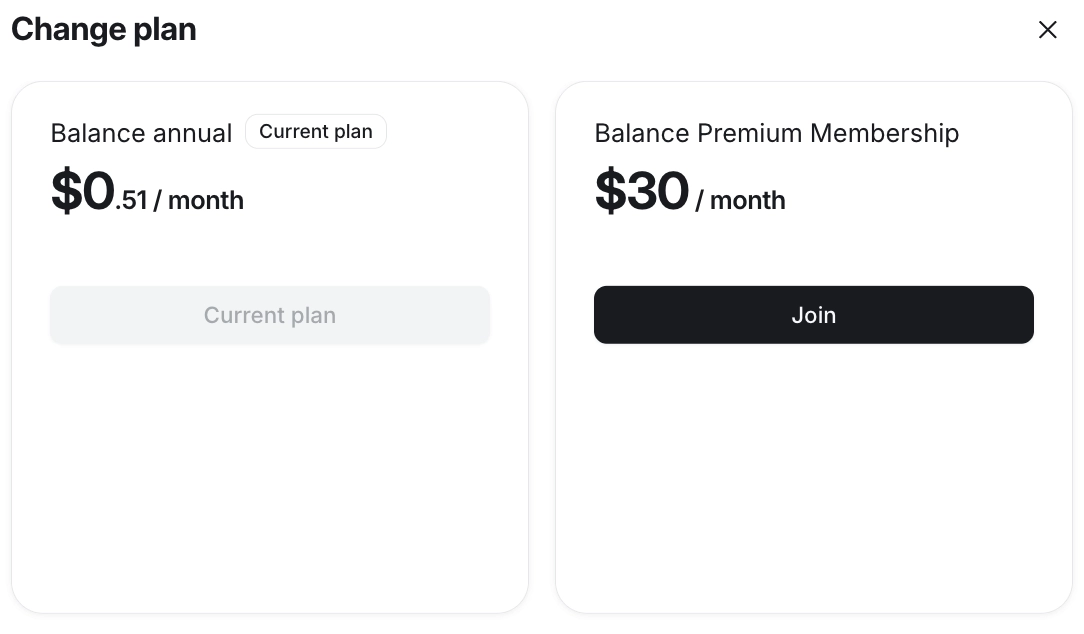
Here, all the paywalls available in the subscription group will appear. Select the new paywall plan and click Next.
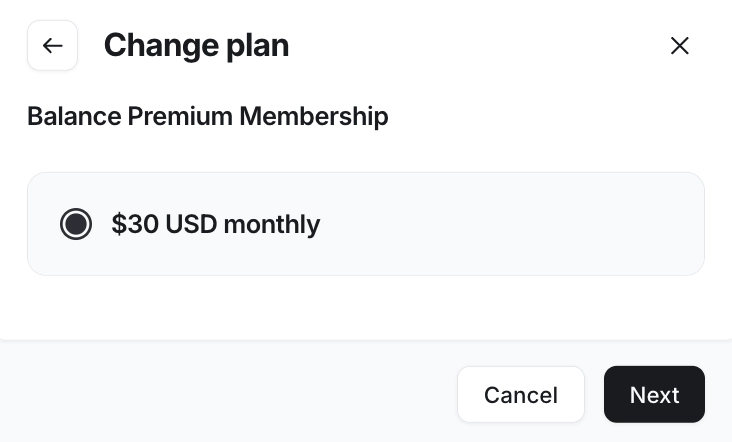
Select the billing cycle for the new paywall and click Next.
If you wish to offer a discount, click Add coupon code to enter the code, and then click Apply. ❗Important: If a member has already applied a coupon for their initial purchase and it's still valid, it will transfer to the new subscription plan, provided the coupon is configured to be applicable for all paywalls or the specific one you are upgrading or downgrading member’s subscription to. However, if you decide to apply a new coupon instead, it will override the previously applied coupon.
Review charges and amount due information. For more information about proration, see Understanding prorated charges and credits for subscription changes.
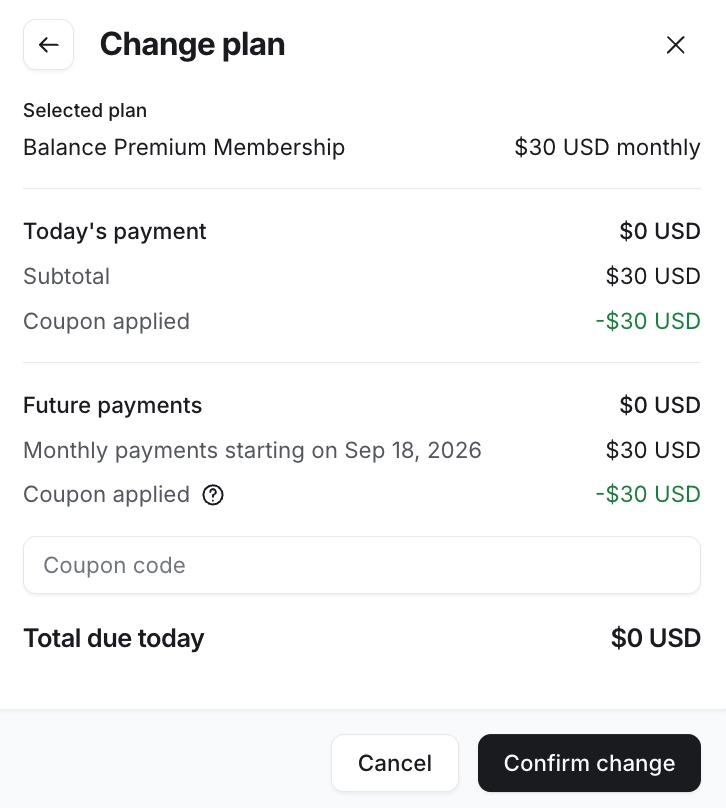
Click Confirm change.