Export member subscriptions and transactions data
Last updated: August, 2026
You have the flexibility to effortlessly extract vital paywall data to gain insights and analyze trends. In this guide, we'll navigate the steps on how to seamlessly export member data related to paywall transactions and subscriptions directly from your community.
Key things about paywall data exports
Here are essential aspects of the data export process:
-
We have designed the export to work in two layers to provide greater flexibility when exporting the data:
Filters: Within the subscription or transaction page, you can navigate to a specific tab and use filters to narrow down data before exporting it. If filters are applied within the tab, we take the filtered data into consideration for the export. If no filters are applied, we export all available data within the tab.
Columns: While exporting the data, you also get the option to choose default, all, or custom columns for your export.
The exported data is sent in a CSV file format directly to your admin email address for convenient download onto your device.
You have the option to export data according to your operating system’s time zone or UTC time zone.
💡 Tip: To export data within a specified timeframe, utilize the Date filter on the transaction page or the Start date filter on the subscription page before initiating the export process.
Export subscription data
To export the subscription data for your community paywalls:
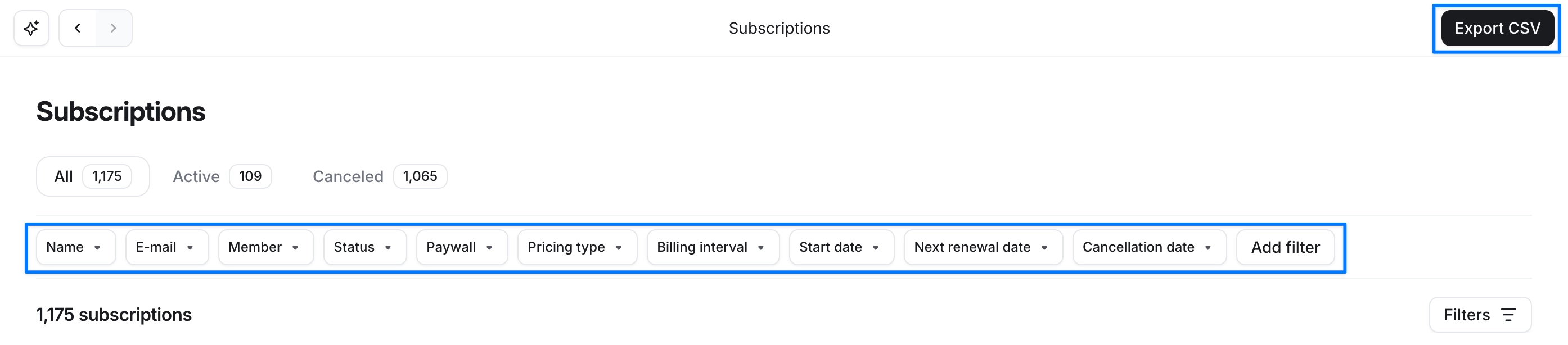
Click Payments in the left sidebar, then select Subscriptions.
Inside the subscriptions page, you'll find tabs labeled All, Active, or Canceled. Choose the relevant tab to export data specific to its category.
If needed, click Filters in the top-right corner and apply filters to refine the data you want to export. If you prefer to export all the data within the selected tab, skip this step.
-
Click Export CSV in the top-right corner.
-
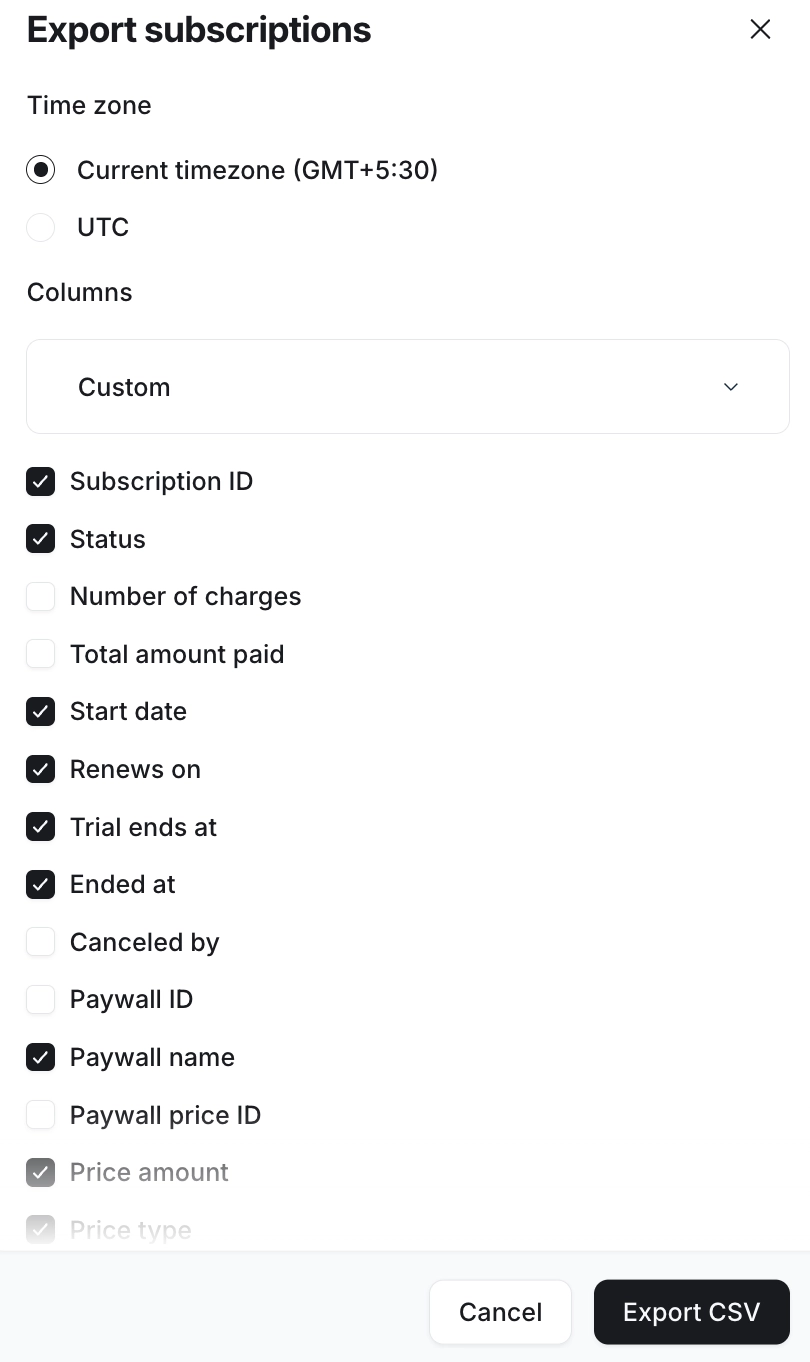
In the Export subscriptions dialog, select the following:
Time zone: Select either your operating system’s time zone or UTC time zone.
Columns: Click the dropdown menu and pick an option from Default, All columns, or Custom. If you have selected Default or All columns, you’ll see details of all the columns that will be included in the export. For the Custom option, select the checkbox next to the columns you would like to include in the export.
-
Once you've made your selections, click Export CSV.
You will be prompted with an informative dialog confirming your admin email, where the CSV export will be sent within a few minutes. Clicking Done on the dialog will open the Bulk logs page, where you can see the progress of the export.
Export transaction data
To export the transaction data for your community paywalls:
Start by clicking the community name or logo in the top-left corner and select Paywalls.
From the sidebar menu, navigate to the Transactions page.
Inside the transactions page, you'll find tabs labeled All, Paid, Processing, Refunded or Failed. Choose the relevant tab to export data specific to its category.
If needed, apply filters to refine the data you want to export. If you prefer to export all the data within the selected tab, skip this step.
-
Click Export CSV in the top-right corner.
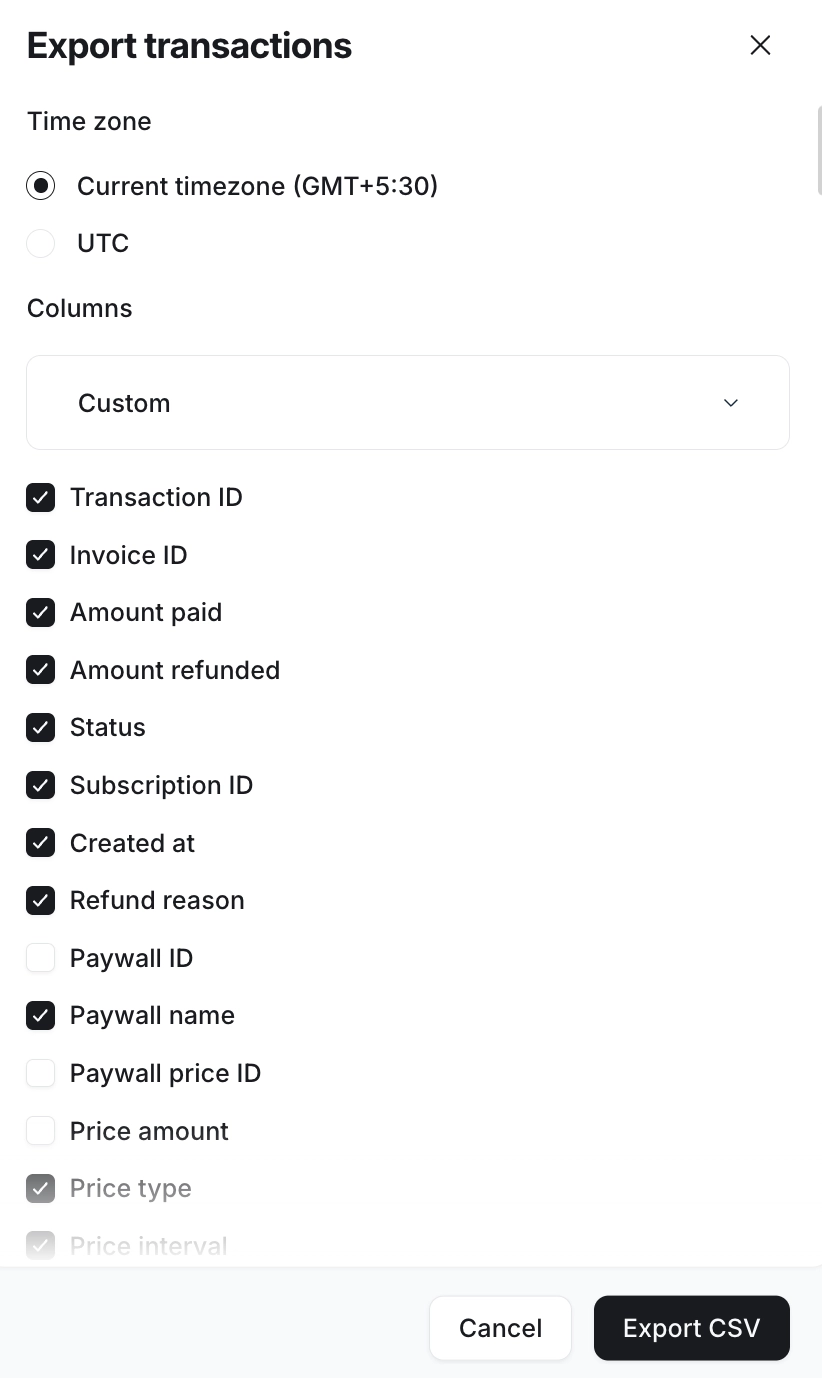
In the Export transactions dialog, select the following:

Time zone: Select either your operating system’s time zone or UTC time zone.
Columns: Click the dropdown menu and pick an option from Default, All columns, or Custom. If you have selected Default or All columns, you’ll see details of all the columns that will be included in the export. For the Custom option, select the checkbox next to the columns you would like to include in the export.
-
Once you've made your selections, click Export CSV.
You will be prompted with an informative dialog confirming your admin email, where the CSV export will be sent within a few minutes. Clicking Done on the dialog will open the Bulk logs page, where you can see the progress of the export.
View payment logs
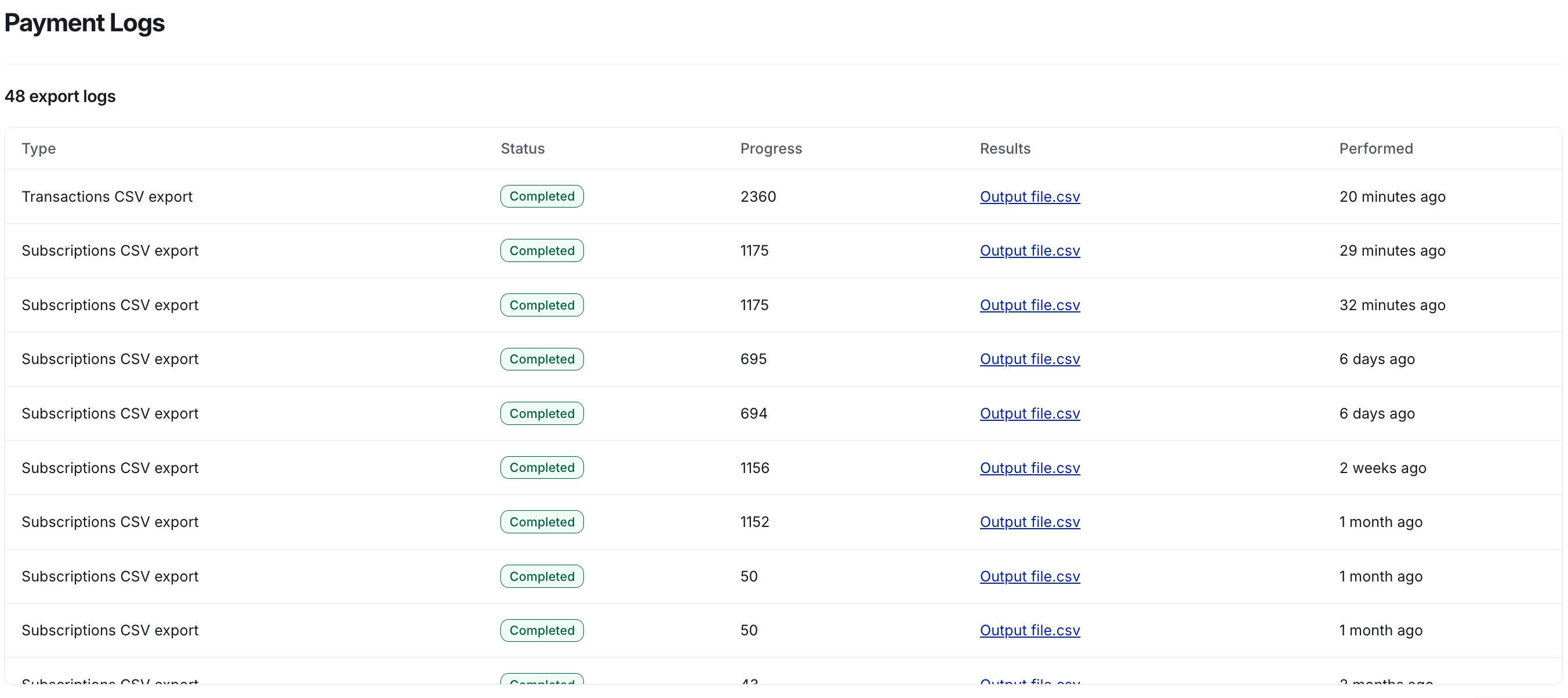
Whenever you initiate a paywall data export in the community, a log entry is created on the Payment logs page. This page keeps a record of any ongoing export and past export requests.
You can access the Payments logs page by clicking the community name or logo (or the dropdown icon next to it) in the top-left corner, then selecting Settings. Under the Payments section, select Payments logs.
Here, you’ll find the following information categorized into columns:
Type: Displays the type of the export.
Status: This shows the current status of the export process.
Progress: Tracks export progress by counting processed rows out of the total. For the completed exports, you’ll see the total number of rows included.
Results: Allows direct CSV file downloads by clicking the output files.
-
Performed: Indicates the date and time of the export when hovering over the timestamp.
Export data from Stripe
Similar to your Circle community, you can export paywall-related data from your paywall-connected Stripe account.
When trying to export the data from Stripe, make sure you are accessing the correct Stripe account dashboard that is connected to your community paywall:
❗Important: If you have multiple businesses under your account on Stripe, please ensure that you are viewing the correct business.
-
You can switch between your businesses by clicking the business name in the top-left corner.

From the Stripe dashboard, you can navigate to the following tabs to export data related to:
Within these tabs, the Stripe dashboard provides filters to refine the data. To export the data in a CSV file, simply click the Export button located in the top-right corner of the page.
📚 For more information about reports from Stripe, you can refer to their guide on Stripe Reports and Export customer data without the payment details.