View task history of workflows
Last updated: September, 2026
Workflow history is a valuable tool that provides insights into the status of the workflow tasks. When an automation workflow initiates the action or a bulk action workflow runs in your community, a dedicated task history is generated for each execution.
View history
The history page contains a record of the task history for all types of workflows, categorized into tabs by type of workflow: Automations, Bulk actions, and Scheduled.
The workflow creates a detailed task history for each execution for individual members or non-members. For example, if a workflow is set to send a direct message to RSVP'd members when an event ends, it triggers individually for each member, creating a dedicated task history for each execution.
To access workflow history, click Workflows in the left sidebar, then select History.
Within each tab, you will find task results containing key information, such as:
Name: Title of the workflow.
Person: Name of the member or non-member for whom the task is performed.
Status: Current status of task execution.
Steps: Actions performed as part of the workflow. You can hover over the icons to view the action.
Run at: Date and time of task execution.
-
Run ID: Unique ID assigned to the bulk action or scheduled workflow task.
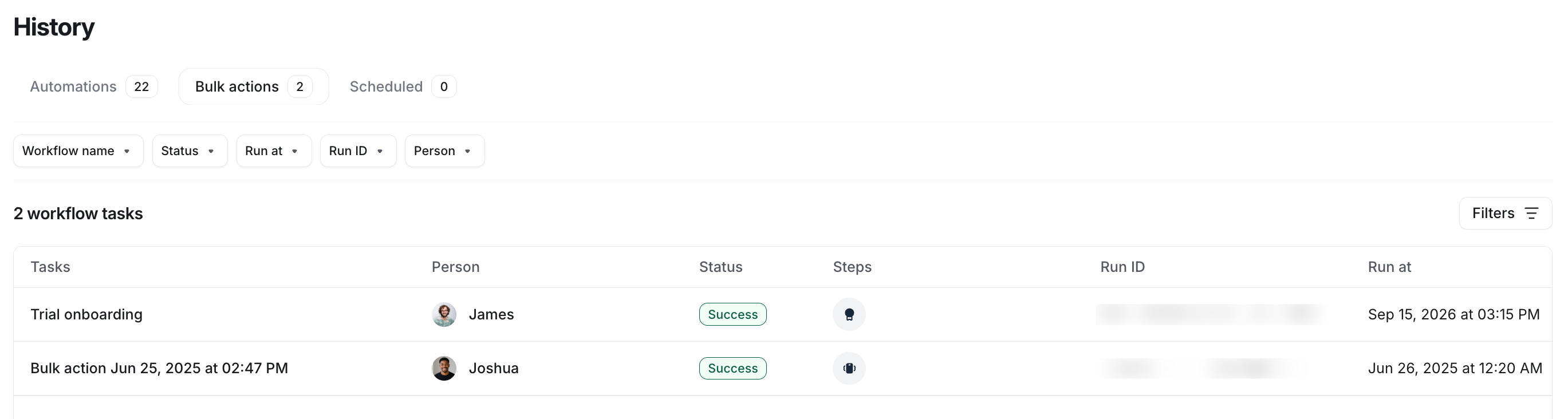
To efficiently find the task information, click on the Filters icon, enter your filter criteria, and click Apply.
💡 Tip: For quick access to task history filtered by a specific workflow, click on History while viewing the workflow overview page.
View dedicated bulk action workflow runs
To access the task history of specific runs for bulk actions or scheduled workflows:
Click Workflows in the left sidebar, then select Workflows.
Navigate to the Bulk actions or Scheduled tab.
Locate the workflow and click the workflow title.
On the workflow overview page, go to the Runs tab.
To view the tasks for a specific run, click the run date in the sidebar. This opens the workflow run details, including its completion information. From there, click a task name to view its detailed information.
View detailed task information
On the history page, you can access detailed information about a specific task.
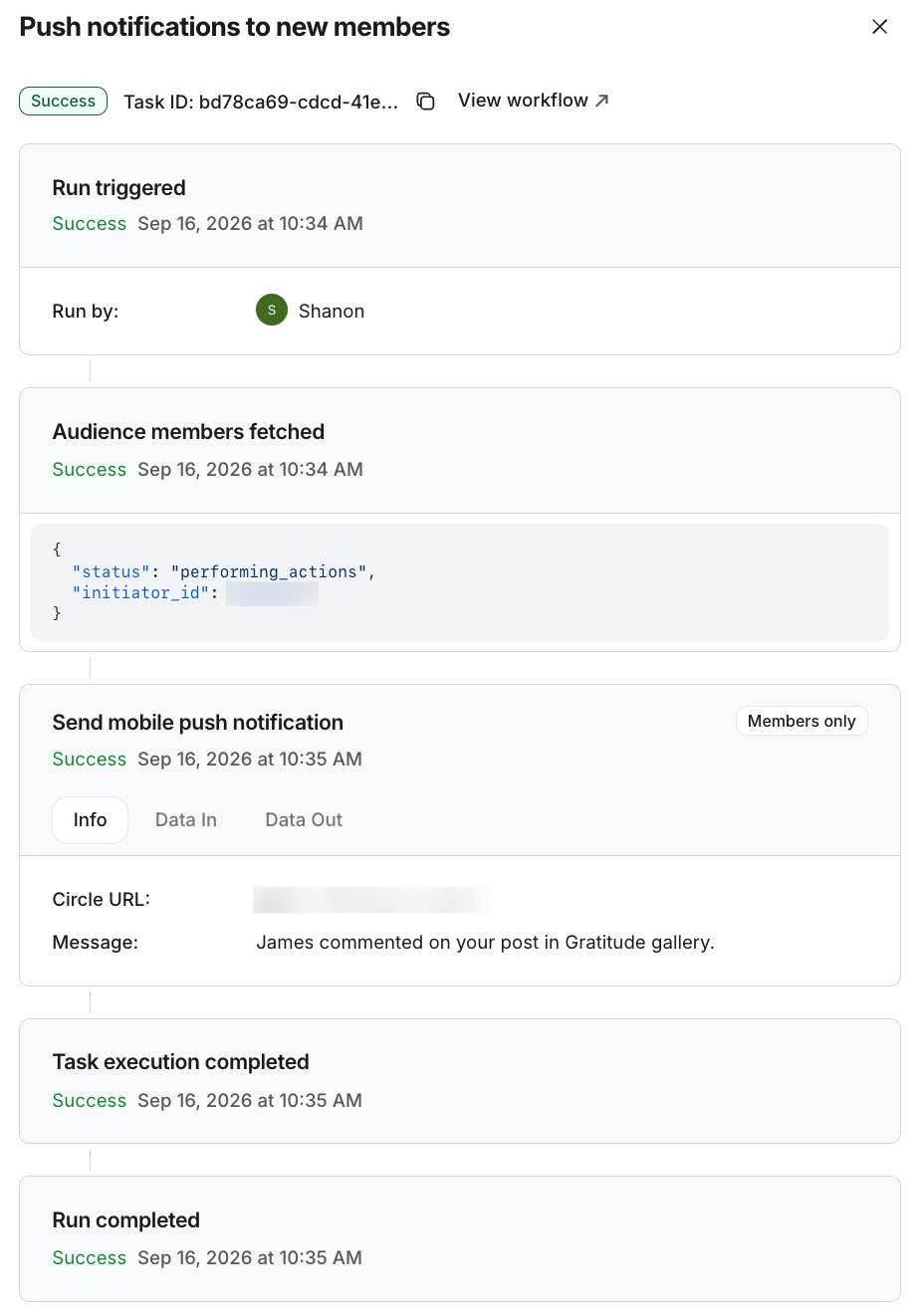
When you click a task, an information popup appears with details such as workflow name, task status, and ID. You can see a series of cards that show the execution of the task, including details about the entry rule and the actions performed, each marked with timestamps.
💡 Tip: For quick access to the workflow overview page, click View workflow on the task history popup.
Understanding task statuses
It's crucial to understand the different statuses that a task can have in a workflow. Here are the various statuses and their meanings:
Success: This status means that the workflow actions have been executed successfully without any issues.
Failed: If a workflow fails to perform the intended action, it will have a failed status. For more information, see the Data Out tab.
Partial success: In workflows with multiple actions, if some actions succeed while others fail, the task will have a partial success status.
Skipped: This status is assigned to tasks when a member is excluded from a workflow rerun. This typically happens when you exclude members you have already run the workflow on while initiating a re-run.
In progress: When a task is still actively being processed, it will have an in-progress status.
Duplicate skipped: To prevent an endless loop when reprocessing the same workflow event for the same member, a 1-hour buffer is in place as a safety measure. Therefore, you will see this status for any tasks associated with this kind of scenario.
When viewing task information, you can access detailed information about the action by clicking the Data Out tab. This is particularly useful in the event of a task failure or a partial success, as it provides you with error information about the failed task.