Create workflows using templates
Last updated: September, 2026
Our collection of pre-designed templates simplifies setting up automation or bulk-action workflows. They can also help you come up with ideas for using workflows to handle different tasks in your community. In this article, we will guide you through creating automation or bulk-action workflows using workflow templates.
We have a curated list within different categories, such as:
-
Email Hub: Templates for sending emails based on different triggers or audience rules. Use these to quickly set up workflows for common scenarios, such as:
Email after course completion.
Email about rejected comment.
Email all space members.
-
AI: Templates to help you create AI workflows in your community. Use them to build automations powered by AI agents, including:
Agent promotes upcoming events.
Rename vague post titles.
Agent offers help after failed quizzes.
-
Moderation: Templates to help you manage content and interactions in your community. These help you automate moderation workflows, including:
Moderate new posts.
Message about rejected comment.
Curate the home feed.
-
Onboarding: Templates designed to welcome and guide new members. These can help you create smooth onboarding experiences, such as:
Email new members.
Gather feedback via email.
-
Engagement: Templates that help you keep your community active and involved. Use these to plan engagement workflows, like:
Email sequence to selected audience.
Message before event starts.
Agent answers post.
Auto-assign spaces through tags.
-
Administrative: Templates for routine admin tasks. These help you automate management activities, such as:
Tag new space members.
Remove members based on tag.
Email new space members.
-
Paywalls: Templates to manage paywall-related communications. Use these for common subscription and payment scenarios, such as:
Email new paywall subscribers.
Message about past due payment.
Email members after trial.
Create a workflow using a template
When you create a new workflow, you’ll see the template library on the workflow creation page. You can choose from one of the templates or start from scratch. Let’s take a look at how you can use templates to set up new workflows.
To get started, click Workflows in the left sidebar, then select Workflows.
Template library
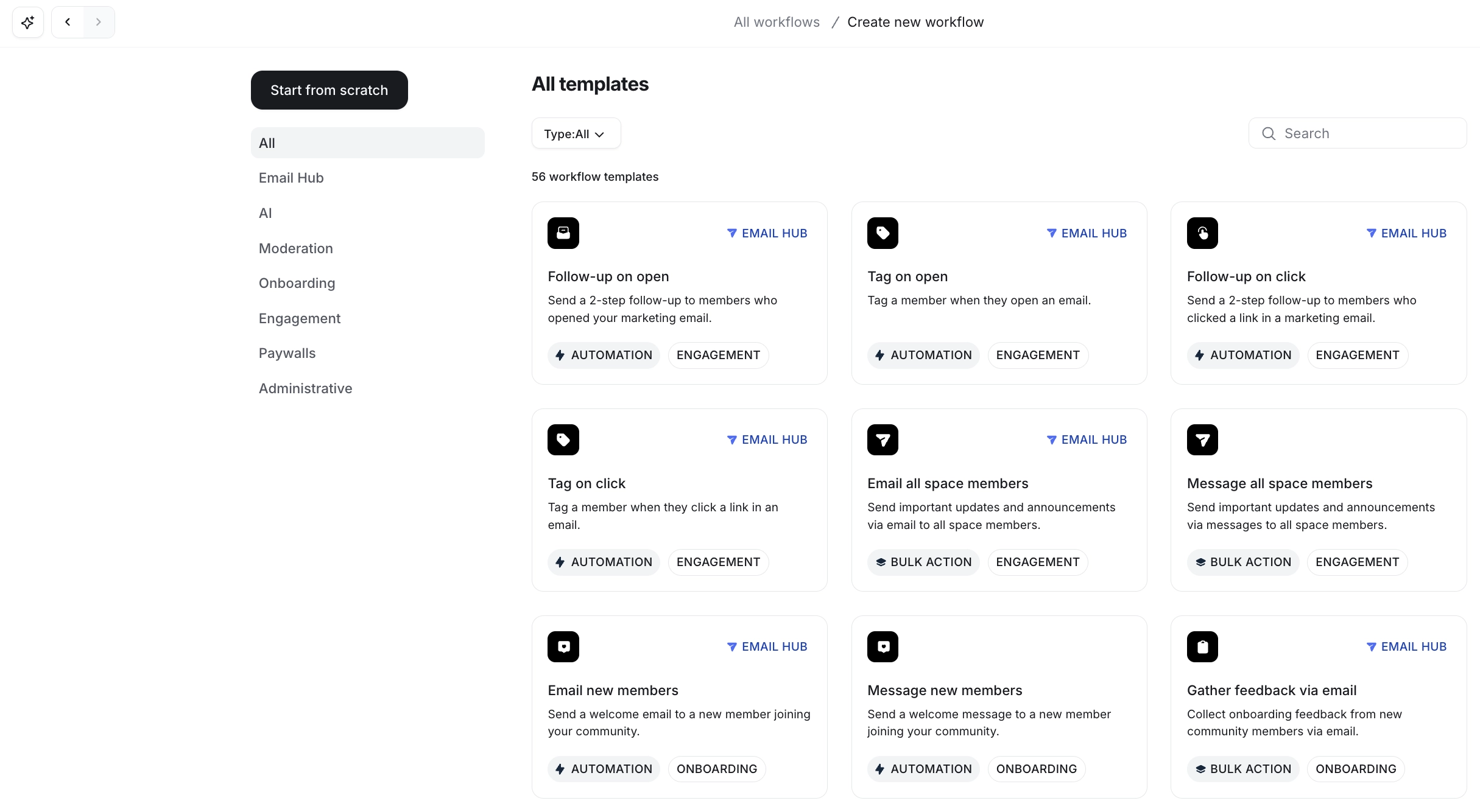
On the workflow creation page, you’ll see a list of templates with helpful details to guide your choice.
At the top of the list, use the Type dropdown to filter templates by All, Automation, or Bulk action. You can also use the search bar in the top-right corner to find a workflow by name. On the sidebar, select categories to further narrow your options.
Each template card includes the following information that helps you quickly find a template that matches what you want to do:
Title and description: The title generally reflects what you can achieve using the template. A short description of the template also appears under the title.
-
Badges: Indicate the type of workflow (automation or bulk action) and the template category it belongs to. You’ll also see New badges on cards for templates that have been recently added to the library.
Template preview
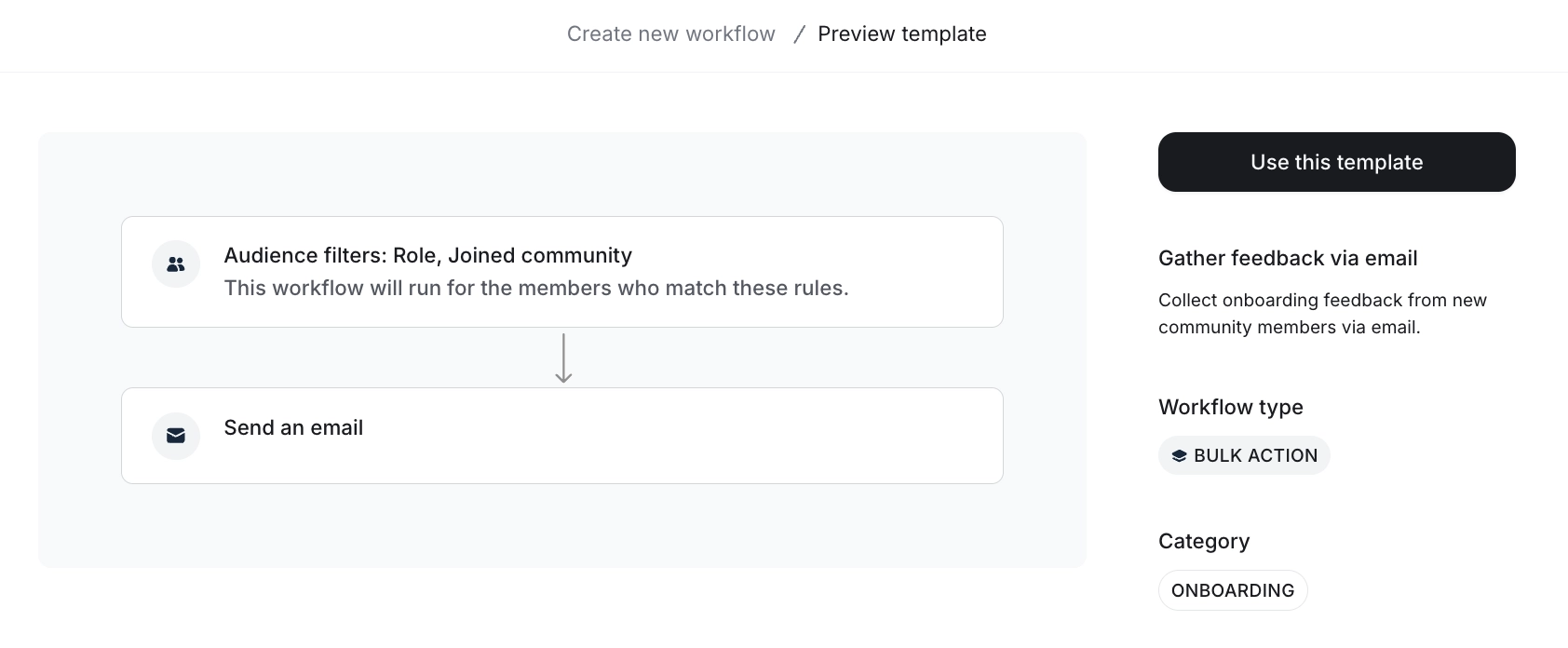
When you select a template, you are directed to a detailed preview page. This page shows the workflow’s steps, such as the trigger event, audience rules, and actions.
If you would like to:
Use the template: Click Use this template to set up the workflow based on it.
Pick a different template: Click the Back icon to return to the template library.
If you choose to use the template, a workflow draft will be created for you. You can leave and return to finish setting it up anytime. Just go back to the Workflows page and click the workflow title to continue where you left off.
Setting up workflow steps
When you open your workflow draft, you’ll see that the steps are already laid out for you based on the template you chose. Click any step to configure details such as inputs or filter conditions.
You can also customize the workflow to suit your needs. You can make changes, such as adding more actions, removing actions, or adjusting triggers.
📚 To learn more about configuring steps for different types of workflows, see the following guides: