Deleting draft workflows
Last updated: September, 2026
If you have a draft workflow that is no longer needed, you can delete it to reduce clutter and keep your workflow list organized.
💡 Tip: This article only applies to workflows that are in draft mode. If you would like to archive any active workflow or deactivate automation workflow, see the following articles:
To delete any workflow that is currently in draft mode:
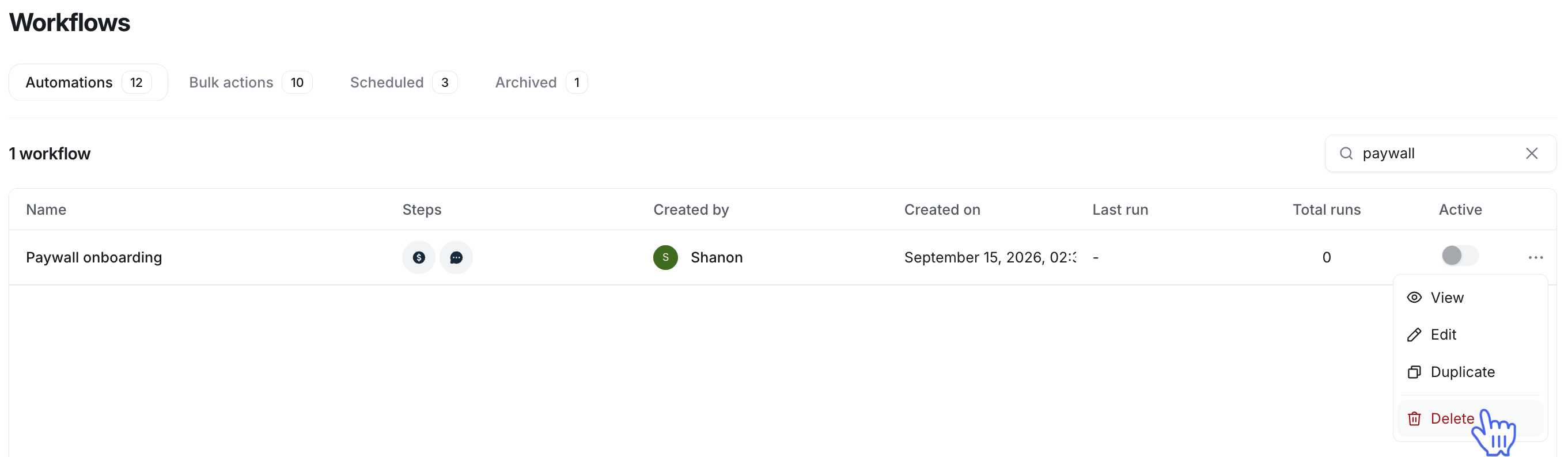
Click Workflows in the left sidebar, then select Workflows.
Navigate to the Automations or Bulk action tab.
Hover over the workflow and click More actions (three dots), and select Delete.
-
Click Delete in the confirmation dialog.