Archive workflows
Last updated: September, 2026
As your community evolves, certain automation or bulk action workflows may no longer serve their purpose. Archiving workflows allows you to maintain a clean, manageable list of active workflows while retaining access to archived workflows for review or duplication later.
Key things to know before archiving workflows
-
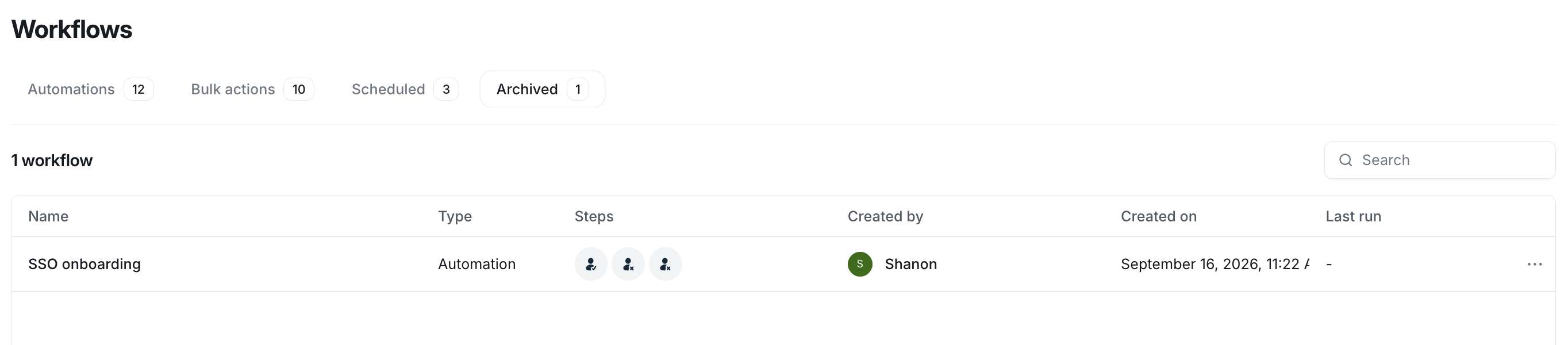
Once a workflow is archived, it cannot be unarchived. However, if you need to use the same workflow later, you can duplicate it from the Archived tab on the Workflows page.
💡 Tip: If you would like to deactivate the automation workflow instead of archiving it, see Deactivating an automation workflow.
-
Archiving a workflow cancels all future actions, including any in-progress runs. If a workflow is actively running for a member, it will stop as soon as the workflow is archived.
Suppose a workflow is currently running for James and is in the middle of a 1-week delay action following a direct message (DM) action. If you archive the workflow, the remaining delay and any subsequent actions will be canceled.
Archive a workflow
Click Workflows in the left sidebar, then select Workflows.
Navigate to the relevant tab and locate the workflow.
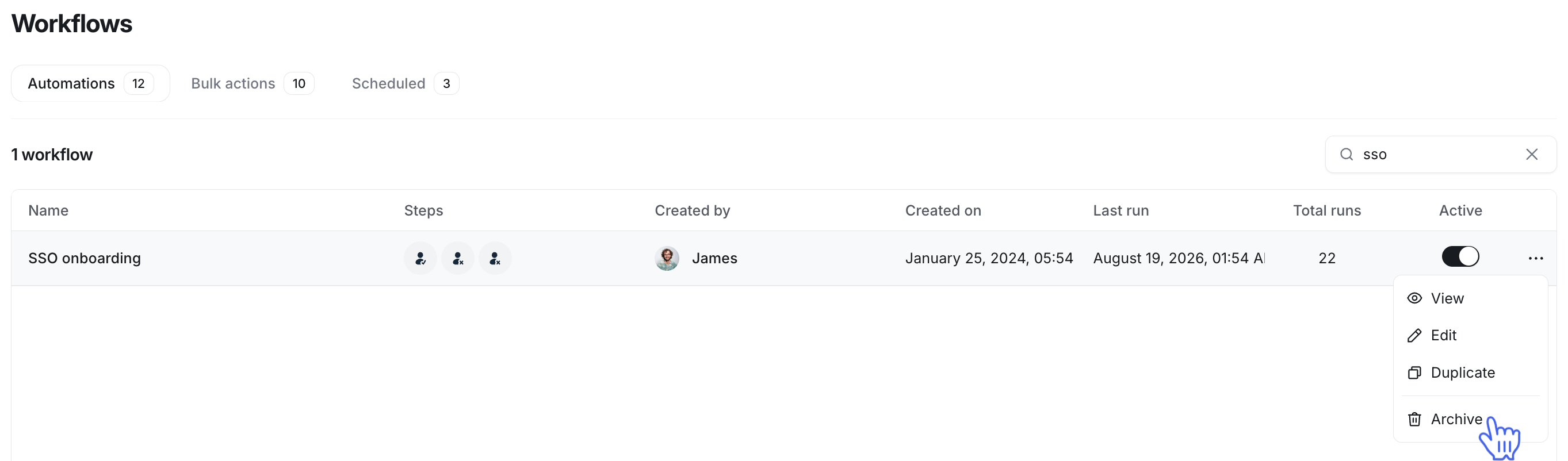
Hover over the workflow, click More actions (three dots), and select Archive.
-
Click Deactivate and Archive in the confirmation dialog.
Once you confirm, the workflow will be moved to the Archived tab on the workflows page.