View community and member activity logs
Last updated: March, 2026
Easily view the complete history and detailed log data of activity within your community using activity logs.
About activity logs
Activity logs help you track and identify key events in your community, providing insights into what actions were taken, when they occurred, and who performed them.
Here are a few ways that activity logs can help:
Understand member behavior inside of your community. For example, keep track of content-related activities such as modification or deletion of posts, events, spaces, space groups, and more.
Troubleshoot issues within your community without relying on Circle’s support team, especially for community or space access issues. For example, understand how a member got invited to a community or got access to spaces or space groups.
Have a clear audit trail for security and backup purposes and monitor all events that occur within your community to identify any unauthorized or suspicious activities.
Access activity logs
Detailed activity logs and the ability to export them are currently available only to admins on the Scale and Circle Plus plans.
If you are on the Professional or Business plan, you can still access basic activity logs for members through their profiles. The basic logs include up to 10 entries with three columns: event, performed by, and date. You can also apply filters for these columns to narrow down the log data.
View activity logs at the community level
To view your community’s activity logs, click the community name or logo in the top-left corner and select Audience. Then, in the sidebar menu, choose Activity logs.
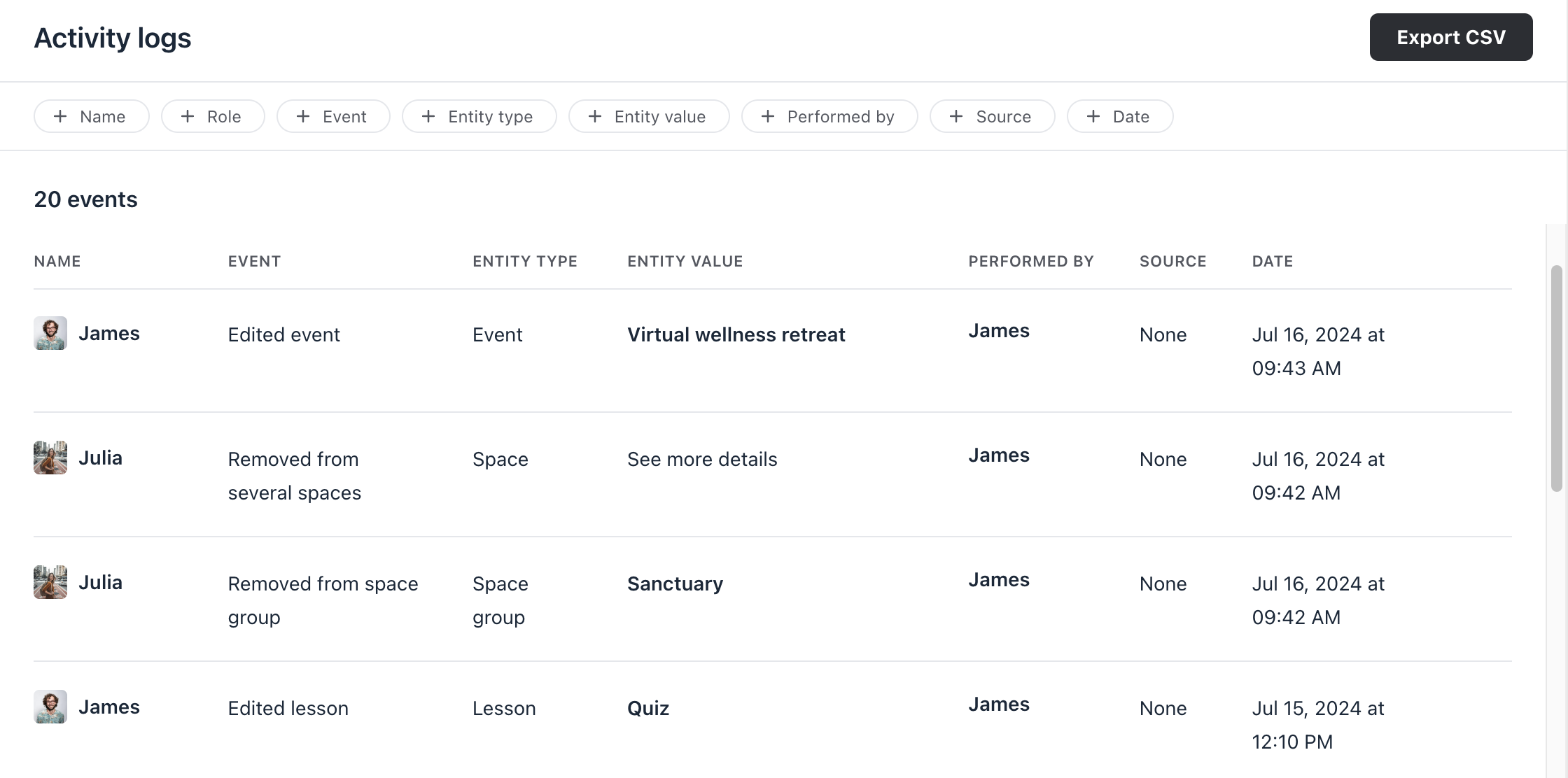
View activity logs for a specific member
You can view activity logs associated with a specific member directly on their member profile. To do so, follow these steps:
Click the community name or logo in the top-left corner and select Audience. Then, use the filters to search for a member.
Hover over the member entry, click the More actions (three dots) icon, and select Edit.
-
On the edit profile page, navigate to the Logs tab.

Information you can view in activity logs
Name
This column displays the name of the person affected by the event. This can be any user within your community, including members, moderators, or admins. You can also click their name to directly view their profile.
Event
This column displays the action performed in your community, such as when a member joins a space or edits a post. Here’s the list of events currently available:
-
Community:
Invited to community: When someone is invited to the community via the invite feature, API, or Zapier.
Joined community: When a member completes their onboarding process, which includes accepting the invitation and creating their member profile.
Removed from community: When the member account is deactivated from the community.
-
Space groups
Created space group
Deleted space group
Updated space group settings
Added to space group
Removed from space group
-
Spaces
Created space
Deleted space
Added to space
Joined space
Removed from space
Left space
-
Access groups
Created access group
Archived access group
Updated access group
Added to access group
Removed from access group
-
Posts
Edited post
Deleted post
-
Events
Edited event
Deleted event
-
Lessons
Edited lesson
Deleted lesson
-
Paywalls
Updated paywall
-
Members
Updated member tags
Entity type
This column displays the type of Circle entity that was affected by the event. For example, “Paywall” for the “Updated paywall” event. Possible entity types include:
Space
Space group
Access group
Post
Event
Lesson
Paywall
None (when events do not affect a specific Circle entity, such as “Invited to community”)
Entity value
This column displays the specific Circle entity that was affected by the event, such as the name of the paywall, the name of the space or the name of the access group. If the event affects multiple entities, the logs will display See more details and will display all affected Entity values in the additional details.
Performed by
This column indicates who performed the event. Possible values include:
A user: An event can be performed manually by themselves or another community admin, moderator, or member.
Automated: An event can be performed automatically due to a paywall, invitation link, Circle workflow, etc.
Source
A source will be shown for any events that were performed automatically to show how the event was initiated. Possible sources include:
API
Circle workflows
Invitation
Invitation link (the name of the invitation link will be displayed)
Access group (the name of the access group)
Onboarding settings
Paywall (the name of the paywall will be displayed)
Space group settings
SSO
Zapier
None (for events performed by another user)
Date
See exactly when the event was performed, shown in the timezone specified in your account profile.
Utilize filters
You can use filters to narrow down the activity logs. To apply a filter, in the filters bar, click the filter and enter the desired criteria or select from the list. Then click Apply.
View more details
For additional details on an event, you can view more details by hovering over the event, clicking the More action (three dots) icon, and selecting Details.
Accessing additional details is especially helpful for updates and edit events or when multiple entity values are affected. Here, you can see:
Event information: View details such as Entity type, Entity value(s), Performed by, and Source.
Before and after values: For update or edit events, you can view the values before and after the change. For example, when a post is edited, you’ll be able to see the post content before and after the edit.

Export activity logs
At any time, you’ll be able to get a CSV export of your community’s activity logs via the Export CSV option in the top-right corner.
Within 5-10 minutes of requesting the export, a link to download the CSV file will be emailed to the email address associated with your account. The CSV export will account for any filters that were applied prior to clicking Export CSV and only provide you with the filtered logs.