Use EasyCSV to perform bulk actions
Last updated: October, 2026
If you're wondering how to perform bulk automation in your community, it's as simple as a drag and drop with our EasyCSV import pages.
ℹ️ Note: You can import a maximum of 1,000 rows at a time. If you require more rows, you can break up your CSV into separate files.
Step 1: Navigate to EasyCSV
With the links provided below, you can complete a variety of bulk actions. Please choose the link for the action you'd like to take.
-
Bulk send messages (send a different direct message to each member in bulk)
❗ Important: When sending bulk direct messages using EasyCSV, the messages are sent by the community admin who created the API key. Additionally, please be mindful of adding commas in the message body when sending direct messages, as this can break up the message. Any text after the comma won't be included.
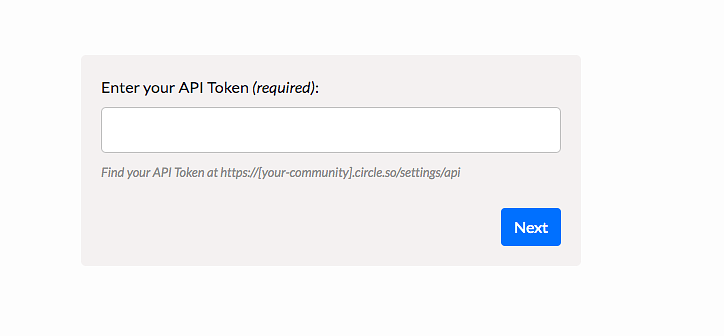
Step 2: Add your Circle API key
Get an Admin v1 token from the developers settings in your community. If you don’t already have one, you can create an Admin v1 token to use with EasyCSV.
ℹ️ Note: Admin v2 token is not supported for performing bulk actions using EasyCSV.

On the EasyCSV page, paste the Admin v1 token.
Step 3: Upload your CSV to EasyCSV
1) Download your CSV and rename the column headers
You can download all members from the manage audience page, or you can navigate to a space to download members from that specific space.
Use any CSV editor of your choice (Text Editor, Excel, Google Drive, etc.) to change the column header name. You'll find the appropriate header names on the right-hand side of the EasyCSV page.
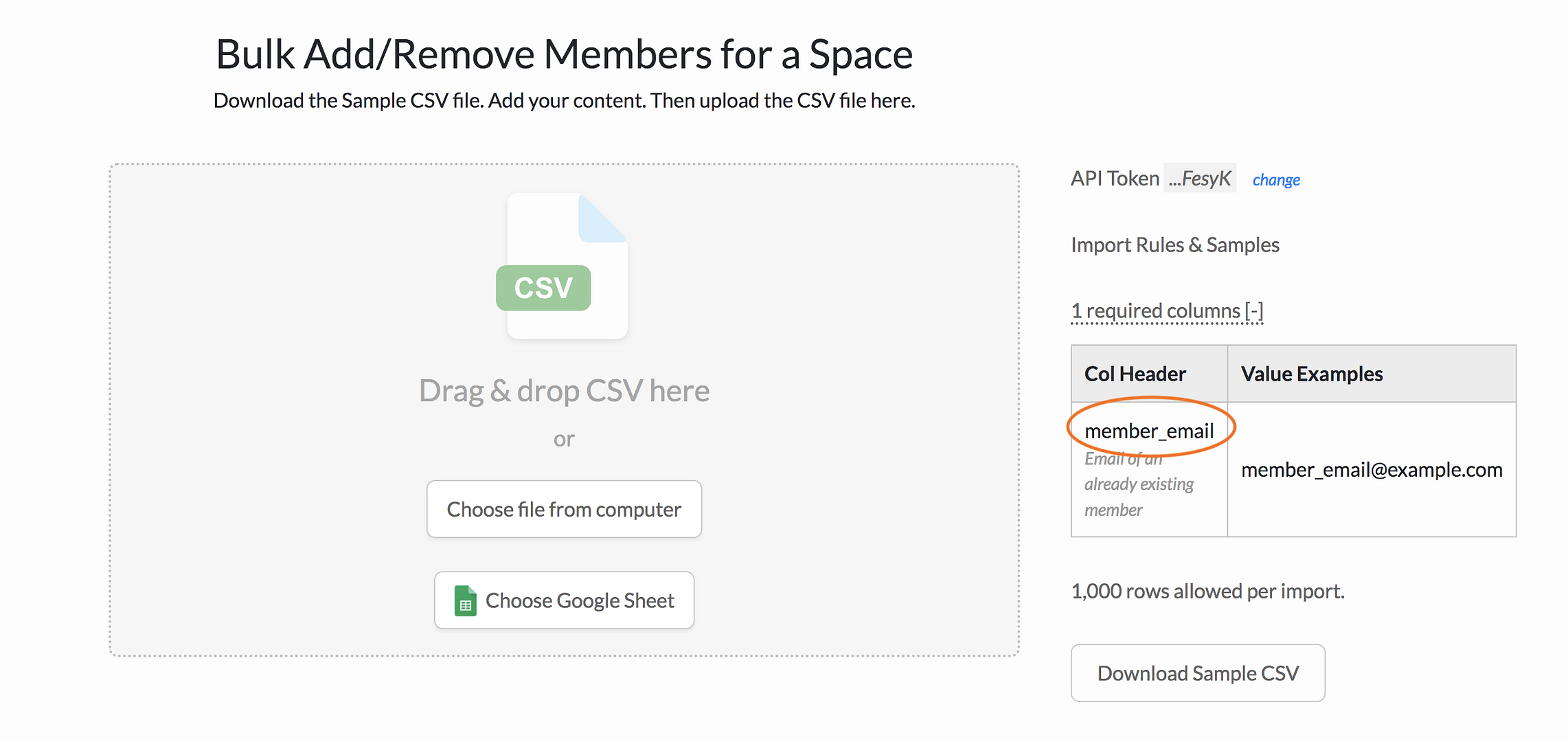
2) Drag & Drop your CSV
You can upload your CSV, which should now have the correct column header names.
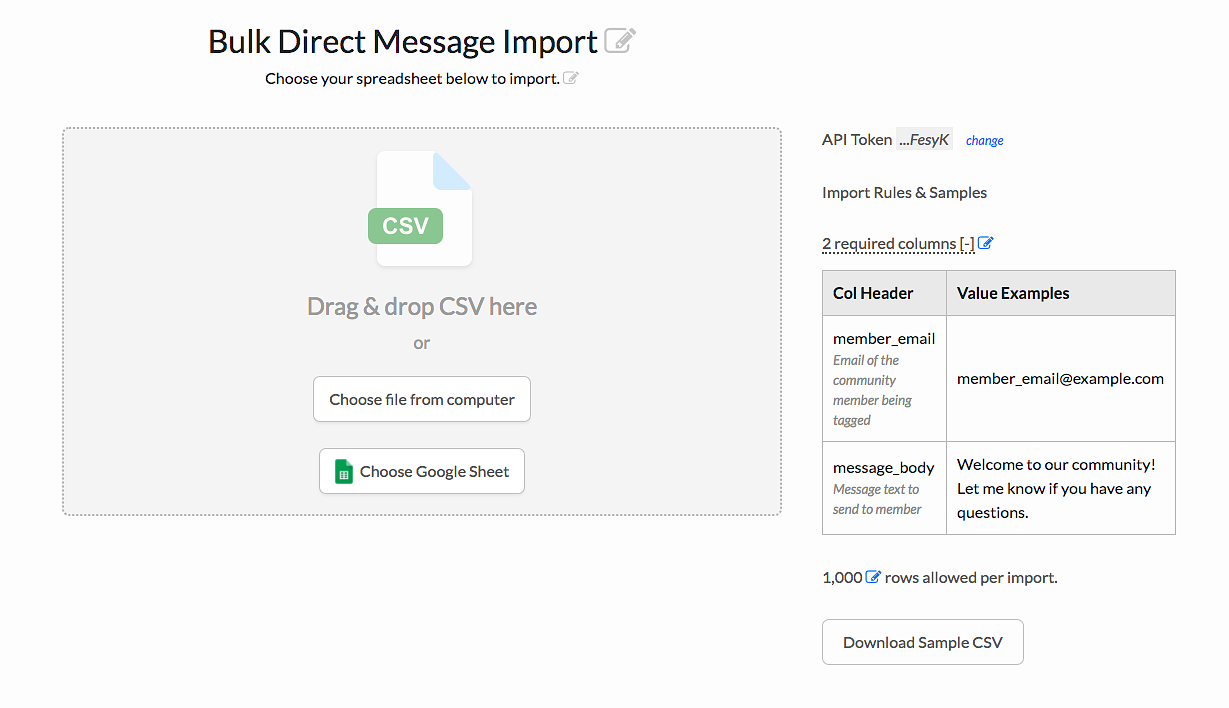
If you are uploading a CSV for messages or posts, you will see the additional required columns on the import page.
3) Select your community and other necessary fields
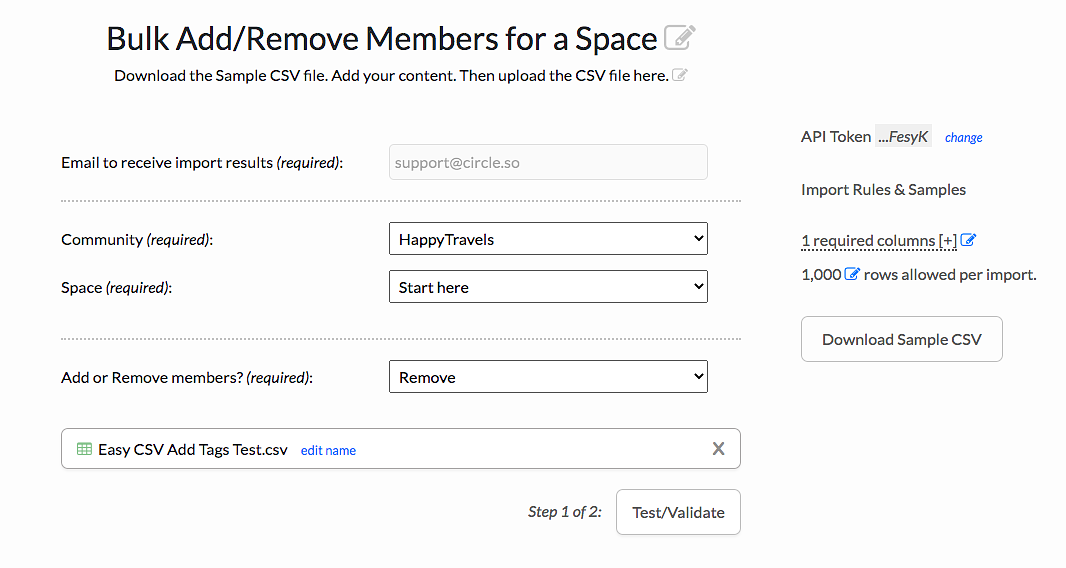
4) Import your records
You will be notified if there are any fields that may be ignored or if any corrections are needed.
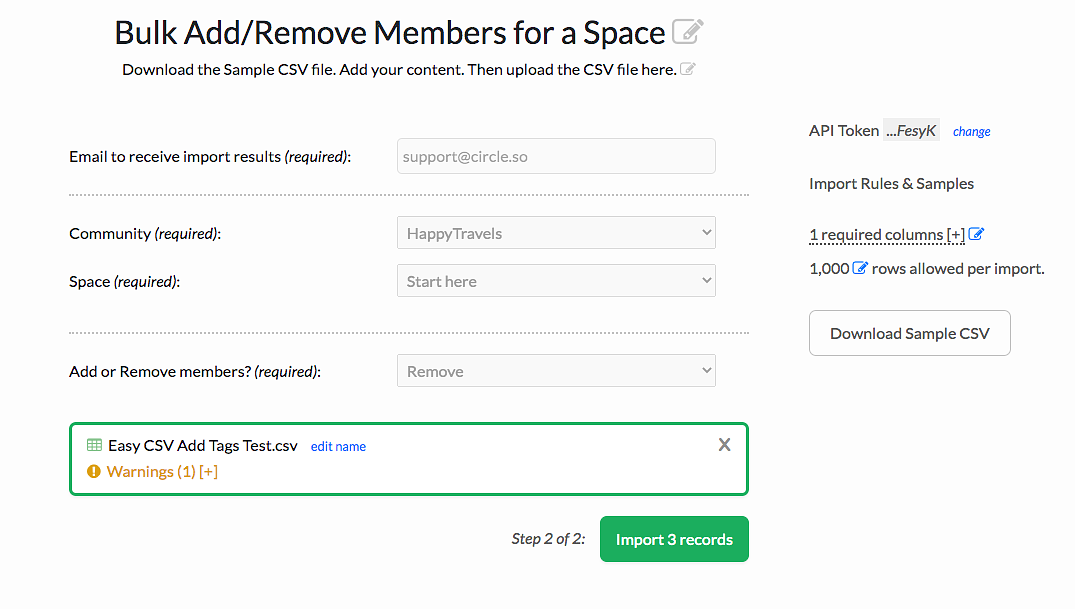
That's it! Import your records, and you will see these changes reflected in your community.