Export a CSV of your members
Last updated: September, 2026
Exporting a CSV of your audience allows you to easily access and analyze user data outside the platform. Whether you need to review member details, segment your audience, or import data into another tool, exporting ensures you have an organized dataset at your fingertips.
About data export
As an admin, you can download audience data from various areas of the community, including spaces, space groups, events, live sessions, and analytics. If you've added non-member contacts, you can also export them in a CSV file from the Manage audience page.
When you generate a CSV export, it is sent to the email address associated with your admin account.
The exported CSV file includes key details such as:
UID (Unique identifier for members and non-members)
First name, last name, and email
Join date and active status (whether the member signed in within the last 30 days)
Tags
Profile and avatar URLs
Engagement metrics (number of posts, including regular and image-based posts, comments, and likes received)
Profile fields (including custom fields, if any)
Last active date with UTC timestamp
Email marketing preference (subscribed or unsubscribed)
Member (Yes or no)
Invitation status and date
Activity score
Community audience
You can export a CSV file of both community members and non-members from various tabs on the Audience page.
Each tab allows you to export either the full list of people or a filtered subset:
If no filters are applied, the export will include everyone listed on the tab.
If filters are applied, the exported CSV will contain only the filtered audience.
To export community members:
Click Audience in the left sidebar, then select Audience.
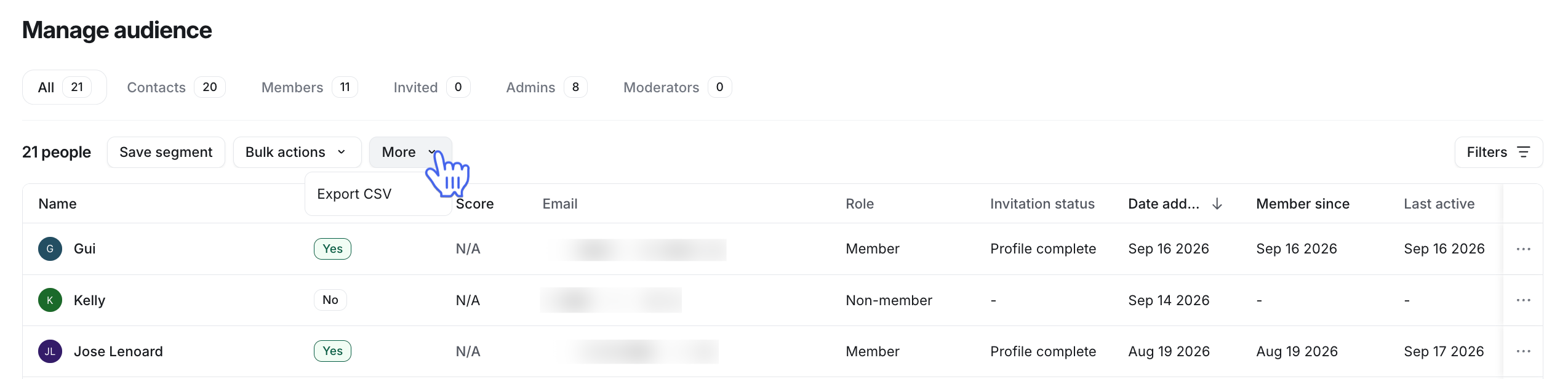
On the Manage audience page, navigate to the tab from where you want to export the data.
(Optional) If you want to refine the list, apply filters available within the tab.
-
Click More below the filters bar and select Export CSV.
💡 Tip: If you would like to download data of all individuals within your community audience, go to the All tab and export the CSV without applying any filters.
Space group members
Click the community name or logo (or the dropdown icon next to it) in the top-left corner and select Back to community.
Hover over the space group name in the sidebar, click More actions (three dots) and select Edit space group.
-
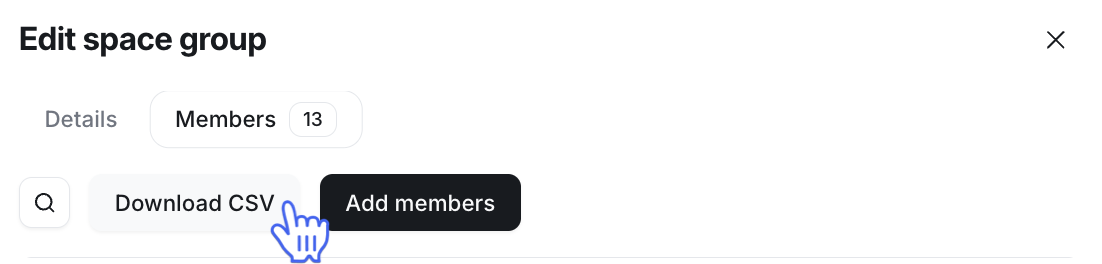
Go to the Members tab, then click Download CSV.
Space members
Click Community in the left sidebar, then select Spaces.
Hover over the space name, click the More actions (three dots) and select Members.
-
Navigate to the Members tab, then click Download CSV.

Event attendees
Click Events in the left sidebar and locate the event.
Click More actions (three dots) beside the event name and select Edit event.
-
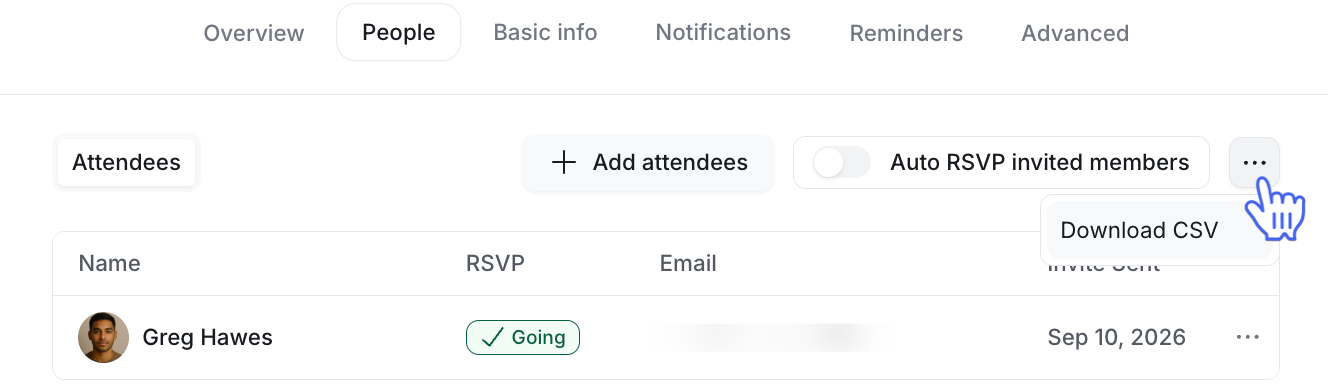
Navigate to the People tab and click the More actions (three dots), then select Download CSV.
Live stream and room attendees
Click Community in the left sidebar, then select Live streams.
Locate the event and click More actions (three dots), then select View details.
-
Go to the Participants tab and click the Download CSV option.
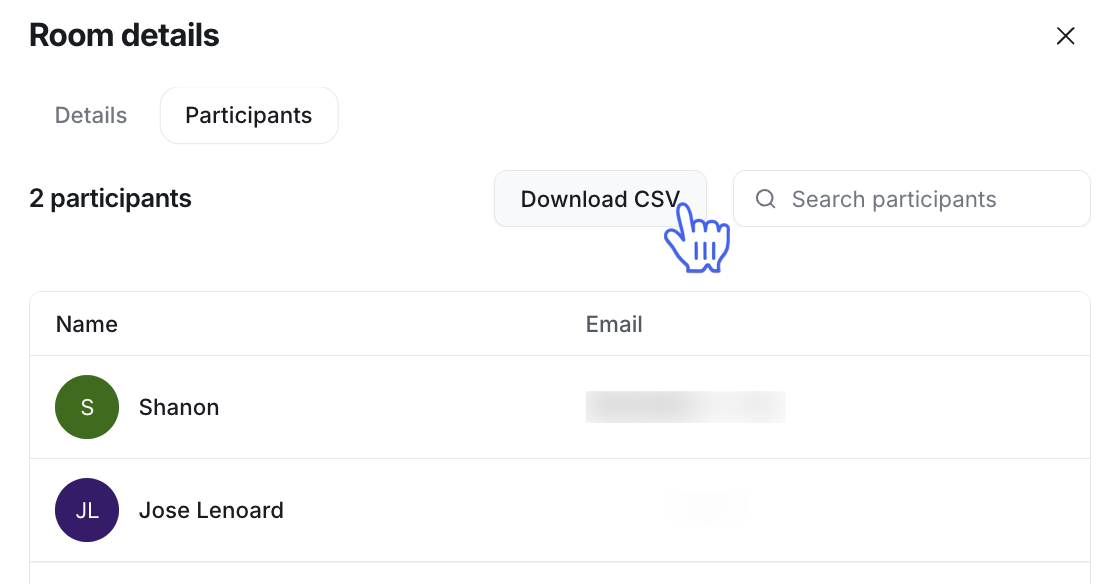
ℹ️ Note: Please note that visitors are excluded from the list of participants for public live streams.
Member analytics
You can also export the following member status data from the Analytics dashboard in your community:
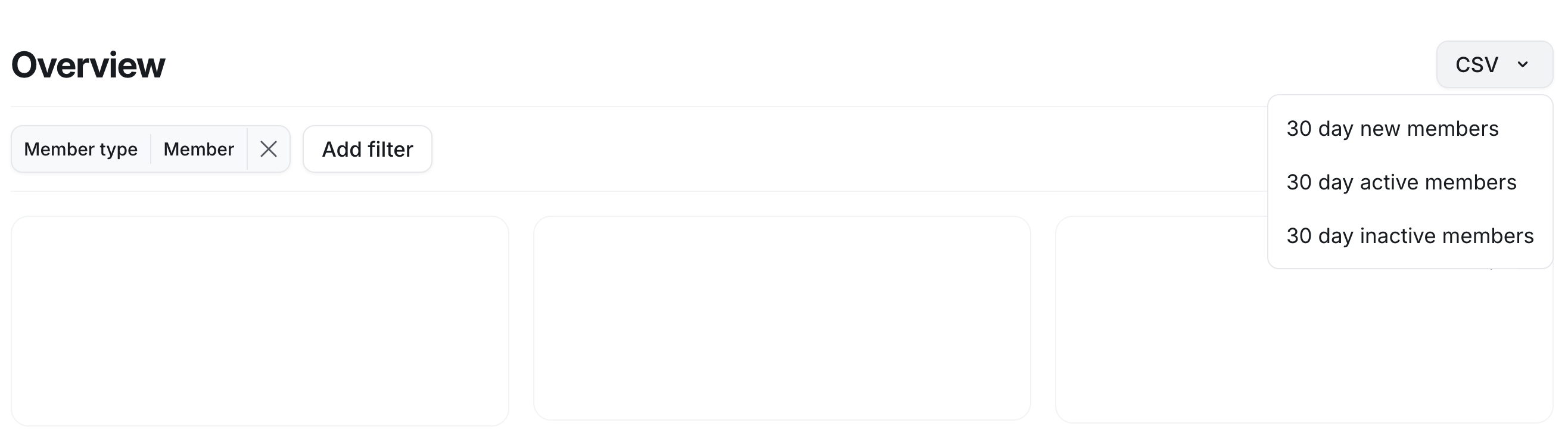
30-day new members
30-day active members
30-day inactive members
To download CSV for any of the options listed above:
Click Analytics in the left sidebar, then select Overview.
-
In the overview dashboard, click CSV in the top-right corner and select the option.