Get to know the member directory
Last updated: October, 2026
ℹ️ Before you begin: This article focuses on the member directory experience without connect, to learn about connect see Get to know Connect.
The member directory is a comprehensive list of all community members, providing an easy way to connect, network, and collaborate. This article will walk you through accessing the member directory, configuring directory settings, and searching for member profiles.
Access the member directory
Admins and members can access your community's member directory depending on the visibility settings you have configured.
To access the member directory:
-
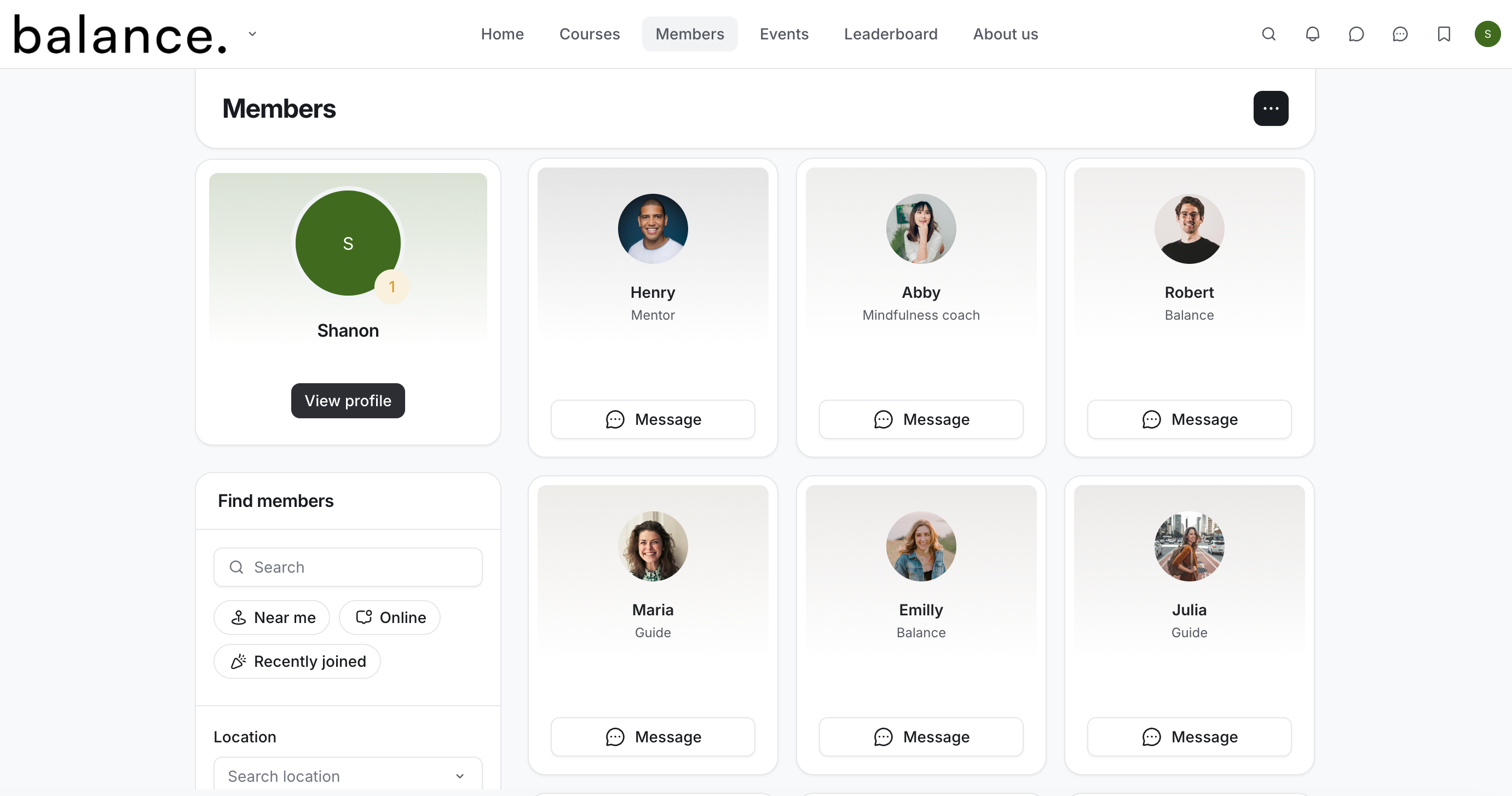
Desktop: In the desktop app or web browser, click the community name or logo (or the dropdown icon next to it) in the top-left corner, select Back to community, then ****click the Members tab on the top navigation bar. If you've customized the name of the member directory link for the web, the updated name will appear on the navigation bar instead.
💡 Tip: If the Members tab is not visible on the top navigation bar when using a smaller browser window, click More to access the dropdown list, which includes the remaining tabs that don’t fit on the bar. If the tab doesn’t appear at all, an admin may have disabled its visibility.
-
Mobile apps: Tap Members tab on the top navigation bar to access the member directory. If you've customized the name of the member directory tab for your mobile app, the updated name will appear on the navigation bar instead.
View member profiles
You can view members' profiles by clicking their name or profile photo in the directory. From the member profile, you can:
Message member
Last seen status
Copy the profile link
Edit member (Admin only option)
View as (Admin only option)
View profile information (About tab)
View member’s posts, comments, and space access
View rewards (Admin only option)
Manage directory settings
As an admin, you can adjust directory defaults and eligibility for profile visibility in the member directory on desktop. To access these settings, click More actions (three dots) located in the right corner of the directory navigation bar.
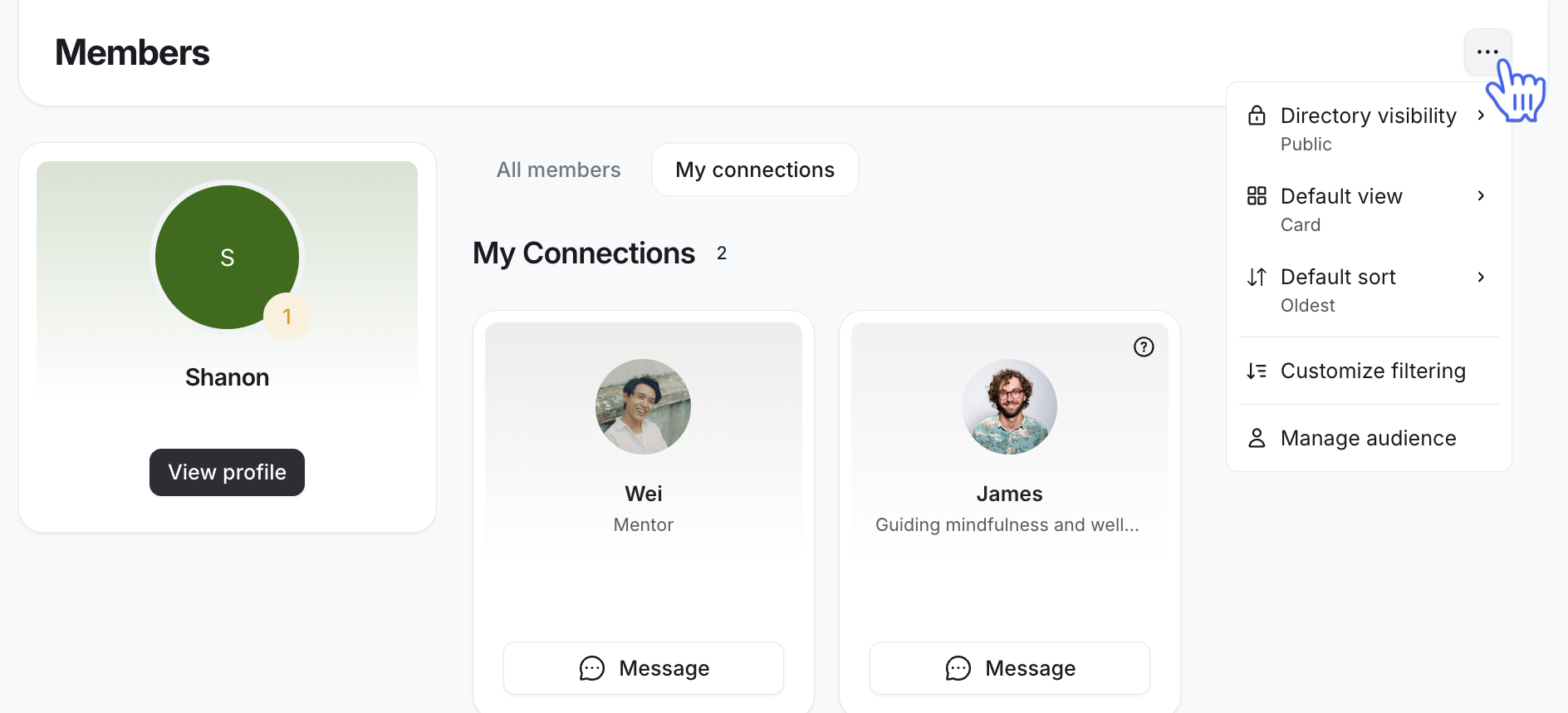
Directory visibility
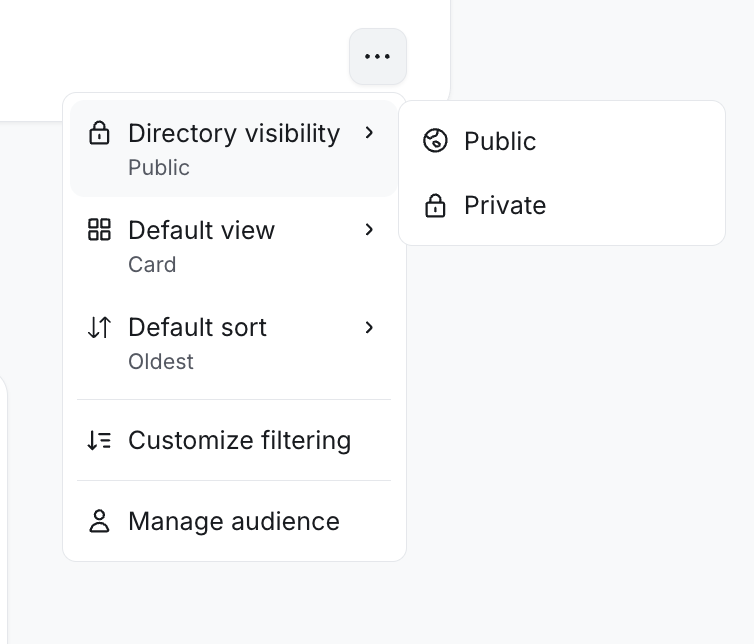
You can set the visibility of the member directory as either public or private. The current visibility status is displayed on the directory navigation bar on the desktop. To change it, hover over Directory visibility and select Make public or Make private.
💡 Tip: In addition to directory privacy, you can customize the directory link by modifying its name, managing how the link opens, and controlling its visibility on the top navigation bar for desktop. For more details on managing the directory link, refer to our guide here.
Public
Setting the member directory to Public makes it accessible to all community members, excluding visitors.
When the member directory is public, members can also use the member count badge in the navigation bar for spaces or space groups to access the member directory, which is automatically filtered to members of that space or group.
Key considerations:
-
If the member directory is public but the visibility of the member directory link for the top navigation bar is restricted to Admin only or Disabled, the directory link will not appear on the navigation bar. In this case, however, members can still access the directory by directly entering the URL in their browser: [Your community URL/members].
This applies to desktop only; on the mobile app, the Members tab remains visible if the directory is public.
-
Members can choose to hide their profile from the member directory, search, and leaderboard by disabling the Show my profile in the member directory toggle in their profile settings.
Please note that as an admin, you will still be able to see all member profiles in the member directory regardless of the member’s visibility settings.
Private
When the member directory is set to Private, only admins can view and manage it. Members, including moderators, will not see or access the member directory link, regardless of the link visibility settings in the top navigation bar.
When the member directory is private, members can see the member count badge in spaces and space groups. However, they cannot access the member directory of any space or space group.
💡 Tip: You can also hide member count in your community spaces and space groups, regardless of the above settings for the member directory!
To learn more about managing member count visibility for spaces, see Hide members count in spaces and space groups.
Set default view
You can choose the default view for the directory, setting it to either Grid or List. This default view will be applied the first time members access the directory.
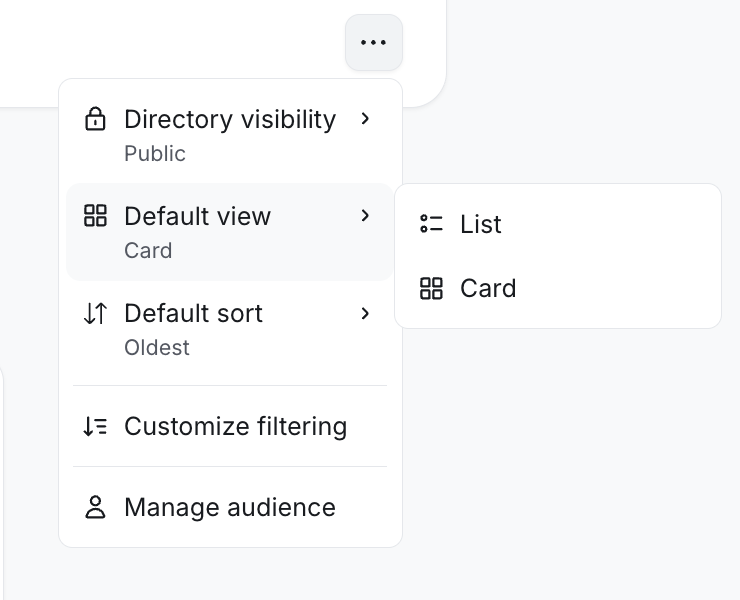
On desktop, both you and your members can switch between views by clicking the View toggle on the directory navigation bar. On mobile apps, the directory appears in list view by default, regardless of the view selected on desktop.
ℹ️ Note: As an admin, changing the view using the toggle will not affect the default view set in the directory settings.
Set default sort order
You can establish the default sort order for your member directory by choosing from the following options:
Alphabetical
Oldest
Latest
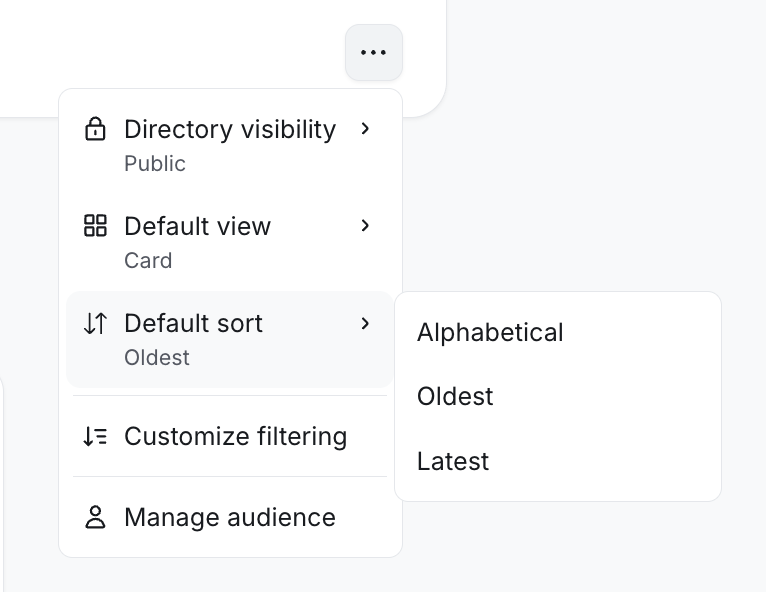
Only admins can modify this order on desktop, and the selected sort order will apply to all members of your community when they view the member directory.
Find members
You can allow members to search the member list. To do this:
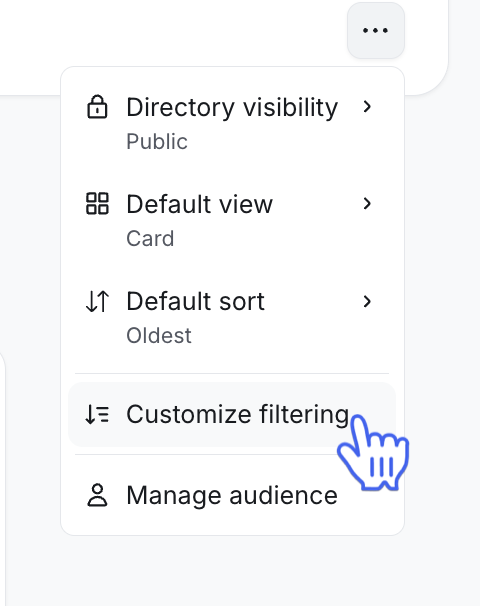
Click More actions (three dots) located in the right corner of the directory navigation bar.
-
Click Customize filtering from the dropdown menu option.
-
In the Customise filters dialogue, turn on Allow members to search and filter the member list.
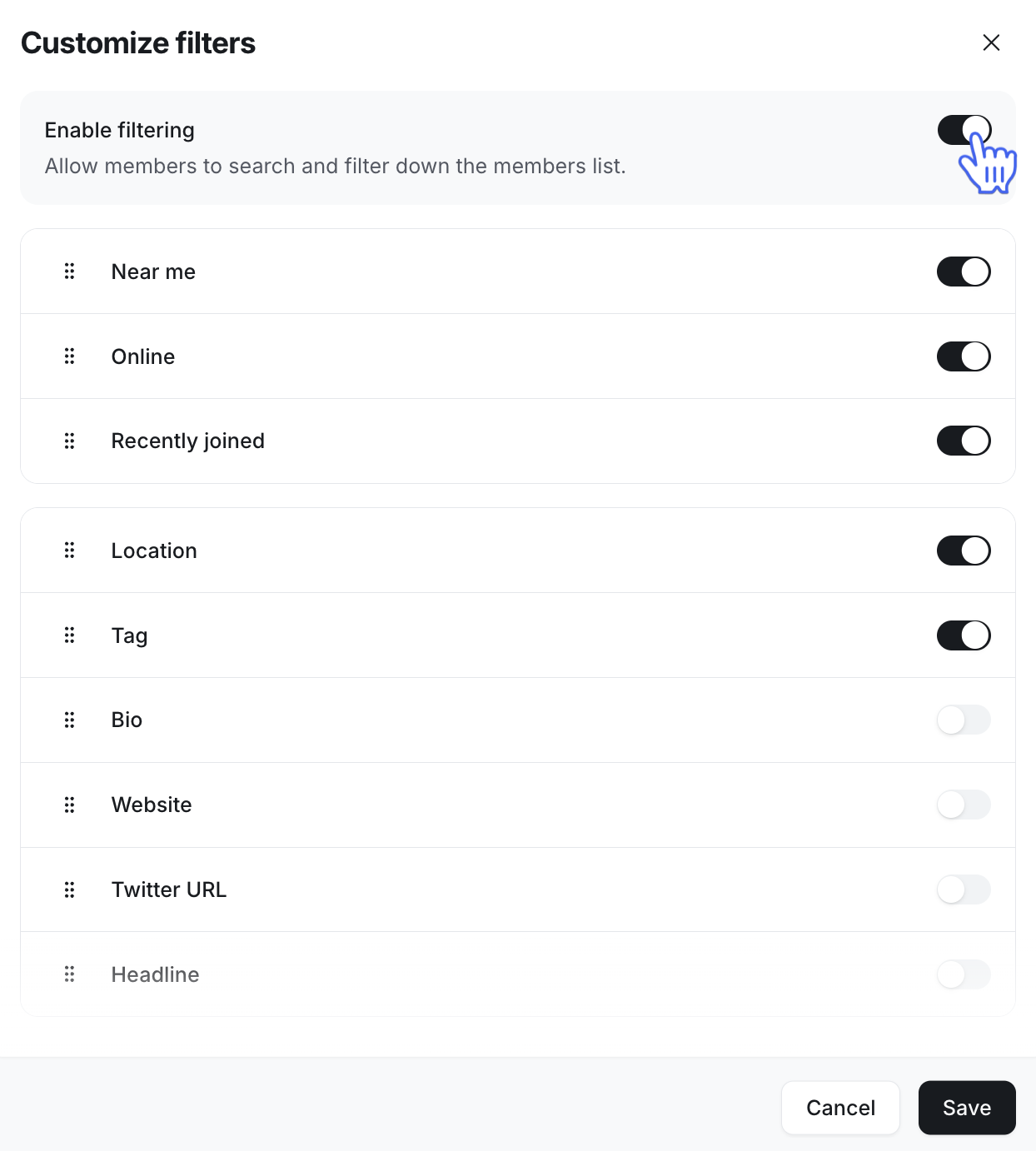
You can refine the list within the directory using various filters located at the top of the directory, including:
Near me: The Near me filter uses the geo-coded location field set in member profiles to identify members in the same location as you are. For example, if you are in Paris looking to connect with others in the city, you can use the Near me filter to quickly see the list of members who have set their profile location to Paris.ℹ️ Note: This option is currently only available when accessing the directory from the desktop.
Online
Recently joined
Location
Tag
Bio
Website
Twitter URL
Headline
When using multiple filters, they are applied using the "And" condition, meaning all selected criteria must be met. To refine your search further, you can apply the same filter multiple times to create highly specific combinations for more granular results.
Navigate to the manage members page
As an admin, you can also access the manage audience page directly from the member directory by clicking More actions (three dots) and selecting Manage audience.
The manage audience page allows you to:
Invite members
Manage members
Access bulk action logs
Manage invitation links
Manage member tags
Manage profile fields
Find and filter members
If filtering is enabled for the member directory, you can refine the members shown using filters that have been enabled in the left sidebar. To find members, choose one of the default filters visible on the sidebar.
ℹ️ Note: On desktop, the member directory is in the left sidebar. On Circle's mobile apps and branded apps, however, these filters are accessible at the top of the screen. Simply swipe horizontally to view all available filters.