Disable direct messaging for your account
Last updated: July 05, 2023
Let's take a look at how admins and members can manage the availability of direct messaging for their community accounts.
How can admins disable messaging for a member?
If the messaging is enabled in the community, admins have the ability to disable messaging features for specific members to prevent them from sending or receiving messages from other members of the community.
ℹ️ Note: Members cannot override this setting if the admin has disabled it. Once the direct messaging is disabled, only admins can send a DM to this member.
💡 Tip: You can use the enable and disable messaging actions in Circle workflows to automate messaging availability for members based on specific triggers, or perform these actions in bulk for certain members.
Navigate to edit member profile
Click the community name or logo in the top-left corner→ Members.
Search for a member using the filters on the search bar.
Click the More actions (three dots) icon beside the member entry and select Edit.
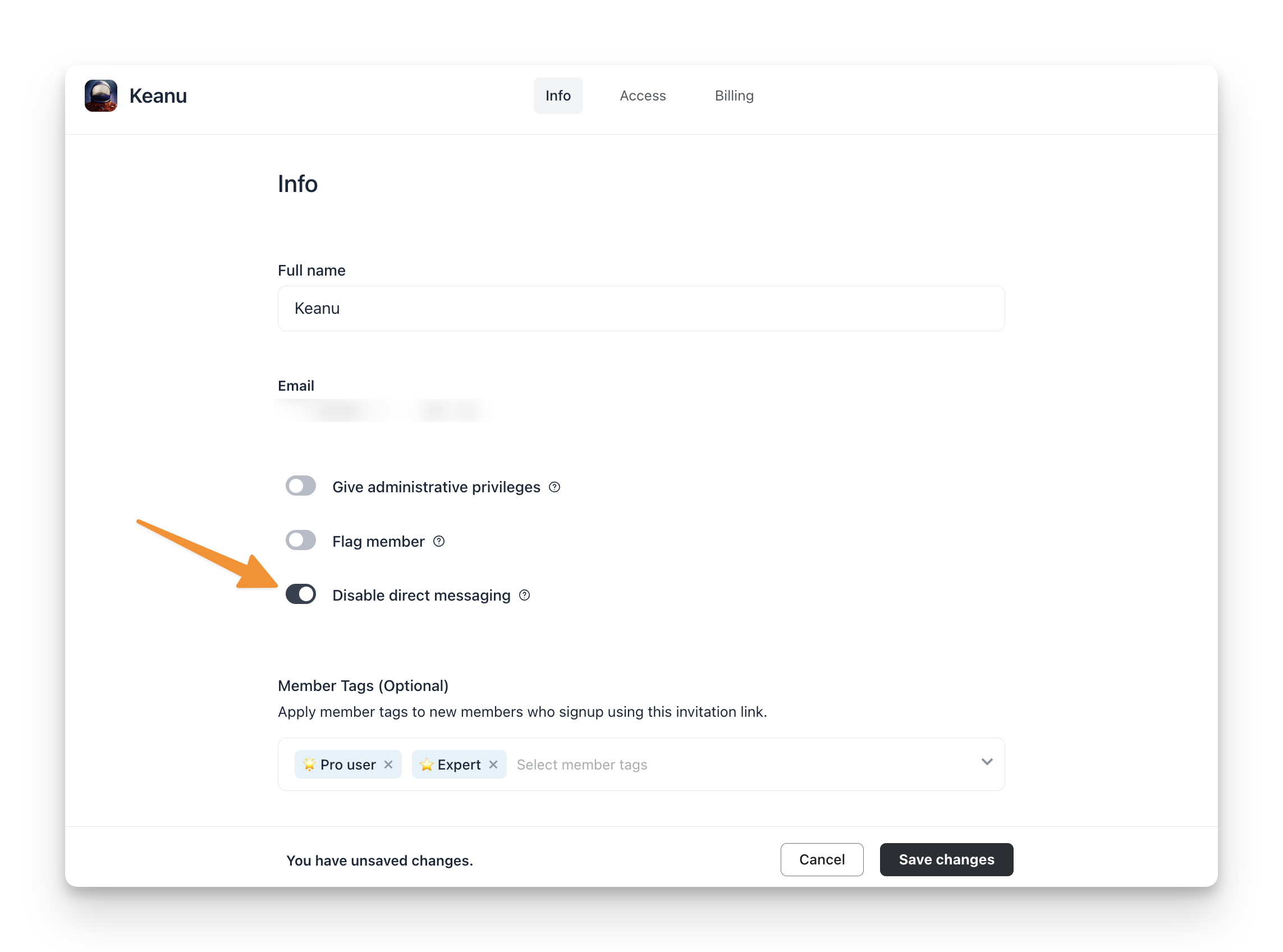
Turn on the Disable direct messaging toggle.
Click Save changes.
How can members disable messaging for their accounts?
Members have the option to disable messaging for their accounts. Once disabled, members cannot send or receive direct messages from other community members.
💡 Tip: Admins can also follow the same steps to disable messaging for their admin account.
❗Important: Admins cannot override this setting for a member account if a member has disabled it. However, admins can send a one-to-one direct message to any community member even when a member has disabled direct messaging for their account.
To disable the messaging:
Click profile photo in the community header → Edit profile.
Scroll down to the Permissions section and turn on the Prevent members from messaging me toggle.
