Create and manage group messages
Last updated: September 22, 2025
Start a group message room
Click the Direct messages icon in the community header.
-
Click the ➕ icon in the top-right corner of the dialog. The direct messages panel will open in an expanded view.
-
Type the names of members in the To: field.
Type your message in the messaging field.
Press Enter or click the Paper plane icon to initiate the room.


💡 Tip: You can create a group DM room with up to 100 members.
❗Important: Please keep in mind that the community member who initiates the group message room is automatically assigned as the room's moderator. Their ability to moderate will be limited to this group DM only.
Also, admins do not automatically gain the ability to manage rooms for group DMs. To manage the room, the moderator must assign the admin as a moderator.
Send messages
Send your messages along with the media using the messaging field at the bottom of the room.
Use the icons located below the messaging field to:
Attach image
Add emoji
Mention a member
Add GIF
Attach files
Record a voice message

Reply in a thread
Use the chat threads feature to respond to a message in a thread, which will help you keep your conversation organized inside the room.
To reply in a thread:
Hover over the message and click the Reply in thread icon.
Type your reply.
Press Enter or click the Paper plane icon to send your reply.
ℹ️ Note: You can also access the ongoing threads in your DM by clicking the replies banner under the parent message.
💡 Tip: To enhance your viewing experience, you can easily adjust the width of the threads sidebar. To do this, click and hold the divider between the DM conversation and threads sidebar, then drag it to your preferred width.
💡 Tip: Once you have at least one threaded reply in messaging or chat spaces, the Threads icon will appear in the community header, allowing you to manage all threaded conversations in one place.
📚 To learn more about chat threads, see Understanding chat threads.

Manage messages
Pin a message
Moderators can pin a message to the top of the room by hovering over the message and then clicking the More actions (three dots) icon → Pin.
To unpin a message, hover over the message and click the More actions (three dots) icon → Unpin.
ℹ️ Note: Currently, only a parent message can be pinned in the room.
💡 Tip: Click the pinned message at the top to navigate to the message in the room.
Search messages
You can easily locate specific messages, including threaded replies, within your conversation to revisit important details or references.
When using a web browser, click the Search icon at the top of the conversation to open a sidebar with a search field. Enter keywords to find relevant messages, and click a result to navigate directly to that message in the conversation.
Edit a message
Hover over the message and click the More actions (three dots) icon → Edit.
Edit your message.
Press Enter or click the Paper plane icon to save your reply.
ℹ️ Note: You can only edit your messages in the room.
Delete a message
Hover over the message and click the More actions (three dots) icon → Delete.
Click Delete.
ℹ️ Note: Moderators have the ability to delete messages sent by room members.
View room details
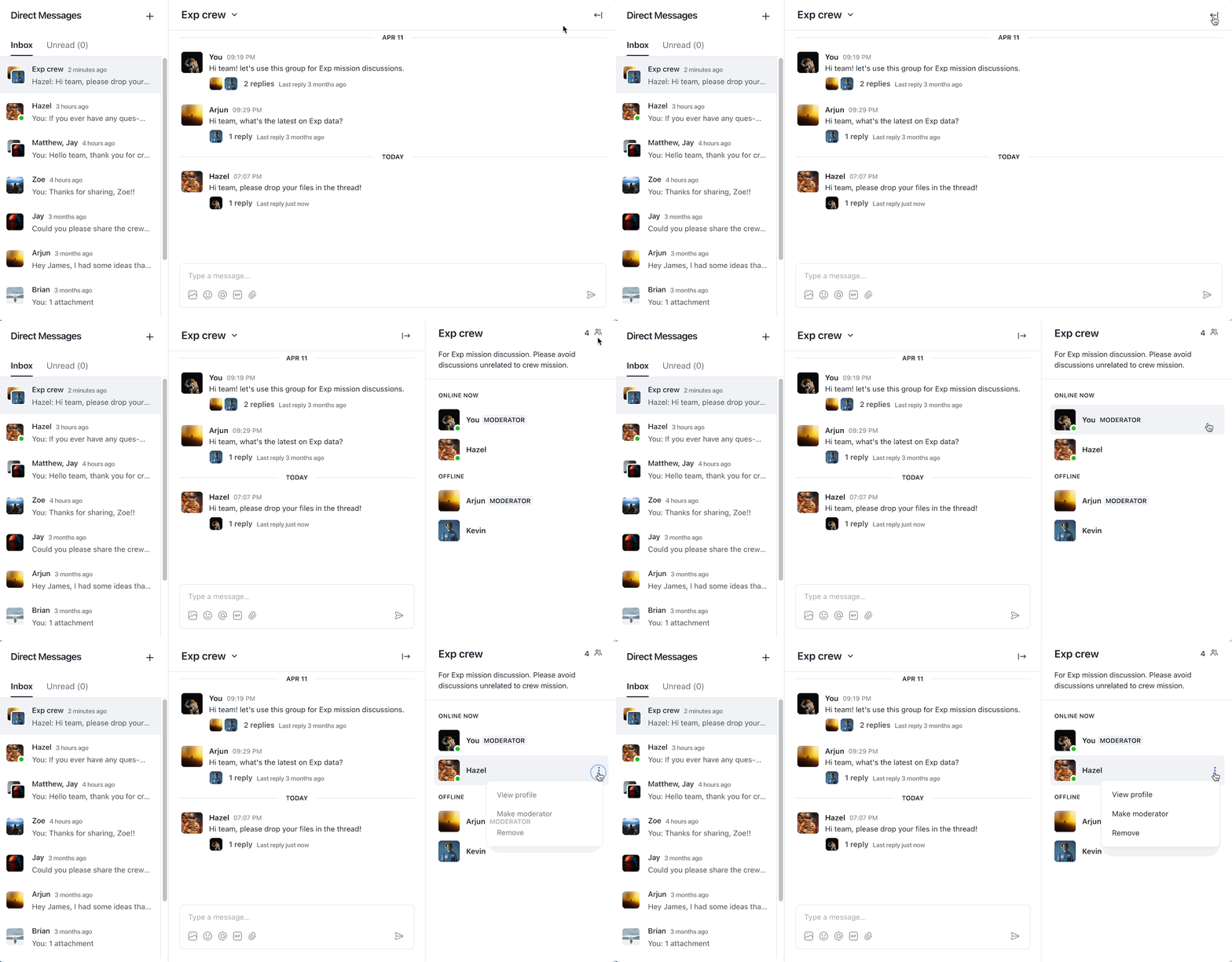
Group DM room has a collapsible right sidebar that shows the following:
Room description: A description to let your members know about the purpose of the group, guidelines, discussion topics, etc. A room description can be added by navigating to the dropdown menu beside the room’s name → Edit room info.
Members: List of members categorized into Online and Offline statuses.
💡 Tip: Room moderators show up with a Moderator badge in the right sidebar.
In the right sidebar, you can also click any member to:
View member profile
Assign a member as a room moderator (moderator only option)
Remove member (moderator only option)
Manage members
Invite members
Click the dropdown icon beside the room’s name in the header → Invite members.
Search for a member or select from the list.
Click Add.
Share room link
You can also share the link to the room with your community members so that when they click the link, they are automatically added to the group DM.
To copy the URL:
Click the dropdown icon beside the room’s name in the header → Copy room link.
Click Copy.
ℹ️ Note: Group DMs allow up to 100 members to interact in a room.
Assign moderators
The community member who initiated the room is assigned as a room moderator by default.
Room moderators can do the following:
Manage chat room
Invite members and share room link
Pin a message
Assign moderators
Remove members
To assign any room member as a moderator:
Navigate to the right sidebar (if the right sidebar is collapsed, click the Expand icon in the top-right corner).
Hover over the member’s name and click the More actions (three dots) icon → Make moderator.
Remove members
Navigate to the right sidebar (if the right sidebar is collapsed, click the Expand icon in the top-right corner).
Hover over the member’s name and click the More actions (three dots) icon → Remove.
ℹ️ Note: When you remove a member from a group DM, their messages are not automatically deleted. Their content will remain in the room, and their messages will be tagged with (Removed or left) next to their name.
Manage room
Only moderators of the room can manage the additional settings.
💡 Tip: The community member who initiates the room is automatically assigned as the room's moderator. Their ability to moderate is limited to this group DM only.
Update name and description
When you create a group DM, the names of the members are added as a name for the room.
To update the name and description of the room:
Click the dropdown icon beside the room’s name in the header → Edit room info.
Add name and/or description.
Click Update info.
Display or hide chat history
You can enable this to allow your new members to see the previous chat messages in the space. If you have disabled this setting, new members will only see the messages created after they joined the chat space.
To manage chat history setting:
Click the dropdown icon beside the room’s name in the header → Settings.
Turn on/off the New member chat history toggle.
Click Save.
Mute room
To stop receiving notifications for new messages in this room, members, including moderators, can mute the room by clicking the dropdown icon beside the room’s name in the header → Mute room.
Leave room
You can also leave a room anytime by clicking the dropdown icon beside the room’s name in the header → Leave room.
Archive room
Keep your inbox organized by archiving inactive rooms. When you archive a room, the chat disappears from your inbox and will automatically return if new messages are received.
To archive a room, click the dropdown icon beside the room’s name in the header and select Archive room.
Delete room
You can delete the entire room and all its content permanently for all participants.
To delete the room:
Click the dropdown icon beside the room’s name in the header → Delete room.
Click Delete.