Understanding chat threads
Last updated: July 04, 2023
Chat threads help you continue a conversation in more detail under a parent message without distractions or clutter, allowing you to have more organized conversations in the chat spaces and DMs.
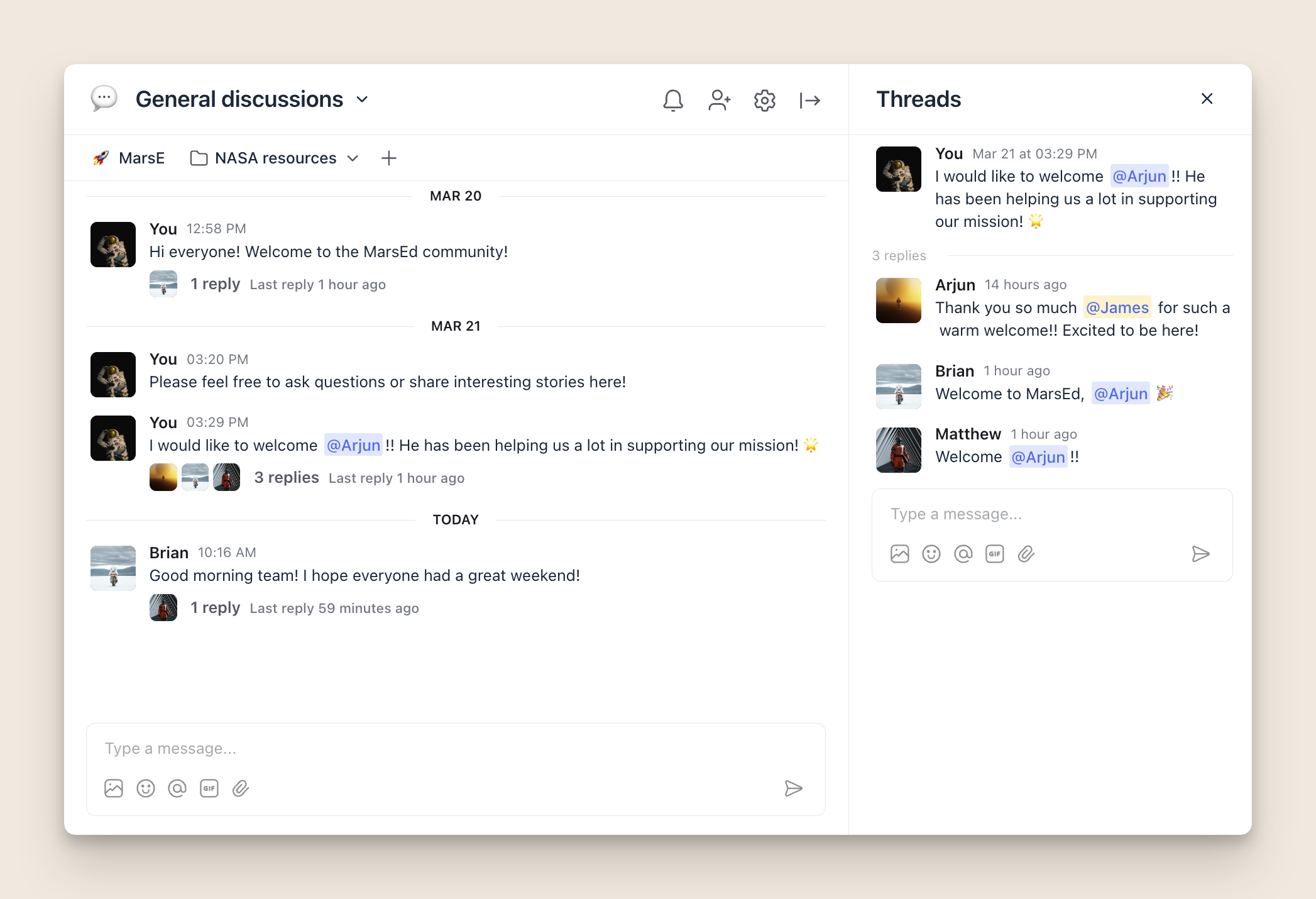
Start or reply in a thread
To start a thread inside the chat spaces and direct messages:
Hover over the parent message and click the Reply in thread icon.
Type your reply.
Press Enter or click the Paper plane icon to send your reply.
💡 Tip: If other members have already started the thread, you will see a banner displaying a number of replies threaded under the parent message. Click the replies banner to open the thread in the right sidebar.
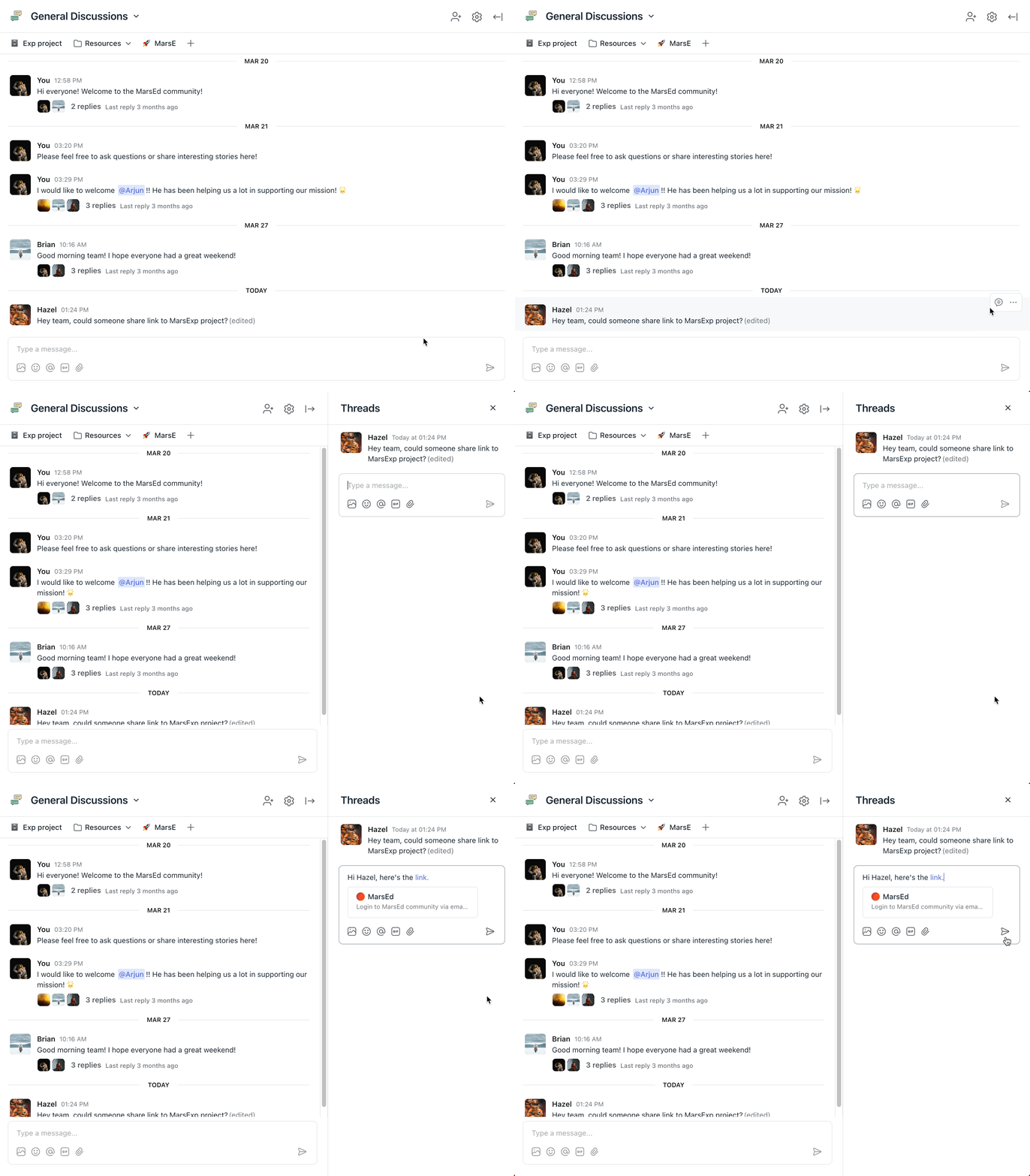
💡 Tip: To enhance your viewing experience, you can easily adjust the width of the threads sidebar. To do this, click and hold the divider between the chat and threads sidebar, then drag it to your preferred width.
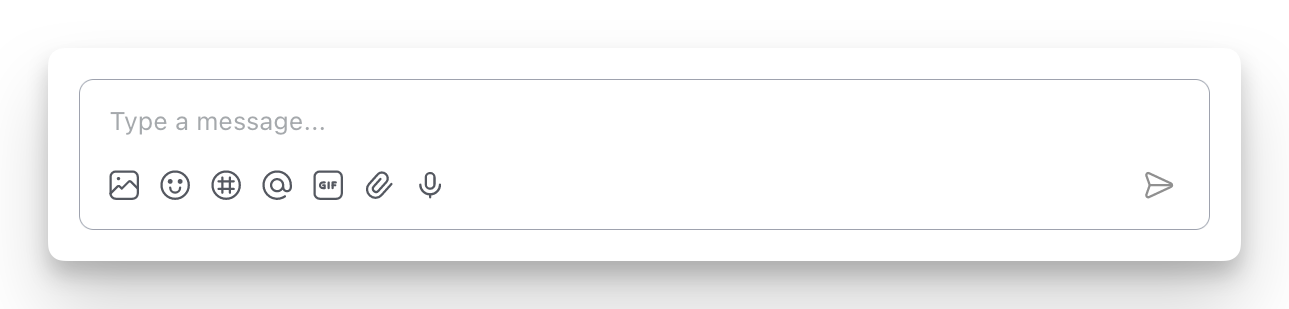
A thread’s messaging field provides the same options as the chat messaging field, allowing you to:
Attach images
Add emoji
Mention chat space members
Add GIFs
Attach files
Record a voice message
Navigate back to the parent message
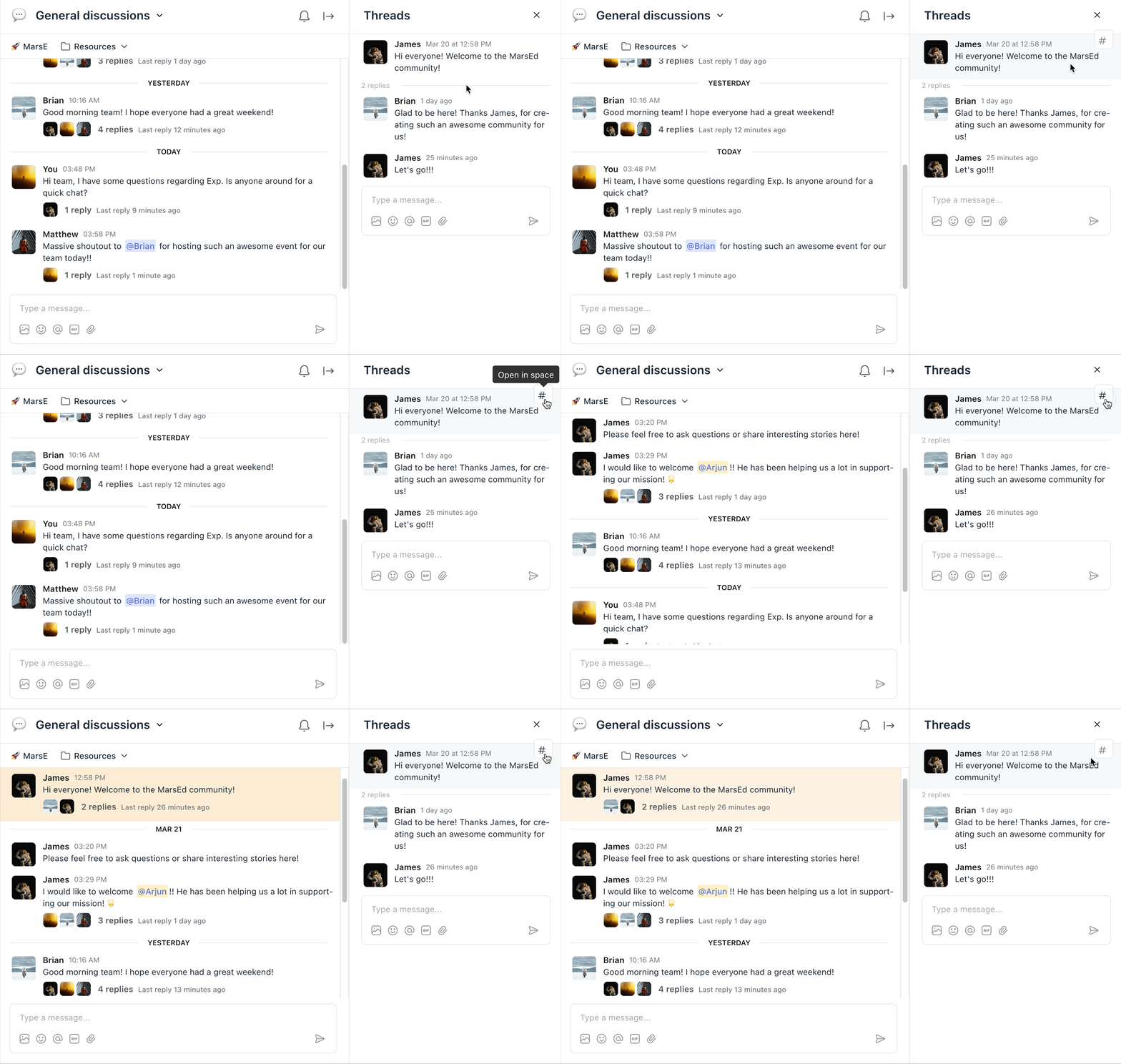
If you want to go back to the parent message while you're reading other messages in the conversation, you can do so by using the Threads section in the right sidebar.
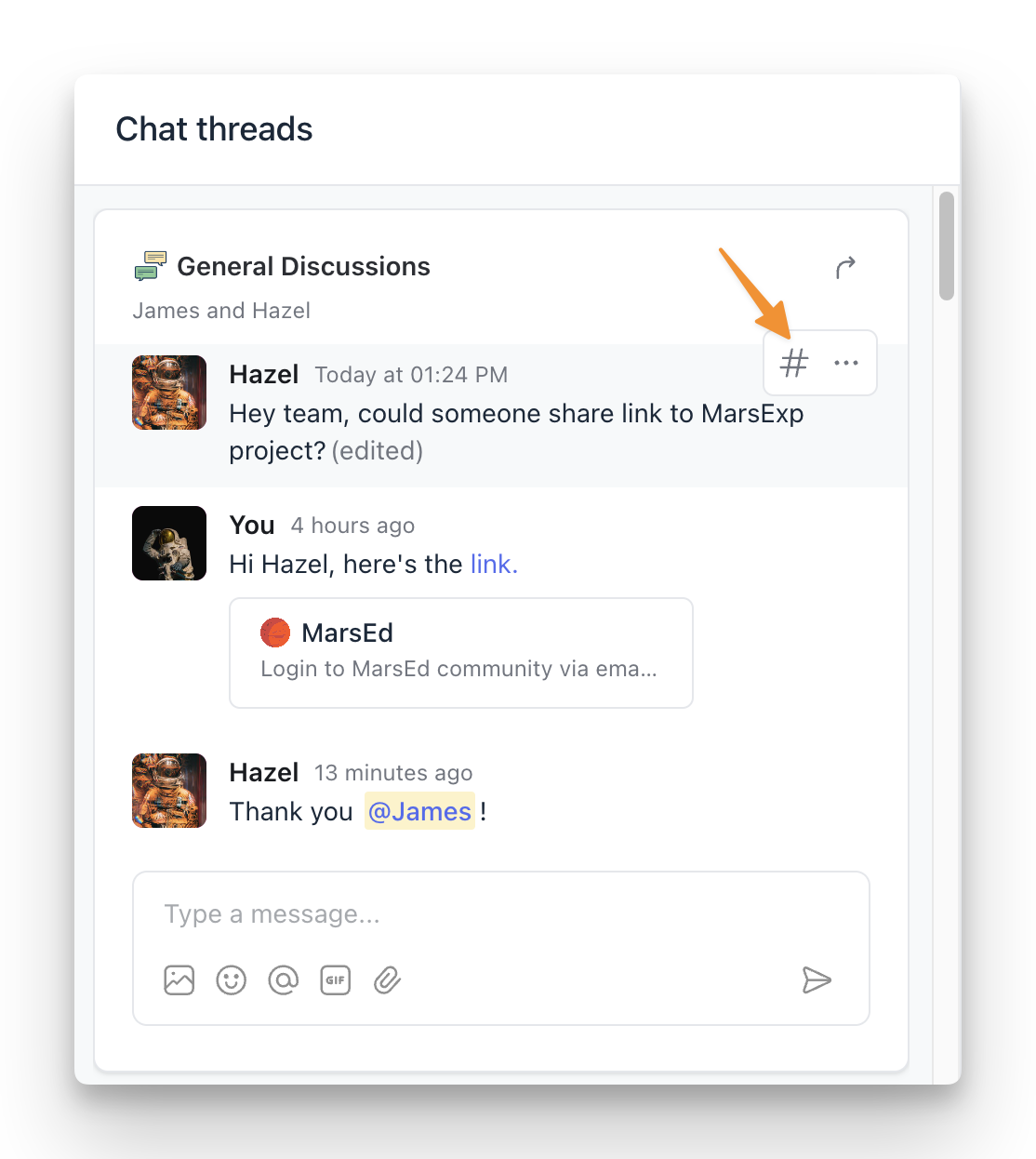
To navigate to the message in space, hover over the parent message in the right sidebar and click the #️⃣ icon.
ℹ️ Note: This option is available in both chat spaces and DMs.
Access threads
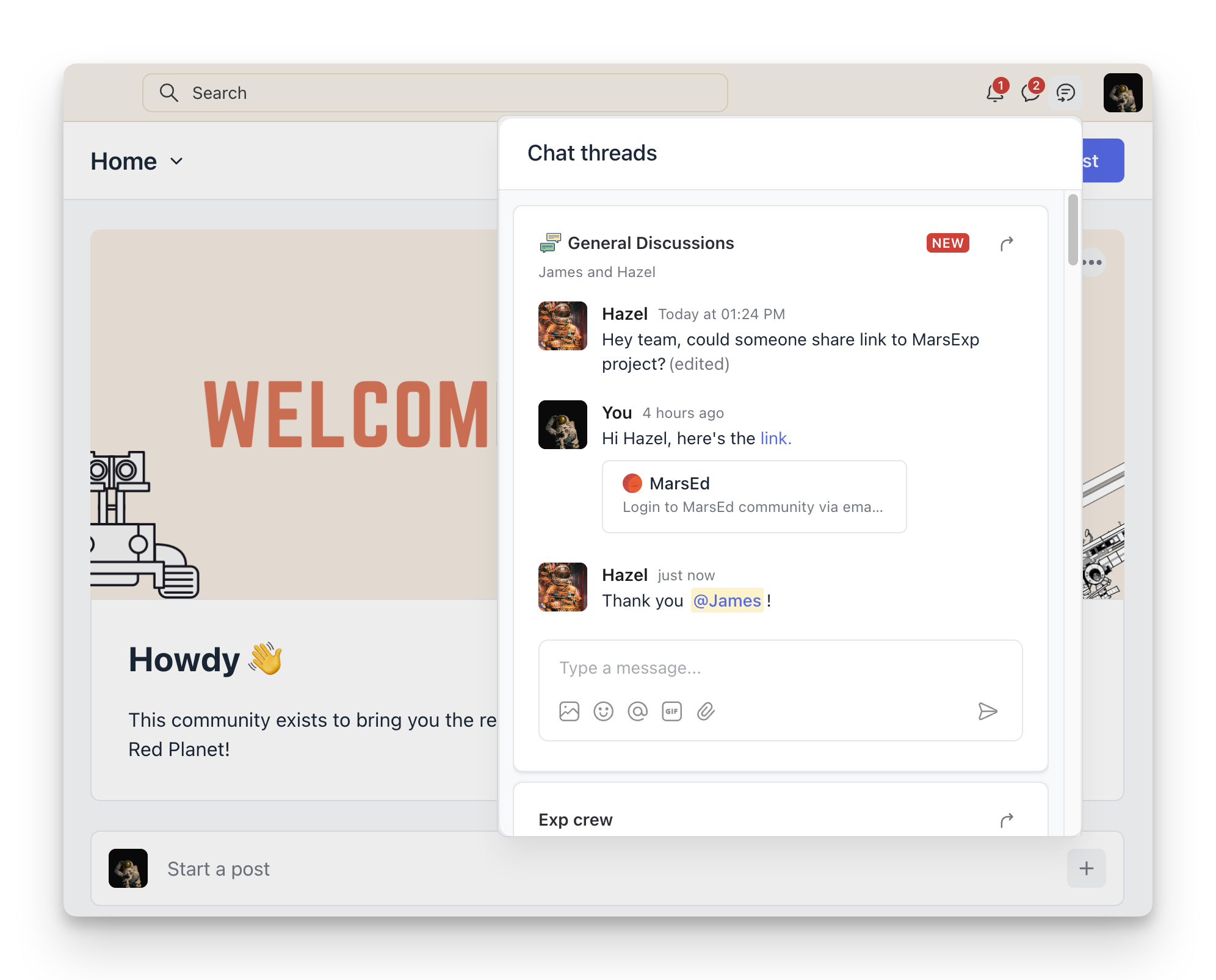
Whenever you reply or get mentioned in a thread in chat spaces or DMs in your community, you can access those threaded conversations via the Threads icon located in the community header.
Within the chat threads panel, you have the ability to:
See all your threads.
See thread location (i.e., name of the chat space or direct message) and thread participant details.
See replies for each thread.
Reply to threads.
Open threads in the original conversation.
Edit or delete your replies in the thread.
💡 Tip: When you navigate to threads, unread replies or mentions will appear at the top in the most recent order, with a NEW tag beside it.
Reply to thread
You can reply to the thread directly from the panel using the messaging field or click Reply to thread icon.
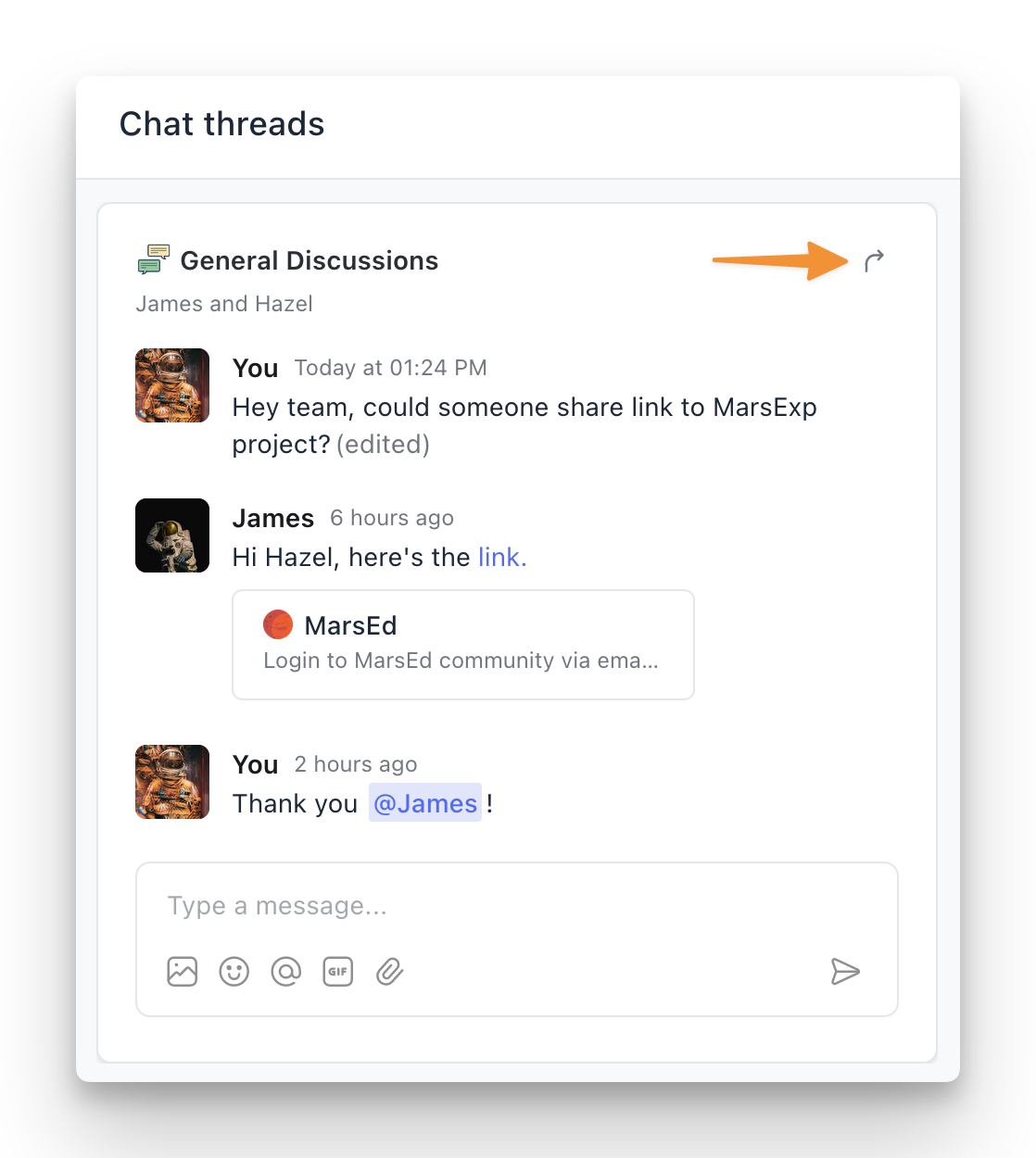
Open thread in the original conversation
To navigate to the thread in your original conversation in the chat space or direct messages, hover over the thread and click the #️⃣ icon.
💡 Tip: To navigate to the original conversation, you can also click the conversation location above the thread.
Edit a message
Hover over the message and then click the More actions (three dots) icon → Edit.
Edit your message.
Press Enter or click the Paper plane icon to save your reply.
Delete a message
Hover over the message and then click the More actions (three dots) icon → Delete.
Click Delete.
ℹ️ Note: Admins and space moderators can also delete messages from space members.