Get to know chat spaces
Last updated: October 23, 2025
Chat spaces let you host discussions in your community where members can communicate over topics, share ideas, ask questions, and assist each other.
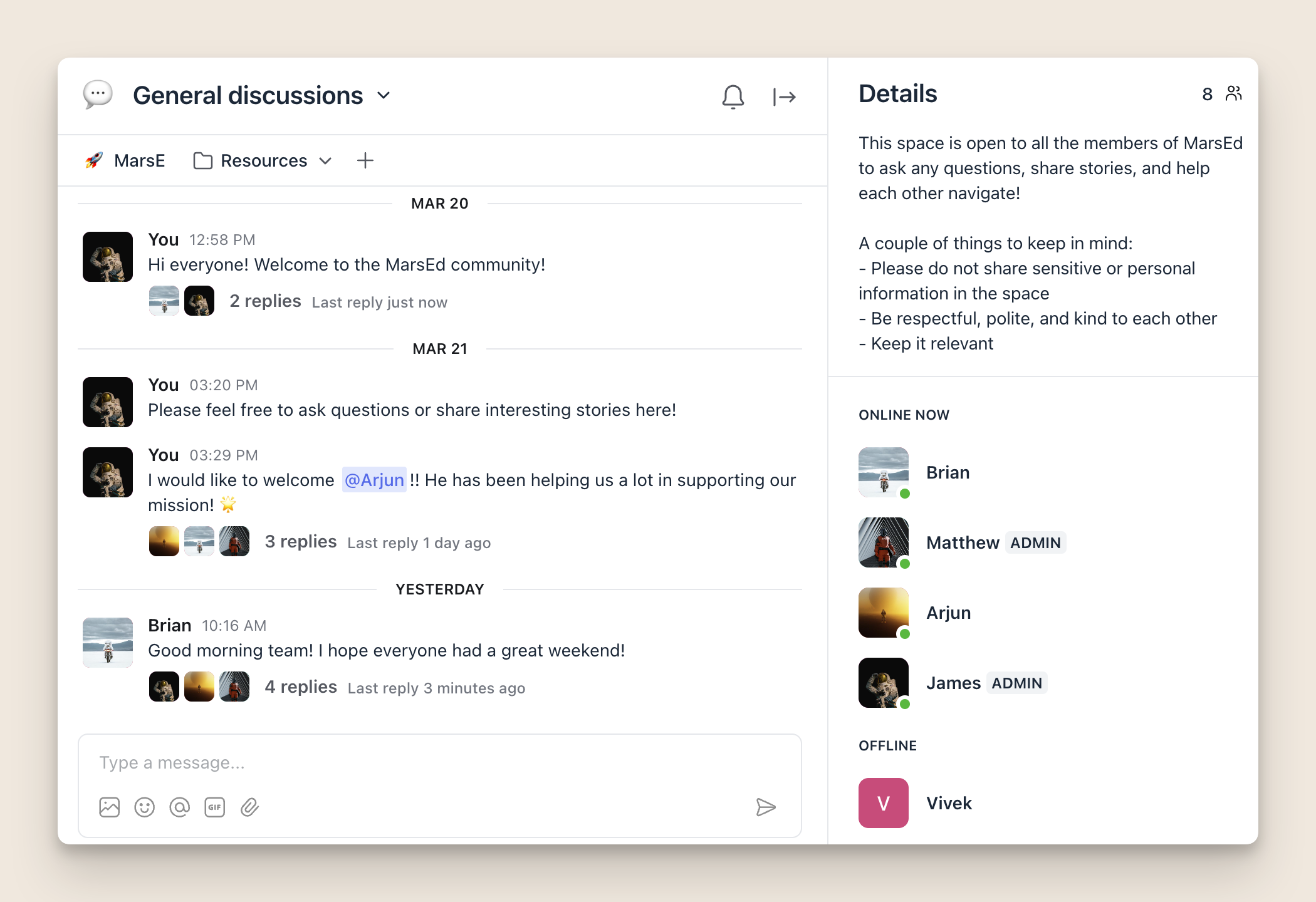
Send a message
You can start a conversation using the messaging field at the bottom of the chat space.
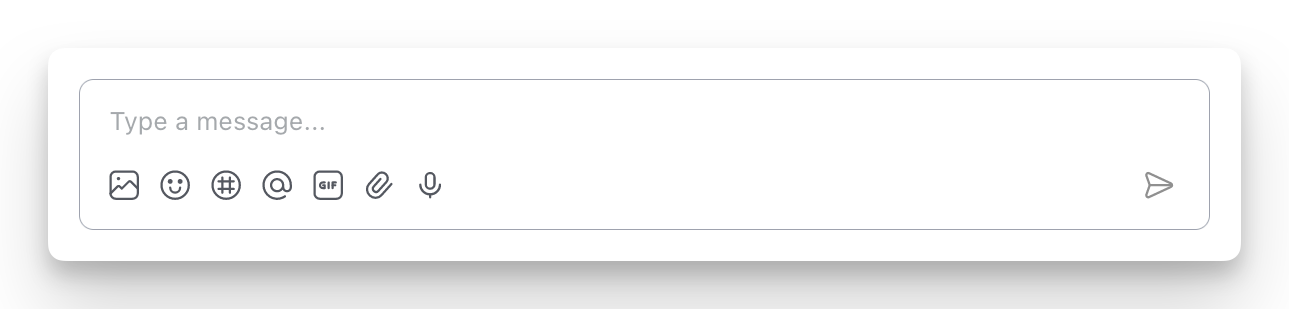
Use the icons located below the messaging field to:
Attach image
Add emoji
Mention chat space members
Add GIF
Attach files
Record a voice message
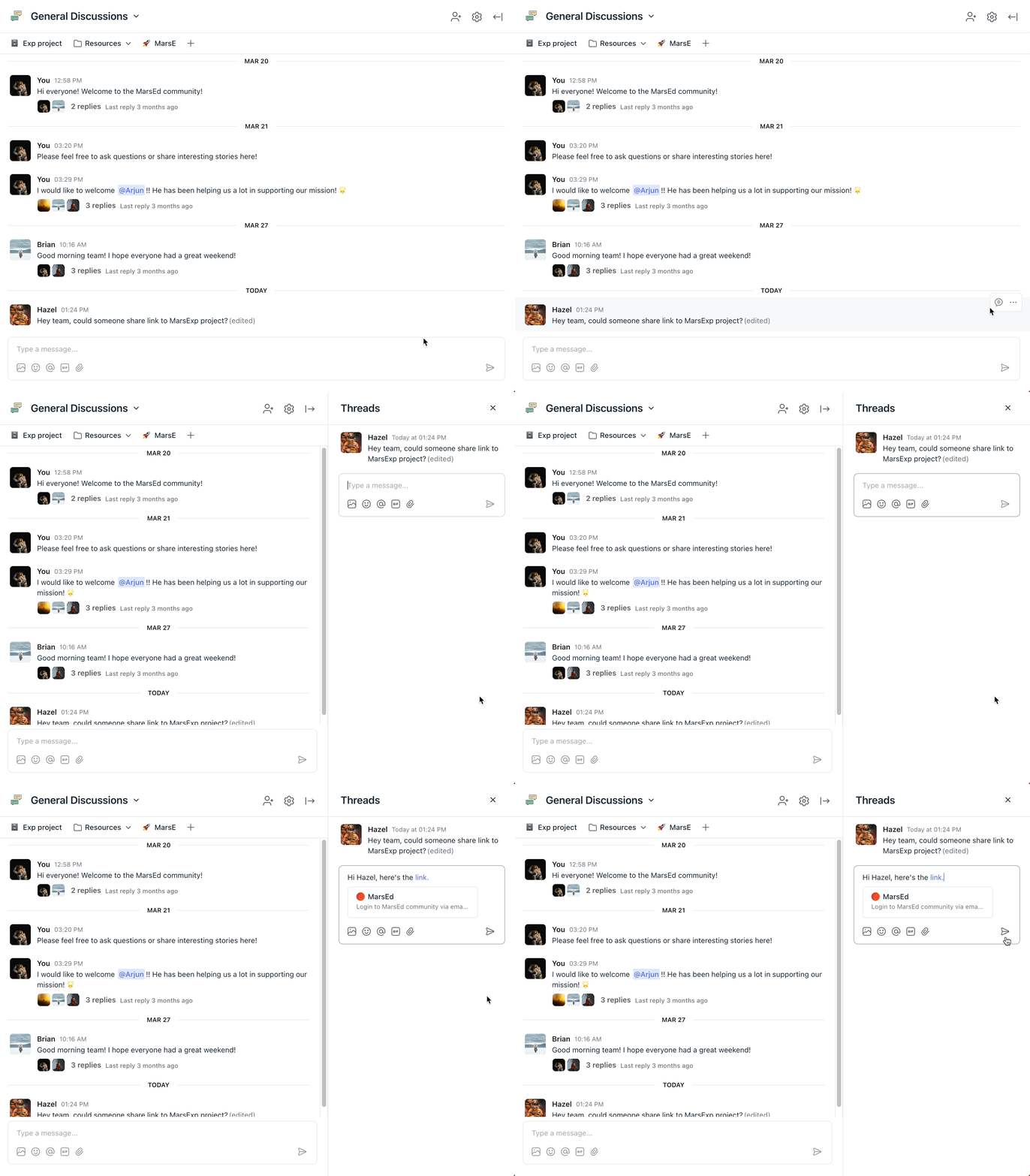
Chat messages now support entities for post comments.
To create an entity for a post comment in your chat message:
Navigate to the comment you’d like to share.
Click the more actions (three dots) icon on the comment and select Copy URL.
Paste the URL into your chat space message, and it will be automatically converted to an entity link.
Continue editing your message and click Send when ready.
Reply in a thread
Use our chat threads feature to reply to a message in a thread so that you can keep your conversation organized inside chat spaces.
To reply in a thread:
Hover over the message and click the Reply in thread icon.
Type your reply.
Press Enter or click the Paper plane icon to send your reply.
If other members have already started the thread, you will see a banner displaying a number of replies threaded under the parent message. Click the replies banner to open the thread in the right sidebar.
💡 Tip: Once you have at least one threaded reply in messaging or chat spaces, the Threads icon will appear in the community header, allowing you to manage all threaded conversations in one place.
📚 To learn more about chat threads, see Understanding chat threads.
💡 Tip: To enhance your viewing experience, you can easily adjust the width of the threads sidebar. To do this, click and hold the divider between the chat and threads sidebar, then drag it to your preferred width.
Manage conversations
Let's take a look at various options available for managing conversations inside the chat spaces through the More actions menu.

Pin a message
Admins and space moderators can pin a message to the top of the space by hovering over the message and then clicking the More actions (three dots) icon → Pin.
To unpin a message, hover over the pinned message and click the More actions (three dots) icon → Unpin.
ℹ️ Note: You can only pin one parent message in the chat space.
💡 Tip: Click the pinned message at the top to navigate to the message in the chat space.
Search messages
You can easily locate specific messages, including threaded replies, within chat spaces to revisit important details or references.
When using a web browser, click the Search icon at the top of the space to open a sidebar with a search field. Enter keywords to find relevant messages, and click a result to navigate directly to that message in the chat space.
Edit a message
Hover over the message and then click the More actions (three dots) icon → Edit.
Edit your message.
Press Enter or click the Paper plane icon to save your reply.
ℹ️ Note: You can only edit your messages in the chat space.
Delete a message
Hover over the message and click the More actions (three dots) icon → Delete.
Click Delete to confirm the deletion.
ℹ️ Note: Admins and space moderators can also delete messages from space members.
Add space links
Within the space header, you can add important links for additional resources, references, events, and more related to the discussion in the chat space.
To add a link or a folder:
Click ➕ Add link just below the space header and select Create link or Create folder.
If creating a link, add the display name for your link and paste the URL.
If creating a folder, add the display name for the bookmark folder.
Click Save.
📚 To learn more about managing space bookmarks, see Add links to the top of the spaces.
View details
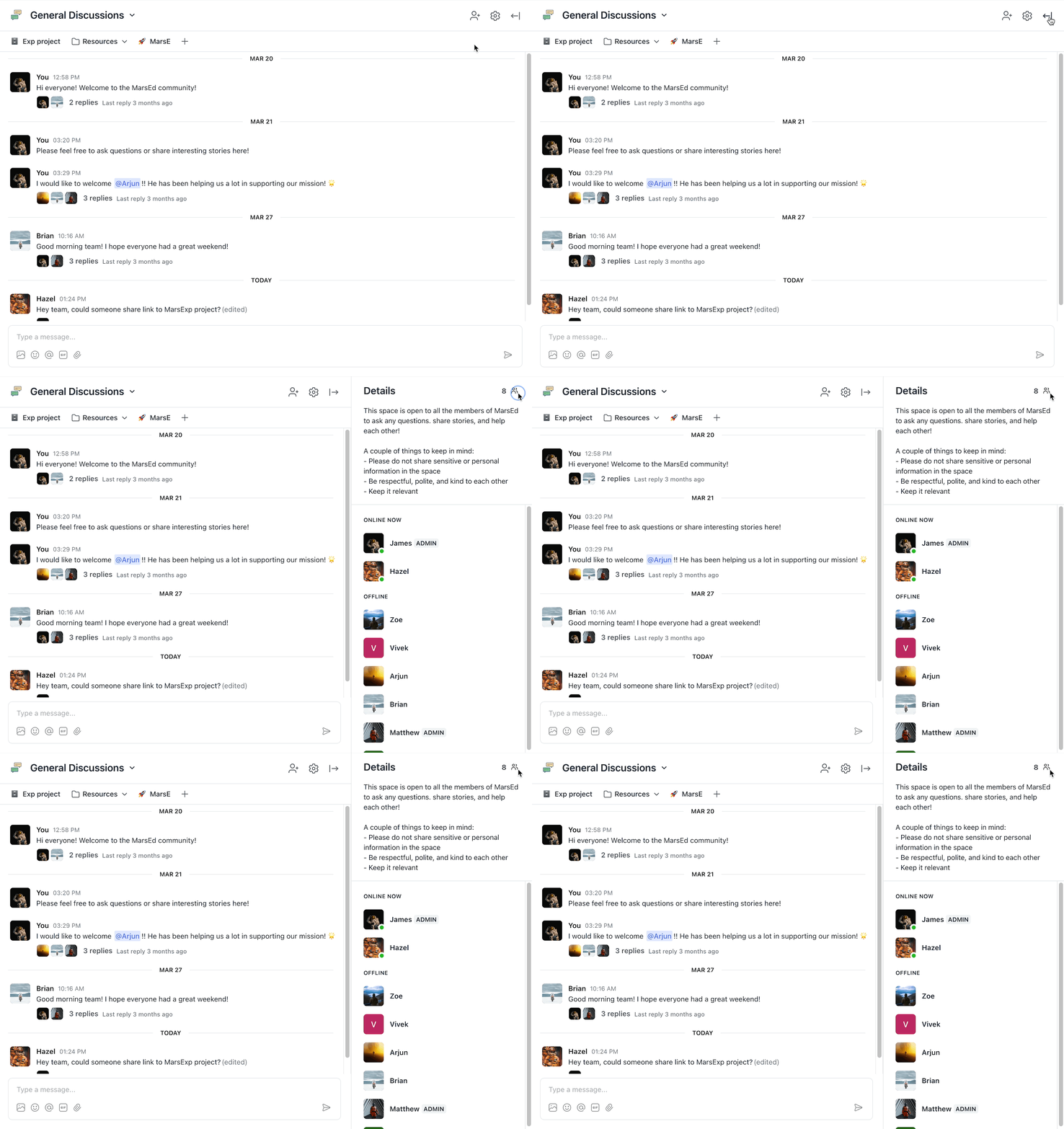
Chat space has a collapsible right sidebar that shows the following:
Details: A chat space description to let your members know about the purpose of the space, guidelines, discussion topics, etc. Space description can be added by navigating to the space dropdown menu → Customize.
Members: List of members categorized into Online and Offline statuses.
💡 Tip: Admins and moderators show up with their respective badges in the right sidebar.
In the right sidebar, hover over any member name and click the More actions (three dots) icon to:
View member profile
Send a direct message
Remove member (admin and moderator only option)
Assign moderators
When you make any member a moderator of the chat space, they can:
Pin a message
Delete messages
Manage space settings
Add/remove members
To assign moderators:
Click the dropdown icon beside the space name in the space header → Members.
Click on the dropdown beside the member’s role and select Moderator.

Export chats
Admins can now export chat space transcripts as a CSV file. The file can include all messages or be filtered by period (last 30 days, last quarter, last year, or all time) and will contain the following information:
Date
Sender’s first name
Sender’s last name
Sender’s email
Message body
There are two ways to export your chat transcript:
From the space settings
Navigate to a chat space, and click the Space settings (three dots) icon in the top right of the space.
From the settings menu, click Export chat.
Select the time frame and click Confirm.
A CSV file of the transcript will be sent to your email.
From the space management page
Click the community name or logo in the top left corner and select Content → Spaces.
Hover over the chat space and click the More actions (three dots) icon and select Export chat.
Select the time frame and click Confirm.
A CSV file of the transcript will be sent to your email.