Add links to the top of the spaces
Last updated: December 11, 2023
Are you looking to add resource URLs and important links to the space header? We’ve got you covered. You can enhance your community spaces by adding crucial links for resources, references, events, and more. In this article, we will go over creating and managing links within different spaces.
As admin or moderator of the space, you have the option to add links individually or create folders to group links based on specific topics or categories within the following space types:
Post
Event
Course
Chat
ℹ️ Note: Please note that creating and managing links within spaces can only be done through a browser. However, you can easily access all your links within a space on the Circle mobile app by clicking the dropdown icon located next to the name of the space at the top of your screen.

Create a link
To add a link:
Click Community in the left sidebar, then select Spaces.
Hover over the space name and click More actions (three dots) and select View space.
Click the Add link (➕) icon in the space header.
Select Add a link and click Next.
Add your link's display name and emoji, and paste the URL.
-
Click Save.
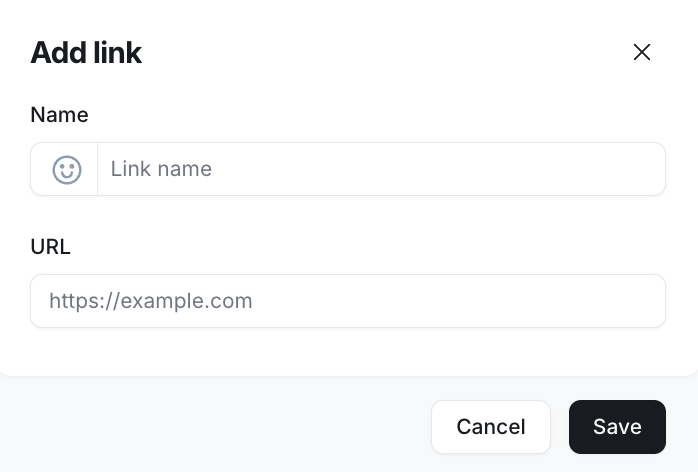
💡 Tip: You can also use a custom icon for links. To add a custom icon, go to the Custom tab in the emoji dialog and use the Paste a link to an image or Upload a file option.
📷 Recommended image dimension for the custom icon: 280 x 280 px.
Edit or remove a link
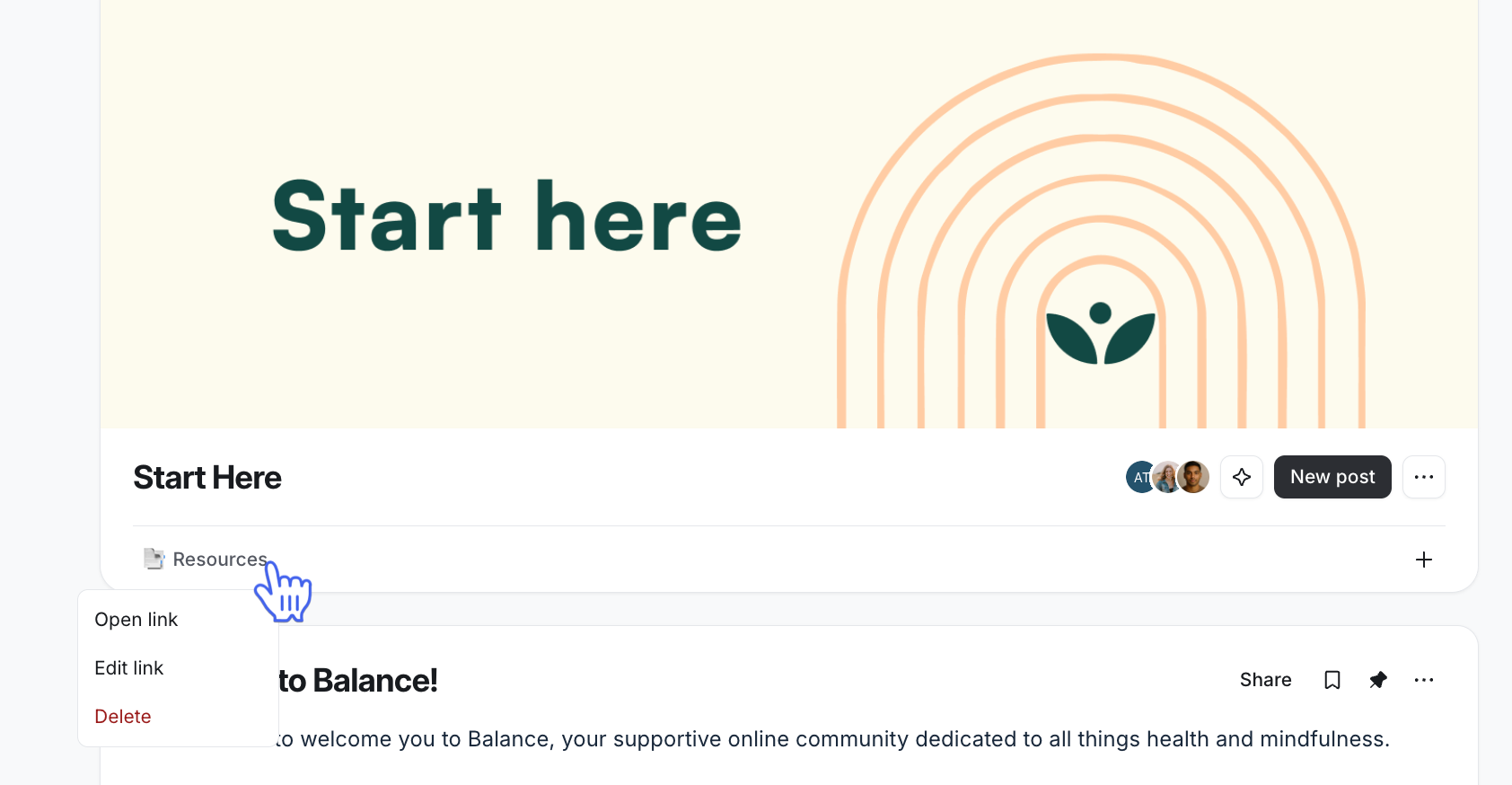
To modify or delete links from the space header, hover over the link and click the More actions (three dots) icon.
Create a folder
You can create folders to categorize the links based on specific topics or categories within your space. To add a folder:
Click Community in the left sidebar, then select Spaces.
Hover over the space name and click More actions (three dots) and select View space.
Click the Add link (➕) icon in the space header.
Select Add a folder and click Next.
-
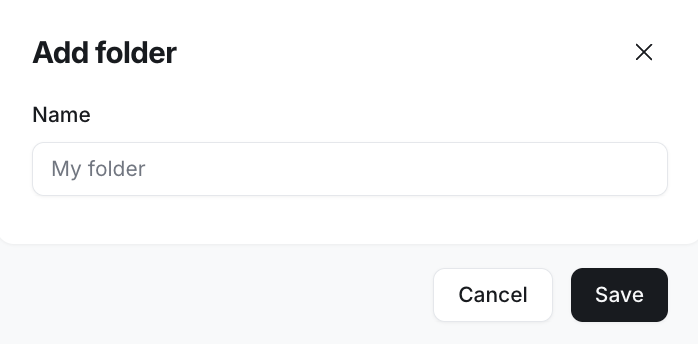
Add the folder's display name, then click Save.
Create a link inside the folder
To create a link in the folder:
Click the folder title and select the Add link.
-
Add your link's display name and emoji, and paste the URL.
Click Save.

💡 Tip: You can also use a custom icon for links. To add a custom icon, go to the Custom tab in the emoji dialog and use the Paste a link to an image or Upload a file option.📷 Recommended image dimension for the custom icon: 280 x 280 px.
Edit or Remove the link
To modify or delete links from the folder:
Click the folder title.
Hover over the link and click More actions (three dots) and select Edit or Delete.
Edit or Remove the folder
To edit or delete the folder, click the folder title and select Edit folder or Delete folder.
Arrange links
To rearrange links and folders on the space header, simply drag and drop them into desired positions. It's important to note that while you can rearrange items on the bar, you cannot rearrange individual links within a folder.