Send and manage one-to-one direct messages
Last updated: July 05, 2023Start a direct message
You can start a direct message with any member directly from their member profile or using the Direct messages icon in your account.
Start a message using the Direct messages icon
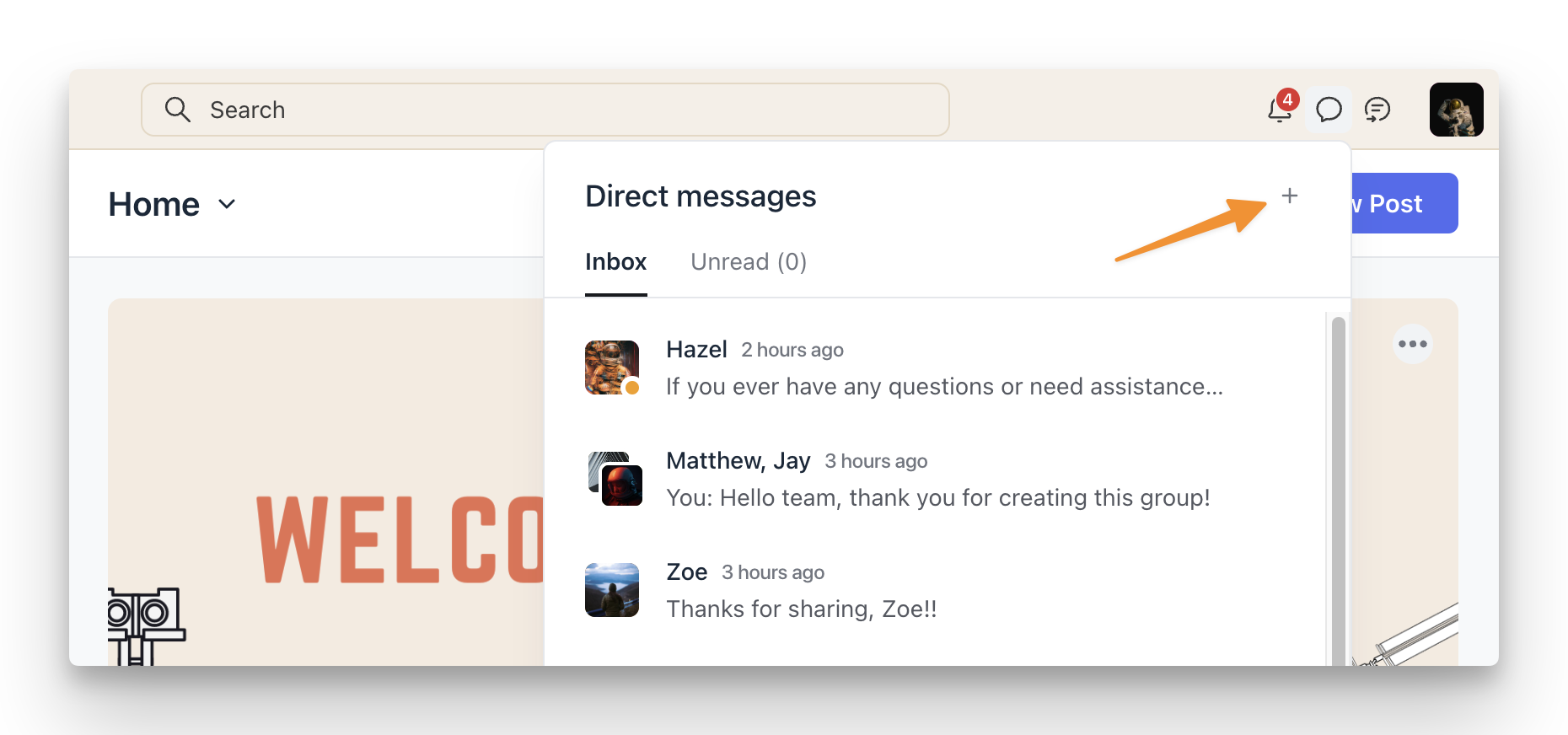
Click the Direct messages icon in the community header.
-
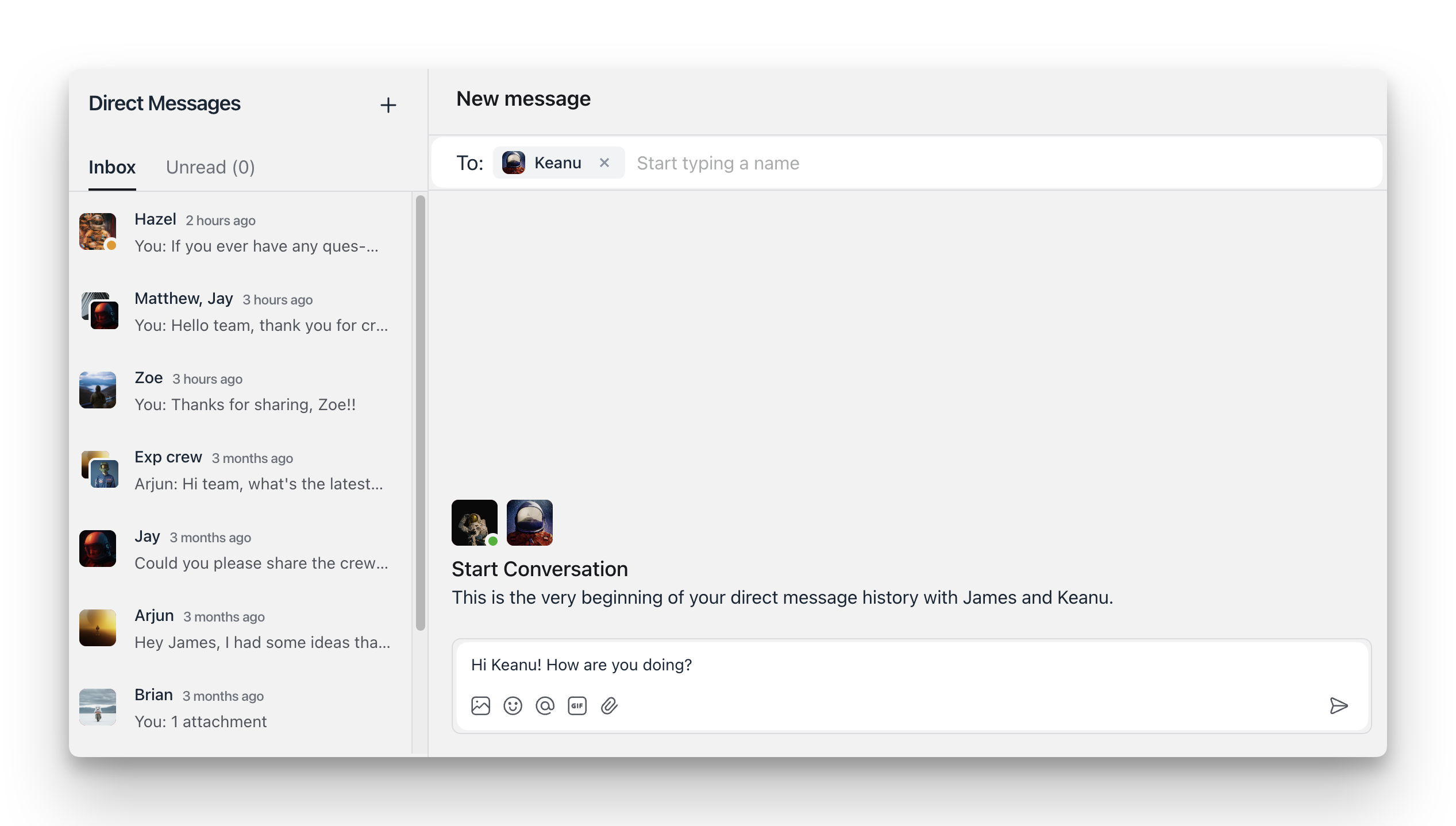
Click the ➕ icon in the top-right corner of the panel. The direct messages panel will open in an expanded view.
-
Type the name of a member in the To: field.
Type your message in the messaging field.
Press Enter or click the Paper plane icon.
Start a message from a member profile
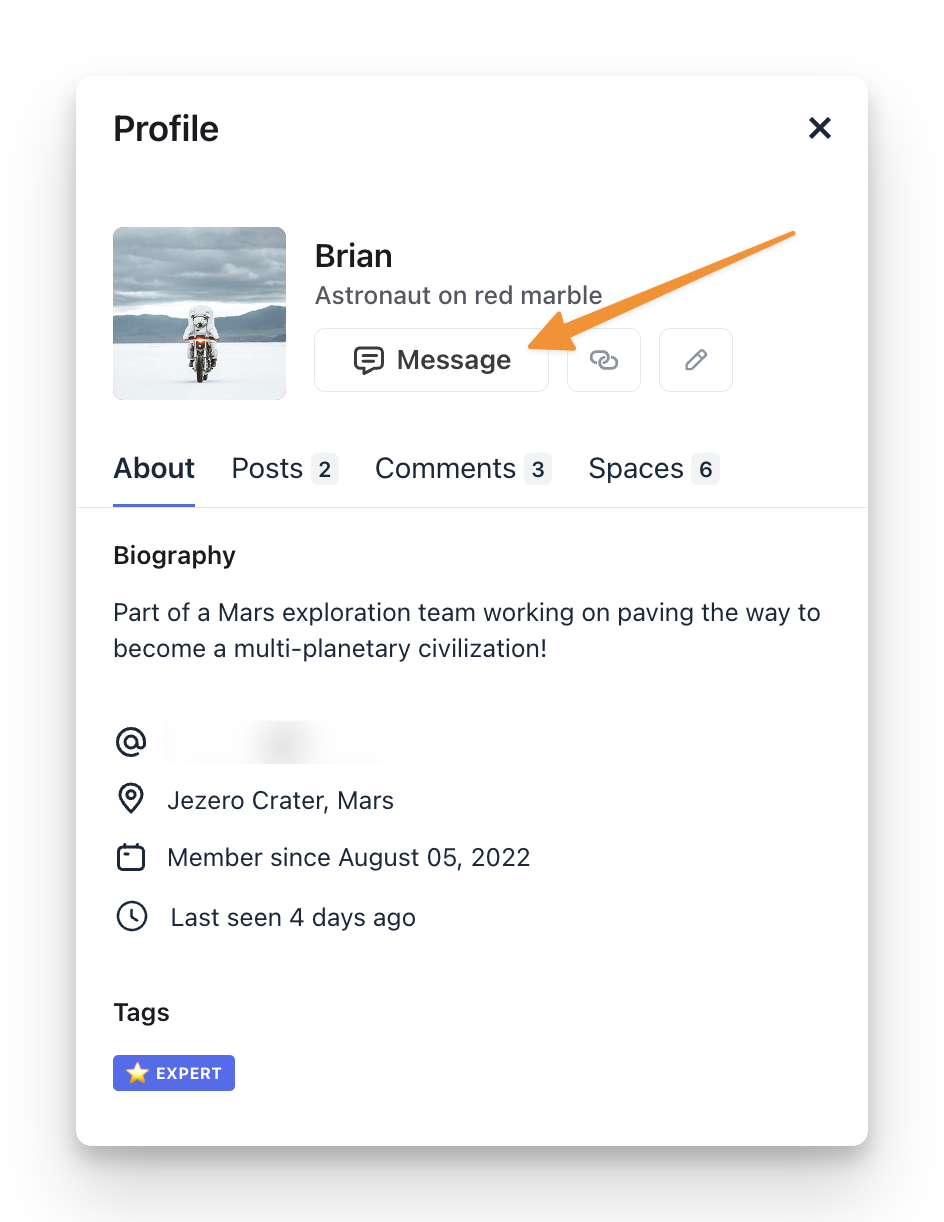
When viewing a member's profile, click Message to initiate direct messaging right from the profile.
Send messages
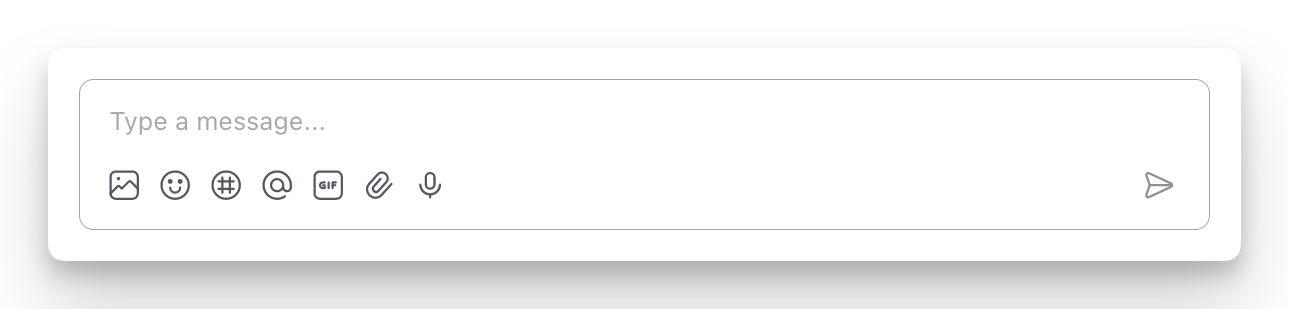
Continue your conversation in DM and share media using the messaging field at the bottom of the page.
Use the icons located below the messaging field to:
Attach image
Add emoji
Mention a member
Add GIF
Attach files
Record a voice message
Reply in a thread
Use the chat threads feature to respond to a message in a thread, which will help you keep your conversation organized.
To reply in a thread:
Hover over the message and click the Reply in thread icon.
Type your reply.
Press Enter or click the Paper plane icon to send your reply.
ℹ️ Note: You can also access the ongoing threads in your DM by clicking the replies banner under the parent message.
💡 Tip: To enhance your viewing experience, you can easily adjust the width of the threads sidebar. To do this, click and hold the divider between the DM conversation and threads sidebar, then drag it to your preferred width.
💡 Tip: Once you have at least one threaded reply in messaging or chat spaces, the Threads icon will appear in the community header, allowing you to manage all threaded conversations in one place.
📚 To learn more about chat threads, see Understanding chat threads.
Manage your DM
View or hide member profile
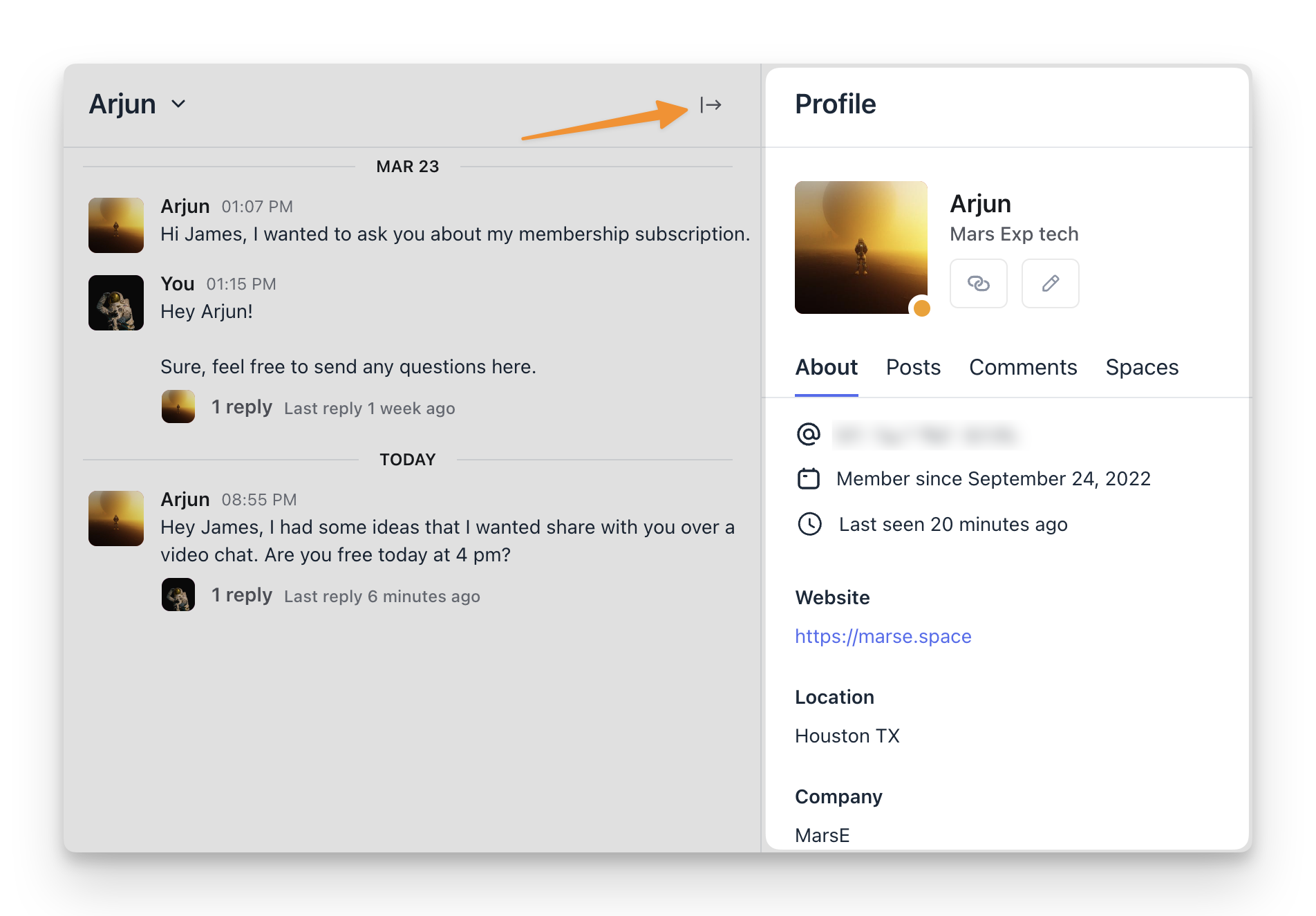
To view or hide a member’s profile in a direct message, click the dropdown icon beside the member’s name in the header → View/Hide profile or click the arrow icon in the top-right corner.
Pin a message
Similar to chat spaces, you can pin a message to the top in DM by hovering over the message and then clicking the More actions (three dots) icon → Pin.
To unpin a message, hover over the message and then click the More actions (three dots) icon → Unpin.
ℹ️ Note: Currently, only a parent message can be pinned in the DM.
💡 Tip: Click the pinned message at the top to navigate to the message in the DM.
Search messages
You can easily locate specific messages, including threaded replies, within your conversation to revisit important details or references.
When using a web browser, click the Search icon at the top of the conversation to open a sidebar with a search field. Enter keywords to find relevant messages, and click a result to navigate directly to that message in the conversation.
Edit a message
Hover over the message and click the More actions (three dots) icon → Edit.
Edit your message.
Press Enter or click the Paper plane icon to save your reply.
ℹ️ Note: You can only edit your messages in the DM.
Delete a message
Hover over the message and click the More actions (three dots) icon → Delete.
Click Delete.
ℹ️ Note: You can only delete your messages in the DM.
Archive a DM
To archive the entire conversation, click the dropdown icon beside the member’s name in the header → Archive.
ℹ️ Note: When you archive a DM, it will only be deleted for your account. The member who had a DM with you can still access it in their account.