Hosting Circle live events
Last updated: September, 2026
Are you excited to take the stage and host a live event in your community? In this article, we will walk you through essential details to help you effectively manage and lead a live event in the community.
ℹ️ Note: This guide applies to admins, moderators of the space, or members assigned as the event host.
Manage live event details as a host
If you are a member assigned to host an event, you have the ability to manage your event’s details and settings. To access event management options, click More actions (three dots) next to the event.
Here’s what you can manage:
-
Update basic event information, schedule, and location configuration.
ℹ️ It’s important to note that you can only configure the Repeats schedule for recurring events when creating the draft. Once the event draft is created, you’re only able to modify the date & time for individual events within a published recurring event series.
Manage event attendees and post details.
Update event notifications and advance settings.
Delete the event.
❗Important: Before initiating a live event, ensure you have configured the options such as visibility and recording for the live event session as per your preference. To access these options, click the More actions (three dots) next to the event and select Edit event.
📚 For more information, see Manage events.
Initiate live event
When you are ready to start the live event:
Click Community in the left sidebar, then select Spaces.
Click the space name to open the event space and locate the event.
Under the event location, the option to join and initiate the live stream or room will appear.
To share the live URL with your attendees after the event is published:
Click More actions (three dots) next to the event and select Edit event.
Navigate to the Overview tab and click the Copy live URL option.If you are hosting a public live stream event, you can also share the URL with your visitors by clicking the Copy public live URL option.
ℹ️ Note: If you have created any live events before September 6, 2024, the live session will be created 30 minutes before the event’s start time. For these events, the live link and the option to join the live event will only be available once the live session is created.
💡 Tip: When a moderator or member is hosting an event, admins still have the ability to initiate the live event on their behalf, join the live session as a co-host (for live stream events), assign themselves as a live moderator, or end the session on behalf of the host.
📚 If you aren’t familiar with the Circle live feature, we suggest checking out the following sections in the Help Center:
Let’s take a look at how you can initiate the live event.
Live stream event
Click Community in the left sidebar, then select Spaces.
Click the space name to open the event space and locate the event.
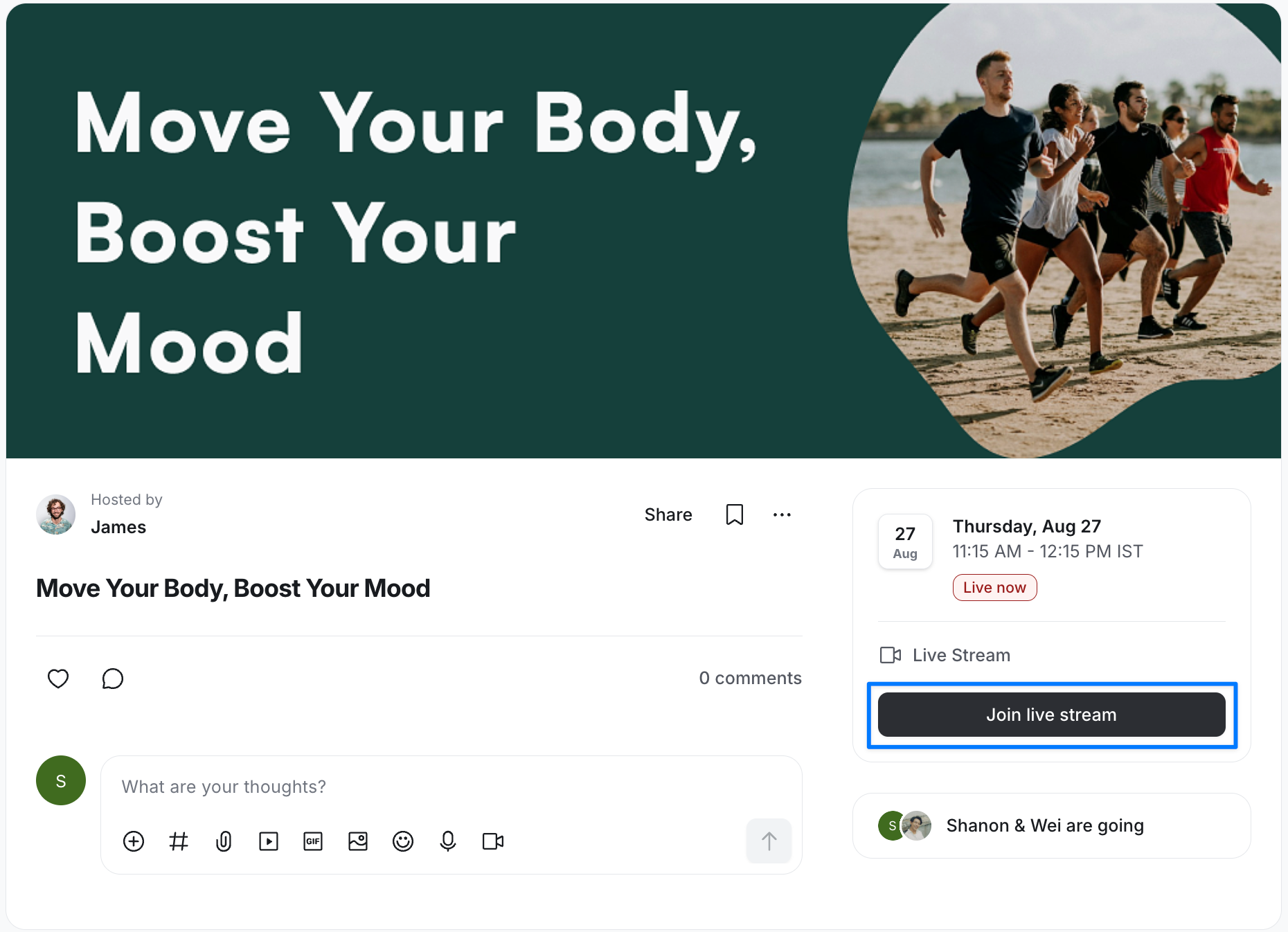
Click the event to open the event details page.
Click the Join live stream.
-
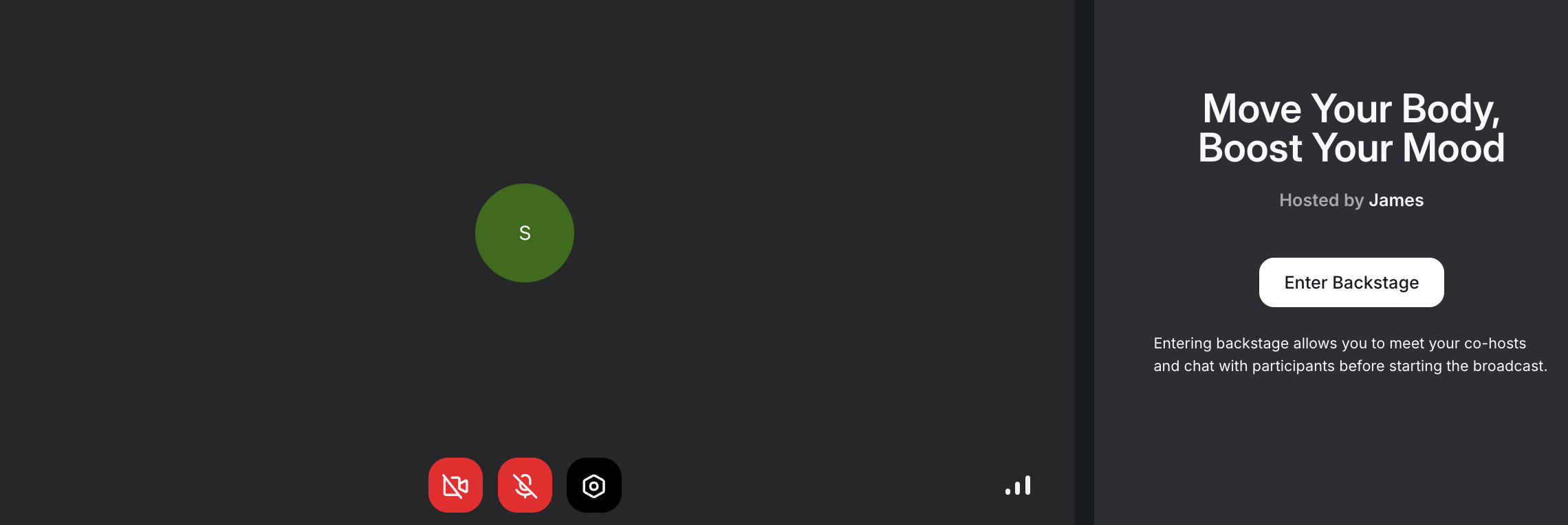
On the preview screen:
Click the Microphone or Camera icons to turn them on/off.
-
Click Device settings ⚙️ to configure the following:
Camera input
Blur camera background
Mirror video input
Microphone input and audio output
-
Check your connection quality.
-
Once you are ready, click Enter Backstage.
Backstage allows you to prepare, test everything, and collaborate with co-hosts before going live. Once you enter backstage, the co-host will get notified in-app to join you in the stream. For more information, see Utilizing backstage for live streams.
Once you are ready to start streaming, on the control bar, click Go Live, and then confirm the action to proceed.
Live room event
Click Community in the left sidebar, then select Spaces.
Click the space name to open the event space and locate the event.
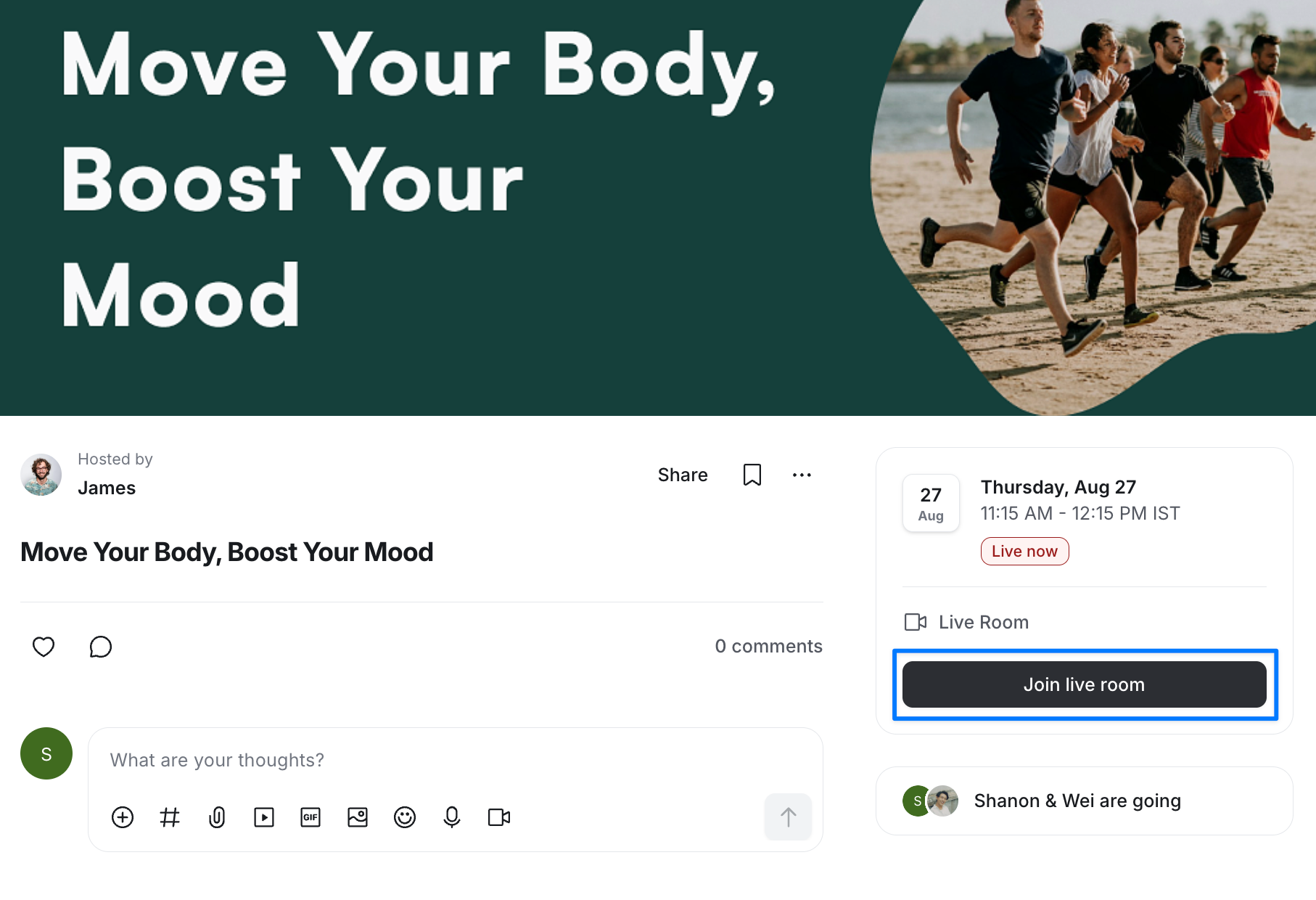
Click the event to open the event details page.
-
Click the Join live room.
-
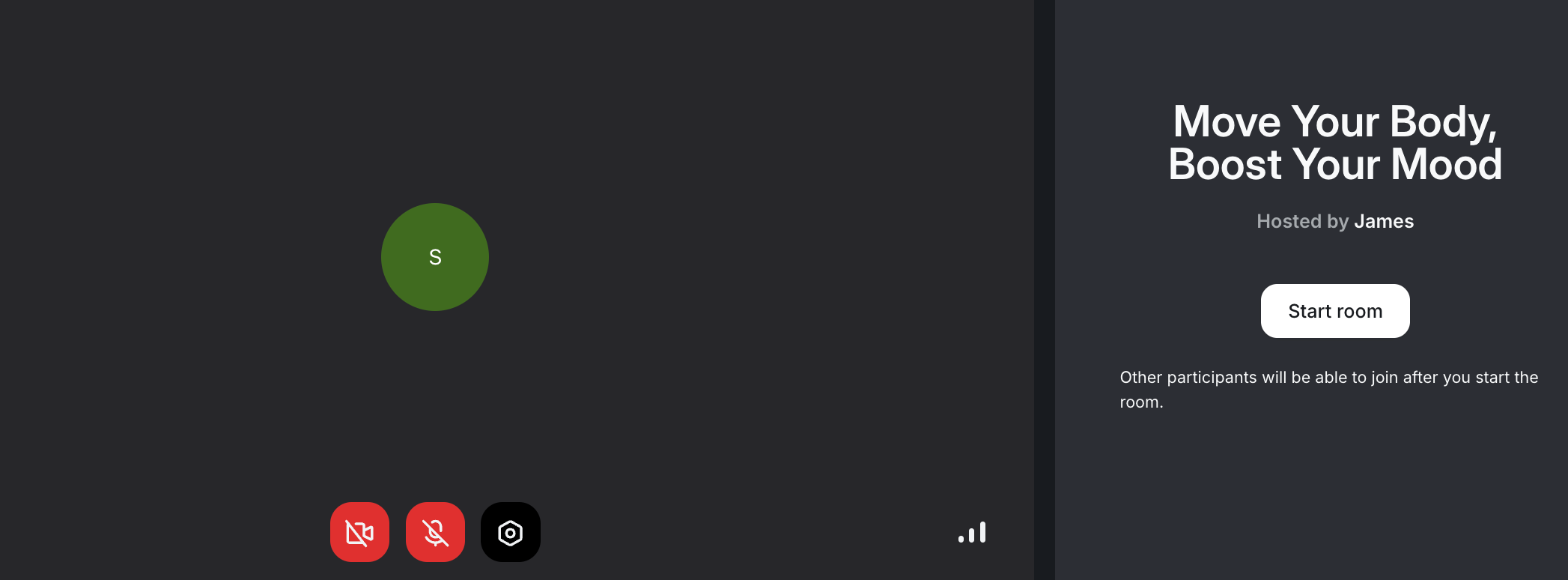
On the preview screen:
Click the Microphone or Camera icons to turn them on/off.
-
Click Device settings ⚙️ to configure the following:
Camera input
Blur camera background
Mirror video input
Microphone input and audio output
-
Check your connection quality.
Once ready, click Start room.
💡 Tip: If you plan to initiate the live session from the Circle iOS app, you can navigate to the event space, tap the event, and tap again on the location link.
Manage live event
After you begin your live event session, you have access to various options available on the screen to manage your session, including the ability to:
Manage participants.
Host and manage the live Q&A.
Manage chat.
Make your participant a moderator of the live session.
Manage your device settings.
Share your device screen.
Manage live video layout.
📚 For more information about managing your live session, see the Live Management section in the Help Center.
End live event
Once you are done, you can click the End stream/room to end the live event session.
If you (the host) decide to leave the session without ending it and participants remain, the live session will continue to be active, but participants won’t receive host privileges.
ℹ️ Note: The host can also return to the live session while it’s active by clicking the Join stream/room in the live banner in the lower corner of the left sidebar.
There are several ways to end the live session if the host has left:
The host can end the live session by clicking End Stream/Room in the live banner at the lower left corner of the left sidebar.
One of the community admins can end the session from the live dashboard.
The remaining participants can leave the session. After the last participant has left, the live session will automatically end after five minutes.