Guide to Circle live events
Last updated: September, 2026
Circle live makes it simple to host interactive video events without leaving your community. You can use circle live events for everything from small-group discussions to public broadcasts that reach beyond your members. When you set Circle live as the event location, everything from access settings to hosting is managed directly within Circle.
Here’s what Circle live events make possible:
Host directly in Circle: Keep the entire experience in one place. No need to send members to external platforms.
-
Flexible access controls: Decide who can join the live event session, only invited attendees, members of the event space, your whole community, and even visitors (if public access or paid events are configured).
Paid events: Sell tickets for Circle live sessions. Both members and non-members can purchase access. When non-members buy a ticket, they also join your community.
Public RSVP: Set up live events that allow non-members to RSVP and participate in events. If you want non-members to actively participate, such as joining a live room or co-hosting a live stream, using the public RSVP feature is a great option.
Public live streams: Create free public live stream events that let non-members join (with view-only access) using a public live URL without needing to RSVP.
Interactive Q&A: Use live chat and Q&A to take questions and keep attendees engaged throughout the session.
Bring people on stage: Invite attendees to speak, share their camera, or present during the live stream events.
Record and share: Record the session and automatically post the replay on the event details page for those who missed it.
Powerful live dashboard: Manage everything from the live dashboard, such as managing recordings, viewing or downloading the attendee list, exporting chat logs, and sharing recordings directly into post spaces.
Ways to use Circle live in your community
Circle live is flexible enough to support different styles of engagement. You can use it for:
Workshops or classes: Teach a topic, run a training, or walk through a tutorial.
Q&A sessions: Host an open floor for members to ask questions in real time.
Panel discussions: Invite multiple speakers to share insights on a topic.
Community meetups: Gather members for casual conversations and networking.
Announcements or launches: Share big updates live with your members.
Office hours: Let members drop in to ask for guidance or feedback.
Create Circle live events
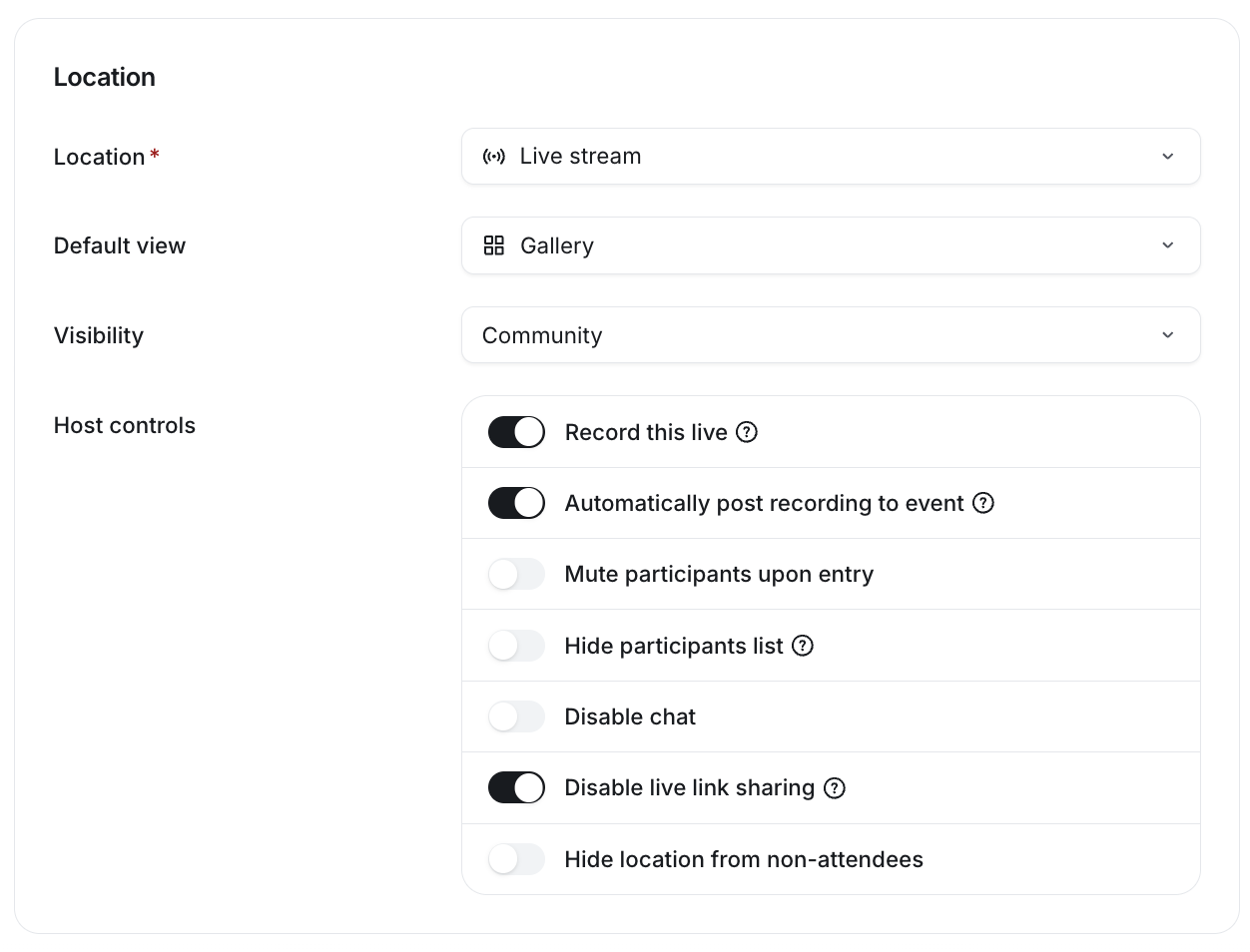
When you create an event, you’ll see two Circle live options for location:
Live stream: Attendees watch while engaging through chat and Q&A.
Live room: Attendees can participate with video, audio, including chat and Q&A for richer interaction.
Once you publish the event:
A live session is created in your live dashboard.
The event overview (the Overview tab in the event setup) populates the live URL.
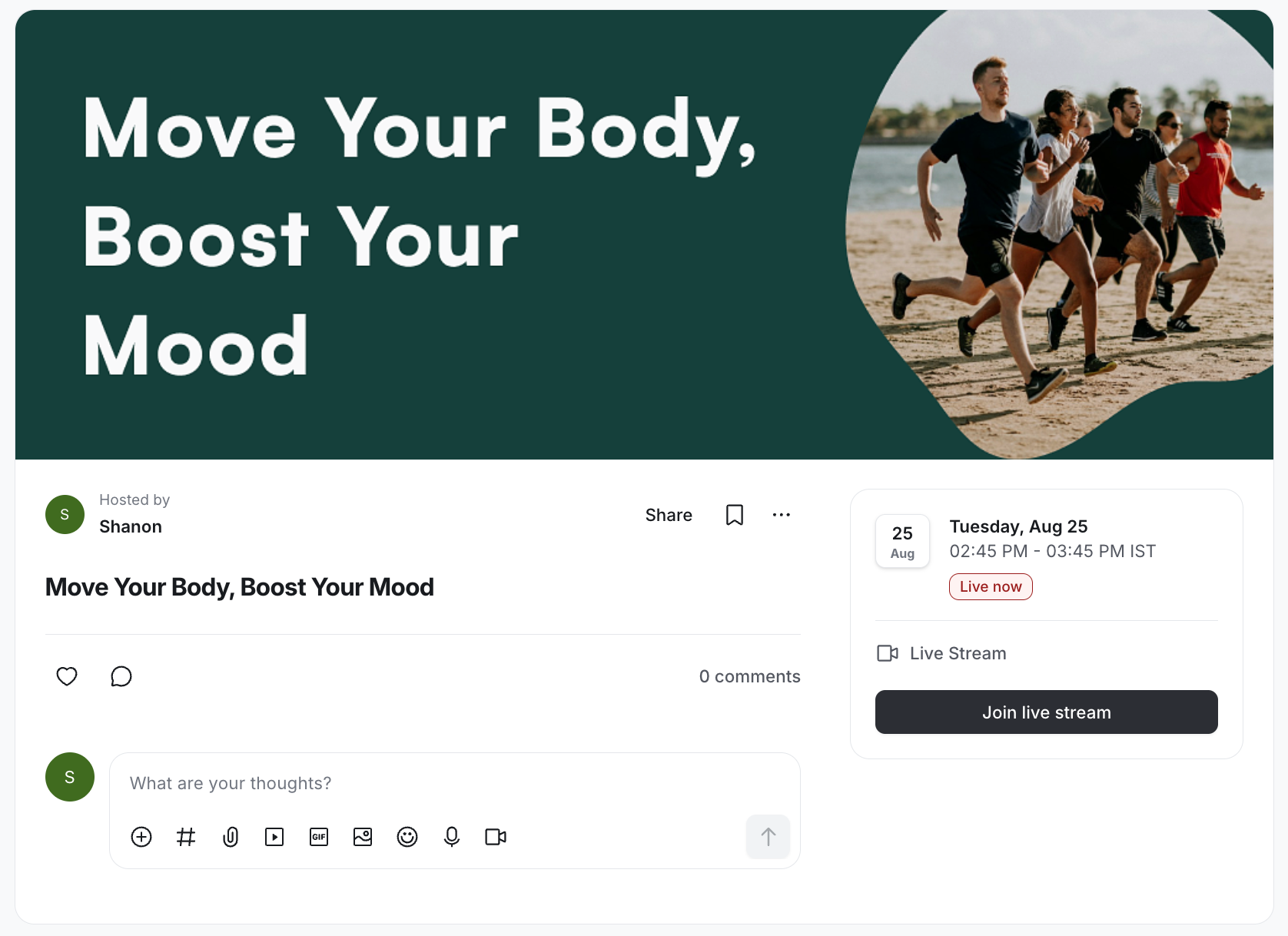
The event page updates with a Join live button.
As the host, you can enter the session early to prepare or go live at the scheduled start time.
📚 To learn more about how you can set up the Circle live stream or live room as an event location and configure its settings, see the Set up the Circle live location section in our event creation guide.
ℹ️ Note: Each live session counts toward your plan’s live feature limits and is also subject to session-specific limits. For more details, see View and increase the live limits of your community plan.
Share the live event link
After publishing, you can share the event’s live URL with attendees. This is the link that takes attendees directly to the joining screen.
Click Community in the left sidebar, then select Spaces.
Click the space name to open the event space and locate the event.
Click More actions (three dots) next to the event, and select Edit event.
In the overview tab, select Copy live URL. If your live stream event is set to public visibility, you’ll also see a Copy public live URL option to share with visitors.
💡 Tip: To prevent anyone who is not part of the live visibility and attendee list (with confirmed RSVP) from accessing the live event, make sure to enable the Disable live link sharing toggle in the event location setup.

Start and host live events
When you are ready to host the event, go to the event details page and click the Join live stream or room to initiate the live event session.
From there, hosting works just like running an instant live session. So if you’ve hosted one before, the experience will feel familiar. You’ll have the same tools to manage speakers, assign live moderators, engage with attendees, host Q&A, and more.
📚 For detailed information, please see Hosting Circle live events.
Frequently asked questions (FAQ)
Let’s take a look at some frequently asked questions about live events.
Can I monetize a live event?
Yes. Admins can set up a paid event and charge for tickets. Both members and non-members can purchase access. Non-members who buy a ticket will automatically join your community as part of their registration.
📚 To learn more about setting up paid events, see Create paid events.
How can visitors and non-space members join an event?
-
Visitors: Visitors are people who are not members of your community. What they can do depends on how the event is set up.
Free events with public RSVP enabled: Visitors can RSVP to the event (that is set to allow public RSVP) directly from the shared event details page. After RSVPing, they can join the live event session from the event page. You can also assign non-members as co-hosts or moderators during the live event session, if needed.
Paid events: If you have created a paid event, you can share the event URL with visitors so they can purchase a ticket.Buying a ticket also makes them members of your community.
Public live streams: If you are hosting a Circle live stream event with public visibility, visitors can directly join the public live stream from the event details page (that you have shared with them) as a guest without needing to RSVP.
External live events: If the live session is hosted outside Circle (e.g., Zoom or YouTube), you can share the external join link with visitors.
-
Non-space members: For community members who are not part of the event space:
If the event is in an open event space and visible to non-space members, they can RSVP. They’ll be added to that space automatically when they do.
If the event is in a private space they don’t have access to, they cannot attend it on their own. However, you can share the event with them. From the shared event details page, they can RSVP and automatically join the space. Alternatively, you can add them to the space so they can explore all events and RSVP.
I’m hosting a live event in a private space. What visibility option should I choose?
If you want to ensure that only members who have RSVP'd or have been personally added by you as attendees (with confirmed RSVP) can join your live event, choose the Event attendees visibility option.
How can I auto-post a live recording to an event?
You can automatically post the replay of a recorded Circle live event to the event description once the session ends. Note that recordings may take up to an hour to appear in the description.
To enable this option:
Click Community in the left sidebar, then select Spaces.
Click the space name to open the event space and locate the event.
Click More actions (three dots) next to the event, and select Edit event.
Go to the Basic info tab in the event setup.
-
In the Location section, turn on the Automatically post recording to event toggle.
💡 Tip: If you want everyone to see the recording, make sure the Hide event location and recording from non-attendees toggle is turned off after the event. If it is toggled on, only attendees who RSVP will see the replay.
Click Save.
💡 Tip: After the event has ended, you can also share the recording in one of your post-type spaces directly from the live dashboard. For detailed instructions, see Utilizing the live dashboard.
How many live events can be hosted simultaneously in my community?
Multiple live events can happen at once. Each host can start the stream or room directly from the event details page. Attendees can join either from the event details page or through live session notifications.
ℹ️ Note: While a host is live through an event, admins won’t be able to start an instant live stream or room in the community.
📚 For more information, see Hosting multiple live sessions simultaneously.
Can a space moderator create and host a Circle live event?
Yes. Moderators can create free events in the space they moderate, choose Circle live as the location, and host the session directly from the event page, just like admins.
📚 For more information on hosting a Circle live event, see Hosting Circle live events.
Can I allow my members to create and host a Circle live event?
Yes, you can allow your members to create events within an event space. They can create and manage free events, manage attendees, and host the event.
You can also make them a host of the free or paid event that admins created. This will allow them to manage and host the event.
📚 To learn more about allowing members to create events, see Allow your members to create events.
Why does the number of live participants I see in the live dashboard differ from the number of event attendees?
The live participant count in the dashboard only shows people who actually joined the session, including hosts and co-hosts.
For example, if 30 people RSVP’d but only 25 joined, including the host, the live session information in the dashboard will show 25 live participants.
ℹ️ Note: The participant list of the public live stream event does not include visitors who joined as guests without an RSVP to the event (non-members with view-only access).
Relevant articles