Allow your members to create events
Last updated: September, 2026
Empowering your community members to ignite social gatherings is a great way to elevate participation and foster the spirit of community. In this article, we will guide you through essential information about this feature and the steps to enable it for your event space.
Key information about members’ event creation ability
Here's what you need to know about members’ ability to create events:
When it comes to event creation, members possess the same capabilities as admins. This includes configuring the event schedule, location, event notifications, advanced settings, and overall event management.
Members can save their event as a draft during creation. This allows them to work on their event and publish it later when it's ready. If they saved an event as a draft, a Draft tab will appear in the event space showcasing their event drafts.
Members can assign someone else as the event host. It's important to note that once a member assigns another person as the host, they will lose their ability to edit or delete the event.
Members can select either the Circle live stream or room location to host live events within your community. Please note that if the live event is approaching your plan's live usage limit, we will notify admins via email to upgrade the plan or purchase an add-on if you’d like to continue using the Circle live feature. If the live event limit has already been reached, the event host will see a message in the event description advising them to consider an alternative location.
Only admins can download the audio files added to an event from a web browser. If members add video files to the event description, they will need to contact the admin to make them downloadable.
While members can create events, administrative actions like pinning an event to the space or duplicating an event are exclusive to space moderators and admins.
Members can change the event's location to any event space they are part of, provided they have enabled the option to create events in those spaces.
Members have full ownership of the events they create. They can edit or delete their events at any time.
Allow members to create events
To provide your space member with the ability to create and host events:
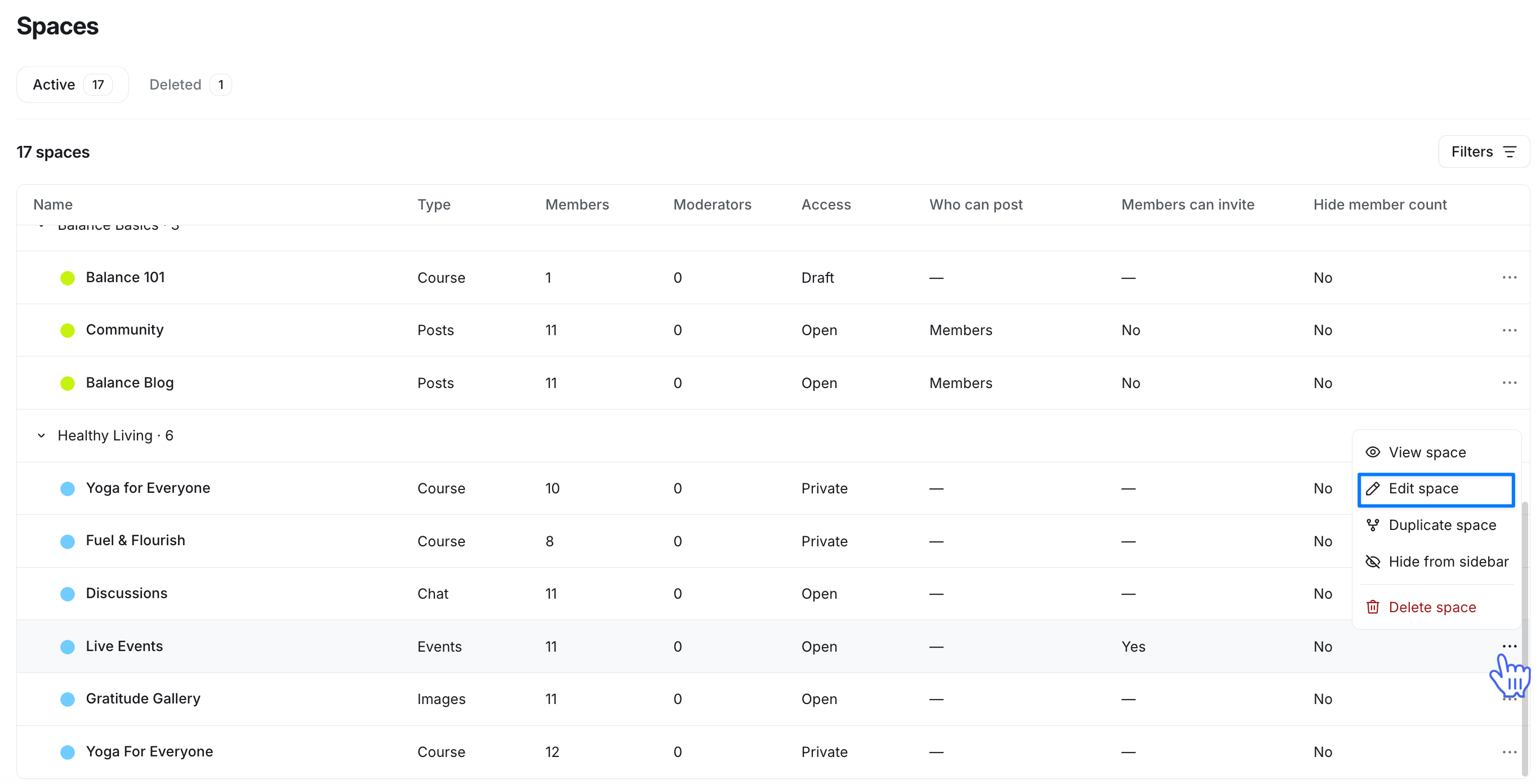
Click Community in the left sidebar, then select Spaces.
-
Click More actions (three dots) next to the space name, then click Edit space.
Navigate to the Options tab.
In the Permissions section, turn on the Allow members to create events toggle.
Click Save changes.
Once you have enabled the toggle, members will see a New event button in the space, which they can use to create events.
Guide members on the event creation process
You can share our articles to help your members with the event creation process.