Manage events
Last updated: September, 2026
Once your events are published in a space, you’ll have several options to keep them organized and up to date. This article covers everything you can do after publishing, from editing details to deleting an event.
Who can make changes to events
The ability to manage events depends on the action and the user’s role in the community:
Access event overview and update events: Available to admins, event space moderators, and the event host.
Duplicate an event: Available only to admins and event space moderators.
Pin an event to a space: Available only to admins and event space moderators.
Delete an event: Available to admins, event space moderators, and the event host.
ℹ️ Note: You can only create and manage events from the desktop app, web app, or a mobile browser.
Access event overview
Click Community in the left sidebar, then select Spaces.
Click the space name to open the event space.
Locate the event and click More actions (three dots) next to the event and select Edit event.
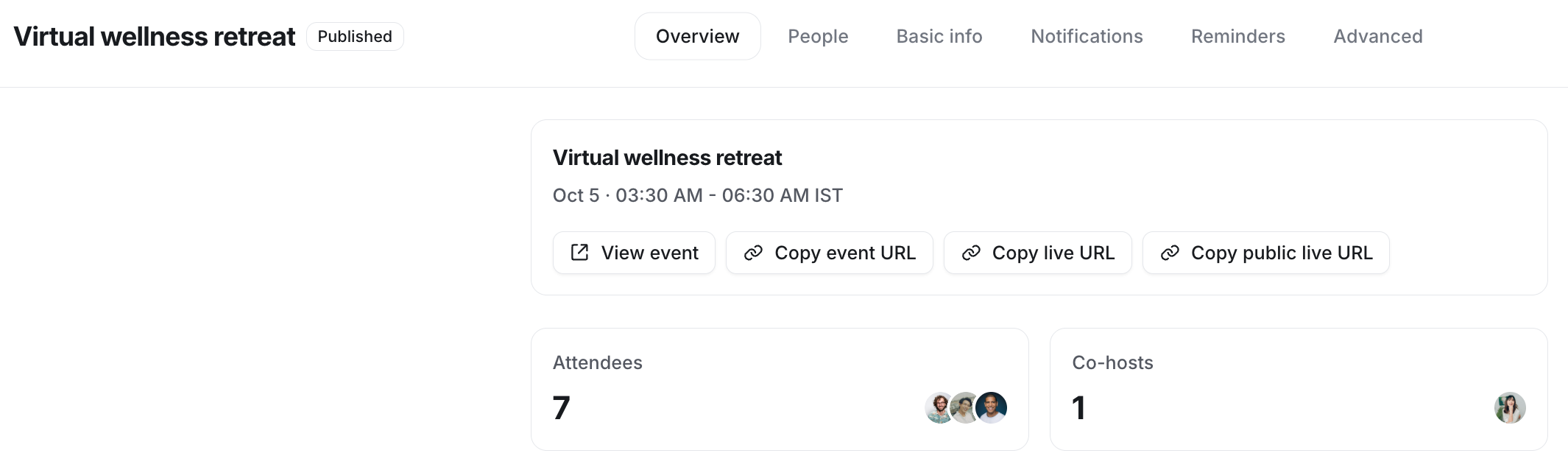
Navigate to the Overview tab in the event editor, which will give you a snapshot of key information, including:
Date and time
Attendees and co-hosts
Event links
An option to view the full event details page
At the top of the page, you have the option to copy three different URLs depending on your event setup:
Copy event URL: This option is available for all events. Clicking it copies the link to the event details page, where you can view event information and the option to RSVP.
-
Copy live URL: Once the event is published, this option appears when the event location is set to a Circle live stream or room. Clicking it copies the link to the live session, allowing members to join directly.
ℹ️ Note: When you share the live URL with your community members, any member with the link can join the live stream or room session, provided the Disable live link sharing is turned off. For more information on live event visibility, see our guide here.
Copy public live URL: If the live stream event is set to public visibility, this option becomes available after the event is published. Clicking it copies a public link that visitors can share to join the live stream as guests.
ℹ️ Note: If you have created any live events before September 6, 2024, the live session will be created 30 minutes before the event’s start time. For these events, the live link and the option to join the live event will only be available once the live session is created.
Update events
You can edit an event at any time to adjust its details, schedule, or settings.
To update an event:
Click Community in the left sidebar, then select Spaces.
Click the space name to open the event space.
-
Locate the event and click More actions (three dots) next to the event and select Edit event.
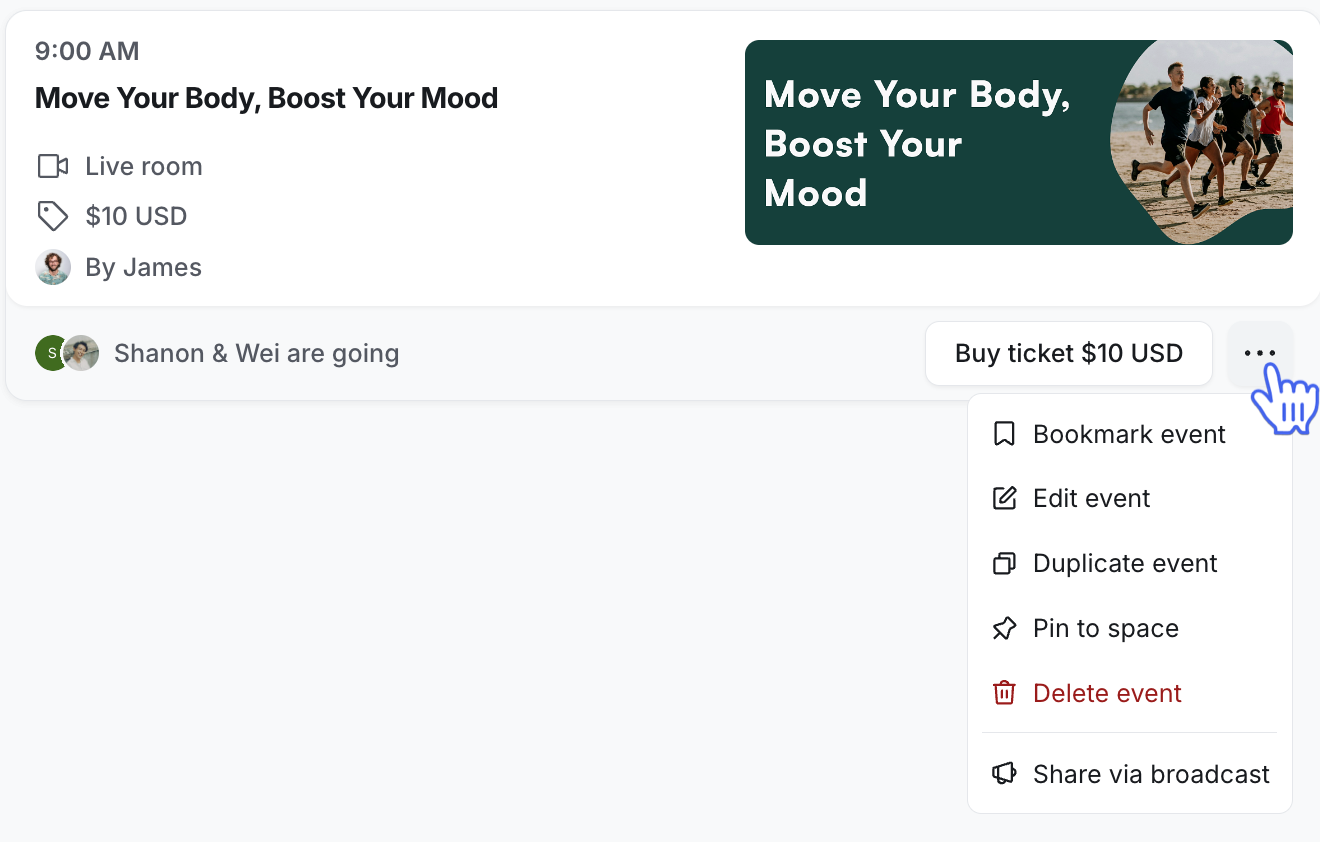
This will open the event editor, where you can make changes such as:
Updating the date, time, or location.
Editing the description or cover image.
Add and manage event attendees and co-hosts.
Configure notifications, reminders, and advanced settings.
📚 To learn more about updating one-time (single event) and recurring events, see Update published events.
Pin an event to space
Pinning puts your event front and center in the space. This is a great way to highlight important or upcoming events. Pinned events show essential details, including:
Date, time, and location
A preview of the description
The cover image
Event host
Ticket amount (if paid event)
To pin an event:
Click More actions (three dots) next to the event.
Select Pin to space on.
To unpin, repeat the same steps and select Unpin from space.
Duplicate an event
If you’re running a repeat of an event, you can duplicate it to save time. You can duplicate any event, including those in draft or past.
The duplicate event includes the original’s details, schedule, notifications and reminders, and settings. However, please note that:
Attendees and comments are not copied over.
If the original was part of a recurring series, the duplicate will be a single event (repeats can’t be configured). If you want to create a recurring event series, please create a new one instead.
To duplicate an event:
Click More actions (three dots) next to the event and select Duplicate event.
Select the event space where you want to create a duplicate event, then click Duplicate.
A new event draft will be created with the same event title and configurations.
Update the draft as per your preference. You can publish it right away, or return later to publish it.
When you publish a duplicate event, new event notifications will be sent to space members, depending on your event's notification settings.
Delete an event
If you’re no longer hosting an event, you can delete it. When an event is deleted, all attendees (with confirmed RSVP) automatically receive an email notification letting them know it has been canceled.
To delete an event:
Click More actions (three dots) next to the event and select Delete event.
Click Delete event to confirm.
If the event is part of a recurring series, you’ll be asked how you want to apply the deletion:
This event: Delete only the event you selected.
This and following events: Delete the selected event and all future ones in the series.
All events: Delete the entire series, including past and future events.
❗ Important: If the event is a paid recurring event, you need to delete each event of the series one by one. You cannot delete the entire paid event series at once, whether the events are still drafts or already published.