Add or remove attendees from an event
Last updated: September, 2026
You can invite people, RSVP on their behalf, or remove them if needed. This article explains step by step how attendee management works.
Who can manage the event attendees
Admins, event space moderators, and the event host can make changes to the event using the desktop app, web app, or a mobile browser.
Access the event setup
To manage attendees, you first need to open the event editor:
-
To manage attendees:
Click Community in the left sidebar, then select Spaces.
Click the space name to open the event space and locate the event. If your event is still in draft, you can use the category dropdown at the top of the space to access all drafts.
Click More actions (three dots) next to the event and select Edit event.
In the editor, go to the People tab.
-
At the top of the attendee list, turn on the Automatically RSVP invited attendees toggle. This setting controls whether invited members are marked as Going immediately or remain in Invited status until they accept the invite.
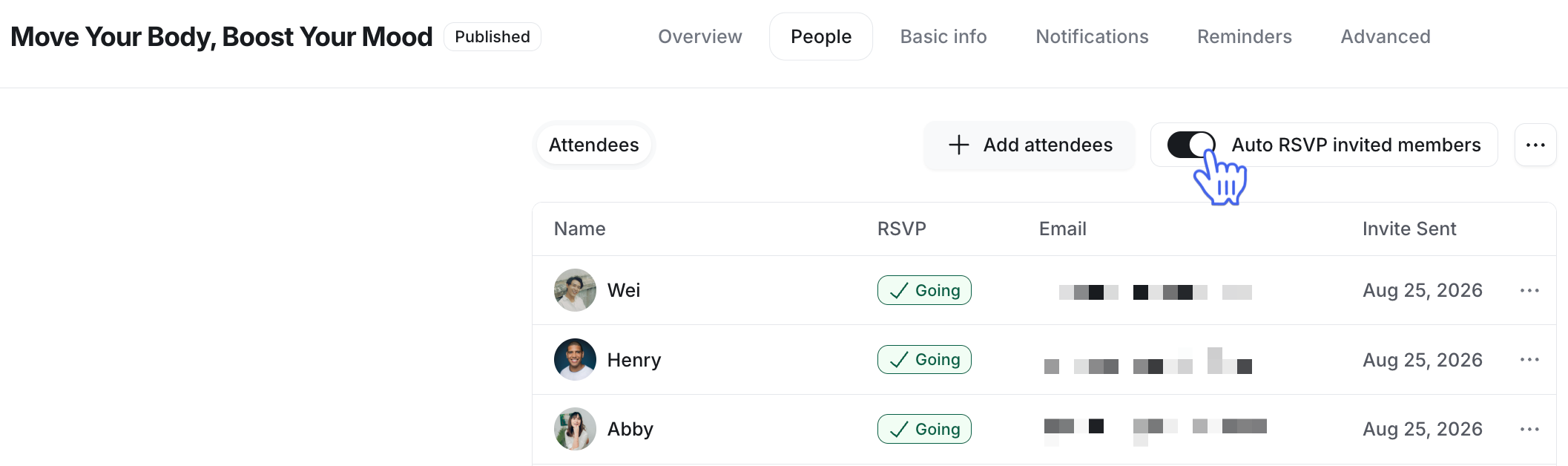
📚 To learn more about viewing the attendee list, understanding RSVP statuses, and exporting the list, see View and download your event attendee list
Let’s explore how the toggle affects adding the event attendees.
How invites and RSVPs work when adding members
The behavior of the Automatically RSVP invited attendees toggle changes depending on whether your event is a draft or already published.
Draft events
When an event is in draft mode, here’s how the Automatically RSVP invited attendees toggle affects attendees:
Turning on the toggle: All existing attendees with Invited status are updated to Going, confirming their RSVP. Any new member you add will automatically be RSVP'd with the Going status.
-
Turning off the toggle: All existing attendees' Going status will be updated to Invited. Any new member you add going forward will be assigned Invited status and remain in this status until they confirm their attendance.
❗Important: If you have enabled the Auto-RSVP space members to new events toggle in your event space settings, all members of the event space will automatically be added to the event with Going status when you create a draft. However, if you decide to turn off the Automatically RSVP invited attendees toggle on the People tab within the event draft, the RSVP status for these members will change to Invited.
ℹ️ Note: When you add attendees or change the automatic RSVP toggle while an event is still in draft mode, no invites or confirmation notification emails are sent.
When you publish the event, the following emails are sent based on the attendee's RSVP status:
Event confirmation: Attendees marked as Going will receive an event confirmation along with the calendar invite. This email is sent only if event confirmation emails are enabled in the event's notification settings.
Event invitation: Attendees marked as Invited will receive an invitation that includes the option to view event details and accept to confirm their RSVP.
Published events
If the event is already published, here’s how the Automatically RSVP invited attendees toggle affects attendees:
-
Turning on the toggle: All attendees with Invited status will be updated to Going status and will be sent a confirmation email (if enabled) with a calendar invite.
Going forward, when you add a member to the event, they will automatically have the Going RSVP status and receive a confirmation email.
-
Turning off the toggle: All existing attendees with the Going status will remain unchanged, as their RSVPs have already been confirmed.
Going forward, when you add a member to the event, they will be invited and sent an invitation email.
Manage event attendees
Let’s look at how to add or remove attendees in the event editor so you have the right people in each event.
❗ Important: When you manually add or remove members from a recurring event, the change applies only to that single event. It does not affect the rest of the series. You’ll need to make these changes individually for each event in the series.
Add attendees
When adding members as attendees, you have the option to:
Add individual community members: Select specific members to invite.
Add members with specific tags: Invite groups of people assigned to a specific tag.
Add members from specific spaces or space groups: Add all members of a particular space or group within your community.
To add attendees:
On the People tab, click Add attendees.
-
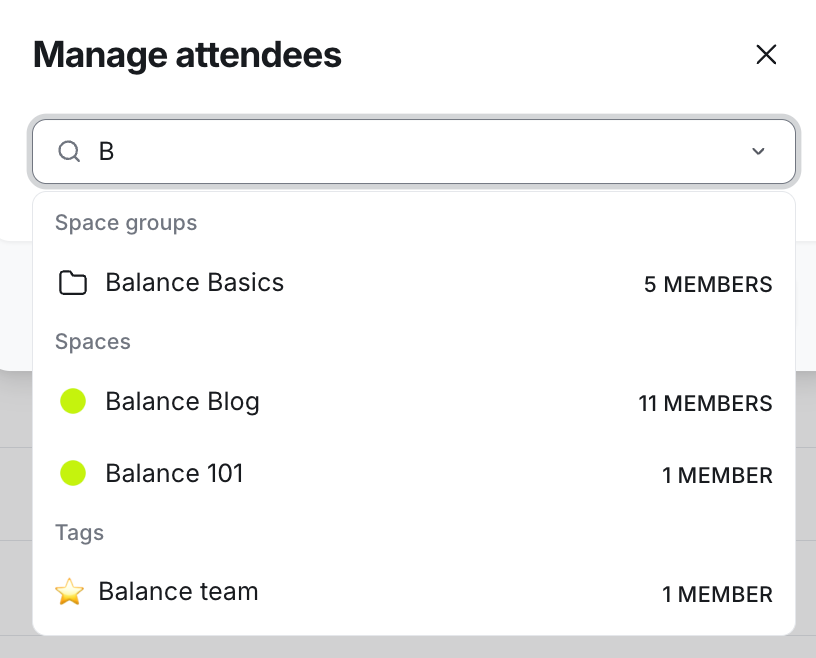
Enter the member's name or the entity name, such as space, space group, or tag.
-
Select the desired member or entity from the list.
Before you proceed, if you accidentally selected the wrong member or entity, hover over their name and click Remove.
ℹ️ Note: If someone you are adding is not a member of the event space yet, they will automatically be added to that space, ensuring seamless participation.
Click Save.
If you have opted for a live-stream event, you can also add your member as a co-host here by going to the Co-hoststab. Please note that co-hosts cannot edit or manage the event; their role is restricted to the live event session.
📚 To learn more about various RSVP statuses and managing attendees, see our guide here.
Remove attendees
To remove someone from an event:
Hover over their name in the Attendees or Co-hosts list.
-
Click More actions (three dots) and select Remove.

What happens when you remove someone:
Their RSVP is cleared from the event.
Members do not receive a notification when they are removed from the attendee list.
If the Disable RSVP toggle (in advanced settings) is off, they can RSVP again later from the event details page.