View and download your event attendee list
Last updated: September, 2026
You can view your event’s attendee list at any time to see who’s attending, check RSVP statuses, and download the list as a CSV file. This helps you stay organized and keep track of everyone attending your event.
Who can access the event attendee list
Access the attendee list: The event host, space moderators, or admins can manage the list from event setup.
Exporting the attendee list: This feature is restricted to admins and moderators (if allowed in your community’s General settings).
View the attendee list
To view the list of attendees for your event, follow these steps on the desktop app or web browser:
Click Community in the left sidebar, then select Spaces.
Click the space name to open the event space and locate the event.
Click More actions (three dots) next to the event and select Edit event.
Navigate to the People tab.
On the People tab, you can view the following:
Invited attendees.
Attendees who have RSVP with a Going or Not going status.
For the live stream event, a Co-hosts list also appears, allowing you to view and manage your co-hosts.
If your event allows public RSVPs, you’ll also see non-members who have registered.
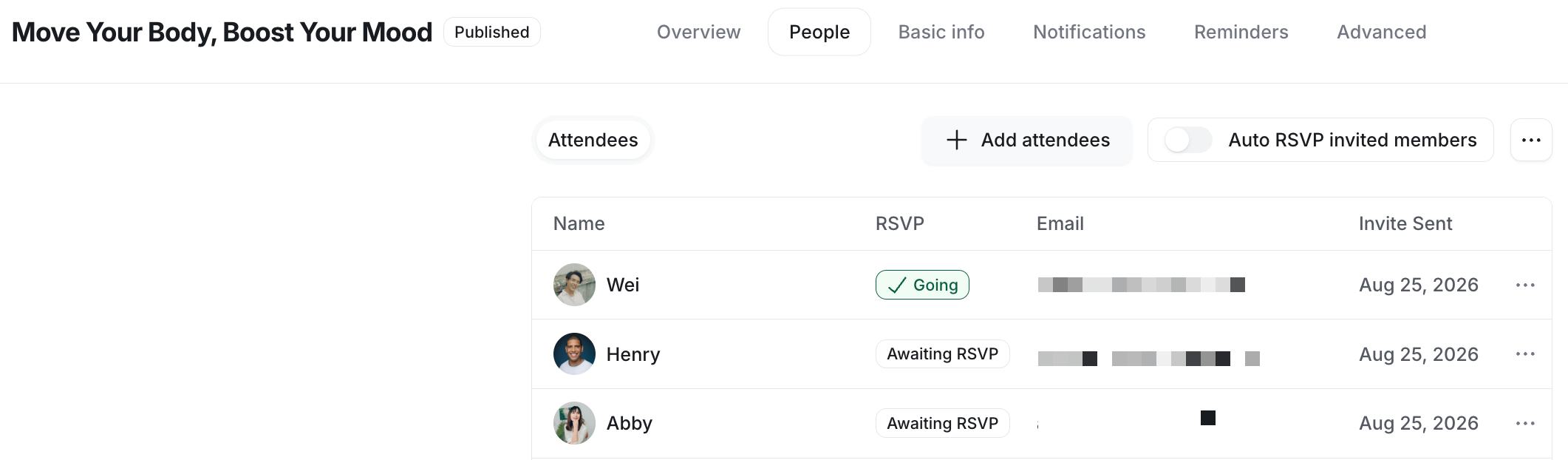
The event attendee list includes the following information:
Full name: Displays the attendee's name for easy identification.
RSVP status: Tracks the attendee’s current status.
Email: Shows the email address associated with the attendee’s community account. Please note that if the event creator is not a moderator or admin, they cannot see the attendee's email.
Invite sent: Indicates when the invite was sent to the attendee.
📚 To learn more about managing event attendees, see Add or remove attendees from an event.
Understanding RSVP statuses
RSVP statuses help you track participation in your events. Each person’s attendance status falls into one of three categories that automatically update based on their response:
Awaiting RSVP: When you add a member as an attendee, they receive an email invitation and are marked as Awaiting RSVP. Members remain in this status until they respond to the invitation.
-
Going: People with Going status are counted as actual attendees for your event. A person’s status is set to Going when they:
Accept an event invitation.
Manually RSVP from the event space or event details page to confirm attendance.
Join a live stream or live room event directly from the event details page or event space after it has started (automatic RSVP).
Not going: If someone declines the invitation or manually updates their RSVP to Not going, their status automatically changes to Not going. People with Not going status are not considered event attendees.
ℹ️ Note: If a member account is deactivated, they are automatically removed from the event attendee list, regardless of their previous RSVP status.
Decide whether space moderators can download the event attendee list
As an admin, you can decide whether moderators can download the event attendee list from event spaces within your community. To allow moderators to download the list:
Click the community name or logo (or the dropdown icon next to it) in the top-left corner and select Settings.
Scroll to the General section and go to the Defaults section.
Turn on the Allow moderators to download event attendees .csv toggle.
Click Save changes.
Download the event attendee list
To export a CSV, go to the Attendees list on the People tab. Click the Download CSV option at the top right of the page. The CSV export file will be emailed to the email address associated with your community account.
The CSV file includes the following information:
Attendees and co-hosts with a confirmed RSVP (Going). For events with public RSVP enabled, non-members with a Going RSVP status will also be included in the export file.
Their email addresses.
Standard platform fields.
Profile fields, including any custom ones.
Attendees who are only invited or have RSVP’d as Not going will not appear in the export file.
Download the live event attendee list
For events hosted in Circle live stream or live room locations, you can also download the attendee list from the live dashboard.
This list includes only people who actually joined the live event session (not just those who RSVPd), making it useful for tracking live attendance.
📚 For step-by-step instructions, see Export attendee list for a live session.