Share events publicly
Last updated: September, 2026
You can share events from your community with anyone, even if they’re not a member. This helps you promote public events, increase engagement, and grow your community.
Get to know event sharing
The event-sharing feature lets you share a public link to an event’s details page. You can share events from open, private, or even secret spaces from your public or private community.
Here are some key advantages of the event sharing feature:
Increase visibility: Share event links on social media, via email, or on other platforms to reach audiences beyond your community.
Community growth: Publicly shared events can attract new members to your community. When people outside your existing member base discover engaging events, they’re more likely to sign up and join.
-
Promote paywalls: Sharing events also helps you promote community memberships! Here are some tips to do so:
You can leverage the event description to promote your memberships by linking the paywall checkout URL to a CTA text such as “Join our membership to get access to exclusive events”.
If your community is private, you can add a paywall checkout URL to the custom sign-up link option in general settings.
Allow your non-members to RSVP: Share events with public RSVP enabled so they can RSVP and participate. This works well for events with live room and live stream locations. If you want non-members to RSVP and join a live room with audio & video or co-host a live stream, using the public RSVP feature is a great option.
-
Host public live stream events: When you host a public live stream event, you can share it widely with your audience. This is especially useful if you want non-members to join the live stream as guests with view-only access.
When the event time arrives, the Join live stream button will automatically appear on the event details page for both members and non-members. Non-members can click the button to join the live stream as guests without requiring an RSVP.
As the event creator or host, you can copy the Public live URL after publishing the event. You can share that link ahead of time so visitors can join using the link as well.
Who can share events
Event sharing permissions depend on user roles and community settings:
Public spaces in a public community: Members, moderators, and admins can share the event URL.
Private or secret spaces in a public community: Only admins and moderators can share events via the unique share link.
-
Private community: Regardless of space access, only admins and moderators can share events using the unique share link.
💡 Tip: If you wish to allow members to share events from a private space or community, you can get the share link using your admin account and share it with them. This allows for controlled sharing while maintaining privacy.
Here are a couple of things to remember:
-
The option to share events from a private space or private community with a unique share URL is available only on the desktop app and web browsers.
ℹ️ Note: On mobile apps, when you use the share event option, it will only give you the regular event URL, which won’t work for visitors.
The option to share events is unavailable for communities currently on a trial plan. Once you upgrade your community to a paid plan, you’ll gain the ability to share events.
About the event details page
Depending on your event’s setup and your community settings, the shared event page can include:
Event information
Event title, cover image, and description.
Event schedule with start and end times.
Location of the event, if the location is set to be visible to non-attendees.
RSVP button if the RSVP is enabled.
Event host name, if meta information is set to be visible.
List of attendees who have RSVPed, if attendee visibility is enabled.
Top navigation header
The top navigation header displays the log-in and sign-up options, depending on the community configuration:
Log in: The log-in option always appears at the right end of the header to allow logged-out members to sign in to the community.
-
Sign up:
Public community: Visitors can click the Join button on the right side of the navigation bar to sign up for the community. Please note that this option only appears if the “Allow visitors to sign up” toggle is enabled in your community’s General settings.
Private community: Visitors can click the custom sign up button on the right side of the navigation bar to sign up for the community. Please note that this option only appears if the custom member sign-up link is set in your community’s General settings.
SSO-enabled community: If you have enabled SSO for your public or private community, the sign-up option will only appear if you have enabled the “Allow members to sign up via a custom URL” toggle in SSO settings and added a custom sign-up URL. Otherwise, only sign-in option will be visible, which will take the individuals to the SSO login page.
Sidebar
The community sidebar appears on the event details page depending on the community setup:
-
Public community:
When sharing an event from an open space, the sidebar appears by default and shows other visible spaces based on the space access/visibility setup.
When sharing an event from a private or secret space, you can turn on minimal layout to hide the sidebar for more focused sharing.
Private community: Events shared from private communities always use a minimal layout, hiding the sidebar by default.
Comments
Public communities
-
Events from open space: When an event is shared from an open space, comments are visible to everyone:
Visitors: Non-community members can view comments but cannot leave comments.
Space members: If the community member is also part of the event space, they will need to click the Leave a comment button at the bottom of the event description to view and leave comments. This will take them to the original event details page, where they can view all the comments and leave new comments.
Non-space members: Members who are not yet part of the event space cannot view or leave comments. If they click the Leave a comment button for the event from the private space, they will be redirected to the lock screen instead.
-
Events from private spaces: When an event is shared from a private or secret space, comments are not visible to anyone.
Visitors: Visitors cannot see or leave comments.
Space members: If the community member is also part of the event space, to view and leave comments, they will need to click the Leave a comment button at the bottom of the event description. This will take them to the original event details page, where they can view all the comments and leave new comments.
Non-space members: Members who are not yet part of the event space cannot see or leave a comment. If they click the Leave a comment button for the event from the private space, they will be redirected to the lock screen instead.
Private community
When an event is shared from a private community, regardless of the event space access settings, comments are not visible to anyone by default.
Visitors: Visitors cannot see or leave comments.
Space members: If the community member is also part of the event space, to view and leave comments, they will need to click the Leave a comment button at the bottom of the event description. This will take them to the original event details page, where they can view all the comments and leave new comments.
-
Non-space members: Members who are not yet part of the event space cannot see or leave a comment.
If the event is from an open space, when they click the Leave a comment button, they are taken to the original event details page, where they can view all the comments and leave new comments. Once they have posted a comment, they will automatically become a member of the event space.
If the event is in a private space, clicking the Leave a comment button redirects them to the lock screen instead.
How RSVP works on shared event pages
RSVP behavior depends on:
Whether the event is free or paid.
Whether non-members are allowed to RSVP for an event.
Whether the person viewing the event is a member or a visitor.
Free events
If the person is already a member
If the member is already logged in, they can RSVP to the shared event.
If they are not logged in, they can use the Log in option before they RSVP.
If the event belongs to a space they’re not part of yet (open, private, or secret space), RSVPing automatically adds them to that event space. This will allow them to view other events from the space, RSVP to them, and leave comments going forward.
If the person is not a member (visitor)
Case 1: Non-members are allowed to RSVP
The visitor can RSVP by providing their name and email. No member account is required in this case.
To learn more about how this works, see Allow non-members to RSVP to events.
Case 2: Non-members are not allowed to RSVP
Visitors can view the event details but cannot RSVP without becoming a member.
If visitor sign-up is disabled: If your community does not allow visitors to sign up, they won’t be able to proceed or RSVP to the event. However, as mentioned above under key advantages, if you are hosting a public live stream event, they will be able to join without needing to RSVP.
-
If visitor sign-up is enabled: If your community allows visitors to sign up, here is how it works:
Public community: If visitor sign-up is enabled for your public community, clicking to RSVP takes them to the sign-up page. After creating an account and confirming their profile, they’ll go through your onboarding steps (such as onboarding pop-up, default landing page) if enabled. Afterward, they can navigate back to the event details page using the shared event link, confirm the RSVP, and become a member of the event space.
Private community: If you have set a custom sign-up link option for your private community, when they click RSVP, they will be taken to the sign-up link. After creating an account and confirming their profile, they’ll go through your onboarding steps (such as onboarding pop-up, default landing page) if enabled. They can navigate back to the event details page using the shared event link, confirm the RSVP, and become a member of the event space.
Paid events
For paid events, visitors can purchase a ticket directly from the shared event page.
Once the purchase is complete and their RSVP is confirmed, they become community members and automatically gain access to the event space and any spaces included in the onboarding settings.
Getting a share link for an event
Click Community in the left sidebar, then select Spaces.
Click the space name to open the event space and locate the event.
The process of getting a share event URL varies depending on the community and space access settings.
Option 1: From the open space in a public community
Click Share next to the event title.
-
Click the Copy icon to copy the link to your clipboard.
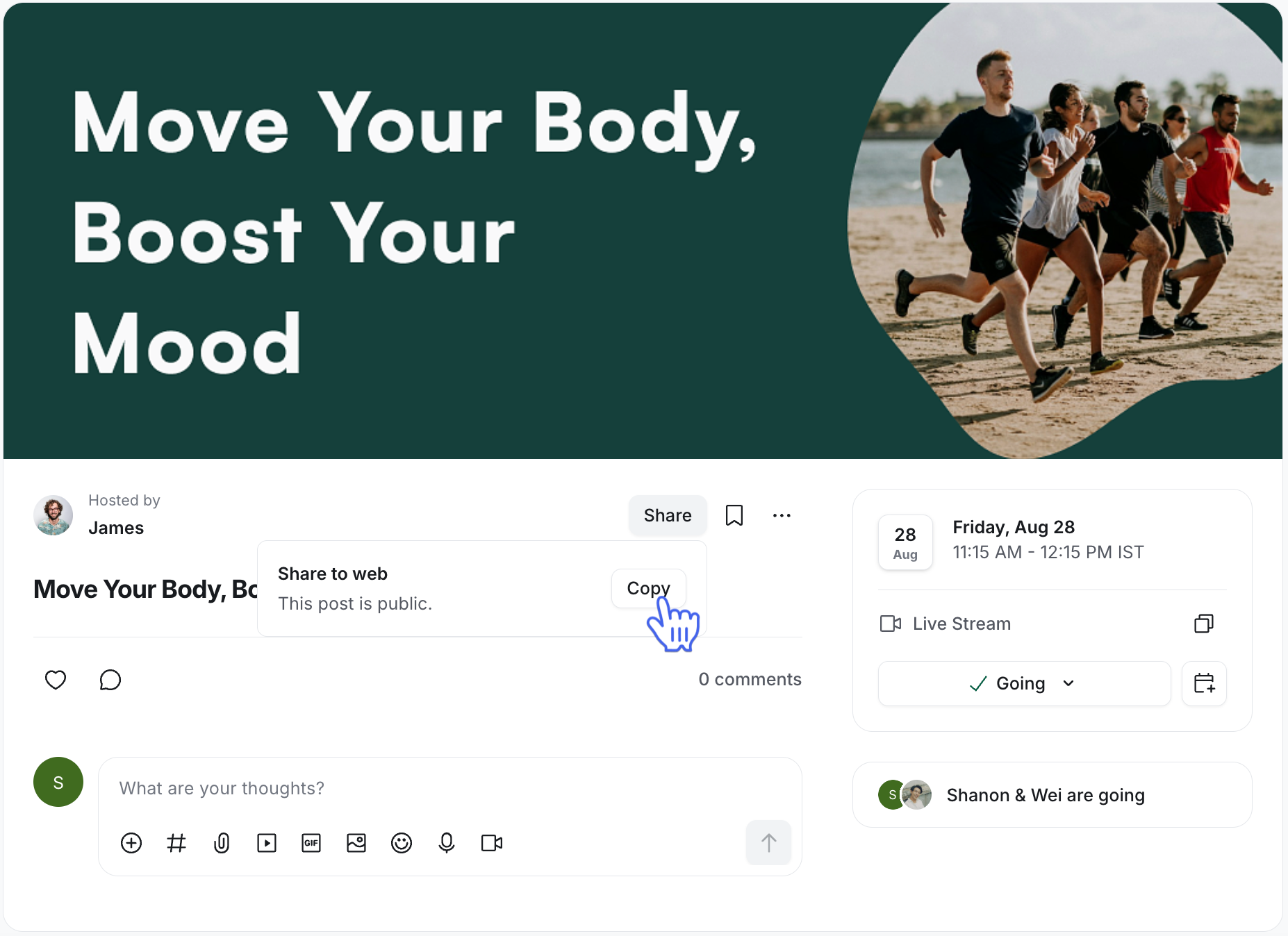
Since you are sharing an event page from the open space of your public community, it will provide you with a link to the event, which will not be a unique link.
Option 2: From the private space in a public community
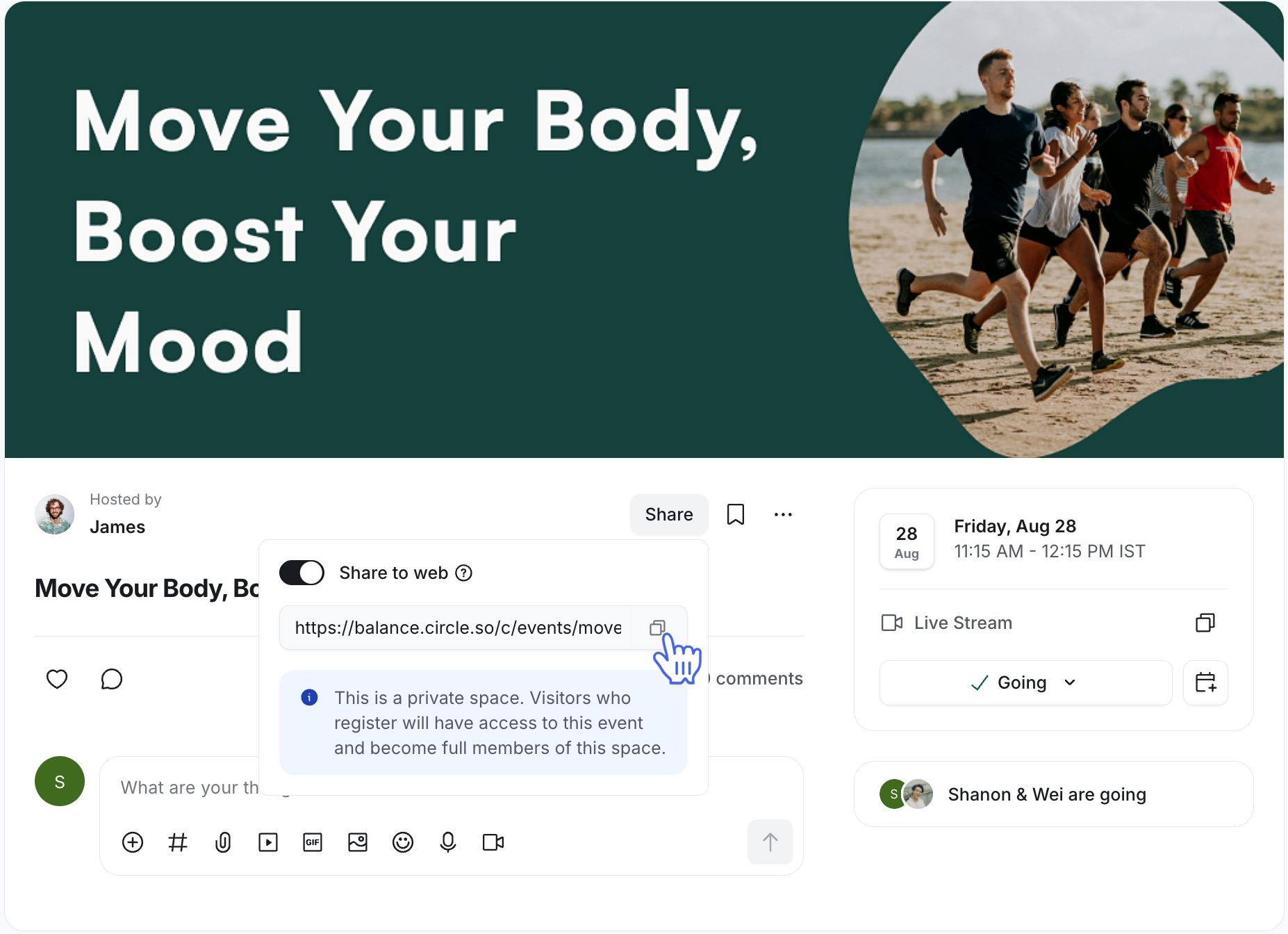
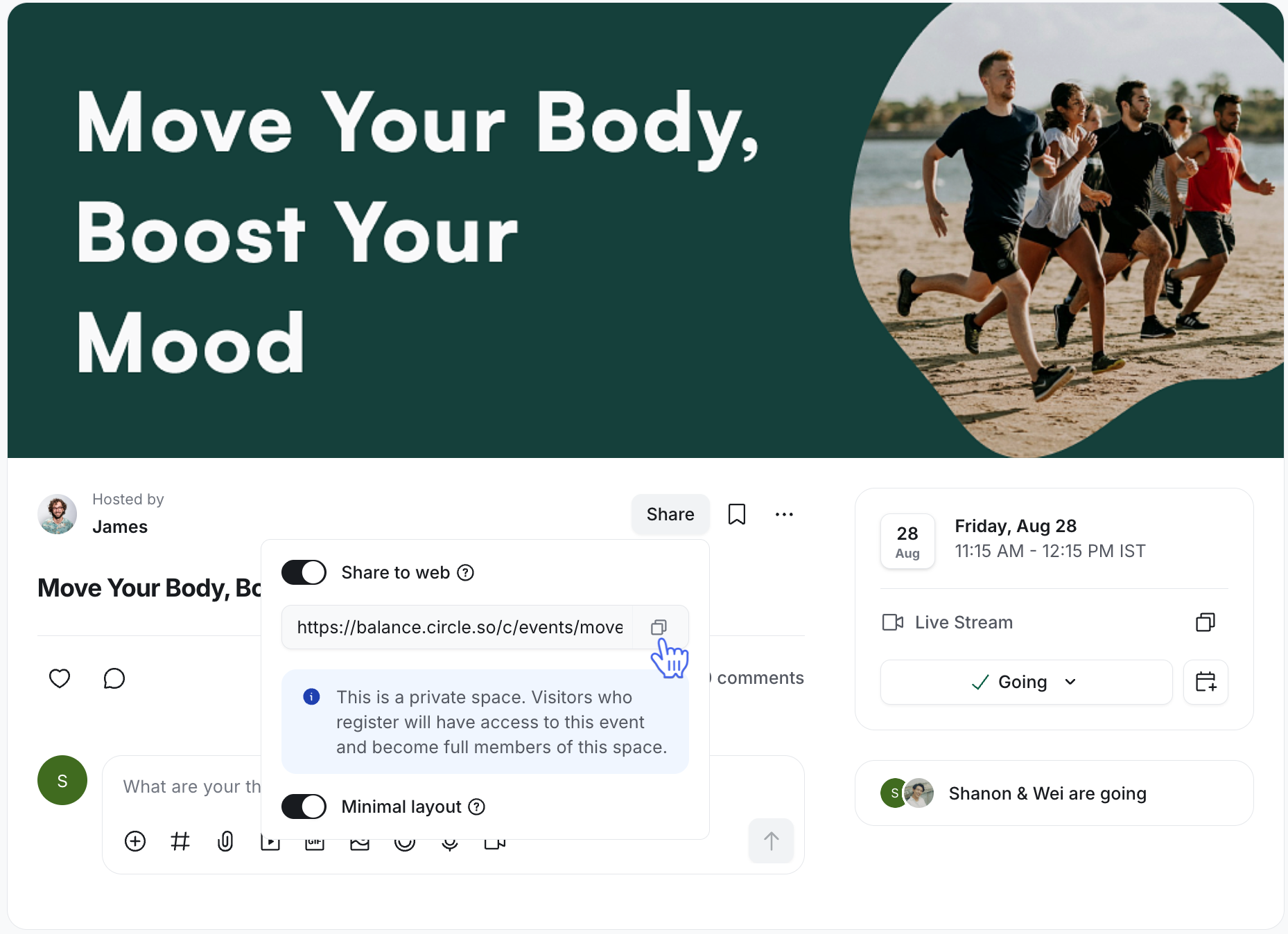
Click Share next to the event title, then turn on the Share to web toggle.
(Optional) Minimal layout: When you share this event from a private space, you can turn this toggle on to show the event without the sidebar.
-
After adjusting the layout preference, click the Copy icon to save the unique link to your clipboard.
Option 3: From any space in a private community
Click Share next to the event title, then turn on the Share to web toggle.
-
Click the Copy icon to save the unique link to your clipboard.