Share your screen during a live session
Last updated: September, 2026
During a live session, you can share your desktop screen to present content. Once you begin sharing your screen, everyone's view will switch to the speaker view, and your screen will be visible to everyone in the session as the active speaker.
ℹ️ Note: This article applies to both live stream and room sessions for the following roles:
Live stream: Host and co-hosts
Live room: Host and all the participants
ℹ️ Note: Only one person can share the screen in the live. If someone is already sharing a screen, the screen-sharing icon will be disabled for everyone else.
To share a screen:
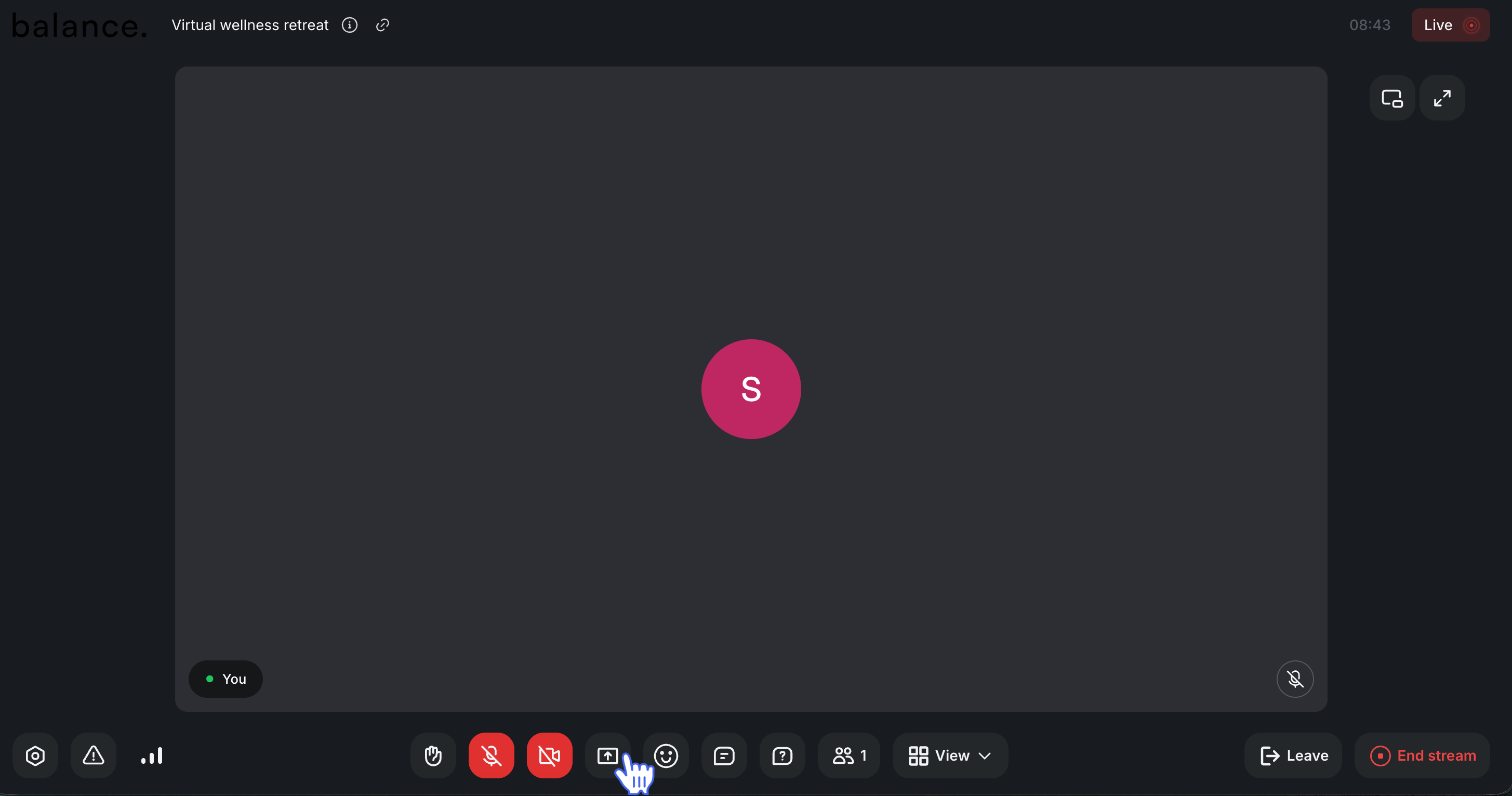
On the control bar, click the Screen sharing (⬆️) icon.
Depending on the browser, you'll be prompted with screen-sharing options such as a specific tab, window, or the entire screen of your device. Choose one of those options.
If you wish to share system audio, you can do it using Google Chrome. To share audio using the Chrome browser, select the Share tab audio checkbox in the Choose what to share dialog. For more information, see Share system audio when sharing your screen.
Click Share.
Once you begin screen sharing, your live room view will appear grayed out to avoid infinite mirroring.
When you’re done sharing, go to your live screen and click Stop sharing.