Share system audio when sharing your screen
Last updated: September, 2026
You can share system audio during your live session using a Google Chrome web browser. Based on your device's operating system (Windows or macOS), you can choose to share audio through a Chrome tab or the entire device screen.
💡 Tip: If you wish to share audio from media on your device, you can drag and drop the media into a Chrome tab. This allows you to play the media directly in the browser, which can be useful, especially when you want to share audio using a device with macOS.
To share audio:
Start a live session in the Google Chrome browser.
Click the Screen sharing (⬆️) icon on the control bar.
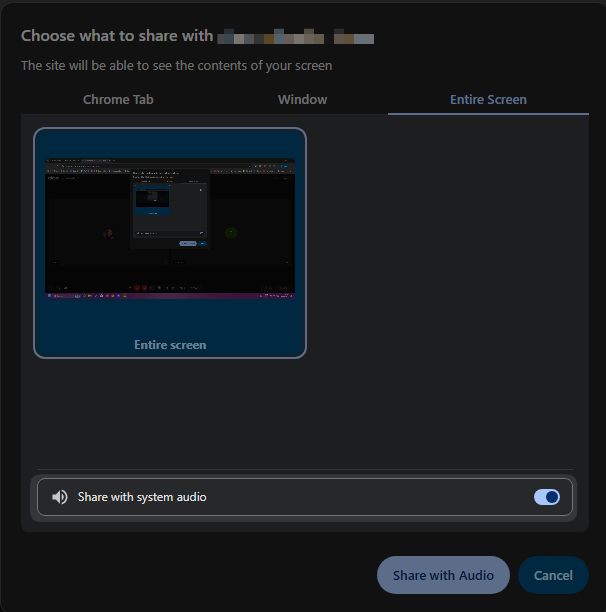
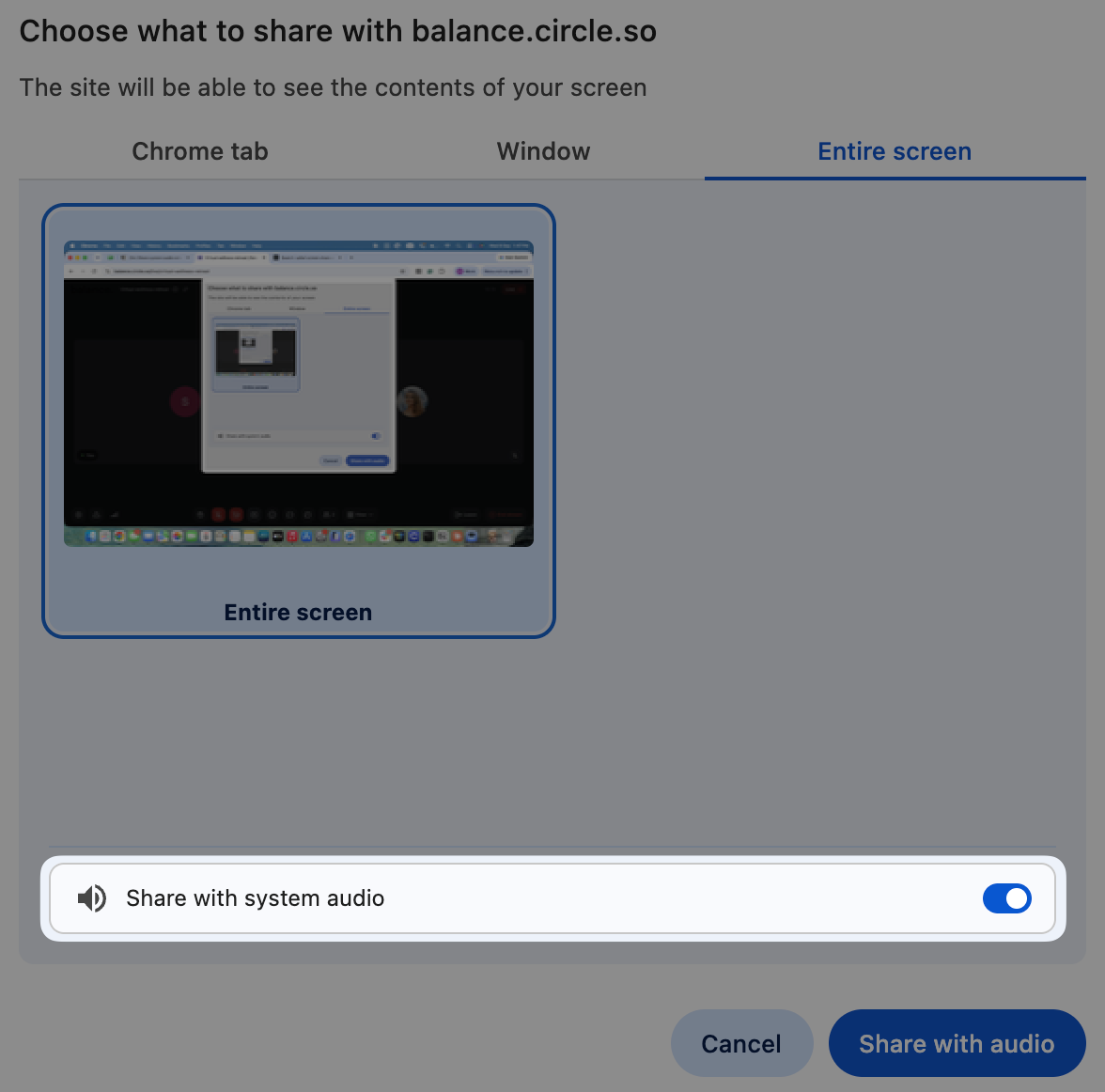
In the Choose what to share dialog, you will see options to share a specific Chrome tab, window, or the entire screen of your device.
If you are using macOS, you can only share system audio when sharing a Chrome tab. See the following steps:
In the Choose what to share dialog, click the Chrome tab, Window or Entire screen.
Select the tab or screen you want to share, then turn on Share with tab audio for a Chrome tab or Share with system audio for a window or your entire screen.
-
Click Share with audio.
If you are using a Windows device, you can share system audio when sharing a Chrome tab, window or the entire screen. See the following steps:
In the Choose what to share dialog, click the Chrome tab, Window or Entire screen.
Select the tab or screen you want to share, then turn on Share with tab audio for a Chrome tab or Share with system audio for a window or your entire screen.
-
Click Share with system audio.