Manage chat during a live session
Last updated: September, 2026
Engagement is key during live sessions within your community, and active participation in the live chat helps foster a constructive, engaging space for all participants.
ℹ️ Note: This article applies to both live stream and room sessions for the host and moderator roles.
As a host, you have various options to participate and manage the chat in the live session, including:
Send chat messages
Pin a message
Delete participant’s messages
Send chat messages
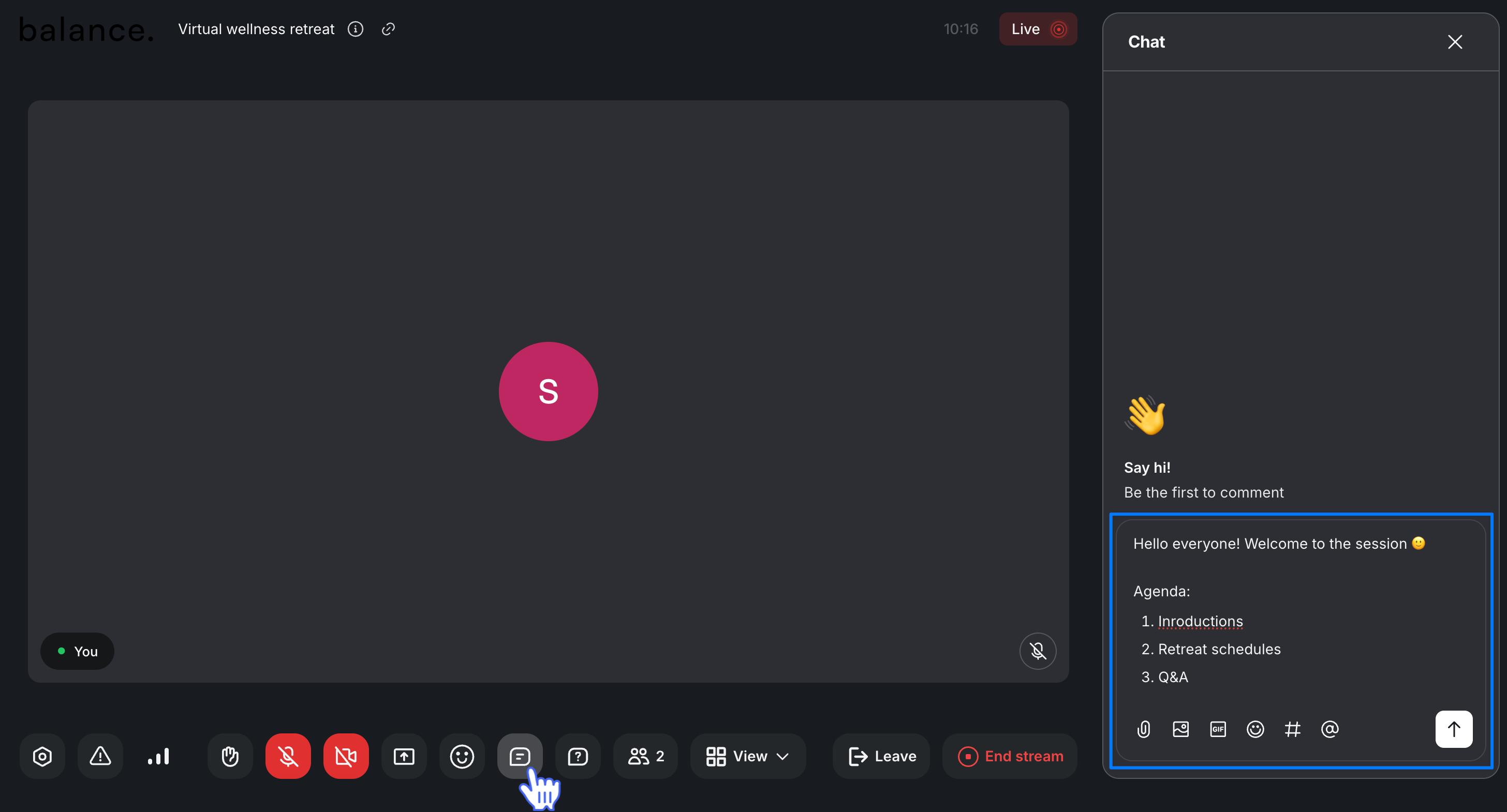
To access the chat panel, click Chat (💬) on the control bar. Utilize the messaging field at the bottom of the chat panel to compose and send chat messages.
In addition to your text message, you can:
Share images, emojis, GIFs, and files to enrich conversations.
Mention other attendees to draw their attention.
Link to community content using Hashtags for easy reference.
📚 For a comprehensive guide on sending messages, replying in threads, and reacting with emojis, see our guide on Participate in live chat.
💡 Tip: To edit or delete your chat messages, simply hover over your message, click More actions (three dots), and select the appropriate option.
Pin a message
You can pin a specific chat message to the top of the chat panel during live. This will help you ensure that it remains prominently visible at the top, preventing it from getting lost amid other discussions.
Things to know about the pinned message:
You can only pin one message at a time.
Only hosts and moderators can pin or unpin messages.
When someone clicks on the pinned message, it'll take them to the original message in chat.
To pin a message:
Go to the Chat panel.
Hover over the message, click More actions (three dots) and select Pin.
To unpin a message, hover over the pinned message, click More actions (three dots) and select Unpin.
Delete participant’s messages
You can permanently delete messages from any participants, including co-hosts and moderators.
To delete a message:
Head to the Chat panel.
Hover over the message, click More actions (three dots) and select Delete.