Manage participants during a live session
Last updated: September, 2026
This article will walk you through managing all the attendees, including co-hosts and moderators, in your live session.
ℹ️ Note: This article applies to both live stream and room sessions for the host and moderator roles.
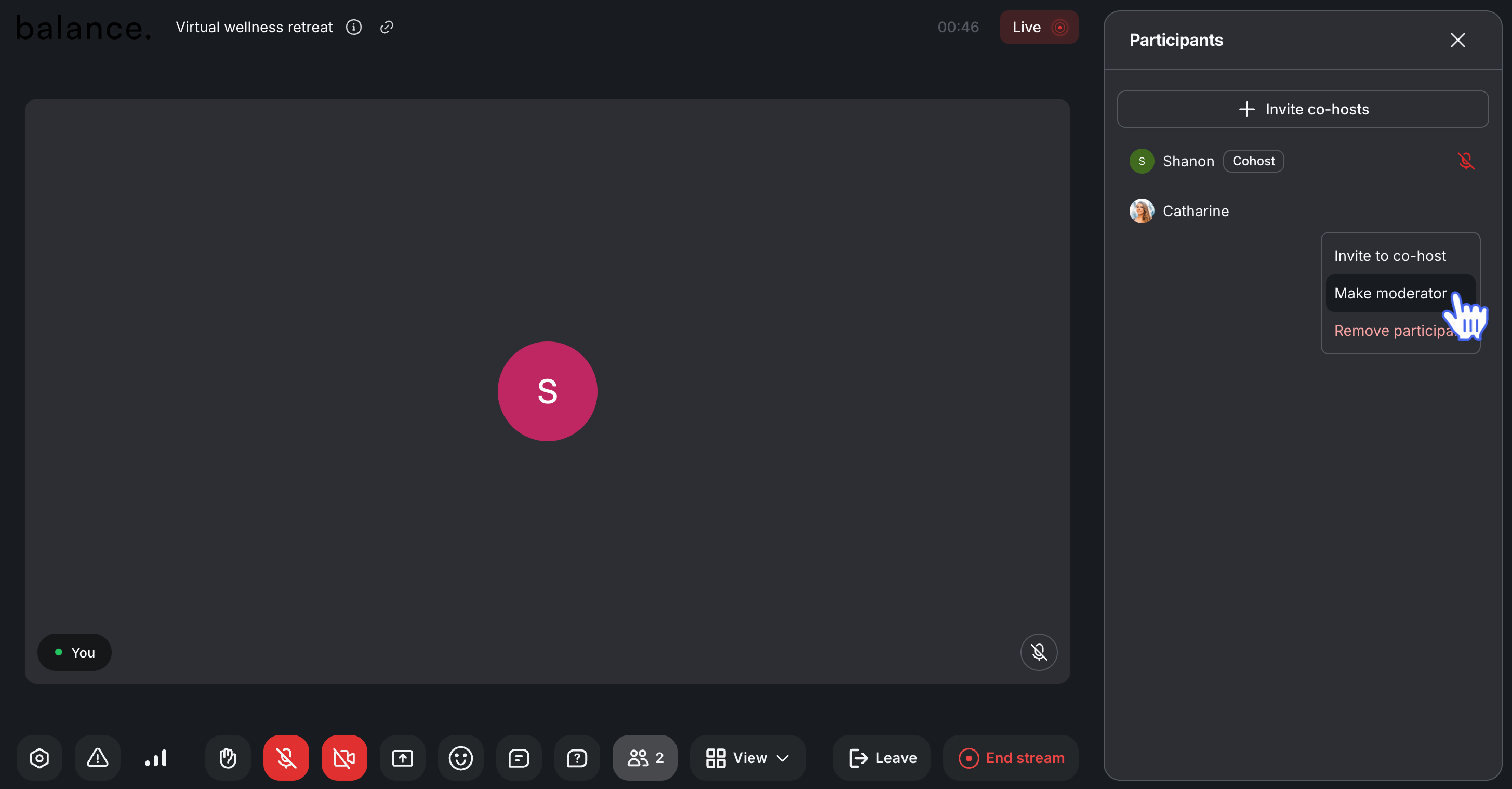
To get started, click Participants 👥 on the control bar. The Participants panel will appear on the right side of the screen. You can hover over the names of co-hosts or participants and click More actions (three dots) icon to access the options mentioned below.
💡 Tip: You can also access various options to manage co-hosts or participants directly from their speaker tile by hovering over the tile and clicking the More actions (three dots) icon.
Assign live moderators
To assign any co-host or participant as a moderator, hover over their name in the Participants panel. Then, click More actions (three dots) and select Make moderator.
💡 Tip: Once you have made the participant a moderator, they'll be moved to the Moderators section in the Participants panel and assigned a moderator badge.
Invite co-hosts (live stream only)
To invite a community member who is currently not in the live session, click Invite co-hosts at the top of the Participants panel, enter the name of the member you wish to invite, and select their name from the list. Then, click Invite to stage. The member will receive an in-app notification and a push notification to join the live stream as a co-host.
You can also invite any participant already in the live stream session to co-host with you. To do this, hover over the participant’s name, click More actions (three dots) and then click Invite to co-host. The participant will see an on-screen banner inviting them to co-host, which they can accept or decline directly.
Invite participants (live room only)
You can invite participants anytime during an instant live room session or live room event.
To invite members, navigate to the Participants panel and click Invite members at the top. You have two options for inviting participants:
Share a link: If you prefer to share an invite link with a member, click Copy next to the link. You can then send this link to members, allowing them to join the live room directly.
Invite directly: To invite specific members directly, type the name of the member you wish to invite into the field, select their name from the list, and click Send invites. The member will receive an in-app notification and a push notification to join the live room session.
❗ Important: Important: If you have turned on the Disable live link sharing toggle before going live, only members who meet the eligibility criteria for visibility settings or were invited before the session started will be able to join the live room.
Mute microphone
As a host, you can mute a participant's microphone in a live room or an unmuted co-host in a live stream.
To mute the microphone, hover over the participant’s name in the Participants panel. Click More actions (three dots)and select Mute microphone.
Disable camera
If the co-host's camera in the live stream or a participant's camera in the live room session is turned on, you can turn it off on their behalf.
To disable a camera, hover over the co-host or participant in the Participants panel. Click More actions (three dots) and select Disable camera.
Lower hands
If someone raises their hands during a live session, you can lower their hands once their question or concern is addressed.
To lower the participant’s hands, hover over the participant’s name in the Participants panel. Click More actions (three dots) and select Lower hand.
Remove a co-host or moderator
You can remove any co-host (stream only) or moderator from the role and make them participants again.
To remove the co-host, hover over the co-host’s name in the Participants panel. Click More actions (three dots) and select Remove as co-host.
To remove the moderator, hover over the moderator’s name in the Participants panel. Click More actions (three dots)and select Remove moderator.
Remove participants
You can remove any participant from the live session, including co-hosts and other moderators.
To remove participants, hover over their name in the Participants panel. Click More actions (three dots) and select Remove participant.