Change the live video layout
Last updated: September, 2026
Whether you're hosting a live stream or participating in a live room, you can adjust the video layout to suit your viewing preferences. This article will guide you through the available layout options and how to modify them during a live session.
Get to know the live video layout
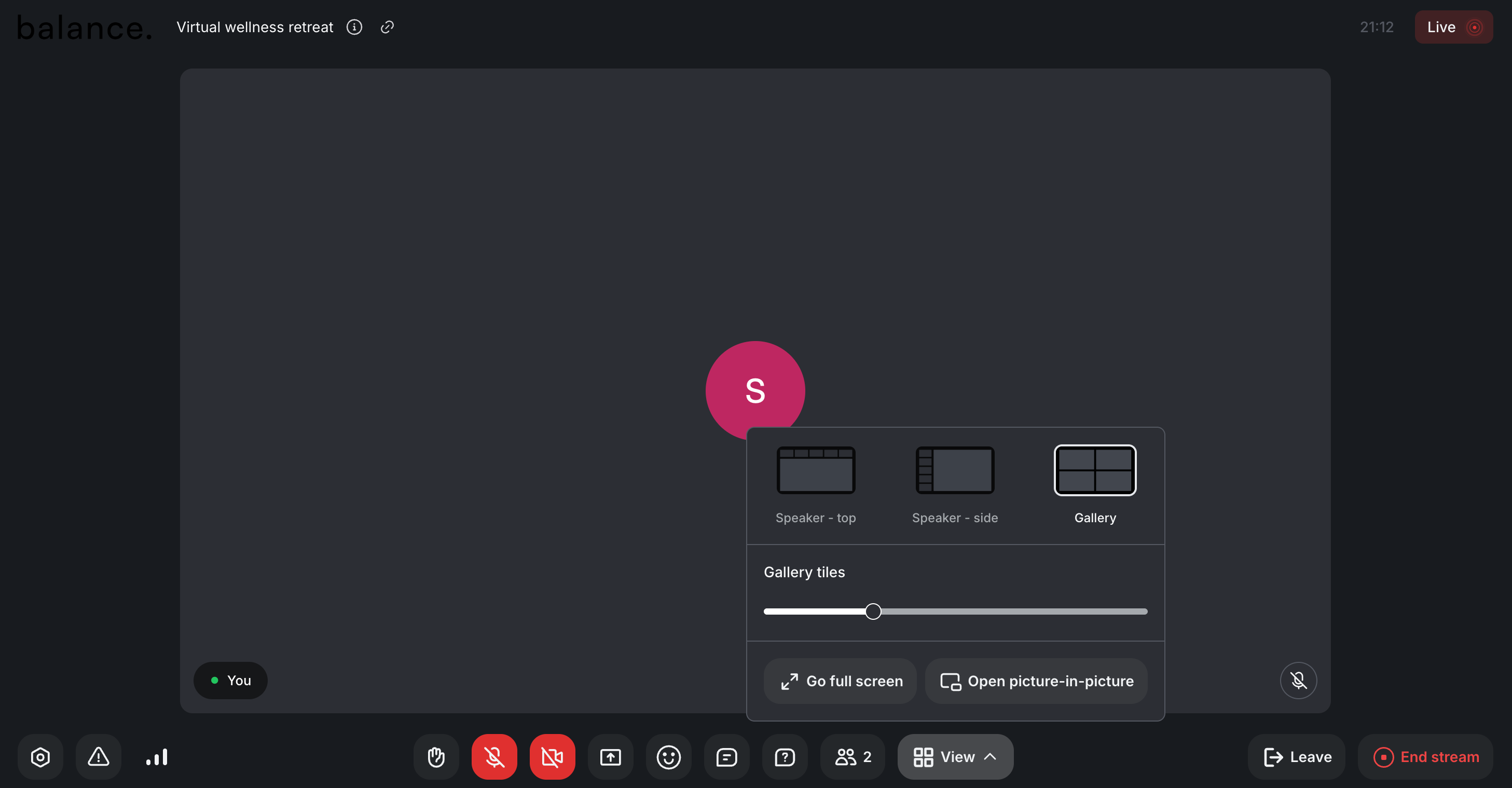
Based on your permissions within the live session, you can select from three distinct video layouts to optimize your viewing experience in both live streams and live rooms:
Speaker - top: Display all speakers in a horizontal bar stretching across the top of the screen.
Speaker - side: Show speakers in a vertical bar along the side of the screen.
Gallery: Arrange all speakers in a grid of tiles, with tiles larger than those in the speaker views.
Who can change the live layout
Live streams: Only the host (or a community admin, if present) can change the video layout. Any changes they make will apply to all participants, including co-hosts and moderators. For example, if the host selects “Gallery” view, all participants will automatically start seeing the speakers in Gallery view.
Live rooms: Both the host and participants can adjust the layout. However, the changes apply only to their own screens.
Speaker view
In the speaker view, the active speaker is displayed prominently in a large video, while other co-hosts or participants appear as smaller video thumbnails (tiles) on the speaker bar. There are two variations of speaker view: top and side.
Speaker - top
In this layout, speaker tiles are arranged horizontally across the top of the screen in a bar.
Navigation: Scroll through additional tiles using the left and right arrow buttons on the speaker bar.
Active speaker highlight: When someone begins speaking, their tile automatically shifts to the front page of the bar if it isn't already there. A vibrant border, styled in the brand color you’ve chosen for your community theme, also lights up around their tile, instantly signaling who’s currently talking.
Speaker - side
This layout positions speaker tiles vertically along the left side of the screen in an upright speaker bar.
Navigation: Use the up and down arrow buttons on the speaker bar to browse extra tiles.
Active speaker highlight: Active speaker’s tiles are seamlessly moved to the first page of the bar if it isn't there already. Additionally, a border, styled in the brand color you’ve chosen for your community theme, lights up around their tile, clearly indicating who is currently speaking.
Gallery view
Gallery view displays speakers in a grid layout on the live screen, providing a balanced view of multiple speakers simultaneously.
Navigation: Flip through additional pages of tiles with the left and right arrow buttons on the screen.
Active speaker highlight: When someone speaks, they’re brought to the first page of the gallery view if they aren't already there. Additionally, a border, styled in the brand color you’ve chosen for your community theme, lights up around their tile, clearly indicating who is currently speaking.
Change the live video layout
To switch the view:
Click View at the bottom action bar.
Select your preferred layout: Speaker (Top or side) or Gallery.
-
The new layout will be applied immediately.
Switch to full screen
Everyone who has joined a live stream or live room session can enter full-screen mode at any time by hovering over the screen and clicking the Full Screen icon at the top right.
If you are a host or admin participating in the live stream or a participant in the live room, an additional option is available: navigate to the View menu and select Go full screen.
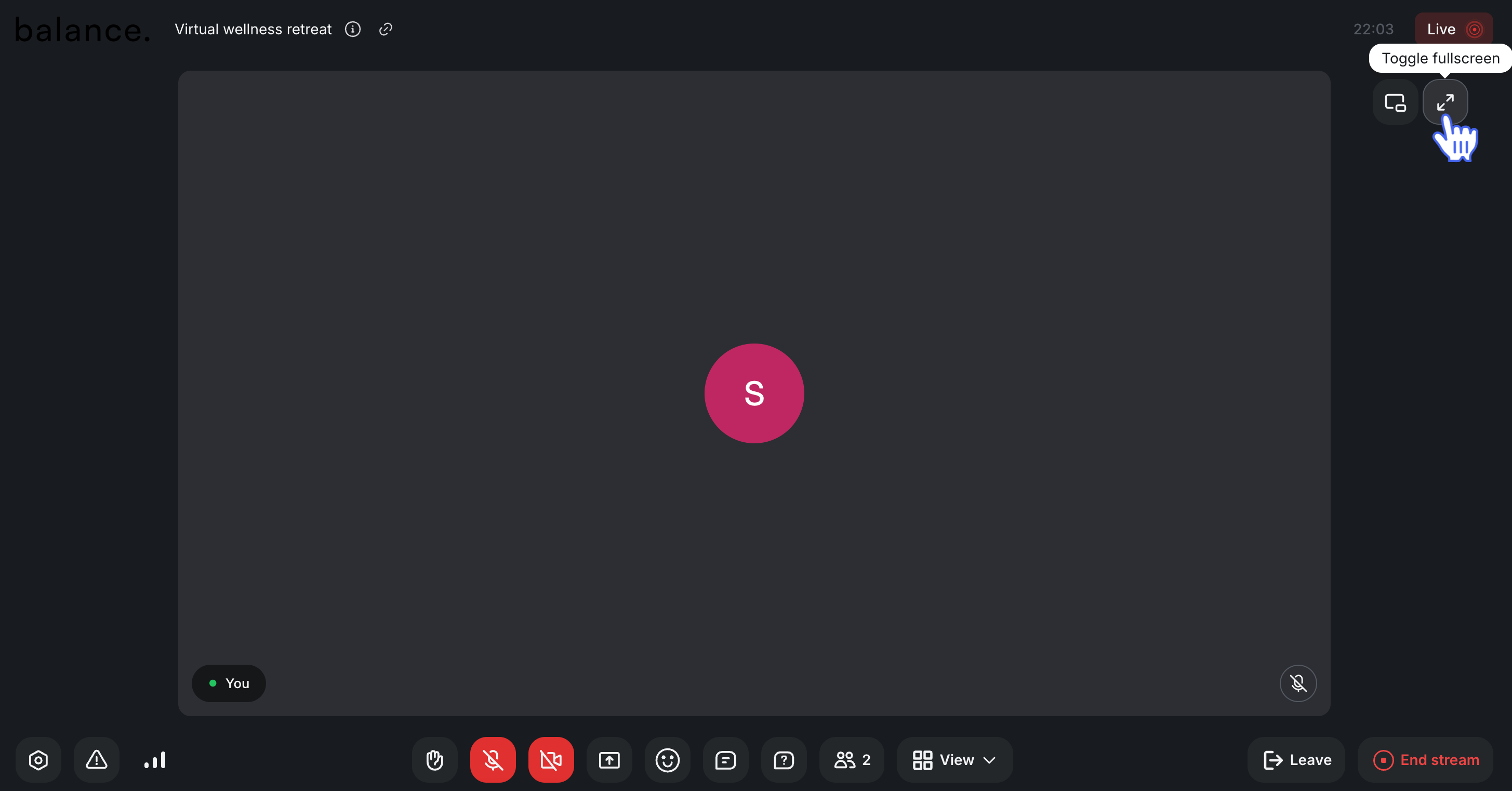
To exit, click the icon again to restore the original window size. You can also simply press the Escape key on the keyboard to exit the full screen.
Adjust the tile display
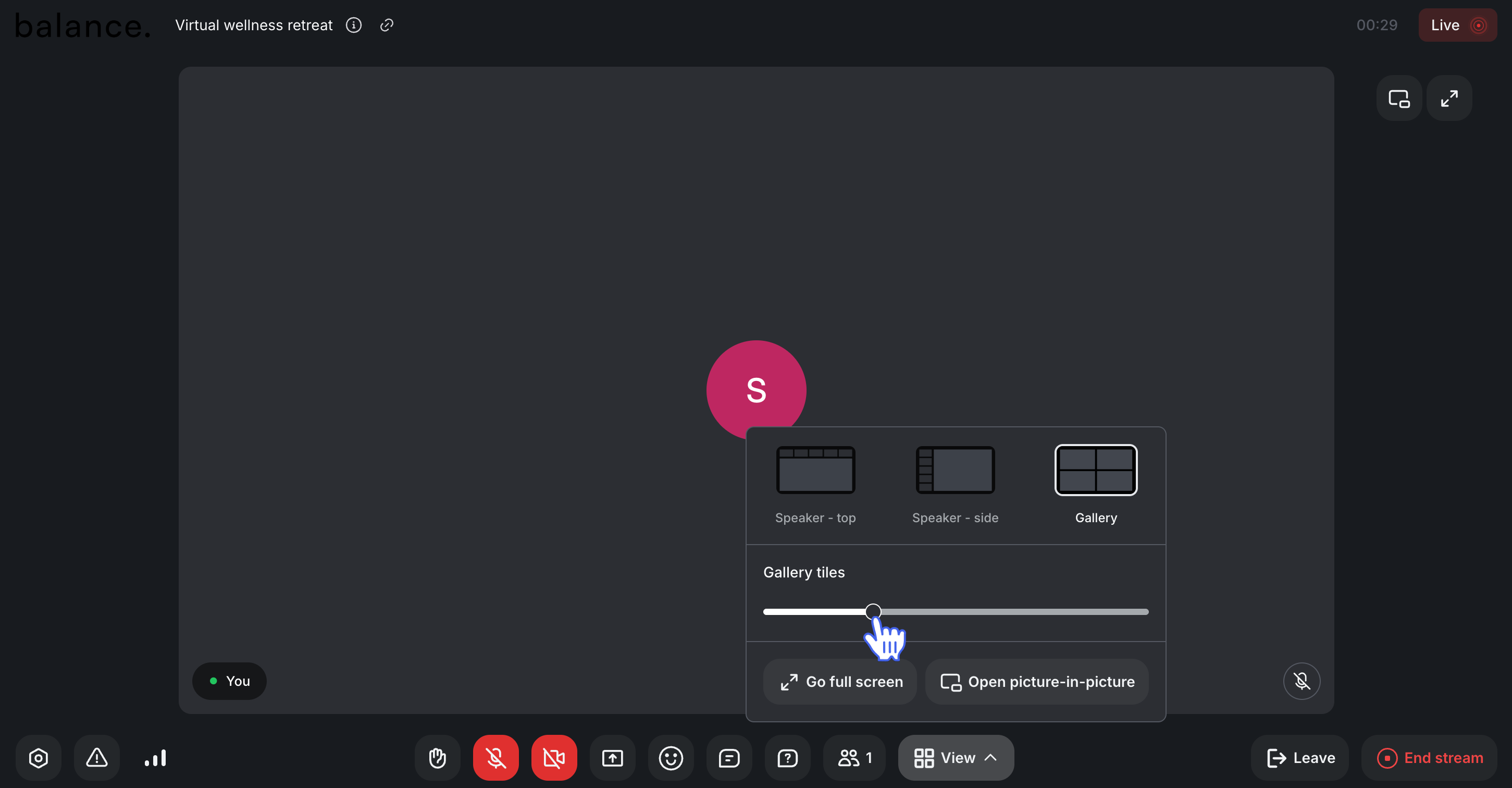
If you have joined the live session through a web browser, you can customize the number of tiles displayed on the speaker bar or gallery page for your view. In any type of video layout (view), you can choose between a minimum of 2 tiles and a maximum of 16 tiles per page.
For instance, while you may have 15 speakers in your live session, you can choose to display only four at a time on the screen. Keep in mind that while you can adjust the number of visible tiles, the actual display depends on your browser window size. For example, if your browser window can only fit five tiles, only five will be displayed, even if you've set a higher preference.
To adjust the number of tiles displayed on the screen for you, click View at the bottom action bar and use the slider under Speaker/Gallery tiles to adjust your preference. This saves the preference in your browser for your convenience.
The way tiles work depends on whether you’re in a live stream or a live room. Here’s a breakdown:
-
Live stream
Only the host and admins can tweak the number of tiles they see. They can also scroll through the additional tiles on the speaker bar or gallery. This adjustment is local and applies only to their own live session view.
-
Participants can’t adjust or scroll through tiles—their view is fixed, and they can see the default number of tiles as described below:
Speaker view: When the host has set speaker view (top or side), participants see up to seven speaker tiles on the speaker bar.
Thumbnail view: Participants see up to eight tiles in the gallery view.
-
Live room
All participants can adjust the number of tiles displayed in their live session and scroll through additional tiles on the speaker bar or gallery. These adjustments are local, impacting only their own view.
How tile and layout changes affect recordings
Adjustments to the live video layout and tiles reflect differently on recordings. Here’s how it works:
-
Live stream:
Layout: The recording reflects the layout that the host has set in the live stream session. For example, if the host uses "Speaker - top," that’s what appears in the recording.
Tiles: Tile changes made by the host or admins don’t affect the recording. It sticks to default limits: up to seven speaker tiles in speaker view or eight gallery tiles in gallery view.
-
Live room:
Layout: Like in a live stream, the recording matches the host’s chosen layout in the live room session. For example, if the host uses "Gallery," that’s what the recording displays.
Tiles: Adjustments to tiles by any participant (including the host) won’t change the recording. It follows the same defaults: up to seven speaker tiles in speaker view or eight gallery tiles in gallery view.