Participate in live chat
Last updated: September, 2026
When participating in live stream and live room sessions, live chat is your avenue for diving into discussions, sharing thoughts, and asking questions seamlessly. In this article, we'll guide you through the array of options available for engaging effectively in live chat.
Send a chat message
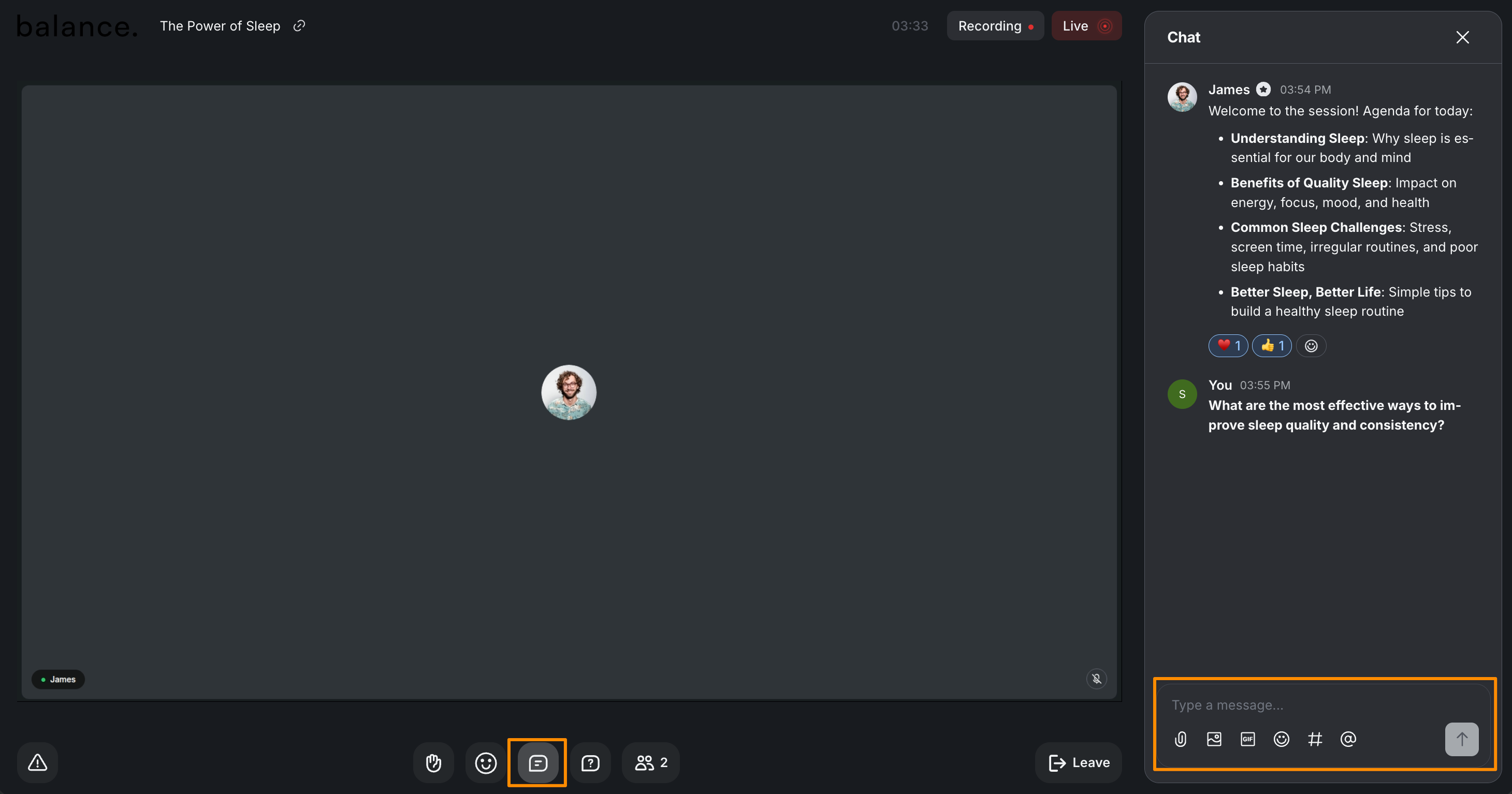
To view and send messages during the live session, navigate to the chat panel by clicking Chat 💬 on the control bar.
To send a chat message, utilize the messaging field at the bottom of the chat panel to compose and send chat messages.
💡 Tip: If you are participating in the live session via the Circle mobile app, accessing the chat feature is easy! Tap Chat 💬 on the control bar to view, send, and manage your chat messages. To edit or delete your chat message, tap and hold on the message.
In addition to text messages, use the icons located below the messaging field to:
Attach images
Add emojis
Mention attendees
Add GIFs
Attach files
Link to community content using Hashtags
To access formatting options, highlight the text. A formatting bar will appear with options such as:
Bold
Italic
Strikethrough
Underline
Hyperlink
To create a list, you can use the following shortcuts in the messaging field:
Numbered list: Press “1.” followed by a space to start the list. Pressing Enter at the end of the sentence will automatically continue the numbering.
Bulleted list: Press “-” followed by a space to start the list. Pressing Enter at the end of the sentence will automatically continue the list.
Once your message is ready, press Enter or click the Arrow icon to post it in the live chat.
Reply in thread
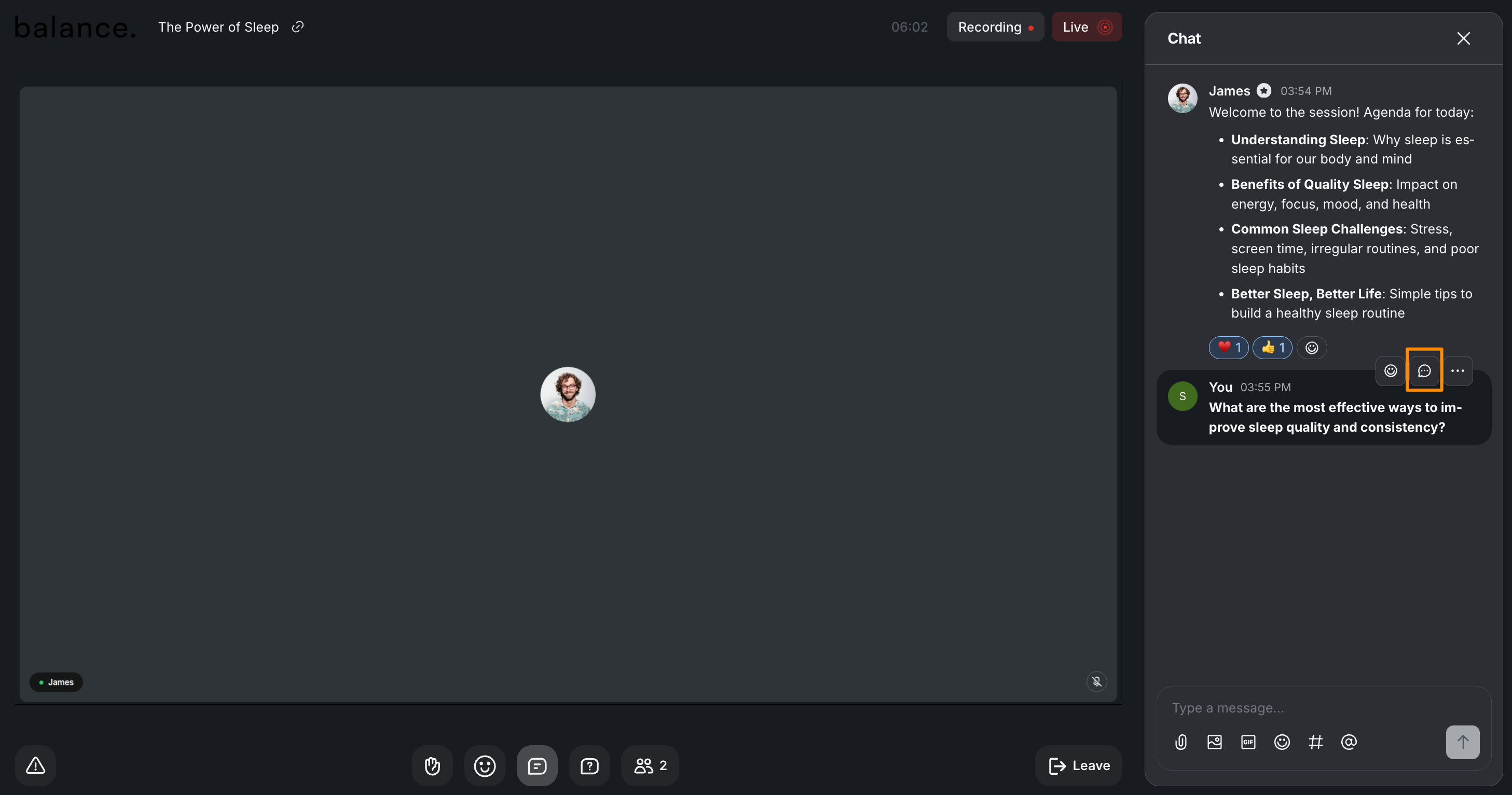
Threads are an excellent way to maintain organized discussions within the live chat. To reply to a specific message within a thread, hover over that specific message and click the Reply in thread icon.
When other participants have contributed to the thread, you'll notice a banner indicating the number of replies connected to the parent message. Clicking this banner will open the entire threaded conversation.
React to messages
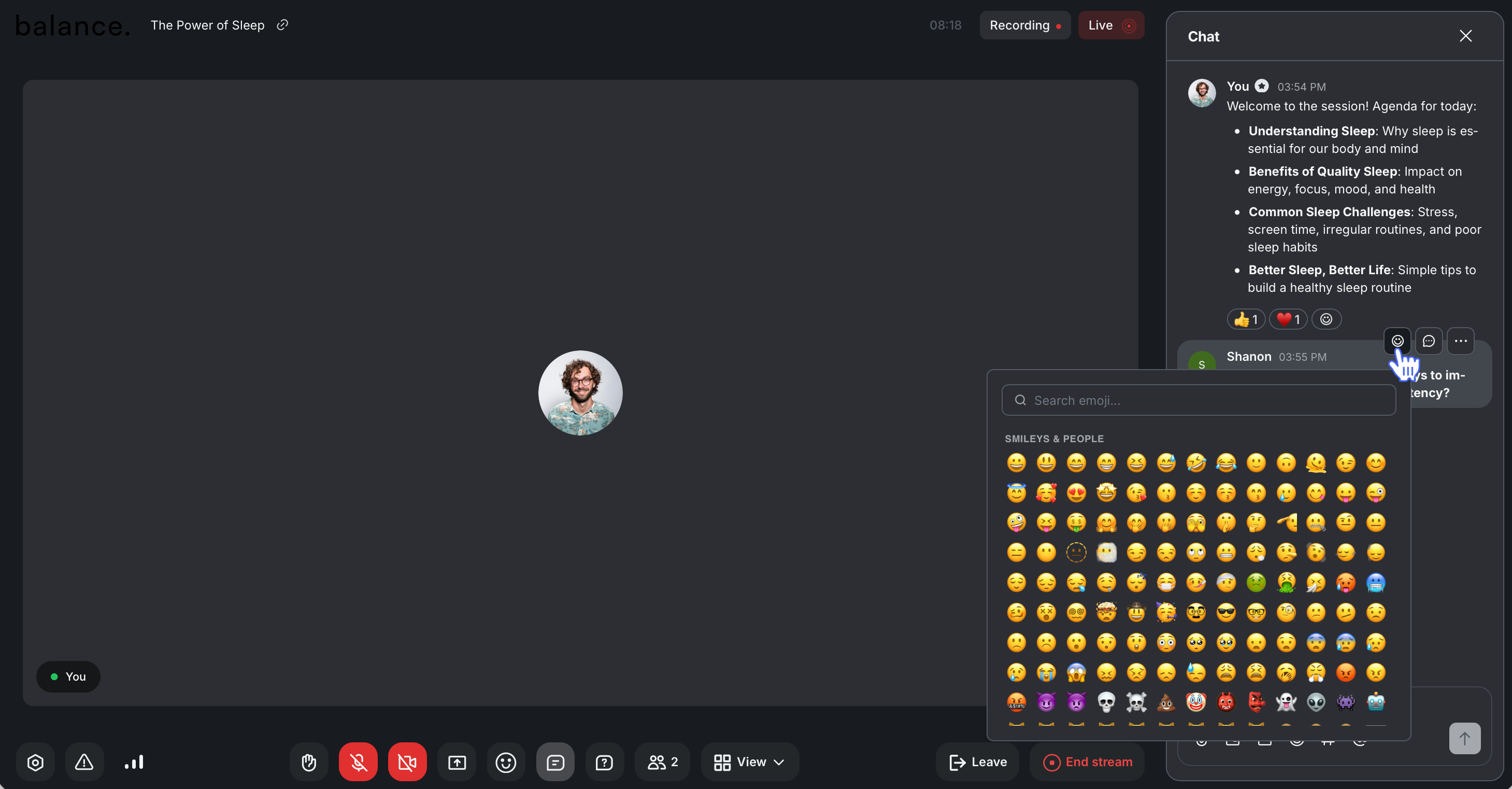
Just like chat messages, you can react to live chat messages using emojis! Hover over the message that you’d like to react to, click the Emoji icon, and select the emoji you wish to use.
The emoji reactions will be highlighted in blue. Reactions with multiple responses will display a count, and when you hover over them, you'll see the names of people who reacted.
If there's already an emoji reaction, you can click the emoji to add your reaction. To remove your reaction from the message, just click the emoji again.
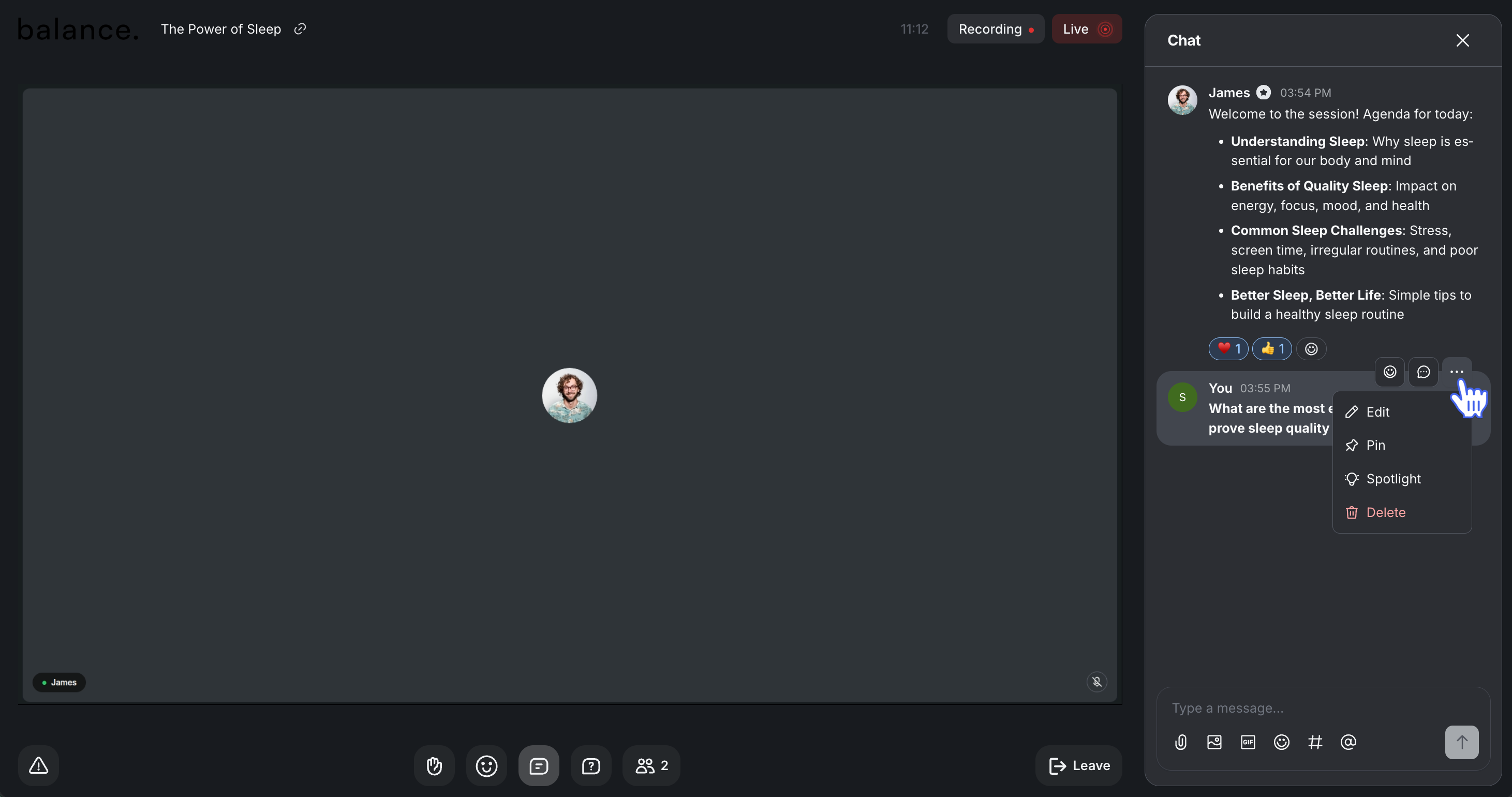
Manage your message
Once you’ve sent a message, you have several options available. You can:
Edit
Delete
Spotlight
Pin
To manage the chat messages, simply hover over your message. Click the More actions (three dots) icon and select the option.