Utilizing backstage for live streams
Last updated: September, 2026
Backstage lets you test the environment, prepare for the stream, and collaborate with co-hosts behind the scenes before going live.
What are some effective ways to use backstage?
Here are some ideas for using backstage effectively:
Start a bit early to rehearse or practice with your co-host before going live.
Test audio and video with your co-hosts.
Prepare and test any content you plan to share from your device during the live stream.
Use chat to share a live stream agenda so your participants understand which topics will be covered during the stream.
-
Use chat to share the sign-up link for the paywall you are promoting, so participants can use it to subscribe to your community membership.
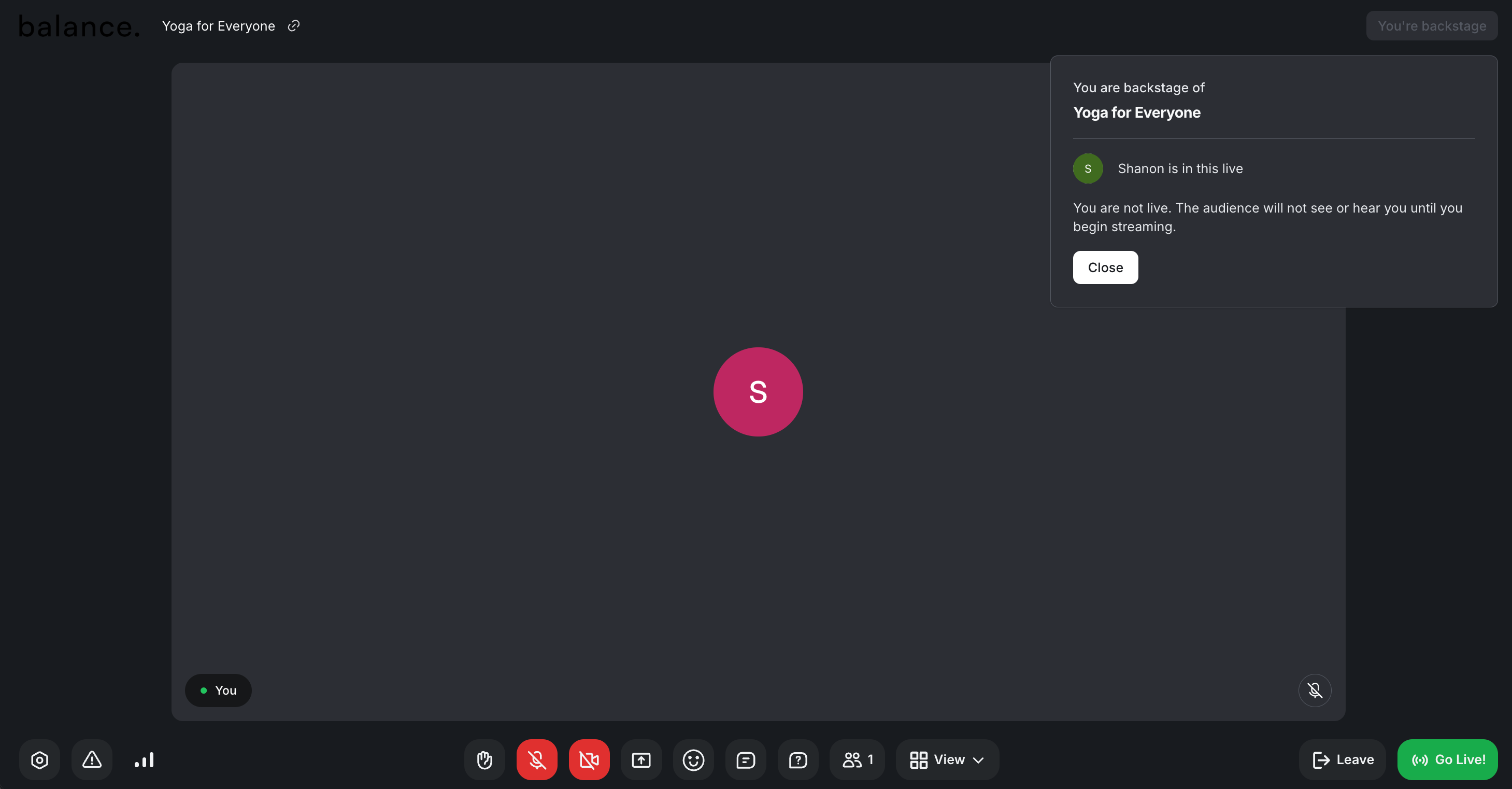
How can you enter backstage?
Before you can start streaming, you'll always be prompted to enter backstage during the initialization process.
What can you do backstage?
Backstage has the same controls you can access when you go live. You can use the control bar backstage to prepare and test the stream before going live.
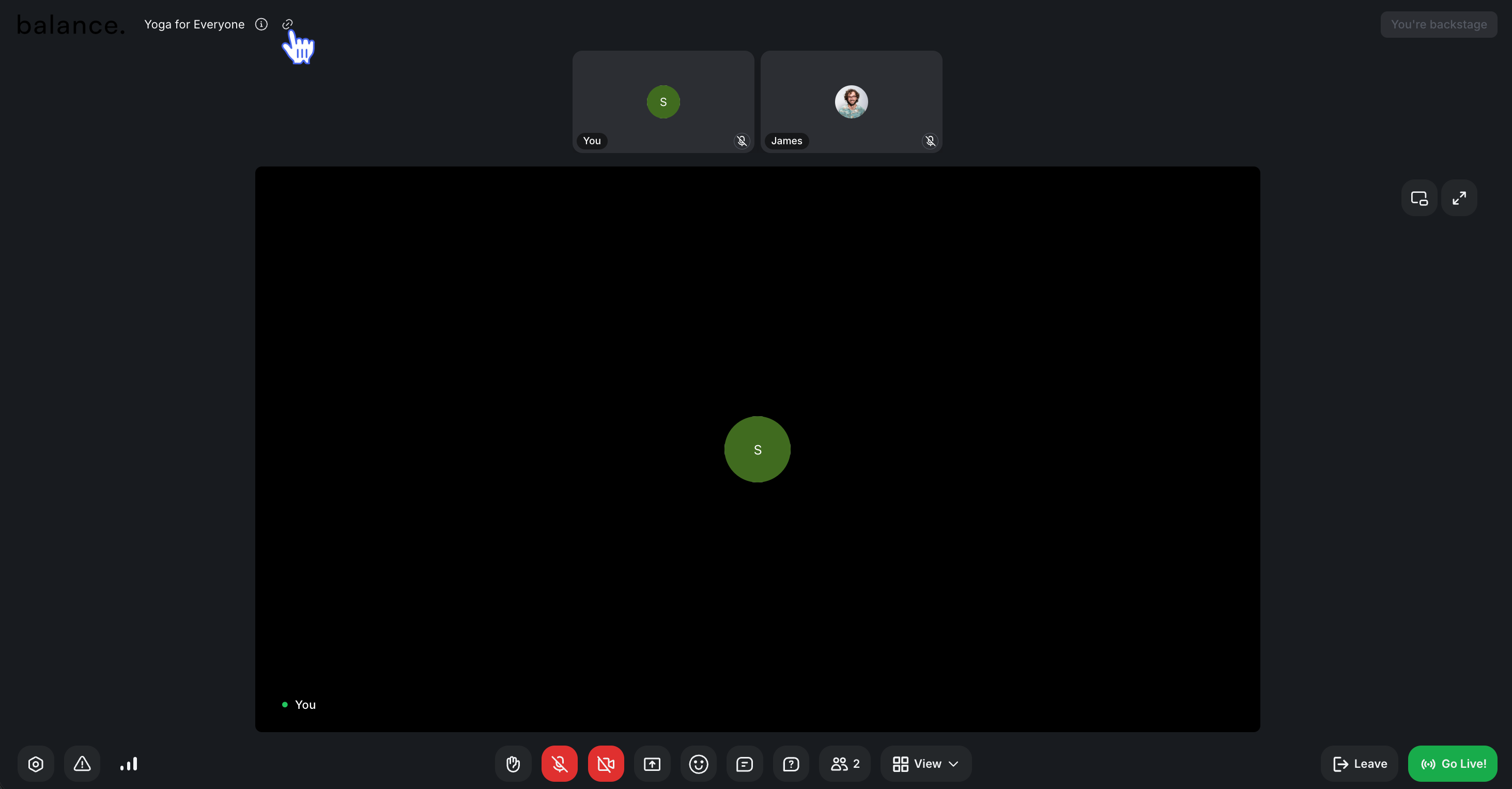
Share the public live URL
If you've chosen to go live to visitors along with your community members, you can copy the public live event URL from the Share live event link dialog or stream information (see the following).
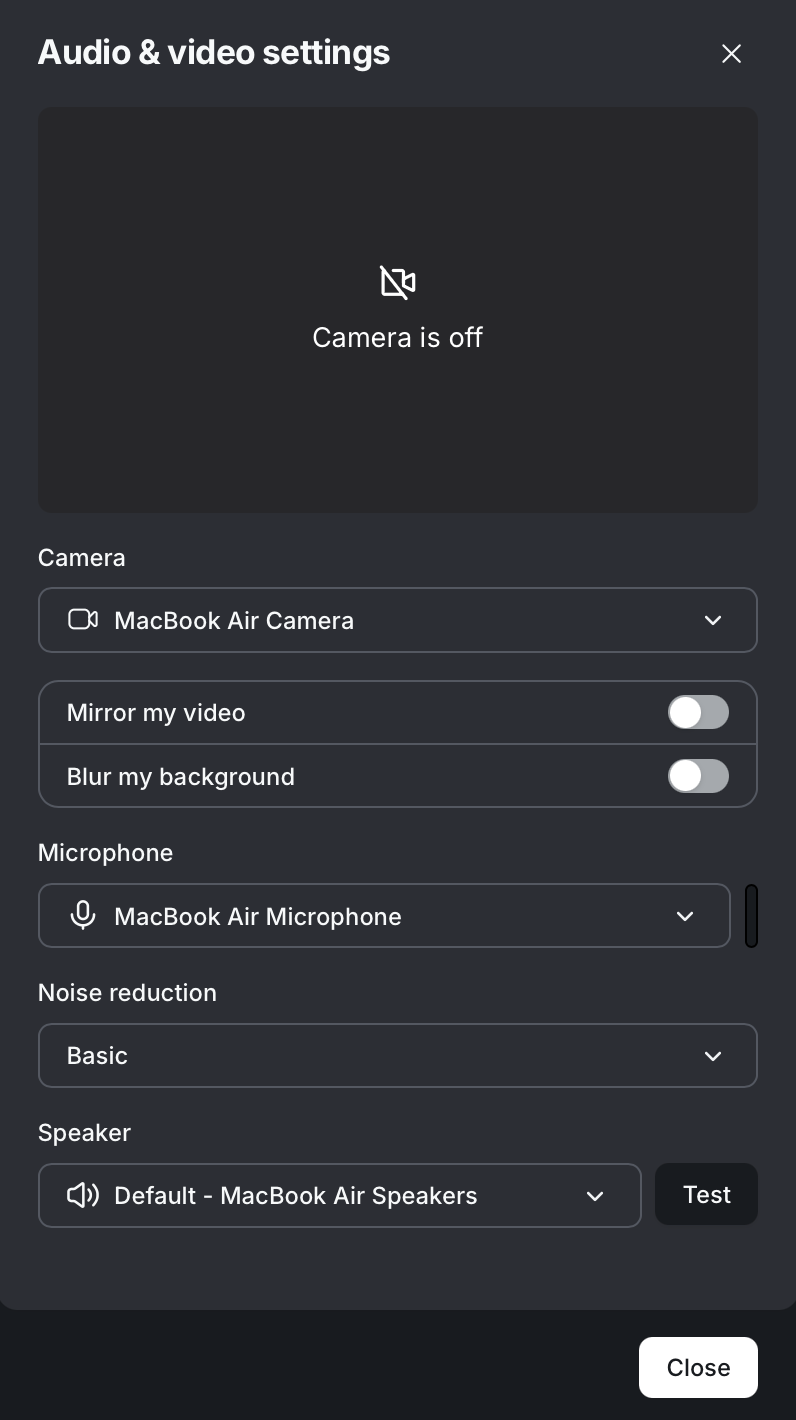
Manage device settings
To manage your audio and video preferences, click Device settings ⚙️ ****on the control bar. You can configure the following:
Camera input
Mirror your video input
Blur your background
Microphone input and audio output
-
Speaker
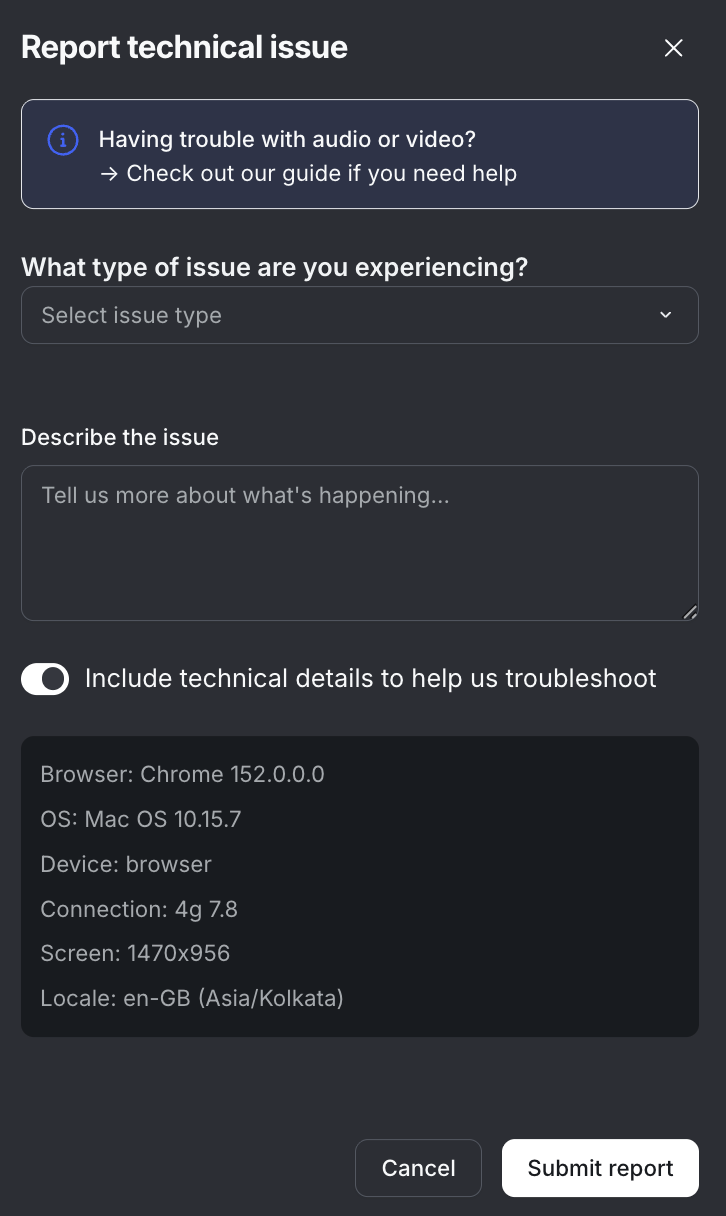
Report issue
To report a technical issue, click Report issue on the control bar. You can report the following:
The type of issue you're facing (audio, video, connection, screenshare, or another technical issue).
A description of the issue.
-
Your device details by toggling on Include technical details to help us troubleshoot.
Toggle microphone and camera
To mute or unmute yourself or turn your camera on or off, click the Microphone or Camera icons on the control bar.
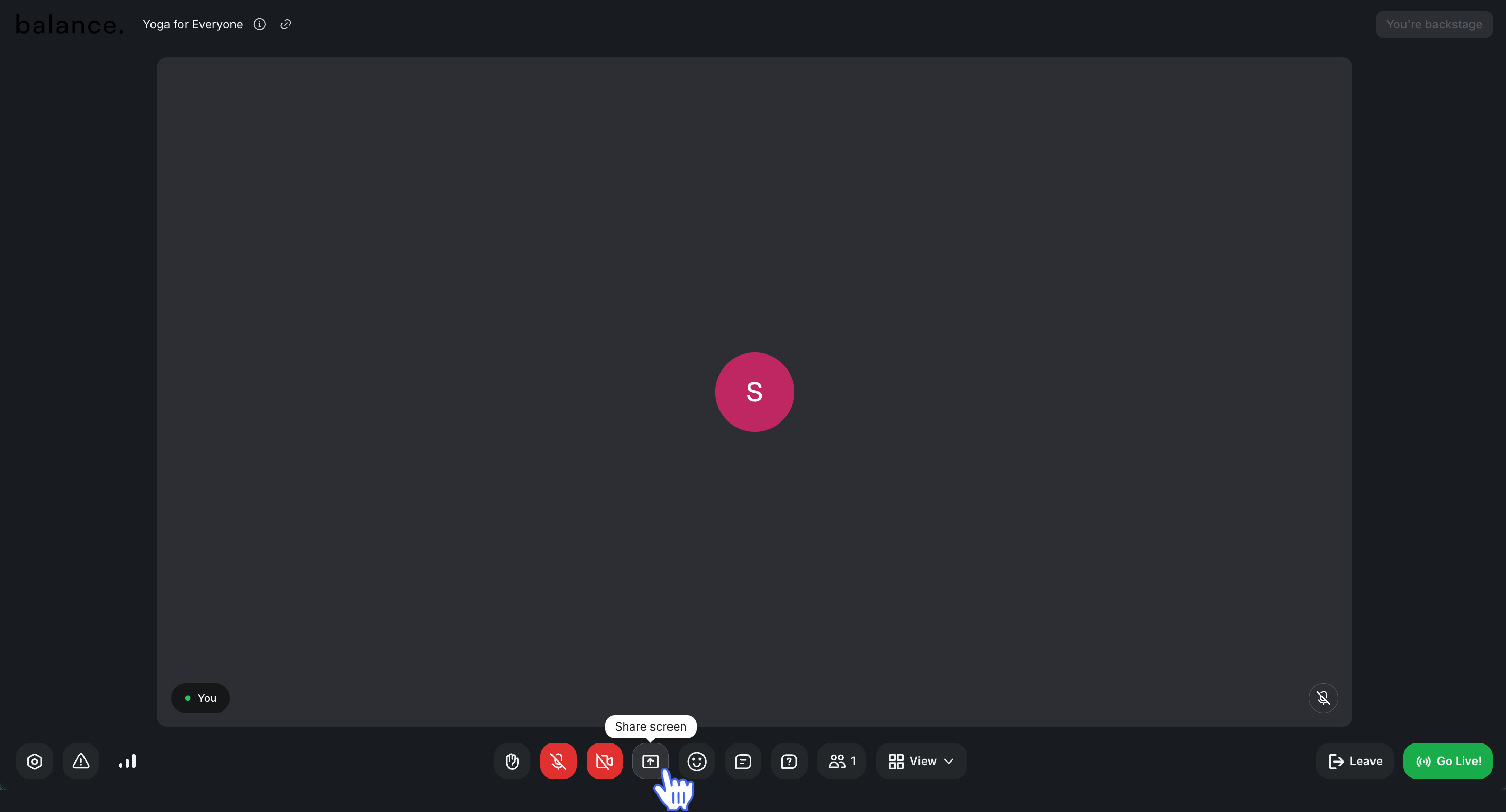
Share your screen
Depending on the browser you use, when you click the Share screen icon, you'll be prompted with screen-sharing options such as a specific tab or window, or the entire screen of your device.
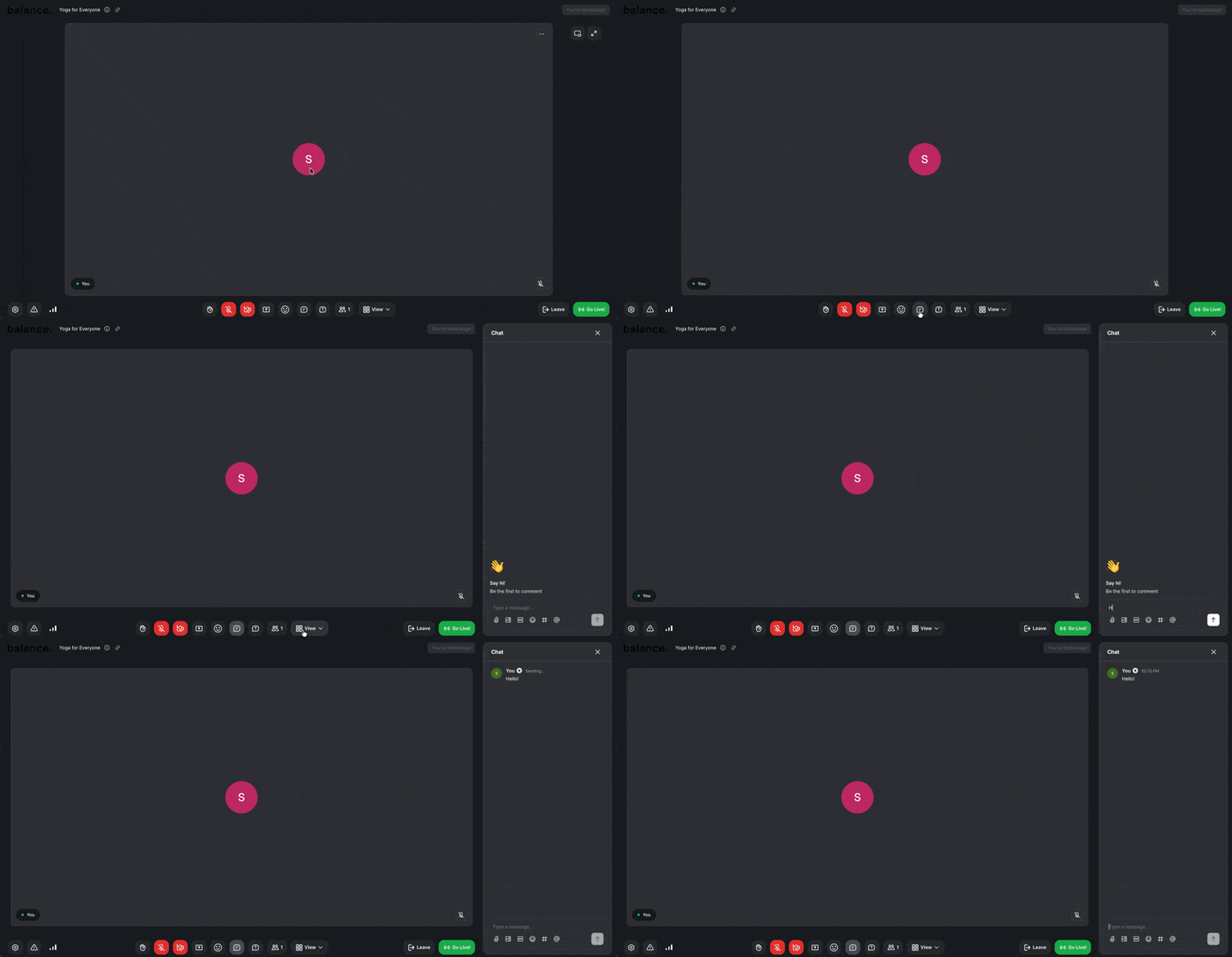
Initiate chat
If chat is enabled:
Click Chat 💬 on the control bar.
Type your message in the message field, then press Enter or click the Arrow icon.
Enable Q&A
Click the Q&A icon on the control bar to enable the Live Q&A panel. For more information on setting up the live Q&A, see our guide here.
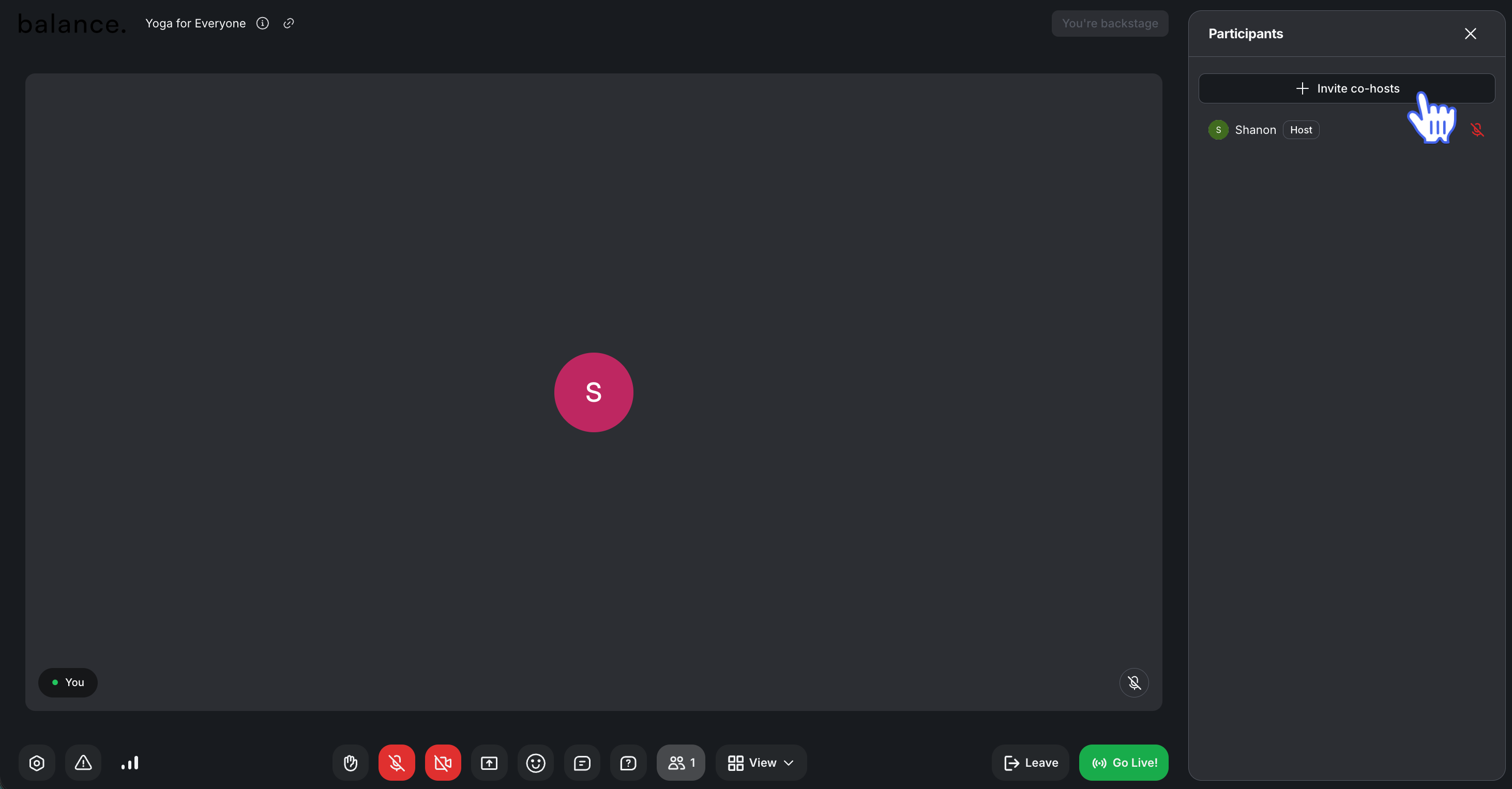
Invite co-hosts
On the control bar, click Participants 👥.
-
In the Participants panel on the right, click Invite co-hosts.
Enter the name of the member you wish to invite.
Click Invite to stage.
Make the co-host a moderator
To make any co-host present backstage a moderator:
Go to the Participants panel.
-
Hover over the co-host's name, click More actions (three dots), and select Make moderator.
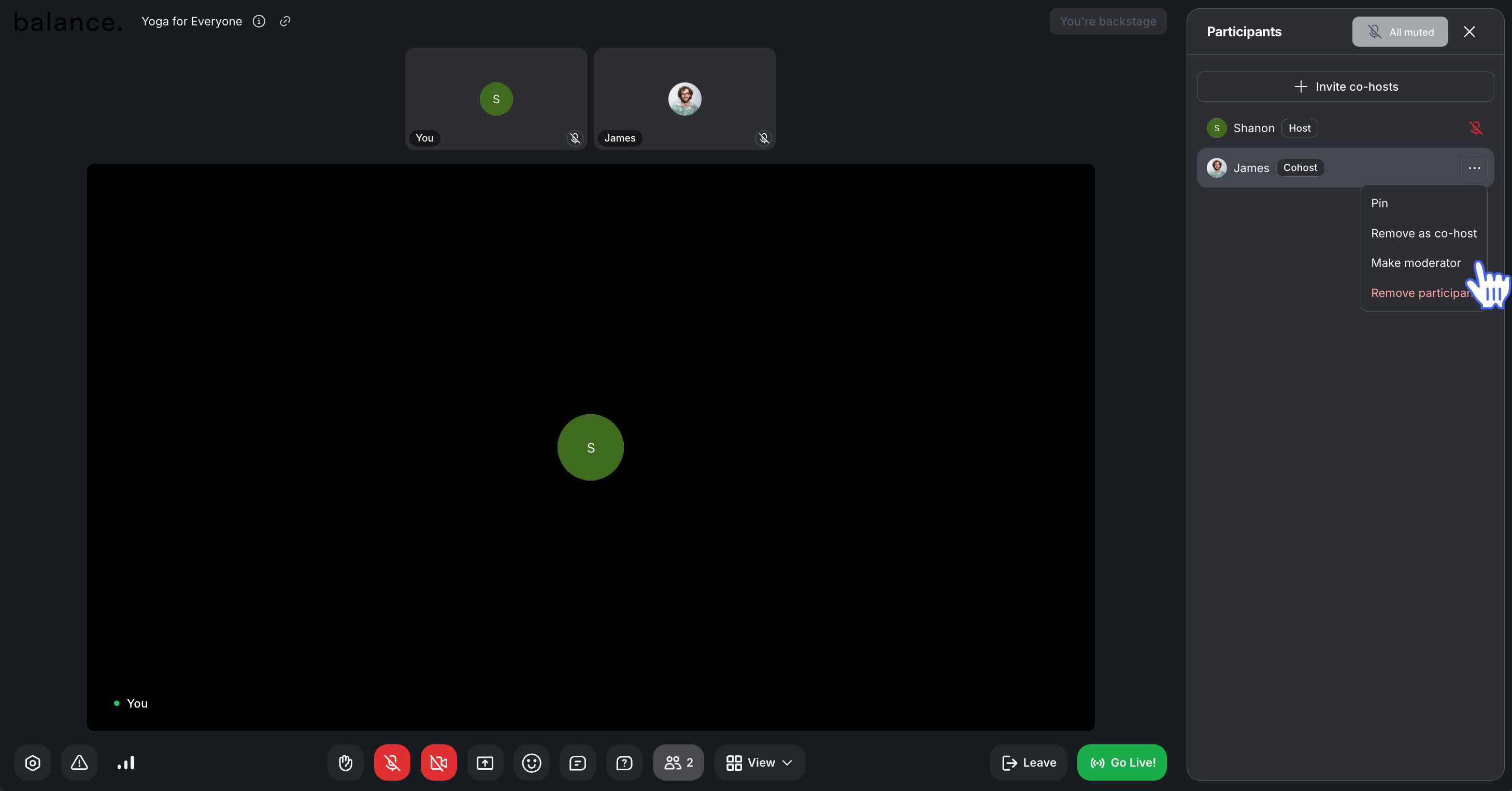
💡 Tip: Once you have made the co-host a moderator, they'll be moved to the Moderators section in the Participants panel and assigned a moderator badge.
Manage view
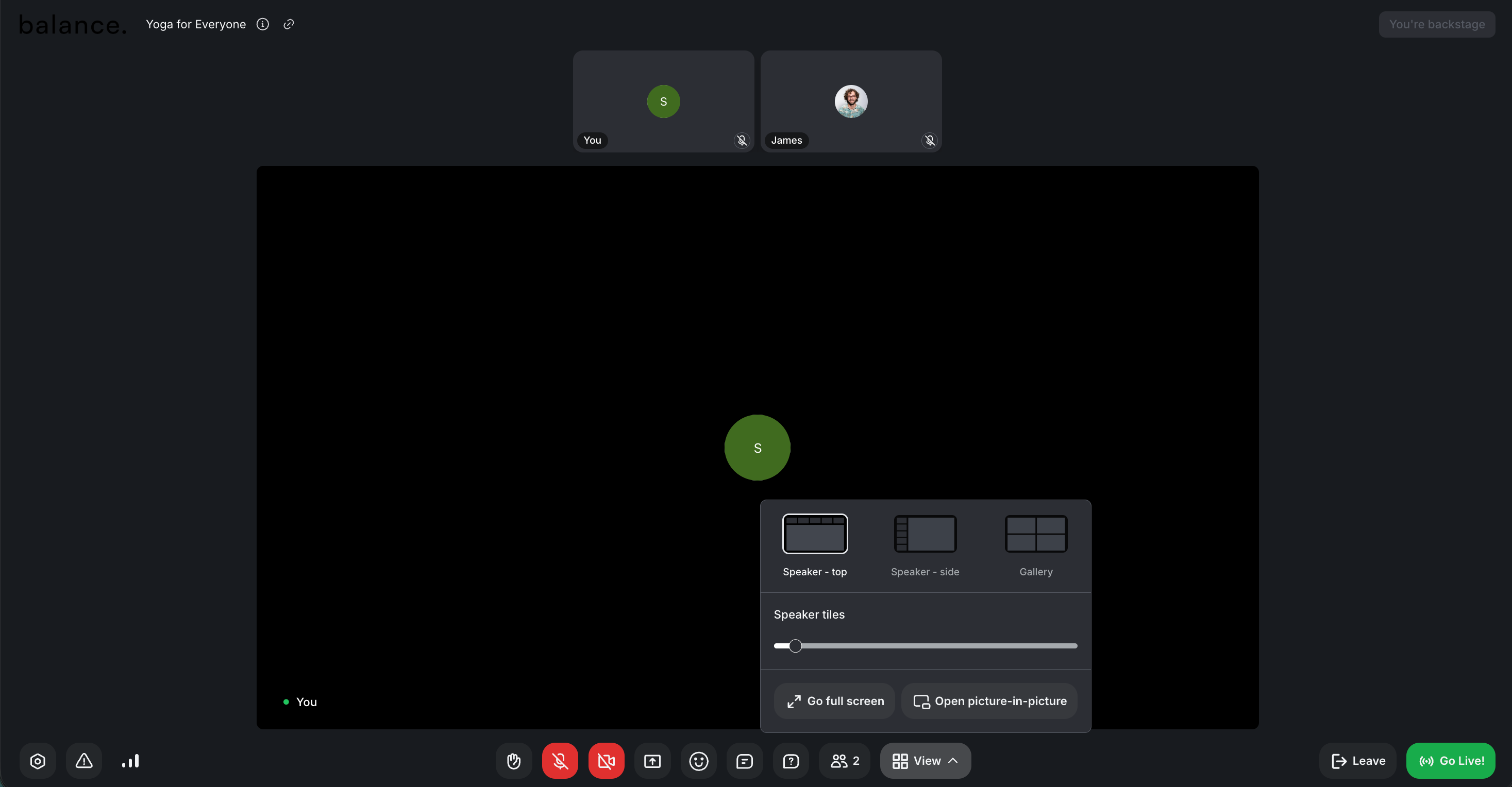
Click View in the top-right corner to switch between Speaker and Gallery view. To go full screen, click the View and select Go full screen.
As a live session host or admin joined as host in the live stream, you have the flexibility to customize the number of speaker tiles per page. Use the slider under Speaker tiles in the View menu to adjust your preference. You can choose as few as 2 tiles or go all the way up to a maximum of 16 tiles per page in both gallery and speaker views.📚 For more information, see Change the live video layout.
Go live
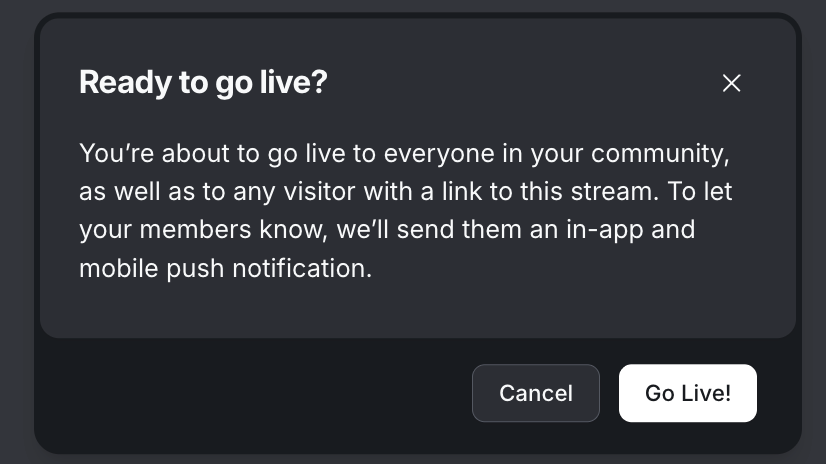
Once you are ready to start streaming, on the control bar, click Go live, and then confirm in the dialog.
Leave the stream
Instead of going live, if you wish to leave backstage, you can click Leave stream on the control bar. If you leave the backstage instead of going live, the live stream will display a backstage status in the live dashboard.
❗Important: Please note the live stream URL before leaving the stream. The live stream will remain active for 5 minutes after you leave. If you wish to rejoin the stream, use the stream URL.