Getting started with Circle paywalls
Last updated: November 10, 2025
Circle paywalls allow you to charge your community's premium content through various pricing models.
About Circle paywalls
Circle paywalls integrate seamlessly with Stripe, a payment processor, to facilitate secure membership payments. After connecting your Stripe account and setting up paywalls, you can begin collecting payments effortlessly.
With Circle paywalls, you can:
Gate the entire community or specific spaces: Provide access to the entire community or offer tiered access to specific spaces through paywalls. You can add access groups to paywalls, defining exactly what spaces or space groups paying members can access.
Offer flexible pricing and coupons: Provide various web pricing options, including recurring subscriptions, one-time payments, and installments. Create coupons to offer discounts or promotional incentives. If you are a Circle Plus customer with your own branded apps, you can also offer in-app purchases through your community apps.
Customize checkout page: Personalize your paywall checkout pages with a cover image, benefit highlights, custom testimonials, and badges. These elements help reinforce trust and clearly communicate the value of your offering, right at the point of purchase.
Manage transactions: View and manage subscriptions, cancellations, refunds, and transactions directly within Circle.
Offer trials: Offer trials through paywalls, encouraging sign-ups with low-risk access to premium content. You can also create new trial subscriptions for members directly in Circle.
Paywall analytics: Access analytics to gain insights into paywall performance, member engagement, and subscription trends to optimize your monetization strategy.
Leverage the built-in affiliate program: Onboard affiliates, track referrals, and efficiently manage commissions, all within your Circle community.
Pricing options
Circle paywalls support three versatile pricing options to cater to different member preferences:
Recurring subscriptions: Charge your members on a recurring basis to keep access to the paywalled content. Recurring options include daily, weekly, biweekly, monthly, quarterly, biannual, and annual payments. Similar to common subscription services online, access to paywall content persists as long as members are subscribed to the recurring plan.
One-time fee: Charge members a single one-time payment, granting them lifetime access to the paywalled content without any future recurring payments.
Installments: Offer members a budget-friendly payment option that divides a single one-time fee into manageable installments, allowing members to pay the total paywall price in several equal payments. Once all installments sum up to the total paywall price, members gain permanent access to the paywalled content without any additional payments. You can choose to charge members at a weekly, biweekly, monthly, or quarterly payment frequency until the total paywall price amount is paid.
Getting paid
Stripe handles payments for paywall transactions. When a member pays for a paywall, Stripe will collect and process the payment. Based on your payout schedule and speed, Stripe groups funds and sends them as payouts to your bank.
📚 For information on payouts, see Receiving Stripe payouts.
Important configurations
Before you start charging, understanding the necessary settings for effective paywall gating is crucial, alongside recognizing the distinctions between paywall access and invite access.
Here's a summary:
-
Space access settings: All the spaces that you are making part of the paywall must be set to Private or Secret prior to members signing up.
Review current access group members: We recommend carefully reviewing the member list of each access group you have added to paywalls before you start charging for paywall memberships. If you see any members who have already been added to access groups before paywalls, you can remove them to revoke their free access and advise them to buy a paywall instead.
If you are using legacy space access option paywalls, please review each space and space group members list and remove individuals who should not have access to it.
Default space access configuration: Make sure you haven’t added any access groups to the default space access configuration in your member onboarding settings that are also part of the paywalls.
Utilize paywall checkout URL: Going forward, ask your members to use the paywall checkout URL to subscribe to a membership paywall to gain access to spaces and space groups (that are part of access groups added to the paywall).
Supported countries
The paywalls feature is available for communities in most countries supported by Stripe. You can check out the list of supported countries here.
If you’d like to connect a Mexican Stripe account, please contact the Circle Support team for assistance.
❗Important: Please note that Stripe doesn’t allow the collection of platform fees for connected accounts in certain countries, such as Malaysia and India.
As a result, admins with accounts in Malaysia or India will be unable to connect their Stripe accounts to their community, preventing them from setting up a paywall. We are developing solutions for communities in those countries that wish to use paywalls.
In this case, you can integrate a third-party payment solution with Circle by using automation tools like Zapier. For more information, see Integrating third-party payment solutions with Circle.
Note that the above limitations only apply to admins trying to set up a paywall. Members can subscribe to a paywall from any country.
Setting up Circle paywalls in Brazil
For communities in Brazil, we’ve simplified the process of connecting a Stripe account for Circle paywall integration. When connecting your Stripe account, you can now select Brazil as the country where you intend to register.
After successfully connecting your account, you can also join Stripe's early access program for the Pix payment method for your one-time fee paywall offerings.
For more information on setting up Circle paywalls in Brazil, refer to our guide here.
Supported Stripe accounts
Circle paywalls use a Standard Stripe Connect integration, which gives you direct access to your Stripe dashboard and full control over your account and customer data. To confirm if your country is supported, see Stripe’s supported countries page.
We do not support Stripe Express and Stripe Custom accounts for paywalls.
📚 To learn more about Stripe connected accounts, see our guide here.
Supported currencies
We currently support AED, AUD, BRL, CAD, CHF, CZK, DKK, EUR, GBP, HUF, INR, MXN, NOK, NZD, PLN, RON, SAR, SEK, SGD, TRY, USD, and ZAR.
ℹ️ Note: There may be communities in certain countries that may not be able to charge in BRL (see Stripe’s currency checker). However, countries like the US, Canada, any European country, and Australia can charge members in BRL.
Supported payment methods
We support the following payment methods for paywall purchases.
📚 To learn more about managing the availability of these payment methods, refer to our guide here.
Cards
We support the same card payment methods as Stripe for member payments. Members can utilize cards that are linked to a debit or credit account at a bank or financial institution. See here for a full list.
Additionally, the paywall checkout is integrated with Stripe Link, which allows frictionless checkout for members using online card brand payment methods. Members can use the 1-click checkout with Link option under the card payment method section, which automatically fills in saved card details for a quicker experience. If they haven't signed up for Link, they can do so for a faster checkout in the future.
Apple Pay and Google Pay
For a simple and secure checkout experience, we support the availability to pay for paywall via Apple Pay and Google Pay.
They enhance security through password or biometric authentication, reducing fraud compared to physical cards. These widely adopted digital wallets cater to a broad user base, increasing the potential for higher conversion rates.
Pix
If you have connected Circle paywalls with a Stripe account registered in Brazil, you have the option to opt into Stripe’s early-access program to enable the Pix payment method for one-time fee paywall offerings. For more information, check out our guide here.
iDEAL
iDEAL is a Netherlands-based payment method that allows customers to pay online directly through their bank accounts using their existing banking credentials. It’s supported by all major Dutch banks and is the most widely used online payment method in the Netherlands.
iDEAL is only available to customers located in the Netherlands and for purchases displayed in Euros (EUR). Customers outside the Netherlands or using any other currency will not see iDEAL as a payment option at checkout.
Bancontact
Bancontact is Belgium’s leading online payment method, used by millions of customers with Belgian bank accounts. Payments are made through Bancontact cards or mobile apps, providing secure and immediately confirmed transactions.
Bancontact is available only to customers located in Belgium and for purchases displayed in Euros (EUR). Customers outside Belgium or using non-EUR currencies will not see Bancontact at checkout.
SEPA Direct Debit
SEPA Direct Debit allows you to collect payments directly from customer bank accounts across the SEPA region, which includes 36 European countries. It operates similarly to ACH or bank draft payments in the US.
This payment method is available to customers with bank accounts in SEPA member countries and for purchases displayed in Euros (EUR). Customers outside the SEPA region or using non-EUR currencies will not see SEPA Direct Debit as an option during checkout.
Buy now, pay later
Buy now, pay later (BNPL) allows members to buy a one-time fee paywall at flexible terms instead of paying the full amount, reducing friction. This provides increased flexibility and affordability.
When a member completes the purchase, you get paid upfront while the member repays the BNPL provider according to the agreed-upon terms of the repayment. For more information, check out our guide here.
Getting to know the paywall checkout page
The paywall checkout page is where people complete their purchase and create a community account if they aren’t already a member.
Each paywall has its own checkout page. It lives at your community URL with the paywall slug added to the end. For example: community.domain.com/pro-membership. When you create or edit a paywall, you can set a custom slug.
For each paywall, you can tailor the checkout experience by adding a cover image, listing membership benefits, showcasing badges or testimonials, and configuring post-purchase actions.
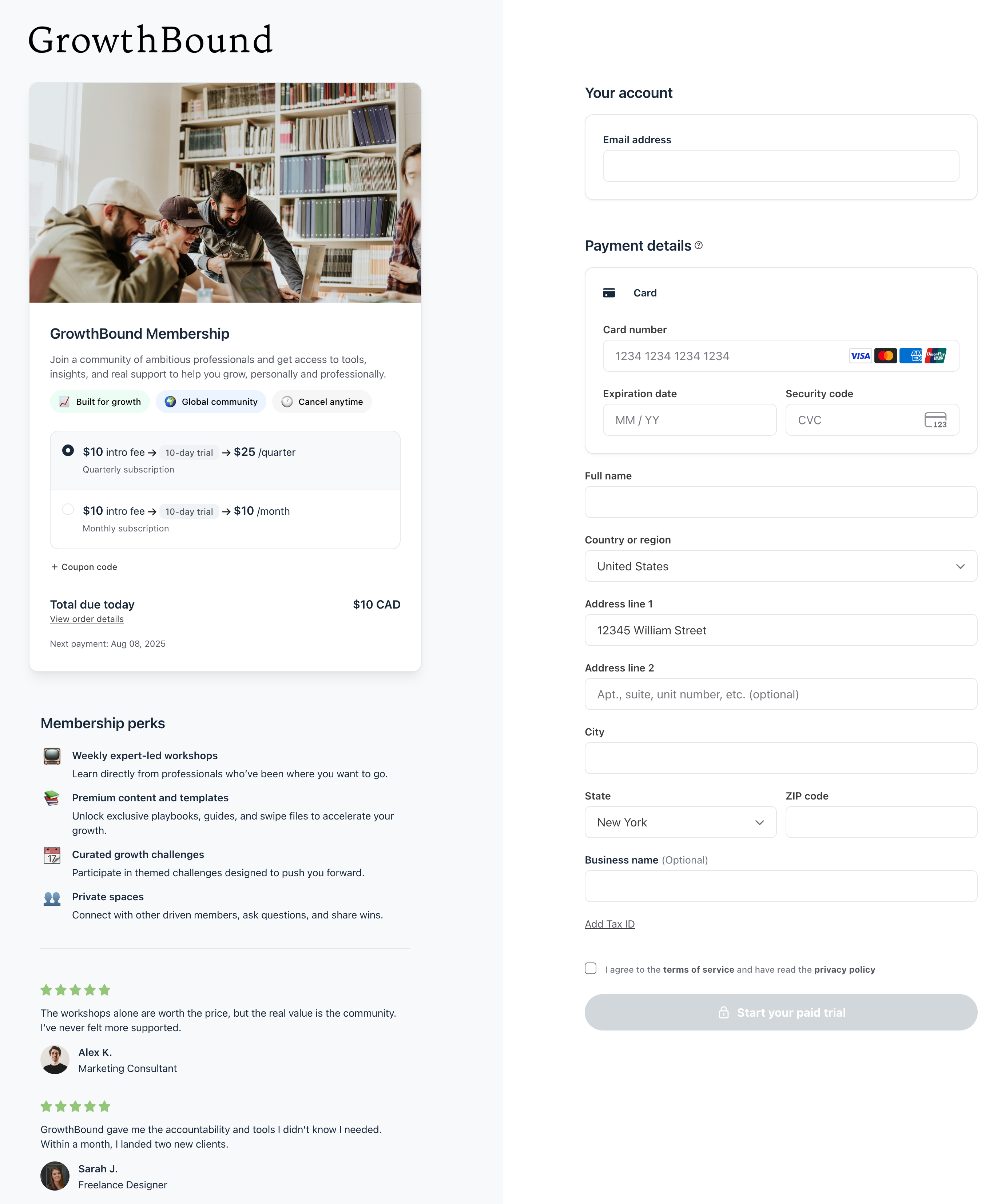
The checkout page is split into two main areas: Paywall information and account and payment information. Here’s an overview of what users see:
-
Paywall information: On the left side of the page, users see all the key details about the paywall, including:
Available plans to choose from.
Cover image, badges, benefits, and testimonials (if added).
An option to apply a coupon code for a discount.
Order details.
-
Account and payment information: On the right, users authenticate and provide their payment details.
The account section updates based on whether the user is logged in. If they're not logged in, they'll see options to sign in or create a new account before completing their purchase.
Various payment methods may be available on the checkout page depending on your payment method settings, the currency, the transaction amount, and the user’s browser. You can learn more about payment method availability here.
If the tax collection is enabled for paywalls, users are required to provide their address and can optionally add their tax ID. Once a user selects their country and adds the street address, the other fields will appear to add more details, including city and postal code.
📚 To learn more about the checkout flow, please see Understanding the paywall checkout flow.
Resources to help you set up paywalls
Here are some helpful articles to guide you through paywall setup: