Onboard members to your community via paywalls
Last updated: August, 2026
Managing the onboarding process for members with paid subscriptions is a breeze with Circle paywalls. It helps streamline the process, making it efficient and much easier to manage.
ℹ️ Before proceeding with this guide, we suggest considering the following:
When you wish to give your member access to paywalled content via a paywall subscription, we recommend avoiding any invite method that provides free access to your community content. For more information, see Understanding invite access and paywall access methods.
Ensure that you have set the proper access configurations for your community. See Configure important settings prior to setting up a paywall
In this article, we will explore the two methods available to onboard members via paywalls:
Paywall checkout URL
Paywall trial
Paywall checkout URL
This is the recommended approach when you want your members to subscribe via a paywall to access the exclusive community content. When you create a paywall, a checkout URL is generated and should be shared with potential members to guide them through the checkout process.
The paywall checkout page allows anyone to purchase the community paywall. Even if individuals don’t have an existing community account, they can create one when purchasing your community paywall.
You can get this paywall checkout URL for any paywall by navigating to the paywalls page and clicking the Copy link button beside the paywall entry.
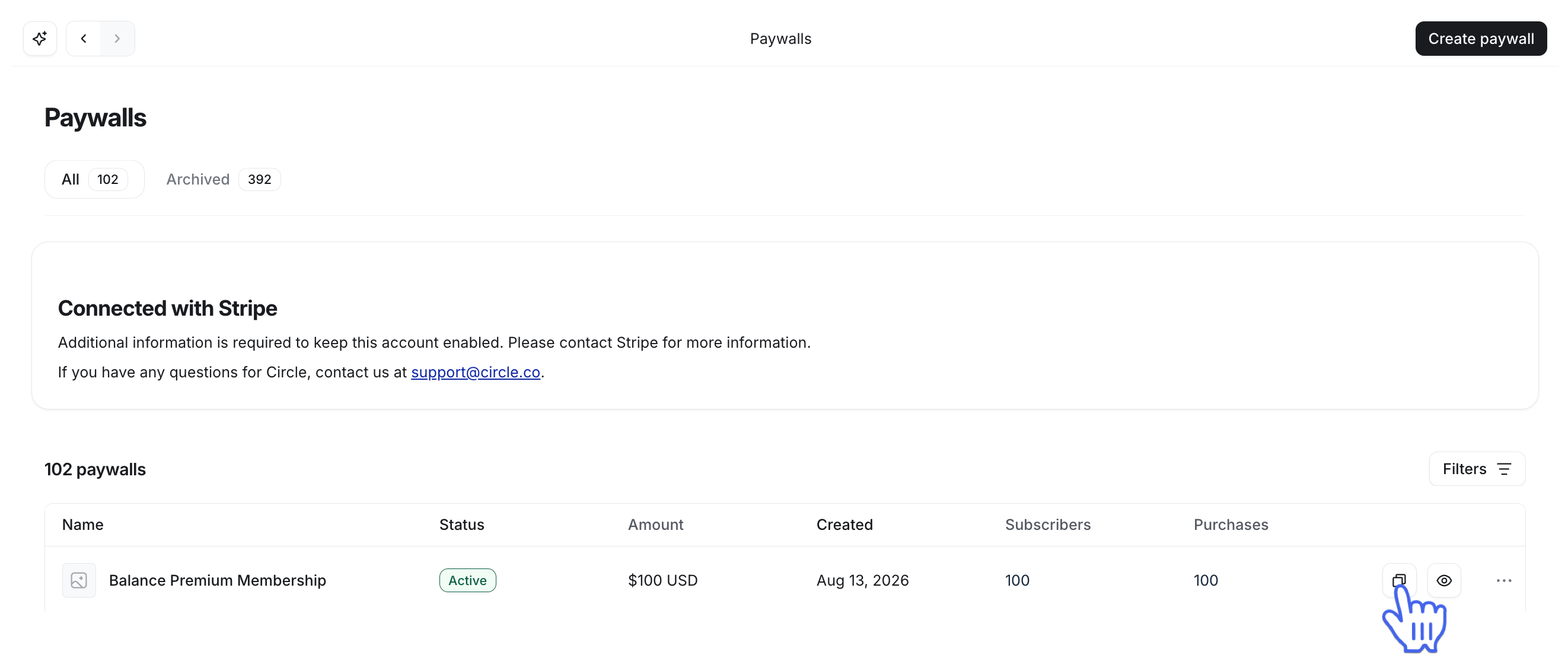
Let’s take a look at various ways you can share the paywall checkout URL with your potential subscribers inside and outside of your community.
-
Within your community:
Set up lock screens
Create an informative post
Set up a welcome banner
Add checkout URL as a custom sign-up link
Website and social media
💡 Tip: If you are offering a discount on a paywall to everyone, we suggest sharing the coupon code information wherever you are sharing the paywall checkout URL. For example, if you're posting membership information in your community space, share the coupon code in the description so that members can use it during checkout. For more information, see Create coupons for paywalls.
Set up lock screens
Lock screens help you create stunning locked pages for your private spaces. On the lock screen, you can include various page blocks, such as a banner, a content-rich description, paywalls, and a call to action banner.
The paywalls block on the lock screen lets you prominently display all the paywall options that grant access to a space. If you host all the paywall membership information on a custom webpage, you can also utilize the Banner and Call to Action blocks to add a custom button label (e.g., join now, subscribe) and webpage URL in the button link.
📚 For more information, see Setting up a lock screen.
Create an announcement post
You can create a post within an open space in your community that provides membership information with a list of perks members will unlock upon purchasing the paywall!
Posting membership information in an open space within your community also helps make it discoverable via the search function.
💡 Tip: To highlight the URL in the post or welcome banner, you can hyperlink a call-to-action text with a paywall checkout URL, such as join now, subscribe now, etc.
Set up a welcome banner
To increase visibility of membership information, consider setting up a welcome banner on your community Feed. If you have set your community to public, you can also set a banner to capture the attention of logged-out members or visitors.
To make it even more appealing, add a featured image or video to your banner. For more information, see Set up welcome banner for Feed.
Add checkout URL as a custom sign-up link
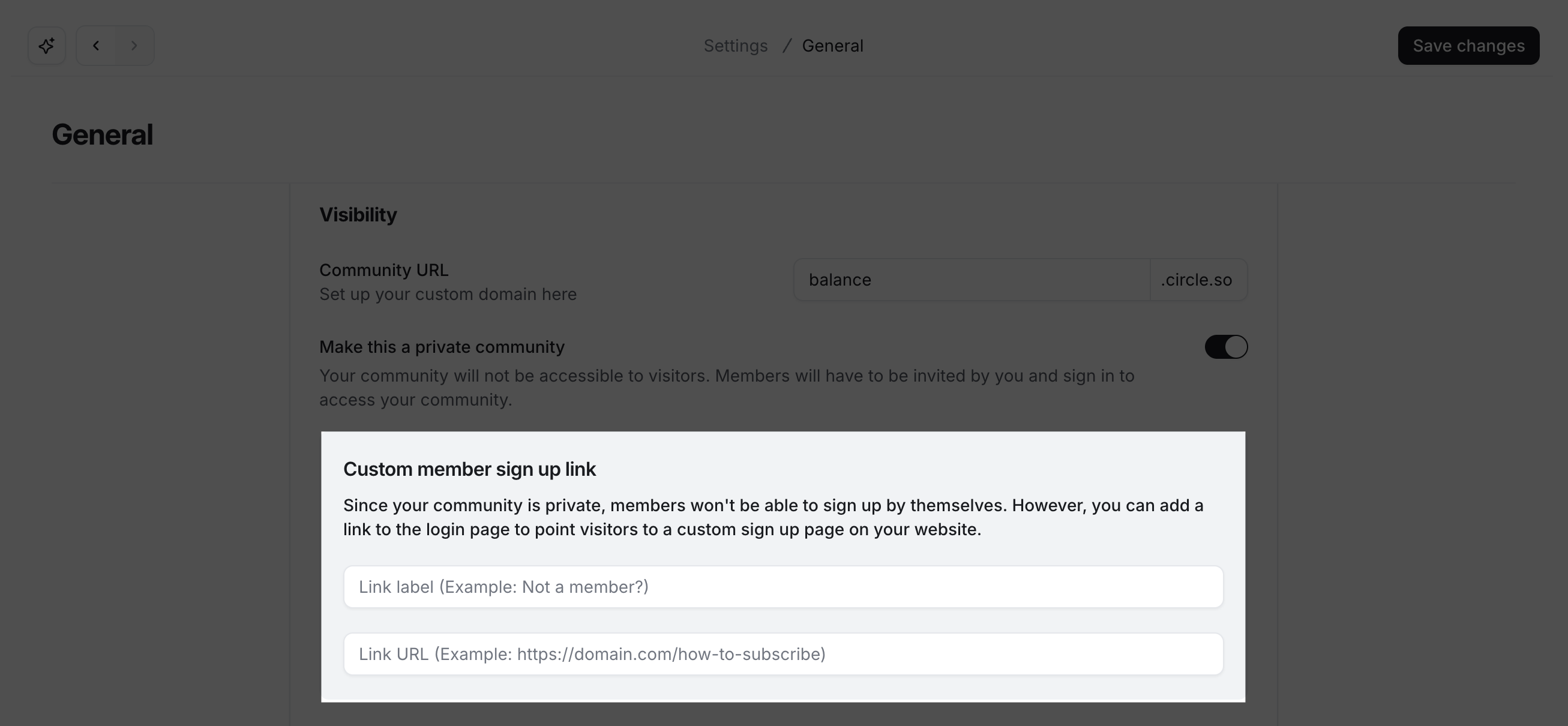
If your community is set to private, you can add a custom member sign-up link on the login page. Use this option to add a paywall checkout URL so that when members click the sign-up link, they will be directed to the paywall checkout page.
💡 Tip: If you are offering multiple community memberships, you can add a link to an external page, such as a website or social media page, where you have listed different paywall memberships with their checkout URLs.
To add a custom sign-up link:
Click the community name or logo (or the dropdown icon next to it) in the top-left corner and select Settings.
Select General under the Website section.
-
Add a link label and URL in the Custom member sign-up link section.
Click Save changes.
Website and social media
If you are running your own website or social media accounts, sharing a paywall checkout URL to those external pages is a great way to expand your reach to a broader audience. This is particularly valuable when you have set your community to private, so only members can access it.
Paywall trial
This is an ideal option if you want to create a subscription trial on behalf of your members. It is particularly useful when:
Helping a member: You want to help your member onboard on a paywall trial with a custom trial duration.
Migrating payments: You want to migrate member payments from any other payment system to Circle paywalls in your community.
📚 To learn more about creating a subscription trial for existing or members via Circle’s built-in invitation methods, see the following articles: