Set up a welcome banner for Feed
Last updated: August, 2026
A custom welcome banner allows you to create a warm and inviting message at the top of the Feed, delivering important information, announcements, or calls to action. Whether it’s welcoming new members or providing updates to the broader community, the banner serves as a prime spot for key communications.
Key features for welcome banners
-
Distinct banners: You can set up two distinct banners to tailor information for members and visitors.
Logged in: Use the logged-in banner to show specific messages and keep members informed about community updates.
Logged out: Use the logged-out banner to welcome visitors and encourage signups.
Featured media: Adding a featured video or image helps create a visually appealing banner, enhancing engagement.
Rich media support: In your welcome banner description, add a custom message, upload or embed media, attachments, and inline images and GIFs. You can also include CTAs using hyperlinks to redirect your members to specific pages.
ℹ️ Note: The welcome banners are supported on desktop and mobile web browsers, Circle mobile apps, and Circle Plus branded apps.
Set up a welcome banner
To set up a welcome banner:
Hover over the community logo on the left sidebar and click Back to community.
Click the More actions (three dots) icon at the top-right of the Feed page.
Select Settings and then select Edit banner.
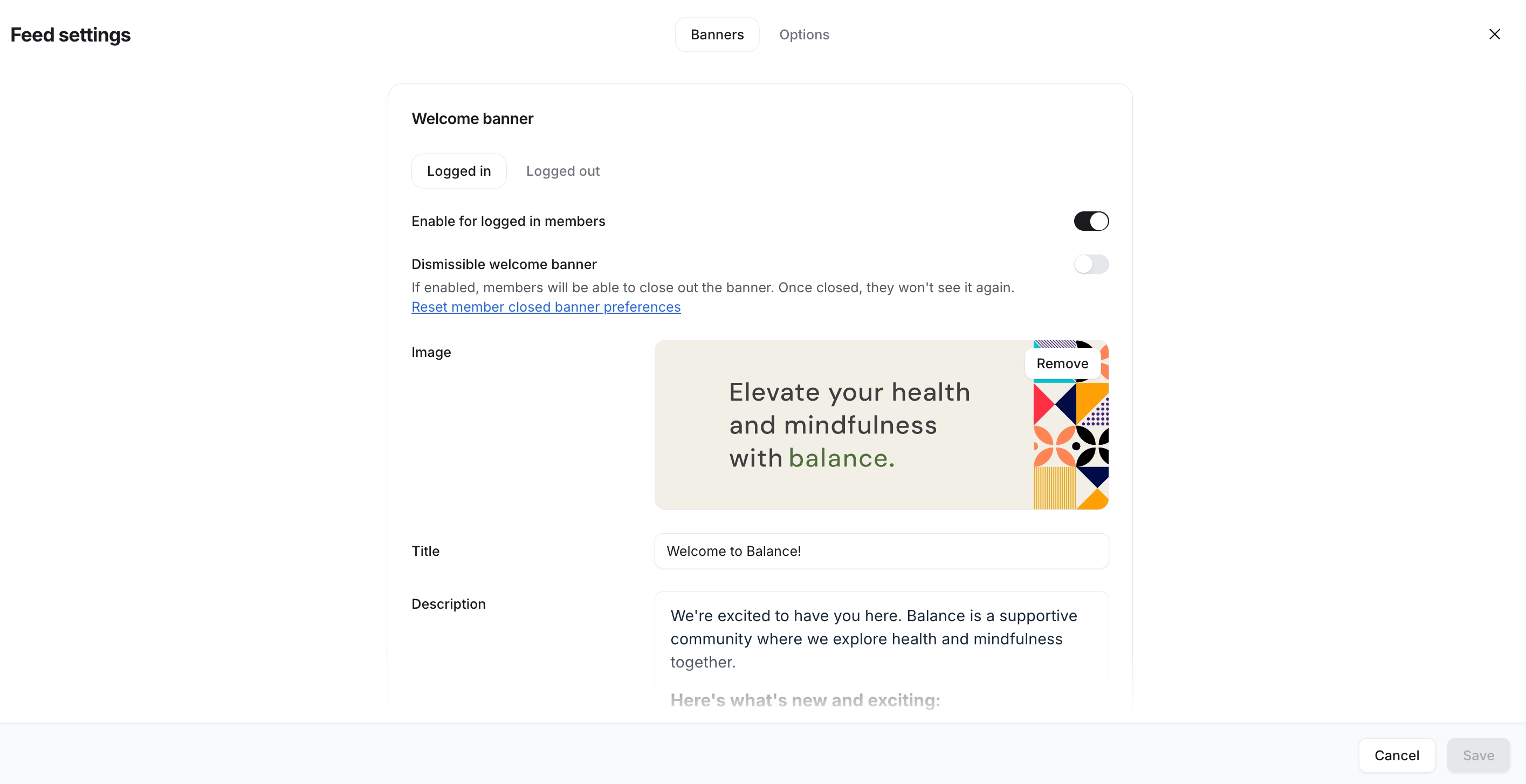
On the Banners tab, you’ll see options for both logged in and logged out banners. To set it up for logged in members, turn on the Enable for logged in members toggle. Let’s take a look at various elements you can add to the banner.
Featured image or video
One of the most impactful ways to create an engaging welcome banner is to include a featured image or video. This section grabs attention and sets the tone for your messaging. You can showcase an image banner to highlight community branding, upcoming events, or even a promotional or intro video.
Image: Upload a high-quality PNG, JPG, or GIF with a recommended size of 1680x600 px.
Video: You can also upload an MP4 video. Videos are excellent for conveying more complex information or creating a dynamic, eye-catching banner.
Banner title
Add a banner title that clearly communicates the banner’s purpose.
Description
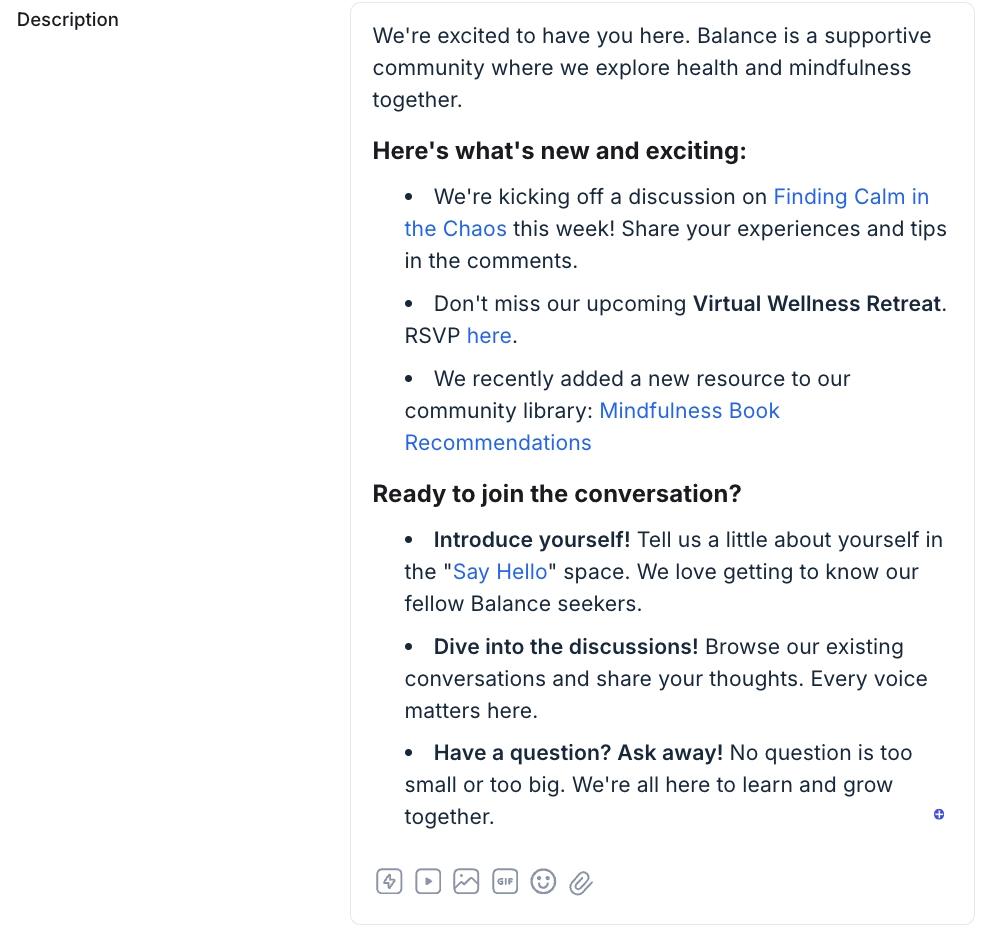
The banner description allows you to elaborate on the banner’s purpose, provide a message, or include important announcements. This field is customizable, offering several rich media options that make it easy to create a dynamic and interactive message.
In addition to regular text-based description, you can use the icons at the bottom of the field or type forward-slash (/) command in the field to add:
Embeds: Add embed media, such as a sign-up form, video, and more.
Attachments: Upload PDFs, audio files, or documents within the description for easy access.
Images and GIFs: Add visual elements to enhance the banner’s appearance.
-
Videos: Upload MP4 videos directly in the description.
💡 Tip: After setting up your banner, you can add a custom thumbnail and manage the downloadability for videos added in the banner description. To do so, go to the Feed and click the Customize video (setup icon) located in the top-right corner of the video.
💡 Tip: If you are offering paid memberships through paywalls, you can hyperlink the checkout URL from the paywall to a CTA text (e.g., Join now, Subscribe) in the banner description.
Allow members to close the welcome banner
To provide more flexibility, you can turn on the toggle to give your community members the option to close the welcome banner (this only applies to the logged in banner) after viewing it.

If you have set your community to the public, you can also set a different welcome banner by visiting the Logged out tab on the Banners page.
Click Save to apply your settings, and the banner will now be visible in Feed.
Reset members’ welcome banner preference
When the Dismissible welcome banner toggle is enabled for the logged in banner, members can close the banner anytime. You can, however, reset the banner preferences for all members and display the welcome banner to them again.
To reset the banner preference, click Reset member closed banner preferences in the Dismissible welcome banner toggle description. In the confirmation dialog, click Confirm.
