Building a course curriculum
Last updated: July, 2026
The course curriculum consists of sections, lessons, and quizzes that help you develop a well-structured and organized course in your community. In this article, we will guide you through how to create and manage your course curriculum effectively.
ℹ️ Note: There's no limit on how many sections, lessons, and quizzes you can add to a course.
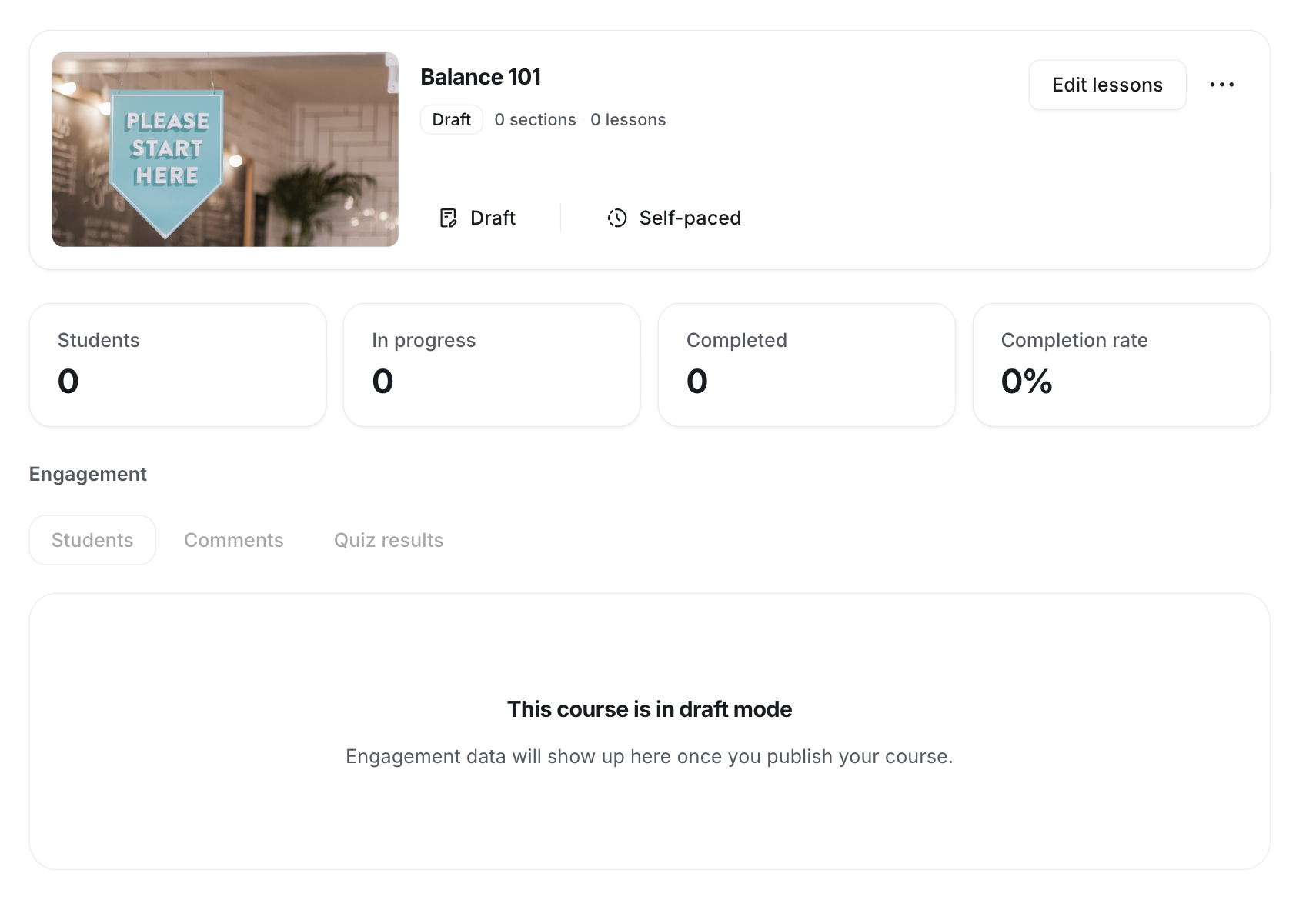
To get started, go to the course space, and in the course dashboard, click Edit lessons.
Add a section
Sections let you group your lessons. Think of them as a way to organize lessons by topic or theme.
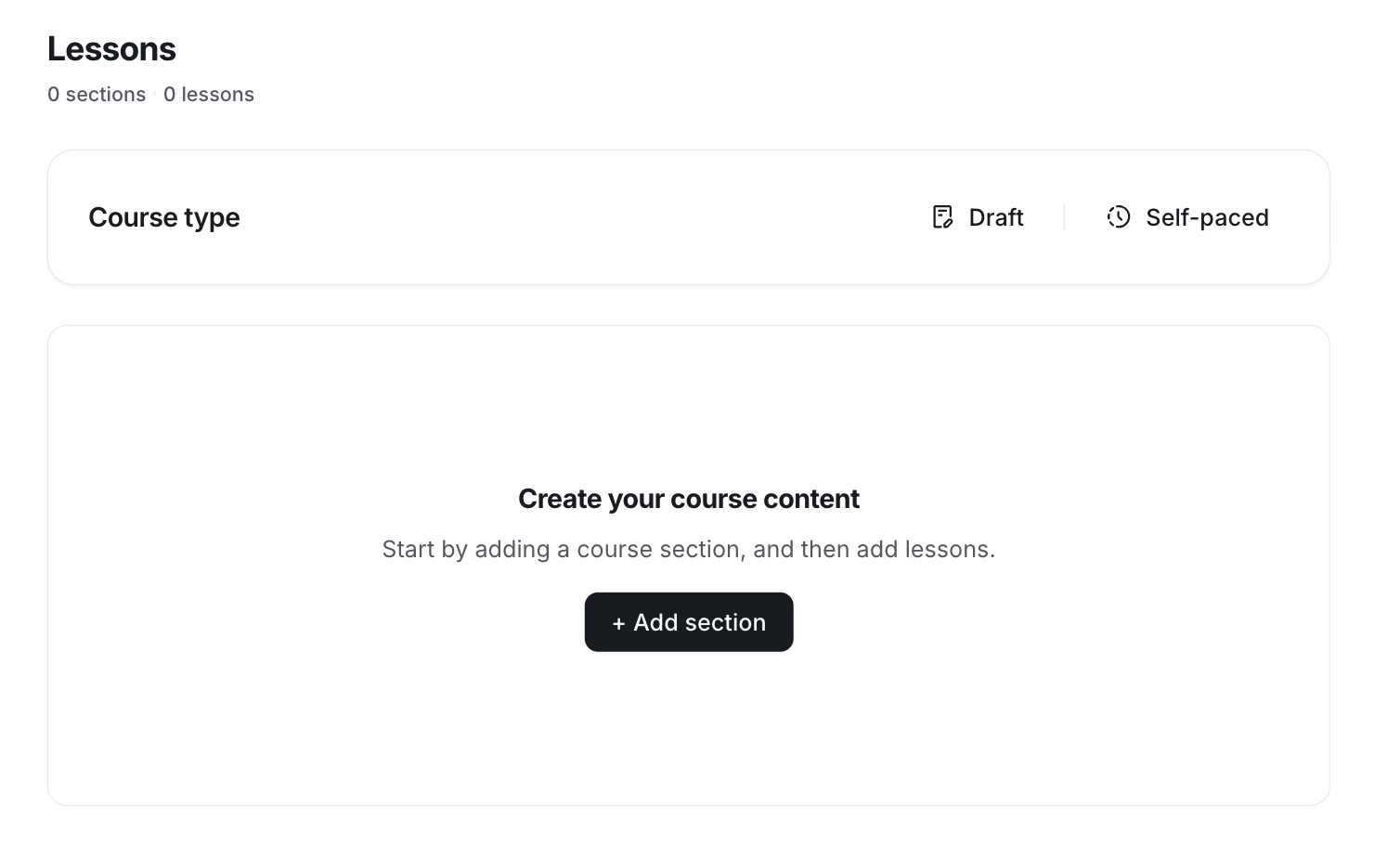
To add a new section, in the course editor, click ➕ Add section. You’ll now see the field for the section title become active. You can then input a title and save it by clicking the checkmark ✅ icon.
Add a lesson
Lessons are the building blocks for creating your course content. You can add multiple lessons under each course section.
💡 Tip: Lessons are always created in draft mode, so you can build content privately and at your own pace before publishing.
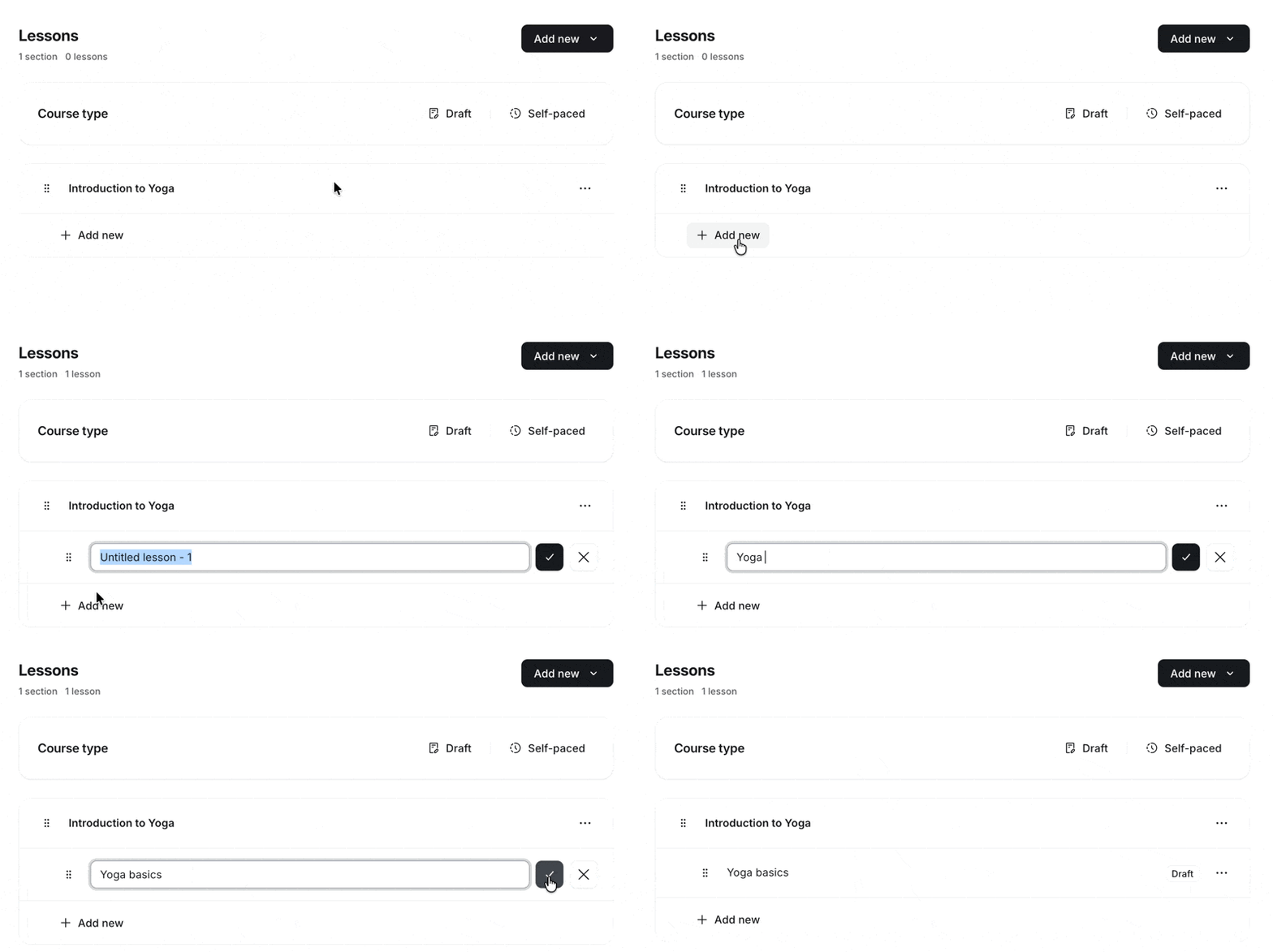
To create a lesson under the course section, click ➕ Add new next to the section and select Lesson. A text field for the section title will become active. You can then input a title and save it by clicking the checkmark ✅ icon.
Once you've added a lesson, use the lesson editor to build its content and add media, files, and embeds, and manage lesson-specific settings.
📚 For more information, see Create course content using the lesson editor.
Add a quiz
Quizzes help you assess student comprehension and enhance the overall learning experience.
💡 Tip: Similar to lessons, quizzes always get created in draft mode so that you can work on building it at your own pace in private before publishing it.
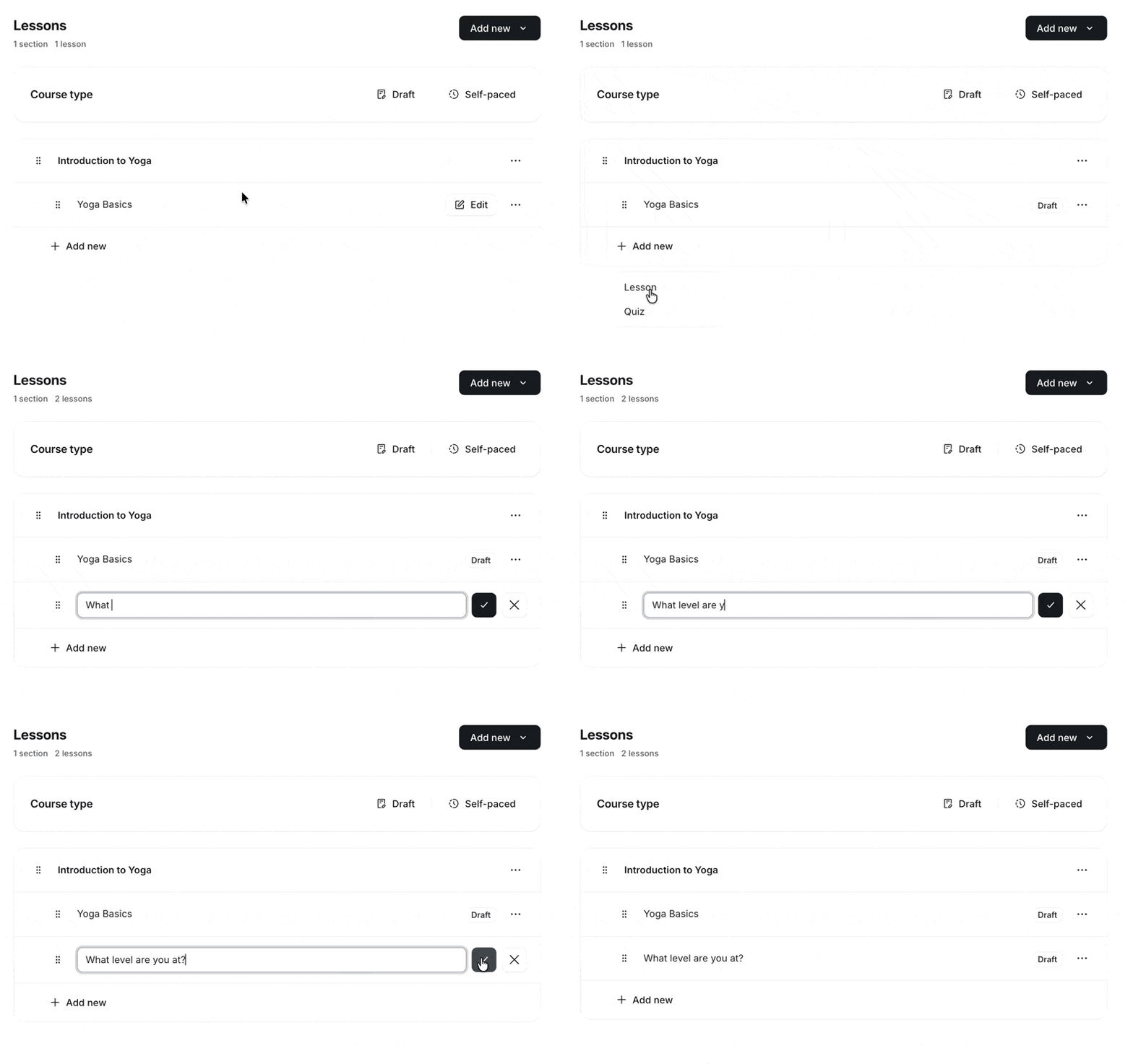
To create a quiz under the course section, click ➕ Add new next to the section and select Quiz. You’ll now see the field for the quiz title become active. You can then input a title for the quiz and save it by clicking the checkmark ✅ icon.
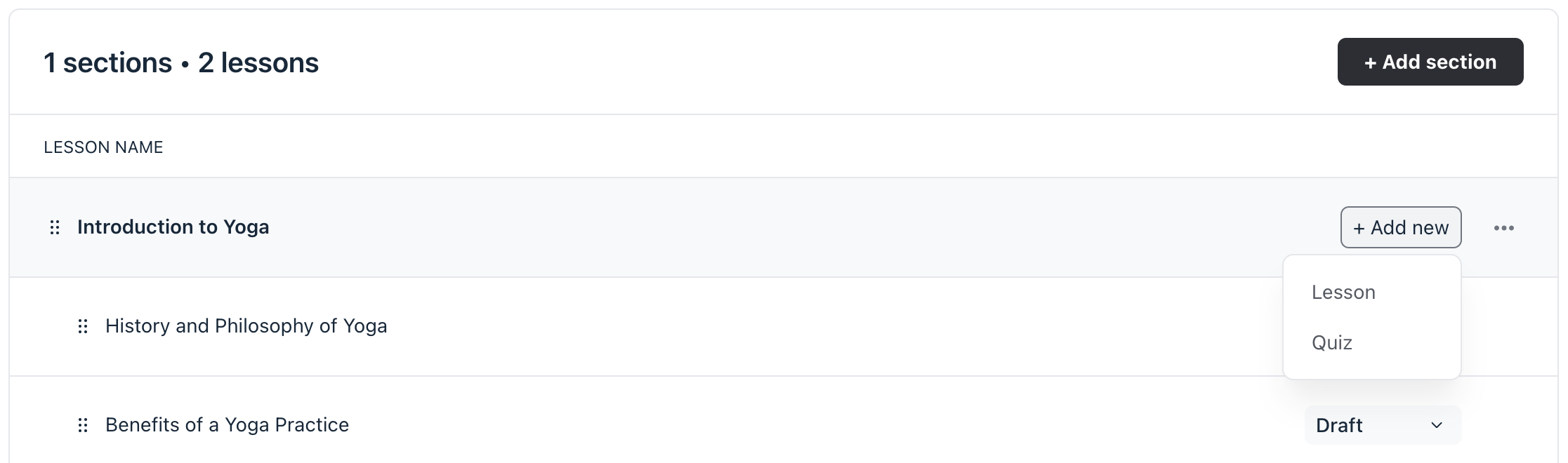
After adding a new quiz, you can use the quiz editor to add a description and create questions. To learn more about quizzes, check out our guide here.
Rearrange curriculum
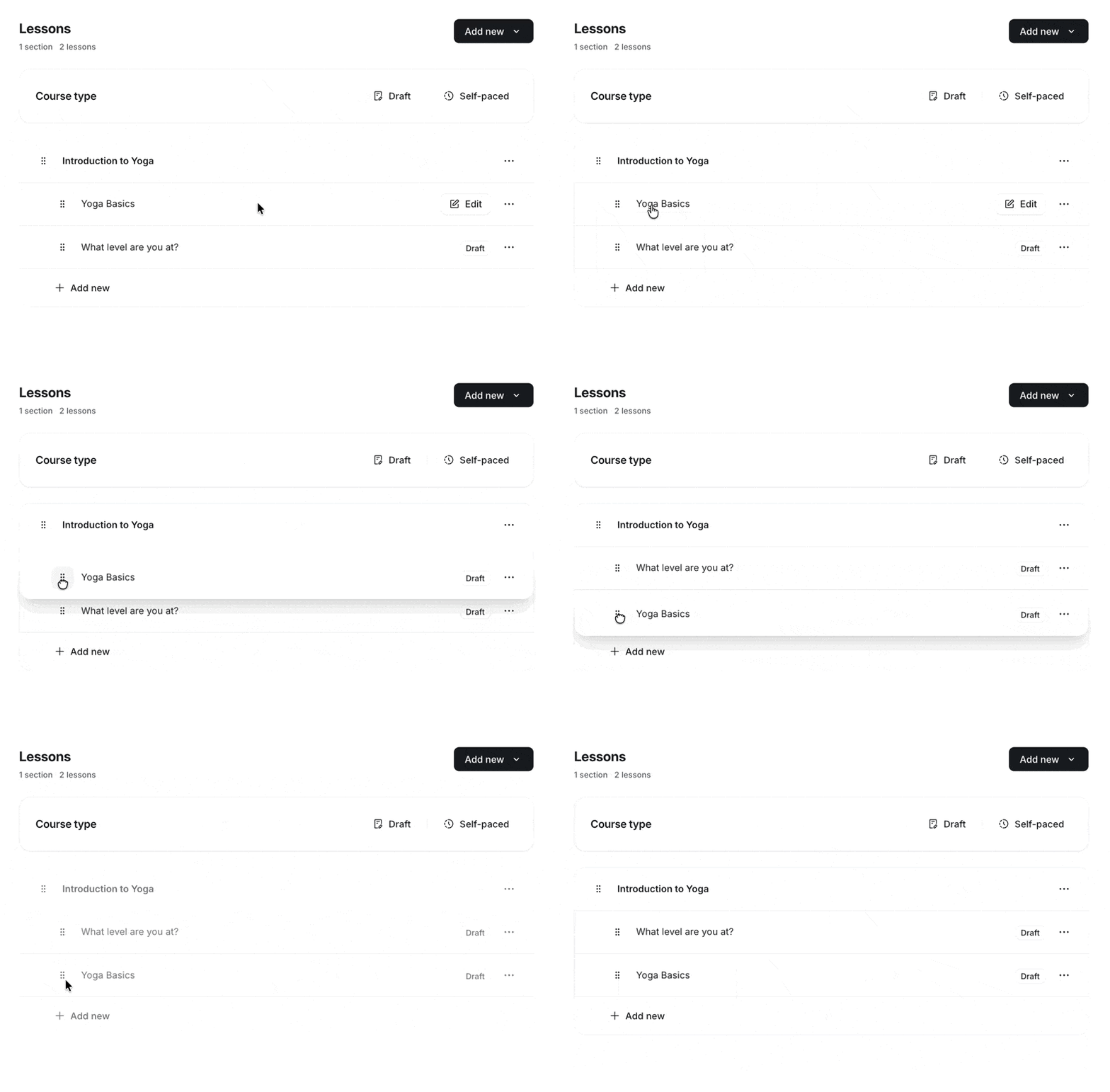
Using the reorder icon on the left of a section, lesson, or quiz, you can:
Rearrange the order of sections
Rearrange the order of the lessons and quizzes
Drag and drop lessons and quizzes from one section to another
To rearrange the course curriculum, click and hold the rearrange icon next to the section, quiz, or lesson, then drag and drop it to a preferred position.
Manage sections
Let’s take a look at the ways to manage your sections.
Drip sections
If you’ve chosen the Structured or Scheduled course type, you can set up drip for each section. This allows you to gradually release course content to your students over a period of time.
📚 For more information on how to drip the sections, see Utilizing the drip feature for structured and scheduled courses.
Rename a section
To change the name of a section, you can either click the section name or hover over the section, click the More actions (three dots) icon, and select Rename section. After updating the name, click the checkmark ✅ icon to save changes.
Delete a section
To permanently delete a section, hover over the section, click the More actions (three dots) icon, and select Delete section.
ℹ️ Note: Deleting a section will also delete the lessons and quizzes included under this section.
Manage lessons and quizzes
There are several options for managing lessons and quizzes in your course space.
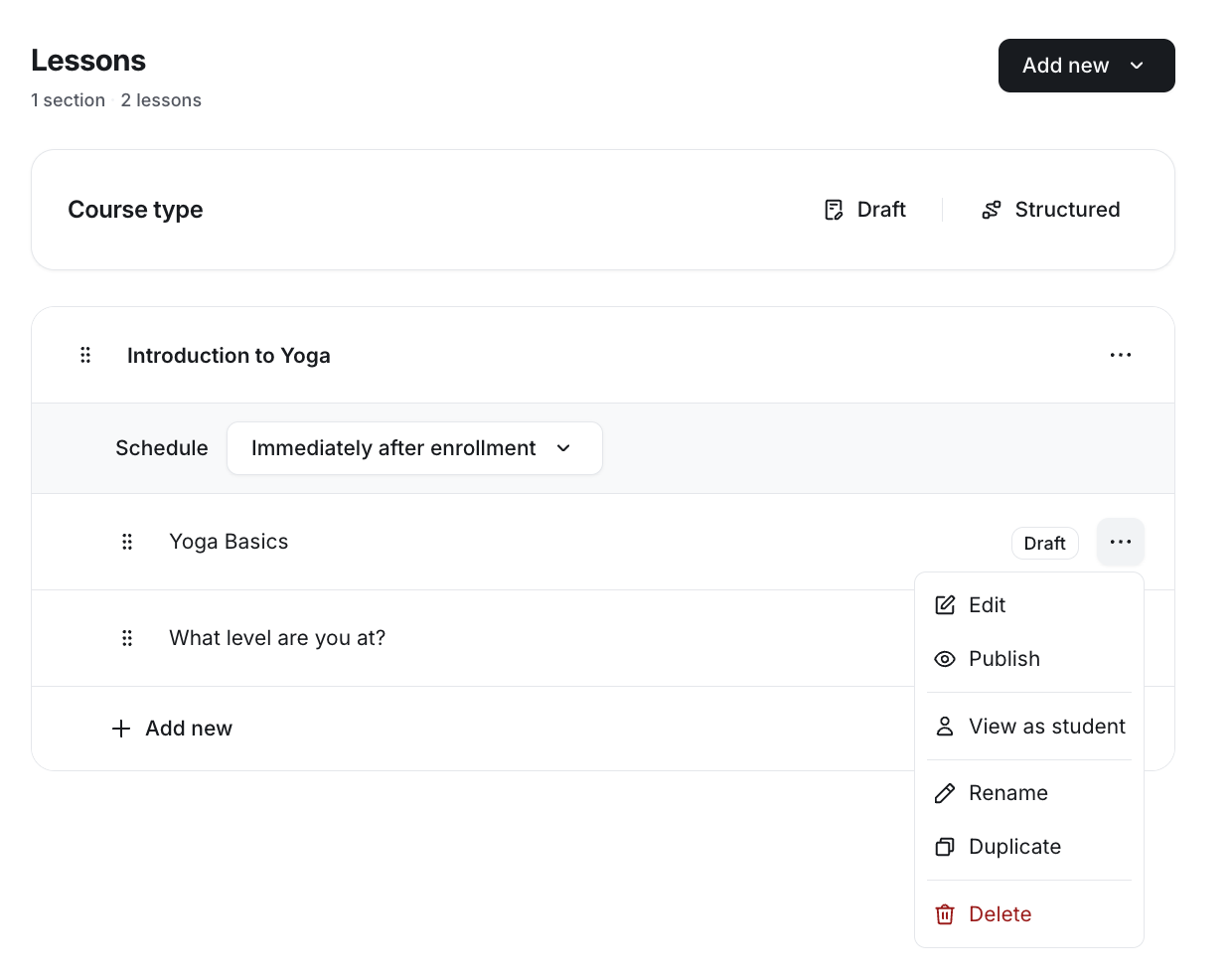
To access these options, click the More actions (three dots) icon next to the lesson or quiz and select one of the following:
Edit: Update the content. You can also hover over the lesson or quiz and click Edit.
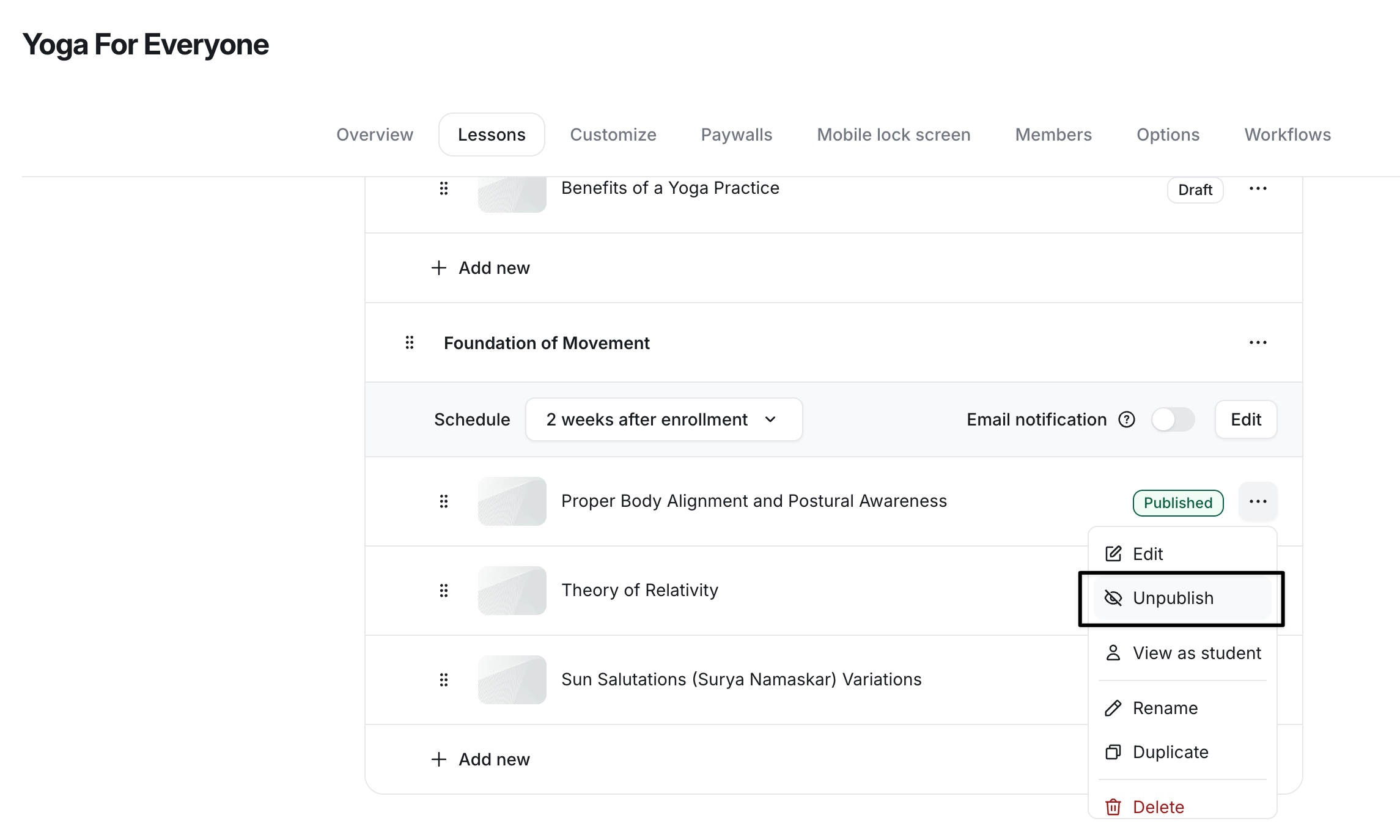
Publish: Publish your lesson or quiz draft. If your lesson or quiz is already published, this will say Unpublishinstead.
View as student: Preview the lesson or quiz as an enrolled member.
Rename: Update the title of the lesson or quiz. After updating the name, click the checkmark ✅ icon to save changes.
Duplicate: Make a copy of the lesson or quiz draft. If you duplicate a published lesson or quiz, a draft version will be created.
Delete: Permanently remove the lesson or quiz and its content from the curriculum.
You can also change the status of an individual lesson or quiz from Published to Unpublish. To update the status, click the More actions (three dots) icon next to the lesson or quiz and select Unpublish.
📚 For more information about course publication, see the following articles:
Ready to start building the lessons?
📚 To learn more about using a lesson editor to build great course content, see Create course content using the lesson editor.