Publishing a course
Last updated: July, 2026
You have full control over your course delivery. You can either make all the lessons and quizzes available for a self-paced experience or reveal them gradually to keep your students excited and curious about what's coming up next.
💡 Tip: If you haven't already, we suggest reading the following articles to gain an understanding of space access and course publication:
Configure drip
If you’ve opted for the Structured or Scheduled course type, there are two ways to release course sections:
Immediate release: Make sections available immediately upon student enrollment.
Set up drip configuration: Gradually release course content to your students over time.
📚 For more information on how to configure drip courses, see Utilizing the Drip feature for structured and scheduled courses.
Publish lessons and quizzes
To ensure that the lessons and quizzes are accessible to your students, set them to published status.
ℹ️ Note: If you are delivering your course on a drip schedule, only the lessons and quizzes in published status will appear with a locked icon and release information in the curriculum (Course content).
To update the status to published:
Navigate to your course space.
In the course dashboard, click Edit lessons.
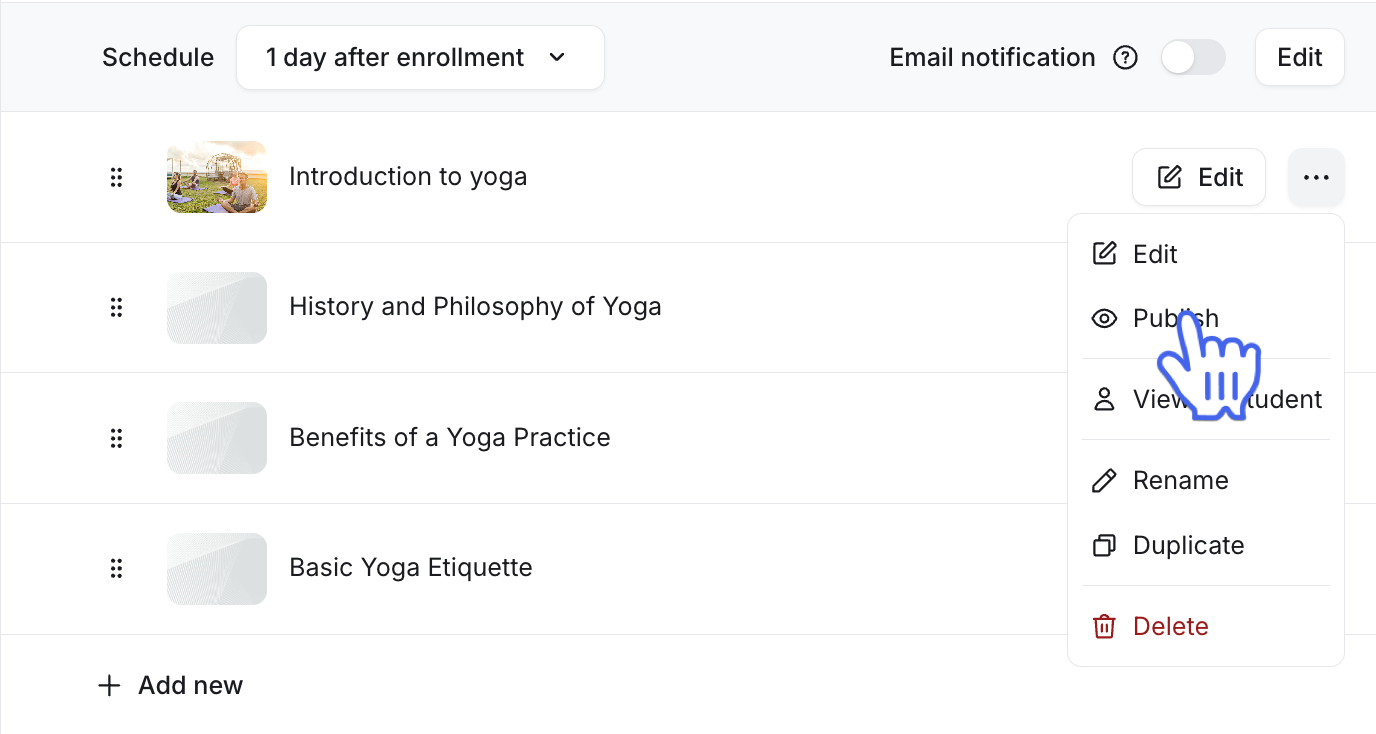
Click the More actions (three dots) icon on the lesson or quiz and select Publish.
Set the space access
It is now time to publish your course! All you now have to do is set the course space access.
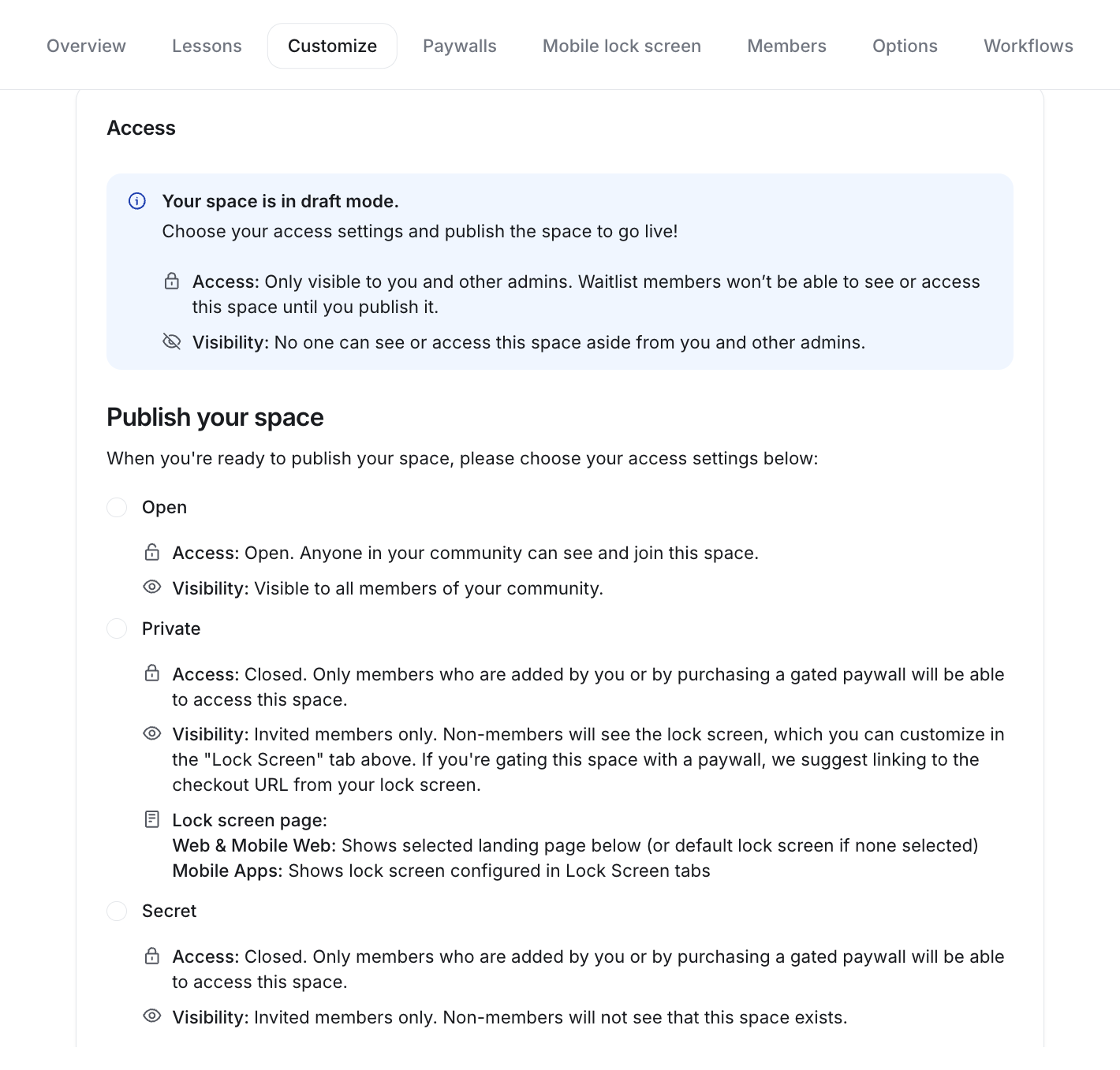
Before publishing your course, decide how you would like to provide access and whether you would like to monetize it. For more information, see Managing space access and visibility.
To set the space access:
Click Courses on the left sidebar and select Courses.
Click the More actions (three dots) icon on a course entry and select Edit course.
Click the Customize tab and choose the preferred access level.
Click Save changes.
💡 Tip: If you plan to offer this course via a paywall membership, please see our guide on Getting started with Circle paywalls.