Utilizing the drip feature for structured and scheduled courses
Last updated: July, 2026
Circle’s drip feature gives you control over how you deliver your course content to students.
In this article, we will explore everything you need to know about the drip feature and how to choose the right course type for your use case.
Overview
Circle's drip feature lets you schedule the release of course sections based on a set number of days after enrollment or on a specific date, depending on your course type.
The controlled release of course content is a great option for you if you prefer a gradual release of content instead of providing students with access to it all immediately. This approach helps your students stay focused, prevent overwhelm, and encourage consistent progress.
Key things to know about drip courses
The drip feature is available on the Structured and Scheduled course types. It allows you to release course content only by sections. To release individual lessons or quizzes, we recommend creating a separate section for each.
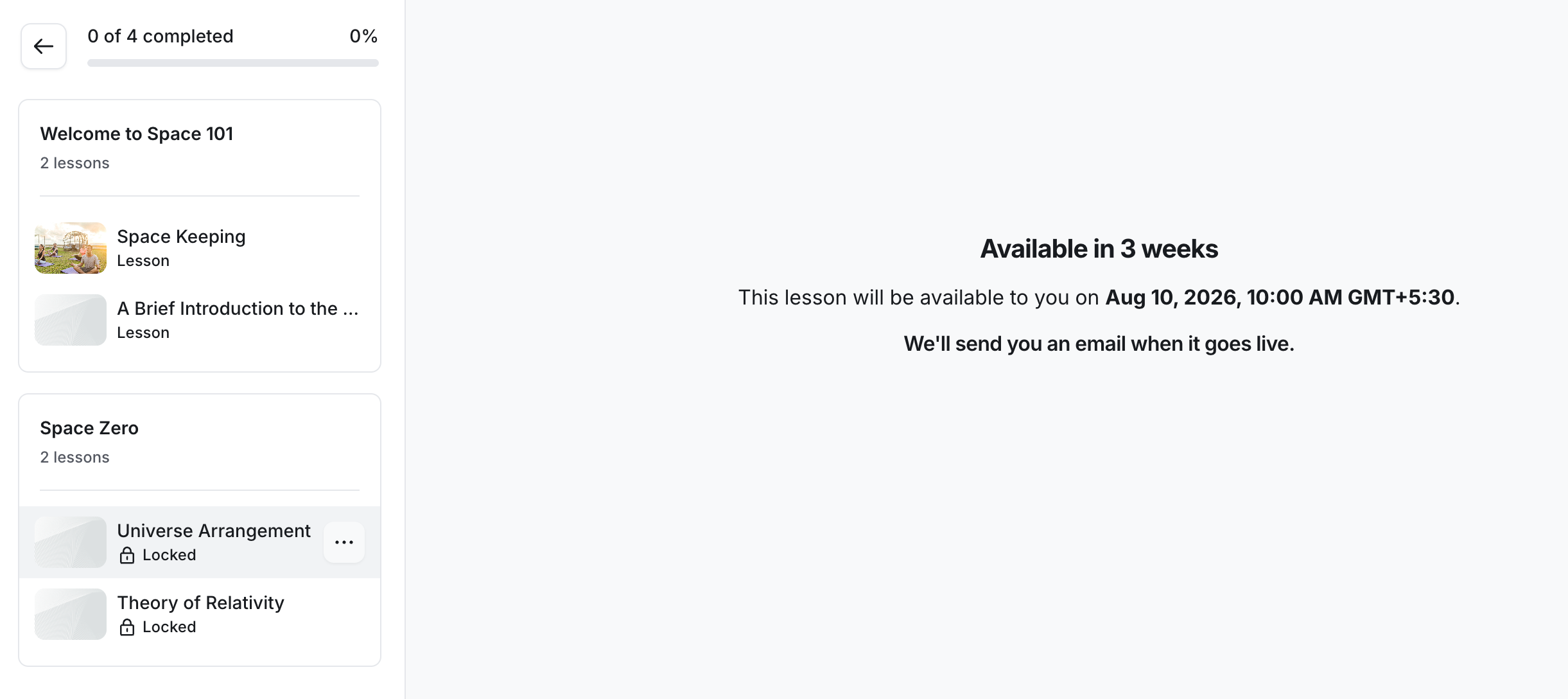
Once you have set up the drip for a section, students will be able to see the section and any lessons and quizzes that are published with locked icons in the curriculum (Course content). These will feature a screen showcasing the scheduled release date and time.
When a section is dripped, only the lessons and quizzes in published status within the section will be visible and accessible to students. Therefore, please ensure you have published them before the section is dripped to maintain a seamless student experience.
You can move lessons and quizzes between sections, even ones set to be dripped.
You have the flexibility to add new lessons and quizzes within sections that have already been dripped. You can work on a new lesson in draft mode and publish it when ready, making it immediately available to students.
A member's enrollment date refers to the date they were added to the course space.
Let’s take a look at these options in more detail.
Structured course
When setting up a structured type course, you have the option to make a course section available immediately after enrollment or set a drip delay to release it on a specific duration after an individual student’s enrollment date.
A structured type course with drip delay is a great option when you want to release new content to your students each day, week, or month after they enroll in the course.
For example, if James enrolls in the course on August 1 at 9 am ET:
The sections you have set to release immediately after enrollment will be available to James upon enrollment.
The section you set to drip delay for 2 days will be available to James on August 3 at 9 am ET.
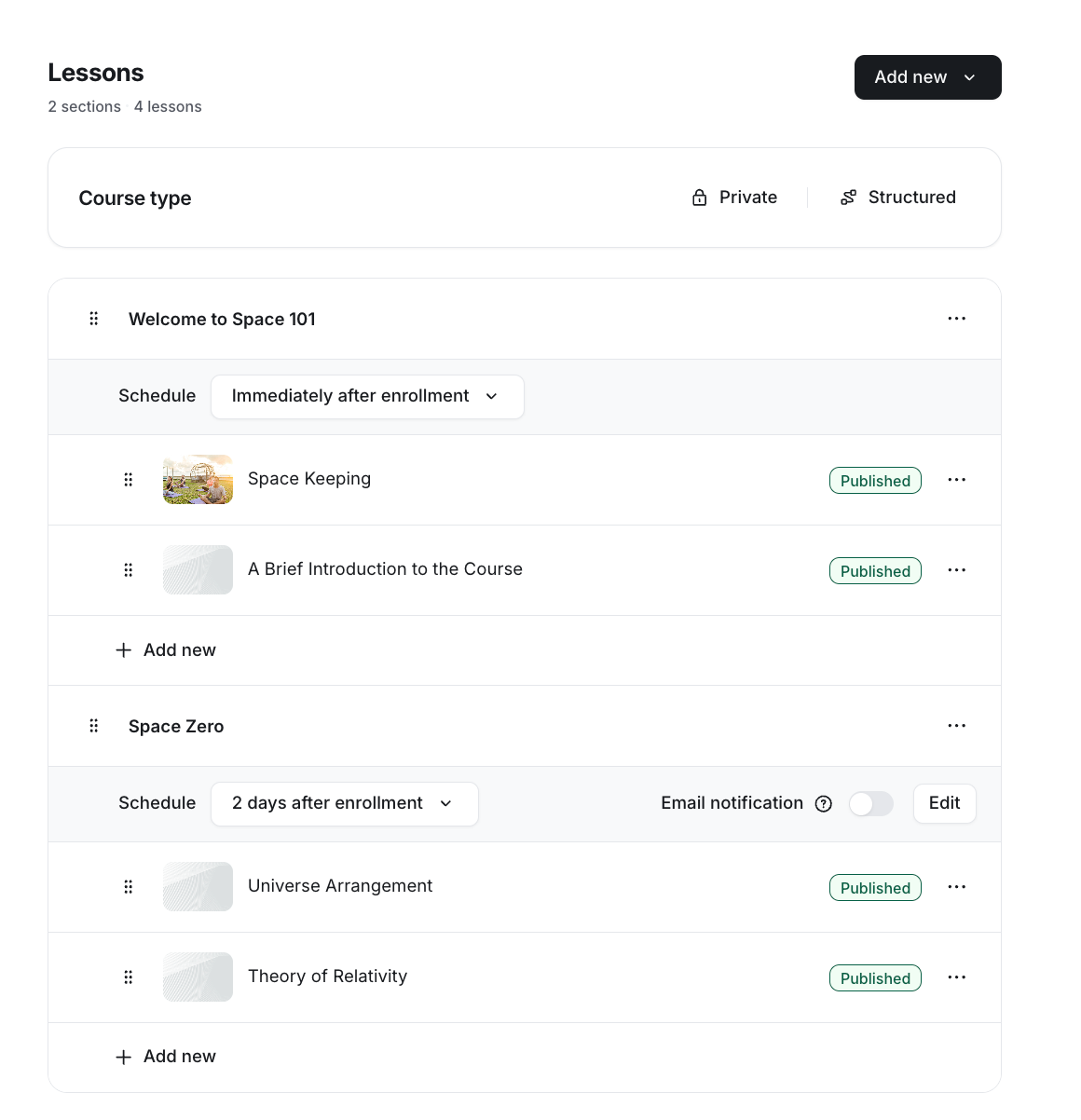
Set up a drip delay for a section
Navigate to your structured course, and in the course dashboard, click Edit lessons.
Locate the section you’d like to update, or add a new section.
Click the Schedule dropdown under the section name.
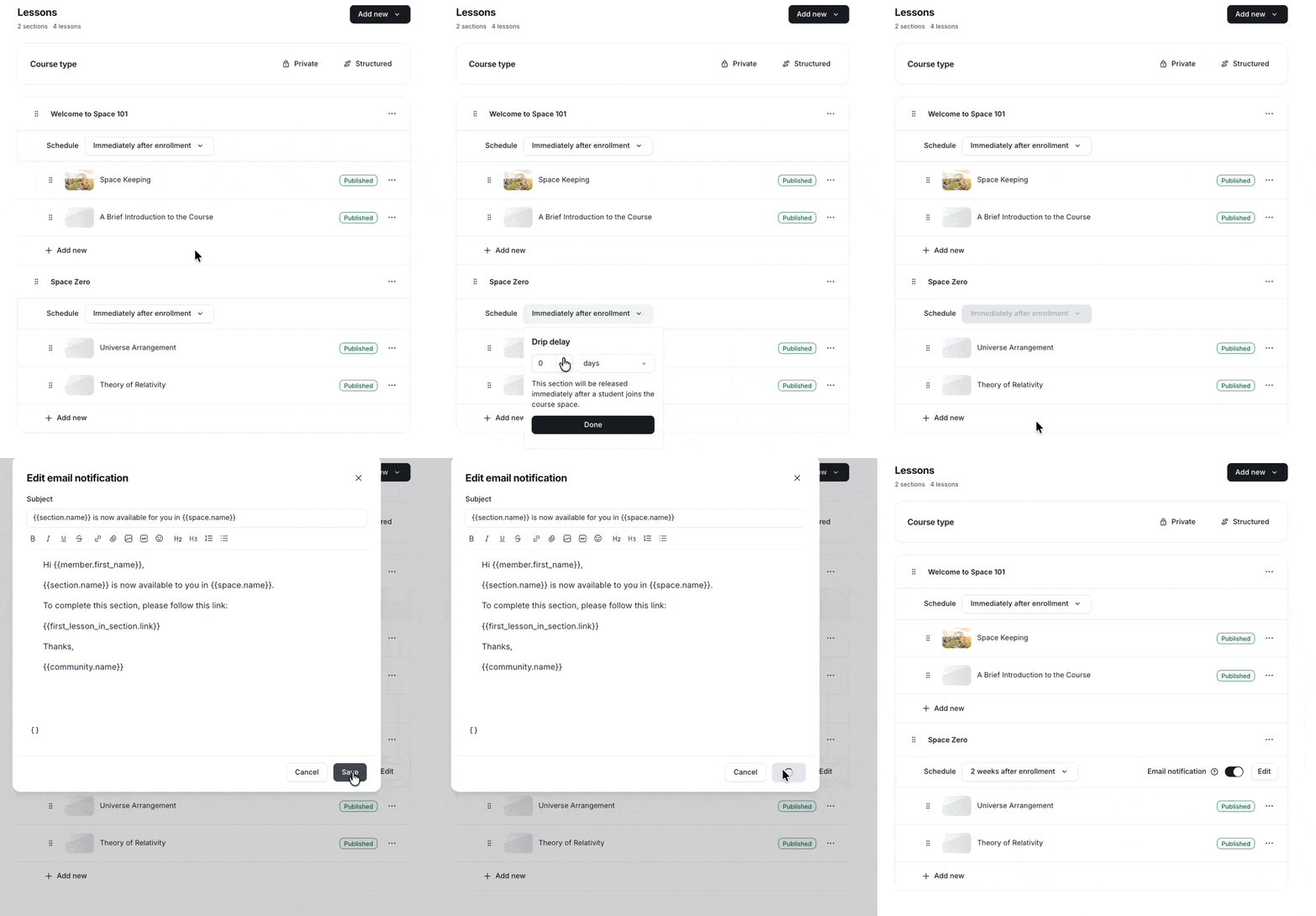
In the Drip delay dialog that appears, select days or weeks from the dropdown and enter the desired duration. You can add up to 999 days or 100 weeks for drip delay.
Once you’ve set the duration, click Done.
If you’d like to send email notifications when the section becomes available, go to the Schedule row and turn on the Email notification toggle. In the dialog that appears, customize the email content, then click Save.
📚 For more information, see Customize notification emails for drip sections.
Set up a section to be available immediately
To make the section available immediately after the student’s enrollment, keep the dropdown selection to Immediately after enrollment and set the status of individual lessons and quizzes to Published.
Scheduled course
In a scheduled type course, you have the option to make a course section available immediately after enrollment or release it on a specific date to all enrolled students at once.
A scheduled drip course is a great option if you want to release each course section on a specific date to all enrolled students.
For example:
If you do not schedule a drip date for a section, it will be available to all students upon enrollment.
If you schedule a section to become available on August 5 at 10:00 AM, students will be able to access it starting at that time.
ℹ️ Note: The drip schedule is based on the time zone set in the profile of the admin or moderator who configures it.
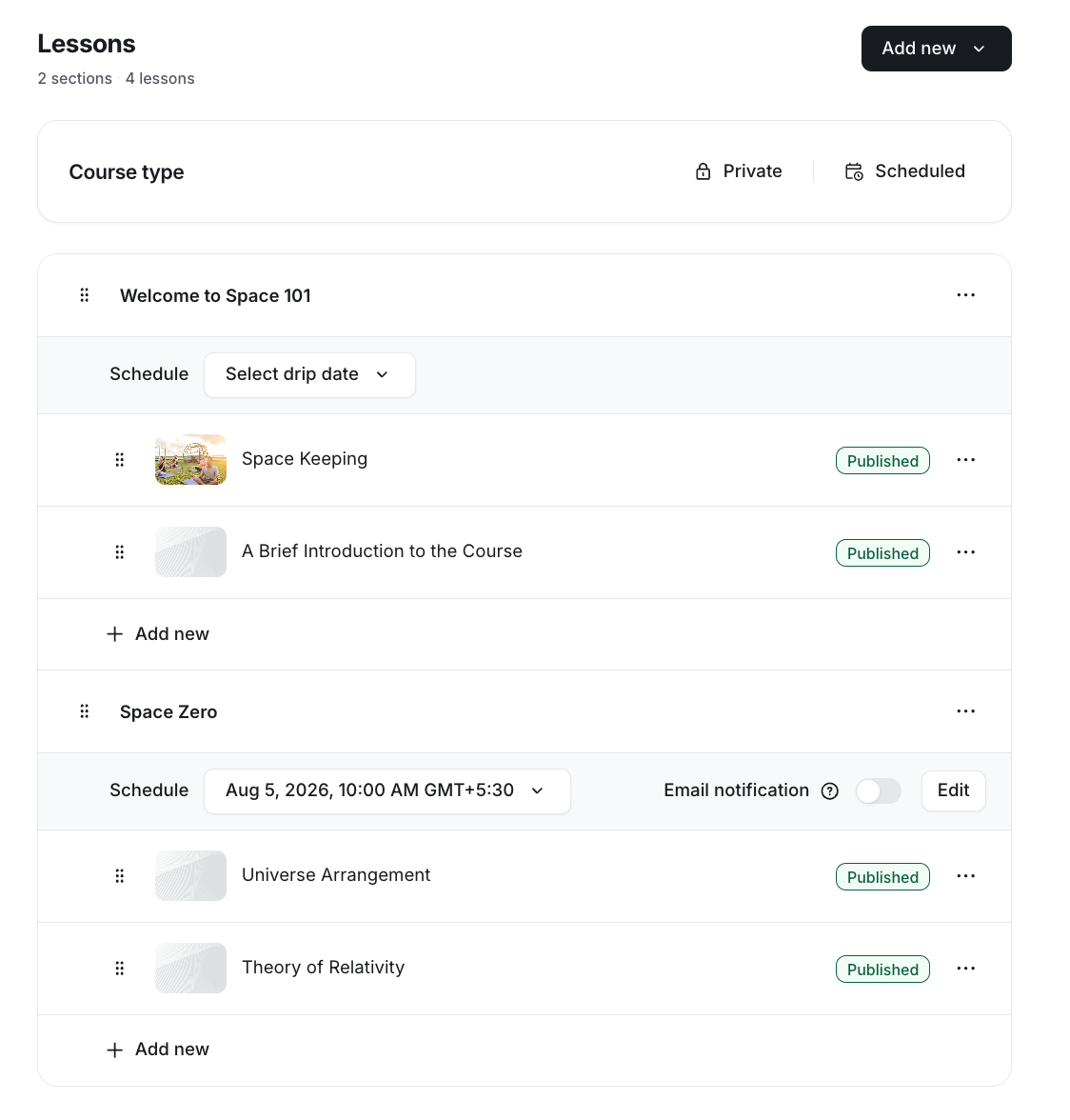
Set up a drip schedule for a section
Navigate to your scheduled course, and in the course dashboard, click Edit lessons.
Locate the section you’d like to update, or add a new section.
Click the Schedule dropdown under the section name.
Choose the desired date and time for the section to become available. The drip schedule is based on your profile's time zone.
Click Save to confirm the schedule.
If you want to send email notifications when the section becomes available, hover over the Email notification toggle next to the schedule and turn it on. In the dialog that appears, customize the email notification content, then click Save.
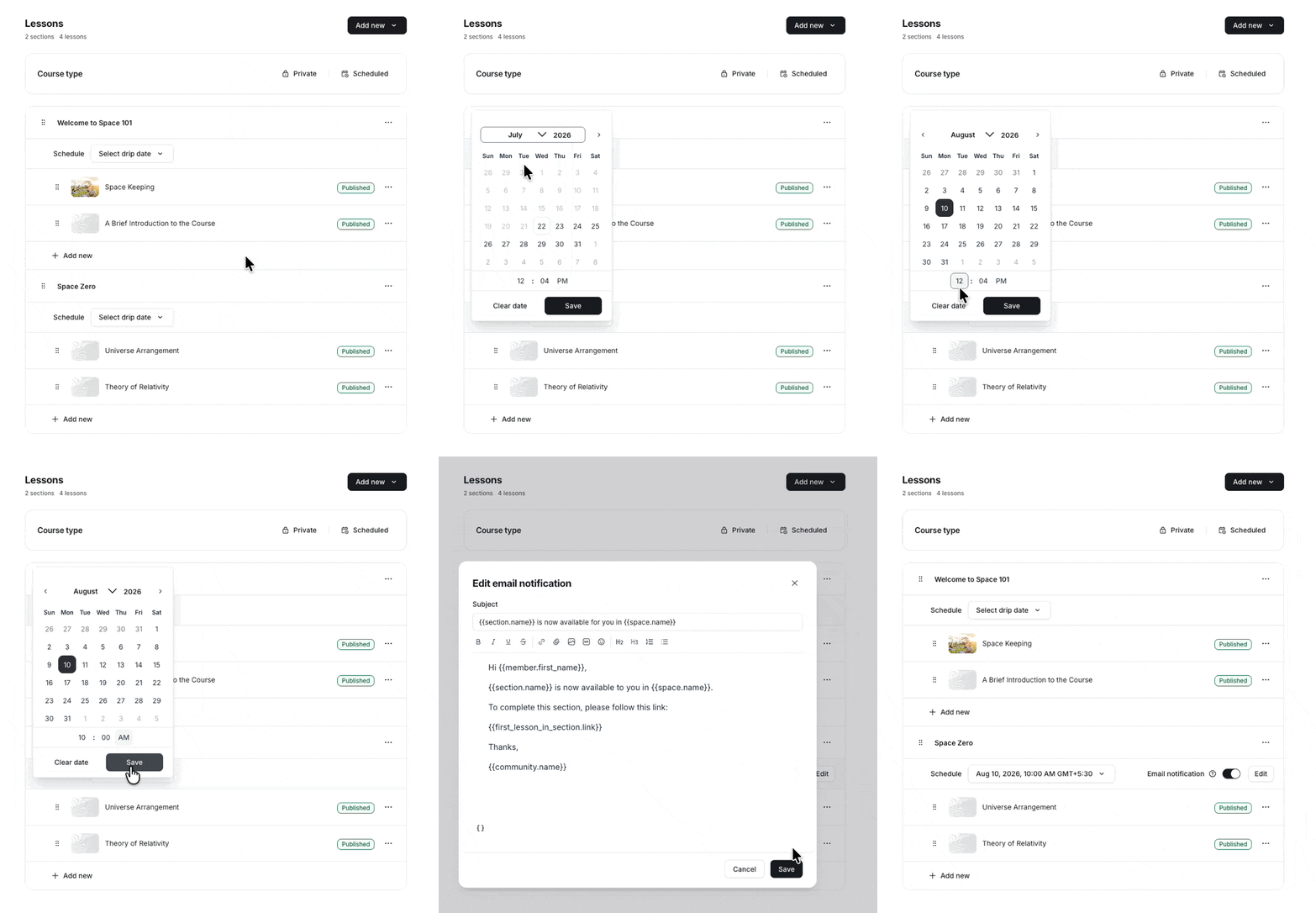
📚 For more information, see Customize notification emails for drip sections.
Set up a section to be available immediately
To make the section available immediately to students, you can skip adding a drip date or clear the date and set the status for individual lessons and quizzes to Published when ready.
Drip notifications
When you drip sections, you can send email, in-app, and push notifications to let students know when a new section becomes available. You can also customize the email content and add dynamic variables.
ℹ️ Note: when you opt for notifications, students have the ability to change their preference for New course content notifications from their community account.
📚 For more information about customizing email notifications, see Customize notification emails for drip sections.
💡 Tip: If notifications were off when the section dripped, you can still notify students by turning on the toggle. It may take a few minutes to send.
Student experience
When a section is scheduled to be dripped in the course space, all lessons and quizzes that are in the published status within the scheduled section appear with a locked icon.
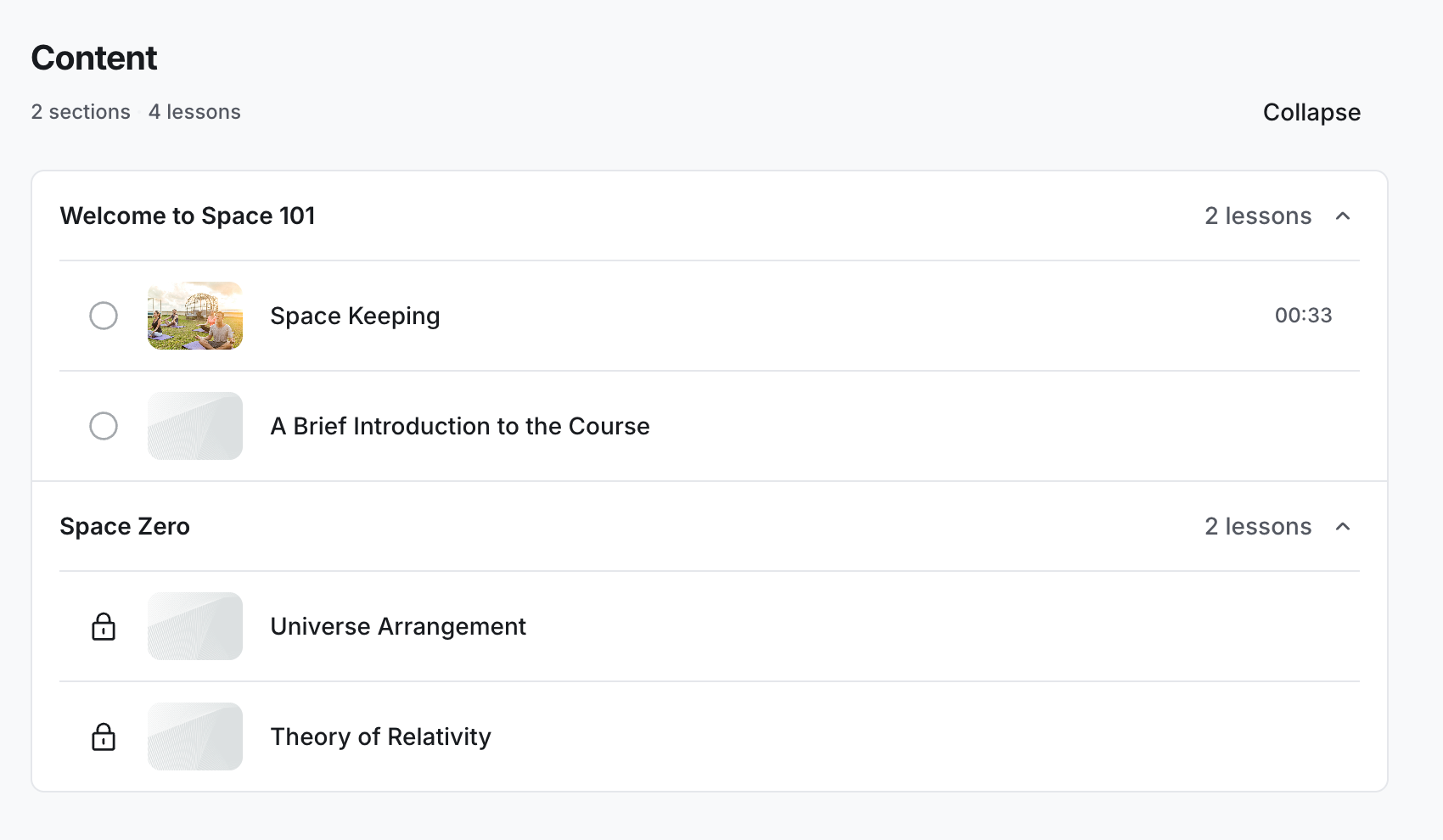
If a student clicks a locked lesson or quiz, they see a screen showing when it will be available, based on the scheduled date (scheduled course) or their enrollment date (structured course).