Customize notification emails for drip sections
Last updated: July, 2026
When configuring drip course notifications, you can customize the email content for each section.
For example, you could send a section summary or highlight the knowledge your students will have gained upon completing the section, along with some words of encouragement. "Jump in and go for it! 🚀"
ℹ️ Note: Students have the ability to change their preference of new course content notifications for email, in-app, and push notifications from their community account.
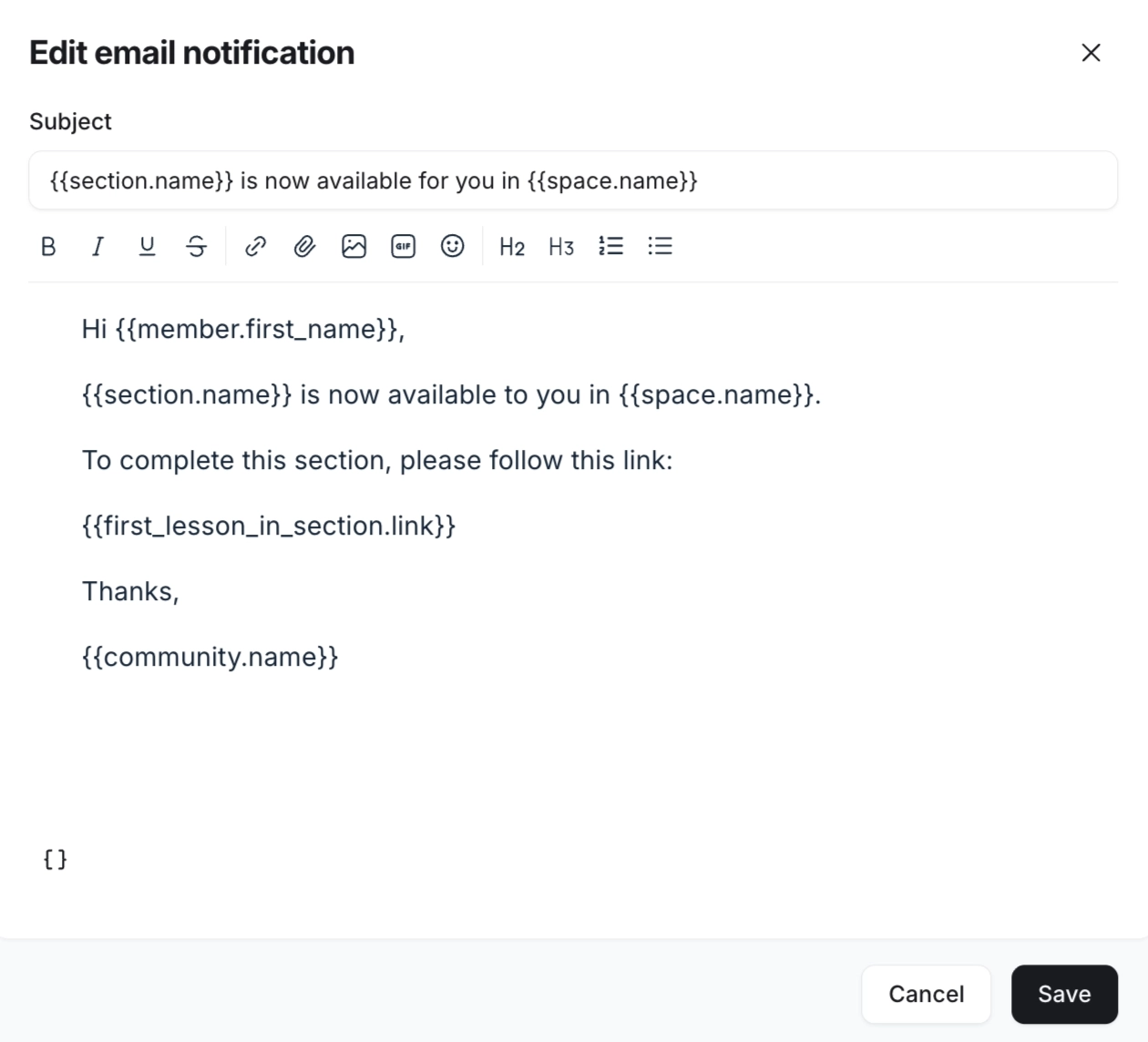
You can insert the following dynamic variables into the drip email notification:
Community name
Member’s first and last name
Course space name
Section name
Link of the first lesson within the course section
To customize the email notification:
In the course overview dashboard, click Edit lessons.
Ensure that you have set up the drip for a section that you would like to customize notifications for.
Go to the Schedule row and turn on the Email notification toggle.
-
Update the email content. To add dynamic variables:
In the email body, type {{ or click Add variable {…} and select an option from the list.
In the email subject, you can edit the content and also add a variable by copying from the email body.
Once you have updated the notification content, click Save.