Preview your course as a member
Last updated: July, 2026
Previewing your course allows you to experience the content and navigation just as your students would. This helps you assess the user experience and make necessary adjustments before officially launching your whole course or certain new parts of the curriculum.
Key things to know about course previews
Preview options: You can preview individual lessons and quizzes, whether they are in draft or published status, as well as the entire course.
-
Access tabs: Scroll to the bottom of the lesson to access various tabs that allow you to:
View and manage all lesson comments
Post comments
Access files
Preview entire course
You can preview your entire course as a student to test the lesson delivery and experience the flow before publishing the course in your community.
ℹ️ Note: When previewing the entire course, you will only be able to see published lessons and quizzes. If you want to preview a lesson or quiz in draft status, please preview it as an individual lesson.
To preview the course:
Navigate to your course space.
-
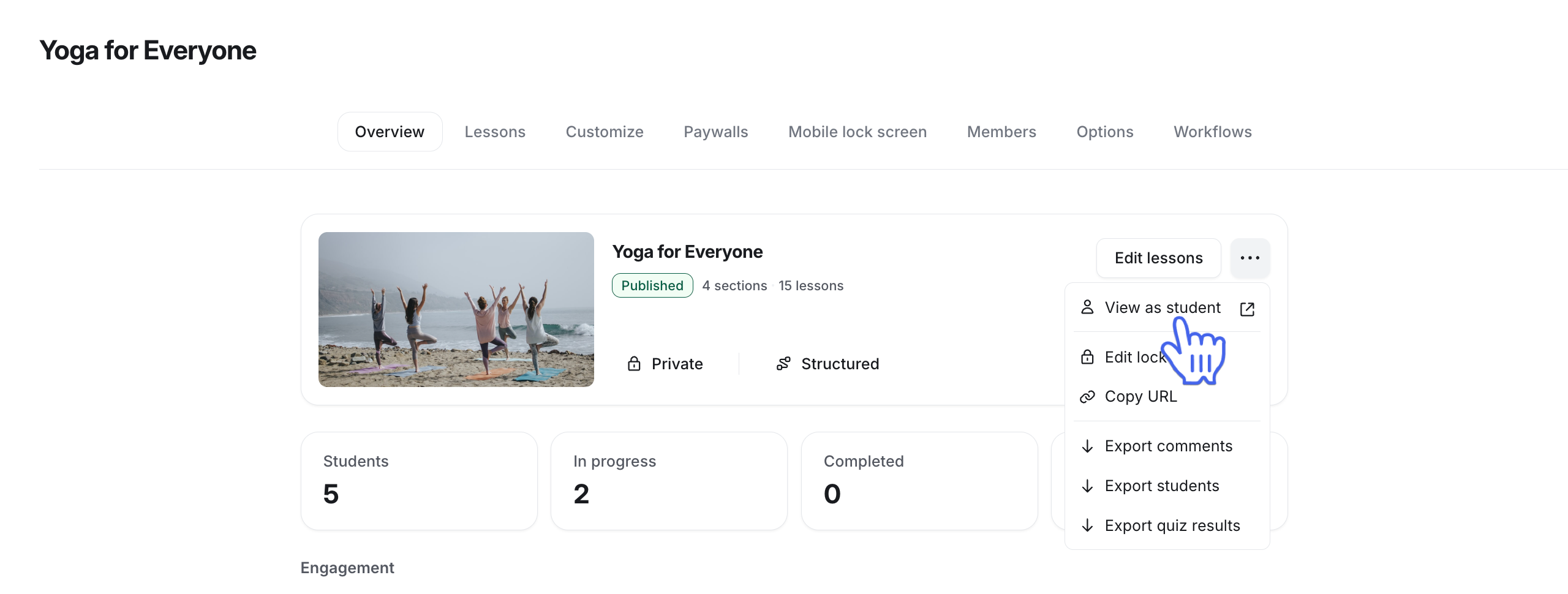
In the course dashboard, click the More actions (three dots) icon next to the Edit lessons button, then select View as student.
Click Start course in the upper-right corner, or click any lesson from the curriculum.
Preview individual lessons and quizzes
You can preview individual lessons and quizzes while editing them by clicking the More actions (three dots) icon in the top-right corner and selecting View as student.

Alternatively, you can preview them from the course curriculum:
Navigate to your course space.
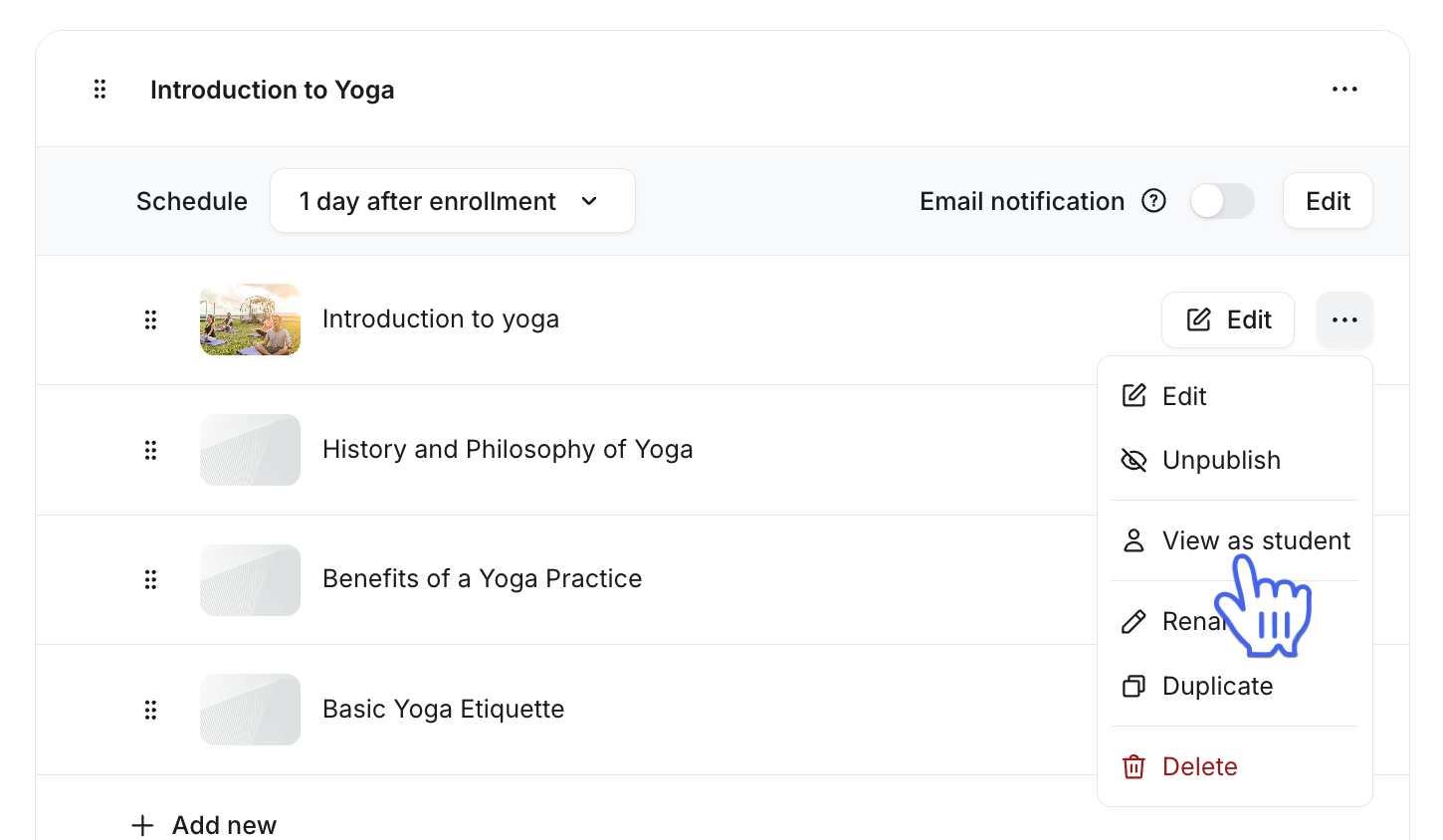
In the course dashboard, click Edit lessons.
Hover over the lesson or quiz, click the More actions (three dots) icon, and select View.
Exiting the preview
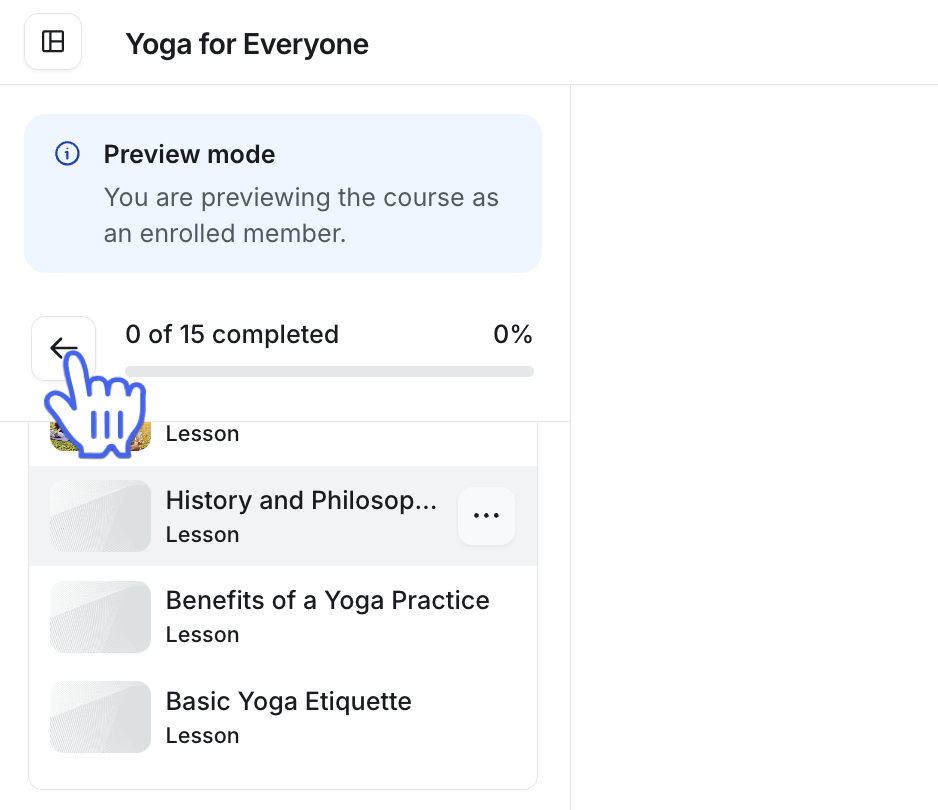
To exit preview mode, click the back button at the top of the curriculum.
Ready to publish your course?
Check out the following articles to learn more about the publication and delivery of your course: