Embed media into lessons
Last updated: July, 2026
Transform your lessons into dynamic, engaging experiences by embedding media directly into courses. Adding multimedia elements not only boosts interactivity but also enriches the learning journey for your students.
About embedding media into course lessons
You can add a variety of media types to both the featured media section and the body of your lessons, including podcasts, videos, audio clips, forms, documents, and more.
We support over 1,900 providers through IFramely, including popular platforms like YouTube, Calendly, Typeform, SlideShare, and Dropbox. Whether you’re embedding a tutorial video, a scheduling tool, or a presentation, the possibilities are vast.
ℹ️ Note: Lessons can only be created and edited using a web browser, so you’ll need to access the lesson editor on the web to embed media. Once you have embedded content from supported media providers, it will typically display across all platforms—this includes web browsers, Circle’s mobile apps, and your branded mobile apps. For more details about embeds and how they appear on mobile apps, see Guide to embedding media in your community.
Featured media
The featured media section showcases media content at the top of a lesson.
To insert an embed in the featured media section, follow these steps:
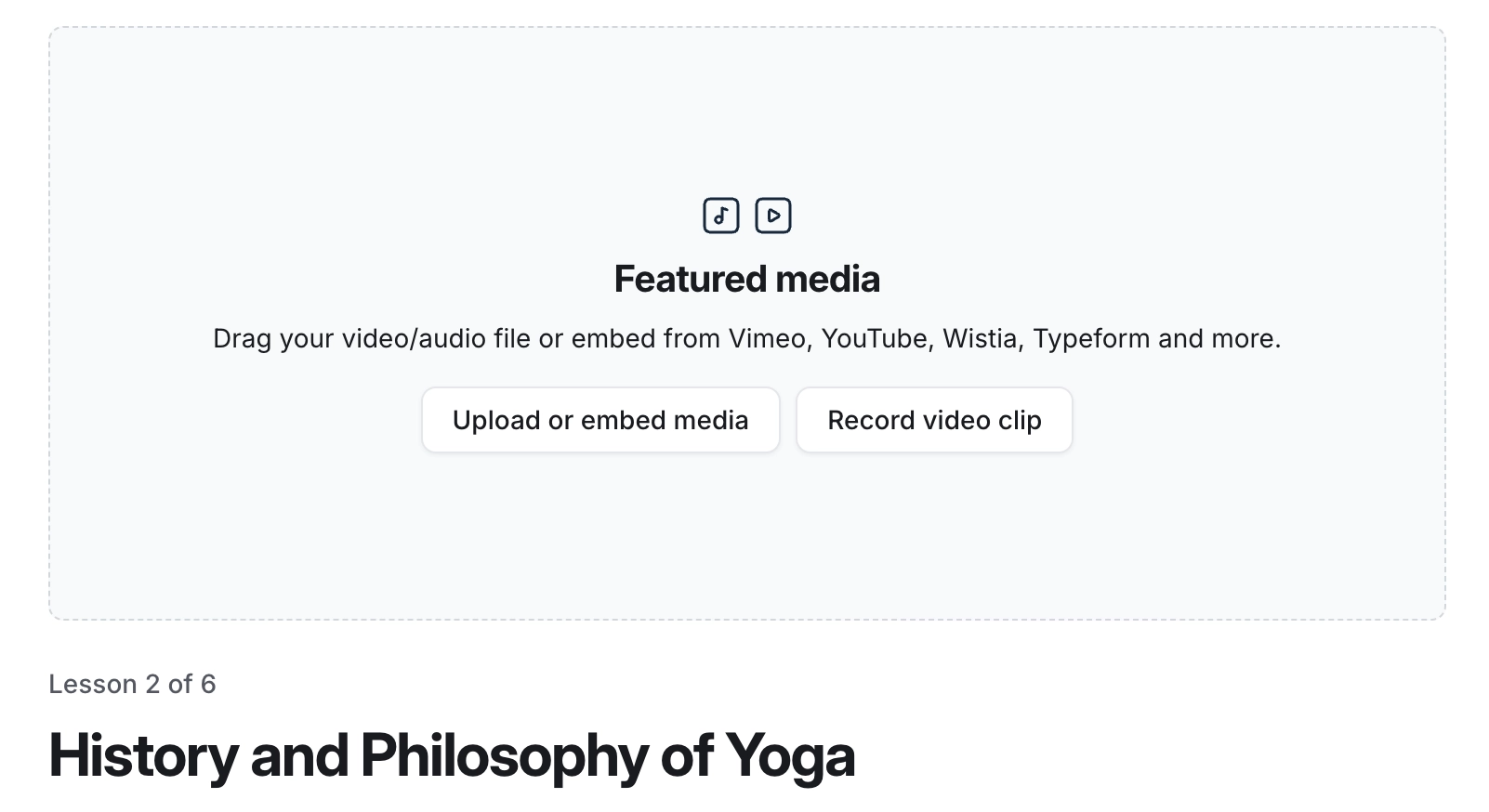
When editing a lesson, click Upload or embed media in the featured media section.
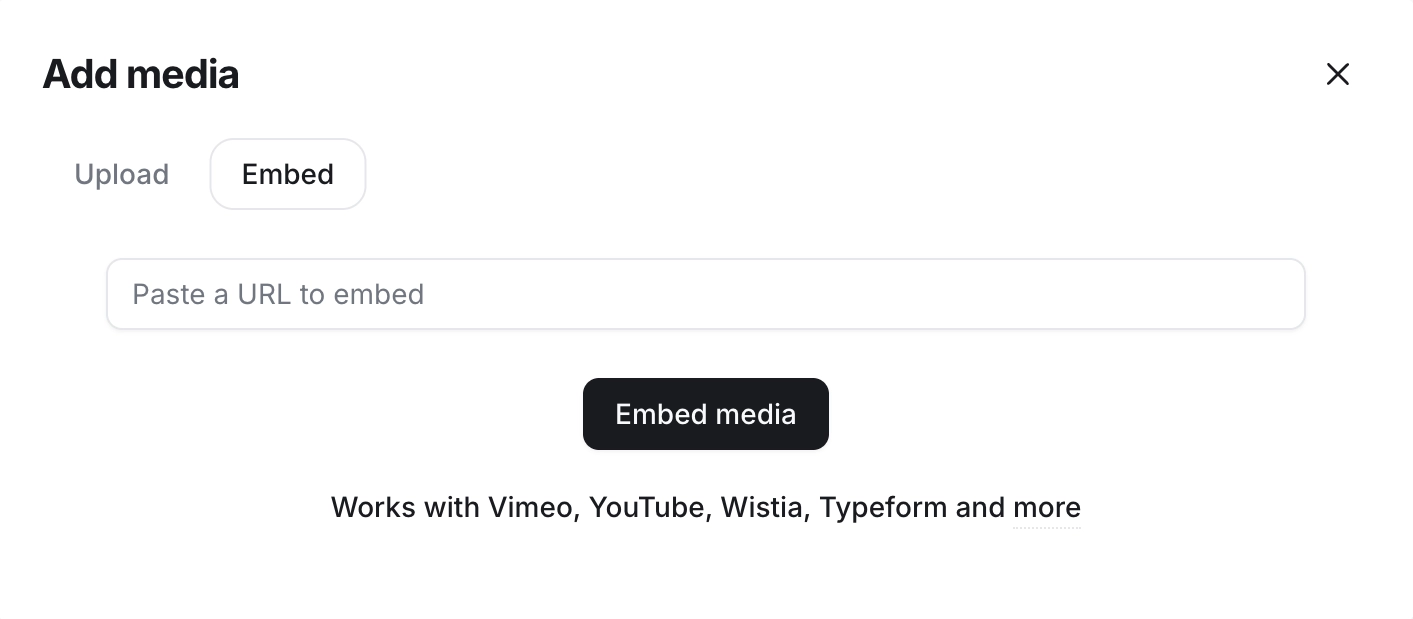
Go to the Embed tab and enter the embed URL.
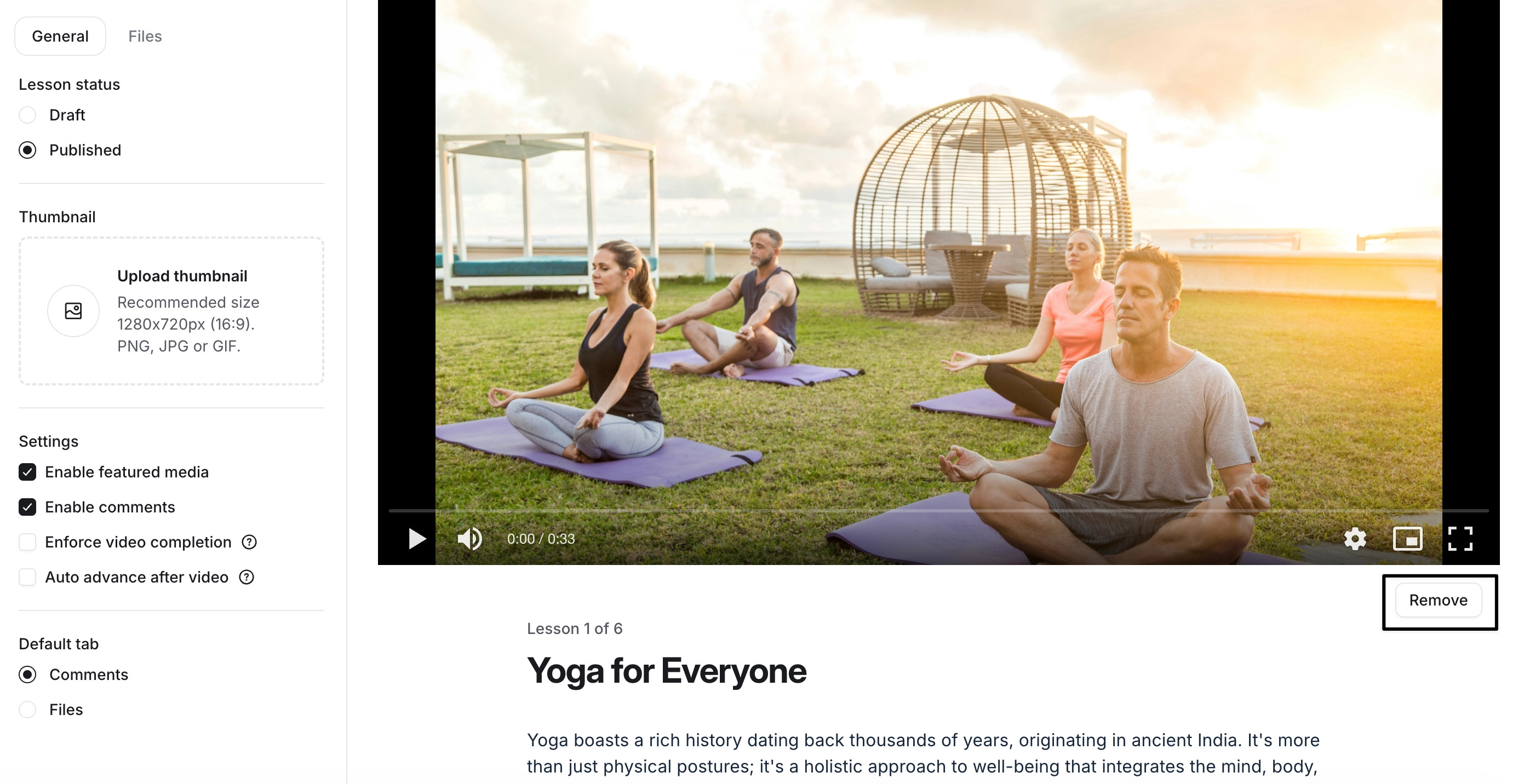
To remove featured media, click Remove under the media.
Lesson body
The text editor in the lesson body lets you embed media alongside your text content. Here's how:
In the text editor, type the forward-slash (/) command where you want to embed media.
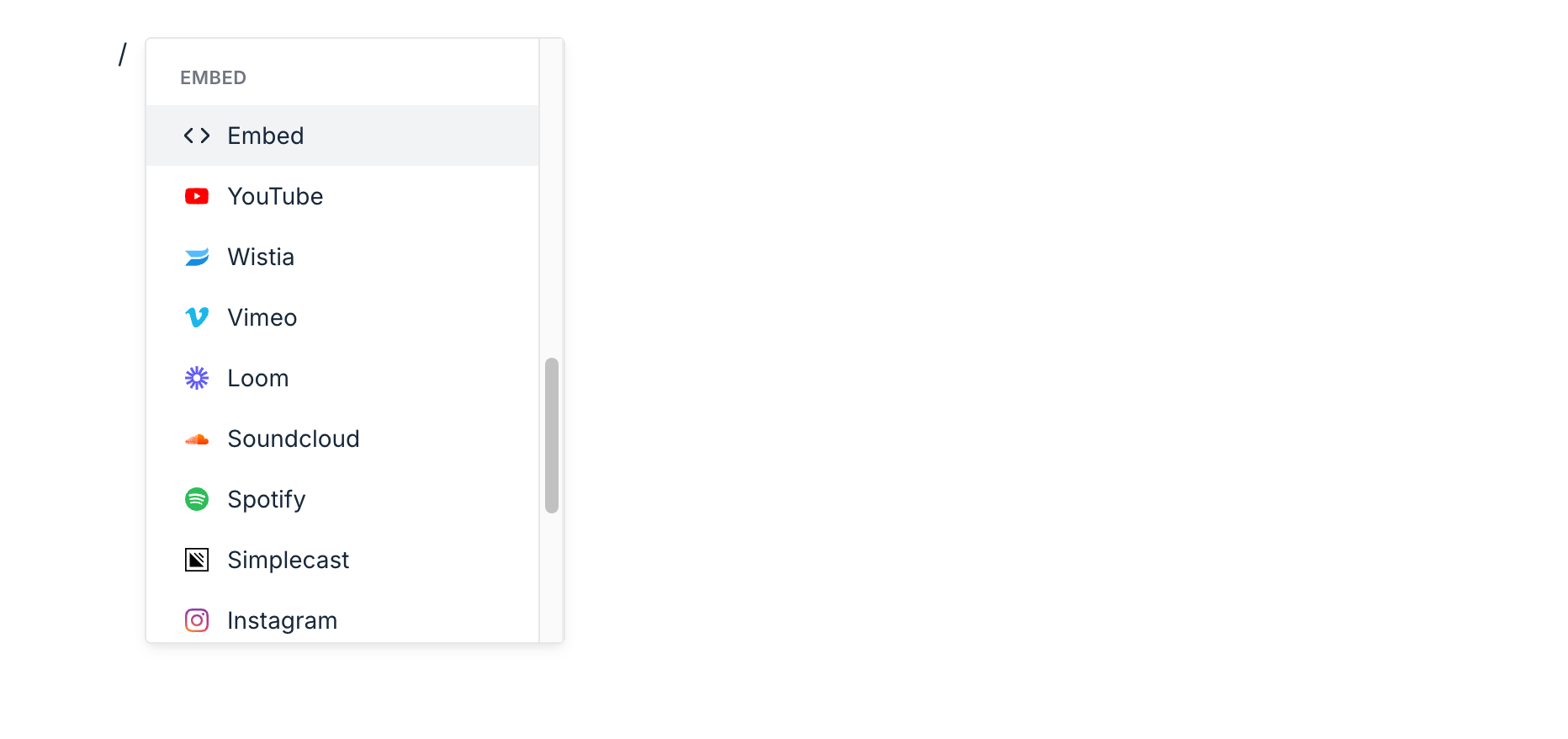
From the menu, select one of the providers from the embed section or select Embed.
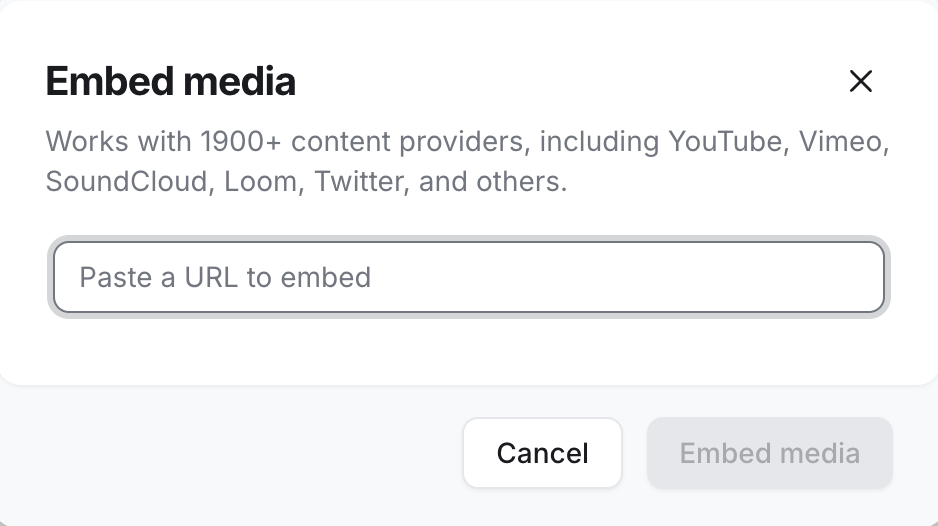
Enter the embed URL.