Add images and GIFs in lessons
Last updated: July, 2026
Images and GIFs are great ways to show visuals, step-by-step instructions, infographics, and more!
Navigate to the lesson editor
Click Courses on the left sidebar and select Courses.
Click the More actions (three dots) icon on a course entry and select Edit course.
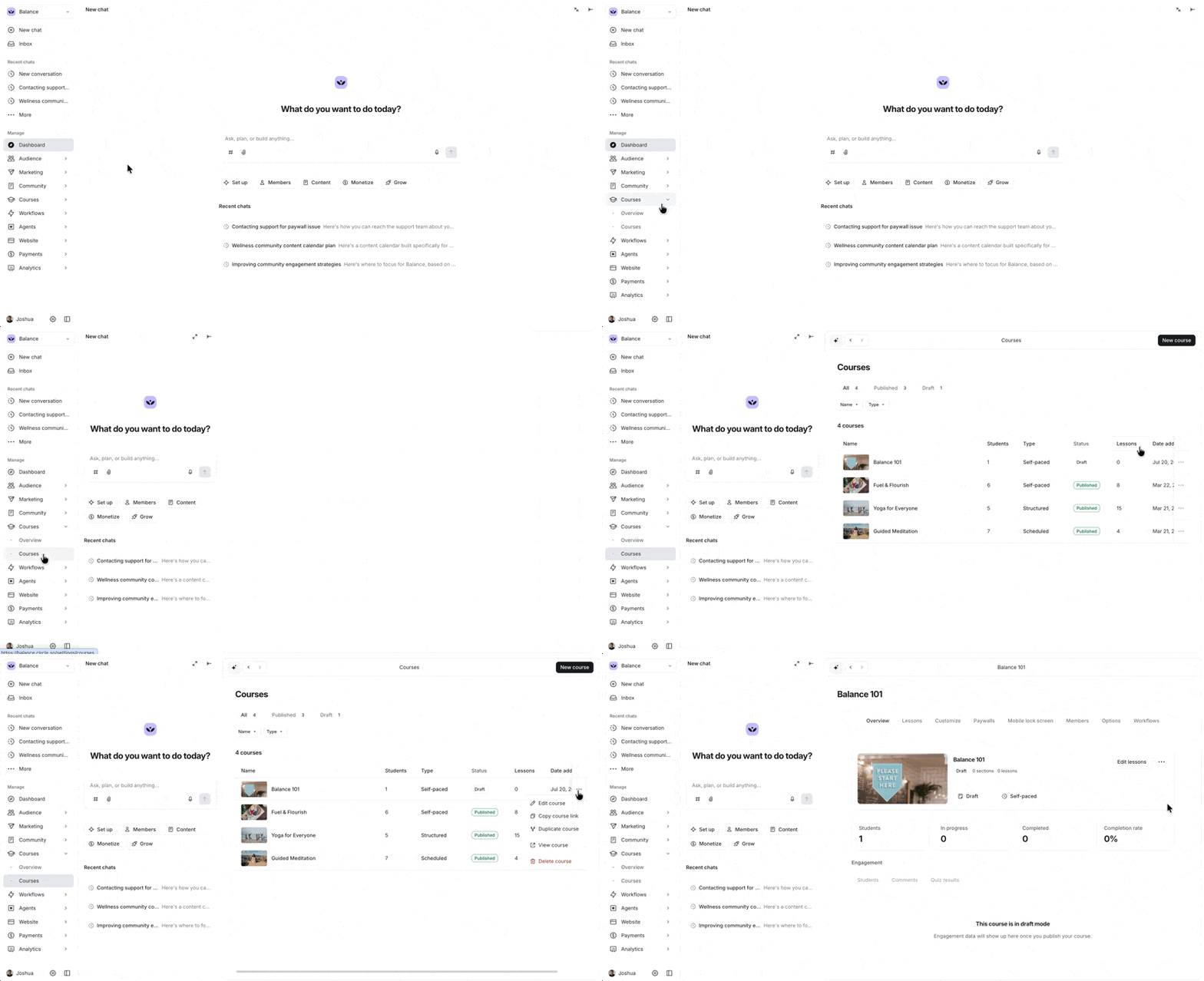
Click Edit lessons.
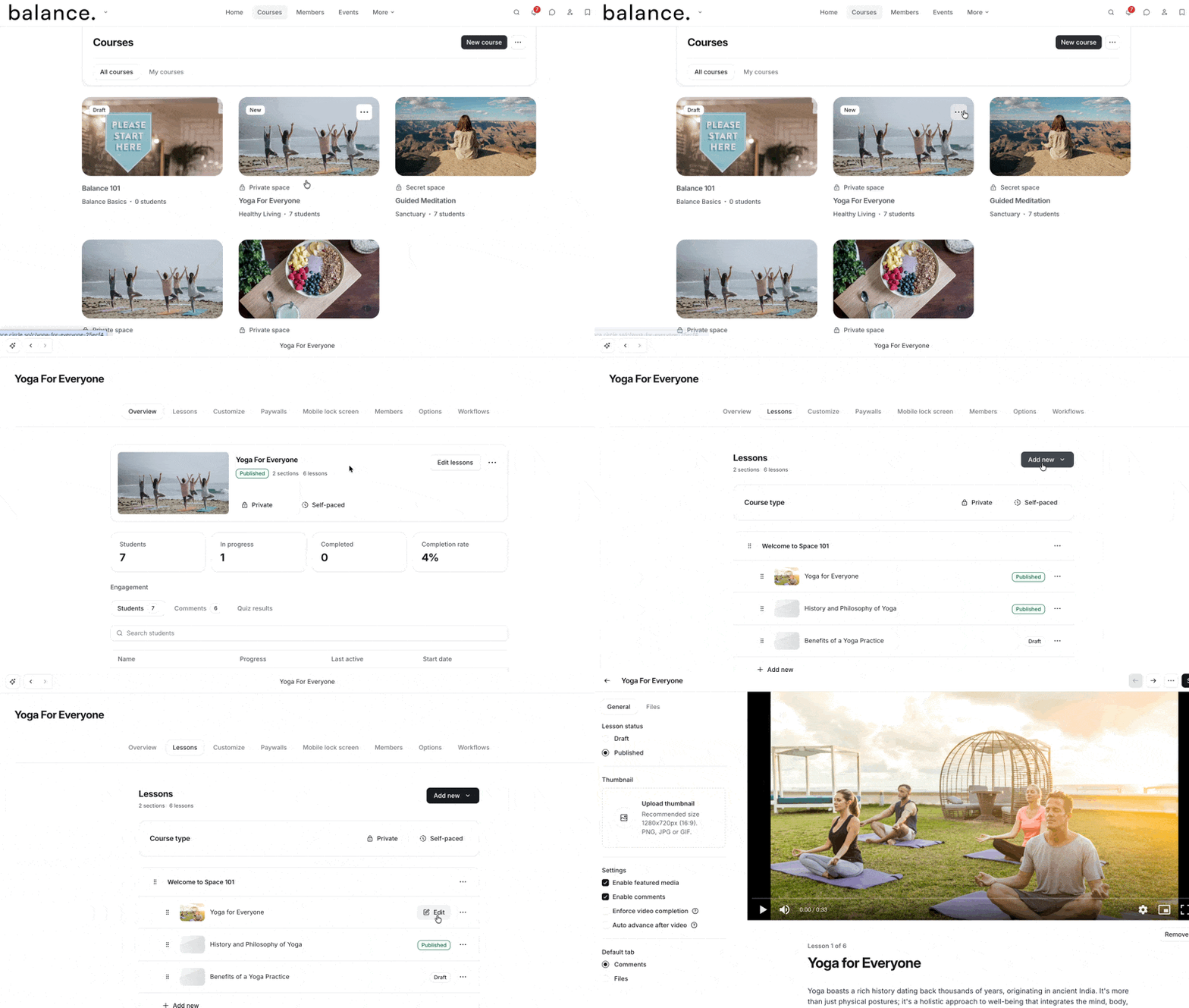
Click More (three dots) next to the lesson name, and select Edit.
Add an image or GIF
Our image uploader works with any .JPG, .PNG, or .GIF file from the web.
To add an image or GIF inside the lesson:
Type the “/” command to open the editor options and select Image.
-
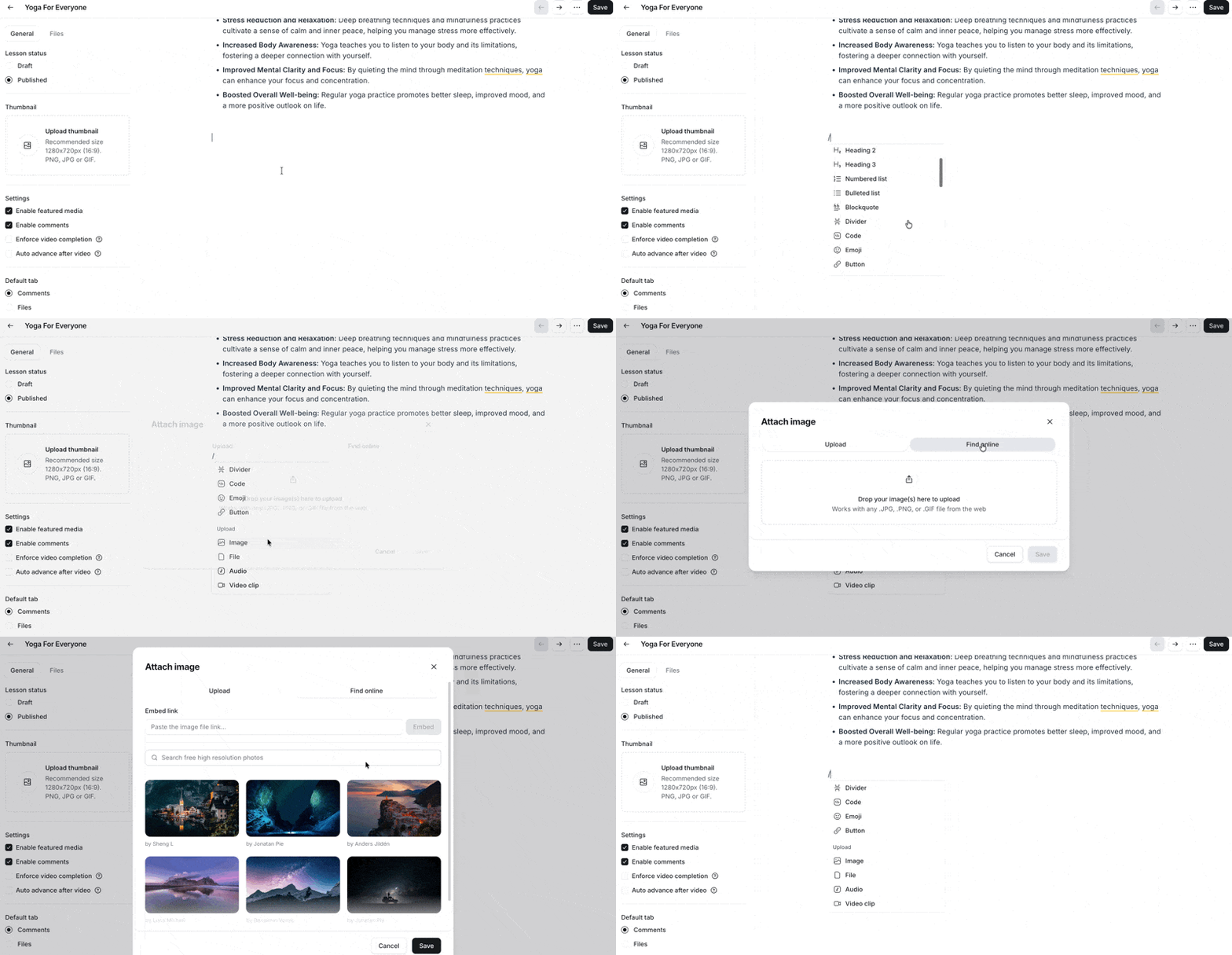
In the upload dialog, navigate to one of the following tabs:
Upload: Drag and drop a file, or choose one from your device, to upload directly into the lesson.
-
Find online: Choose from two options:
Embed link: Embed an image's URL from a supported platform, including GIFs.
Search free high resolution photos: Choose a high-resolution image from the library.
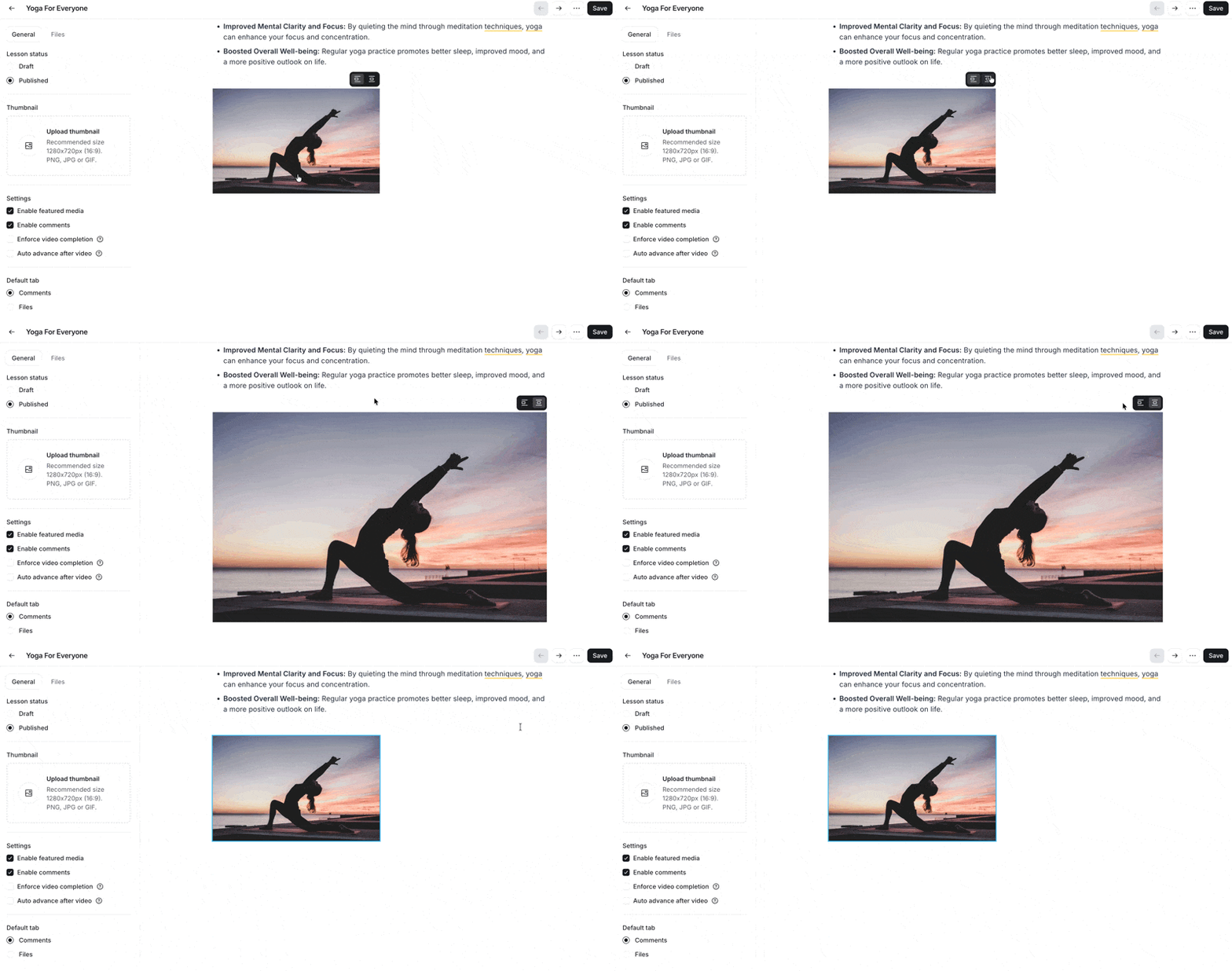
Align image
To align the image to the Left or Centered (full size), hover over the image and click the respective icon.