Get to know Inbox
Last updated: November, 2026
Circle Inbox brings your DMs, notifications, moderation queue and course comments from across Circle into a single place. This article explains what the Inbox is, how to access it, and what each section holds.
What is Inbox?
The Inbox is one place in your community to review everything that needs your attention. It brings together your direct messages (DMs), chat threads, notifications, connection requests, moderation actions, course comments, and AI Agent conversations that are waiting for you.
The Inbox has three areas: Priority Inbox, Mine, and Shared. Each area is explained in the sections that follow.
Access your Inbox
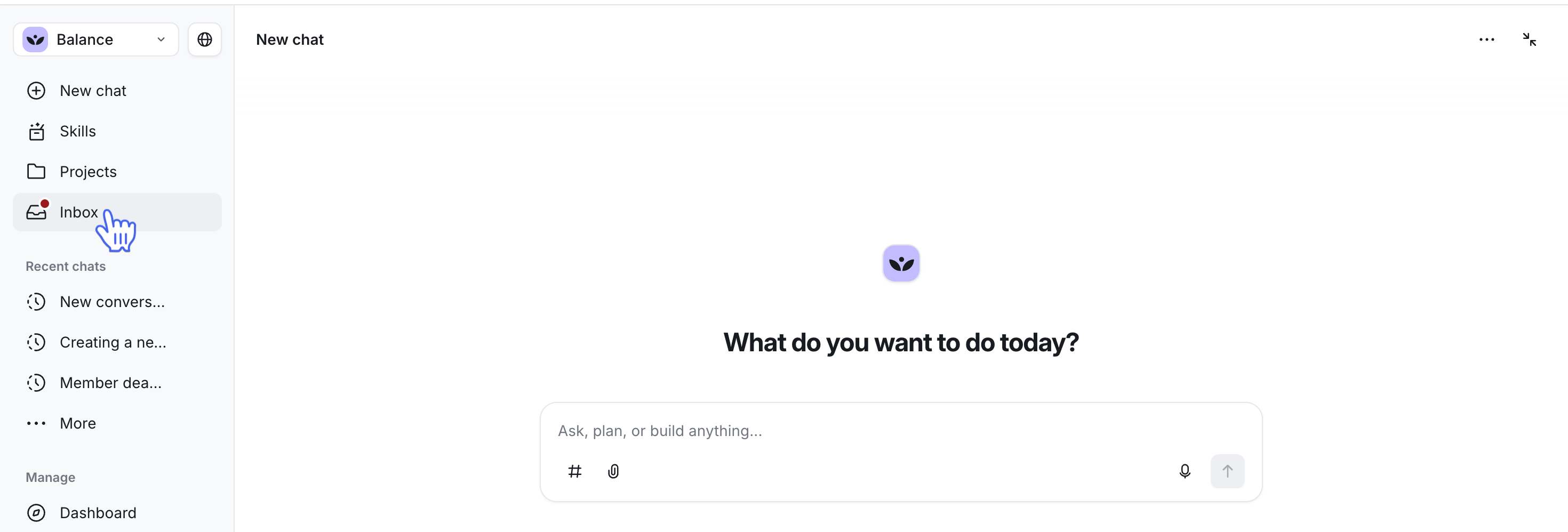
To access your Inbox, click Inbox in the left sidebar.
Priority Inbox
Priority Inbox is everything that needs your attention most, pulled from across Circle and ranked by urgency. Without it, you check DMs, chat threads, course comments, the AI Inbox, and moderation one by one, and urgent items can get buried.
Items are added to the Priority Inbox automatically when they need your reply or review:
Unanswered DMs
Unanswered chat thread replies
Unanswered course comments
AI Inbox conversations paused for a human reply
Pending moderation reports
How Priority Inbox ranks items
Circle places each item in one of two groups, shown in this order:
Risk: Past-due billing, legal or safety concerns, or a member saying they want to cancel or leave.
Needs reply: DMs and paused AI conversations that have waited between 12 hours and 30 days.
Circle uses AI to review each item's content and basic member details, such as billing status, to decide whether the item is a risk. Each item is reviewed once, and the result is shared across all admins.
Manage Priority Inbox
To open Priority Inbox settings, click Settings (⚙️) in Priority Inbox.
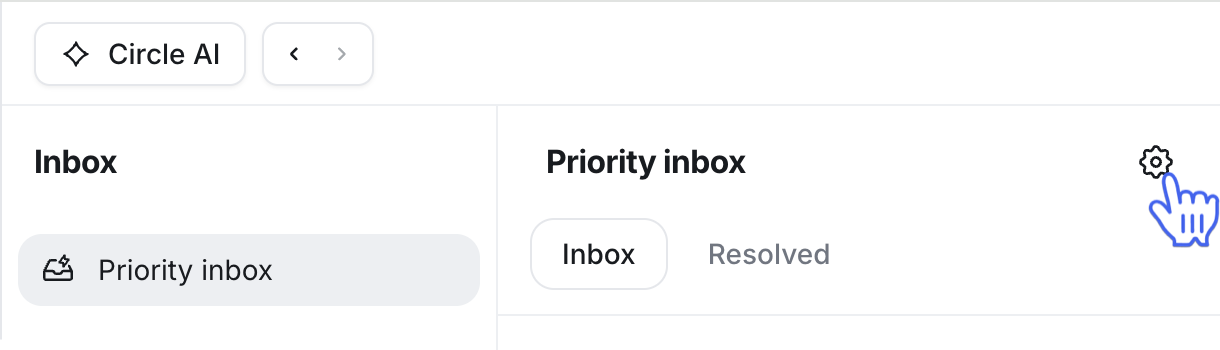
The following settings are available:
DMs: Shows direct messages in the Inbox tab.
Chat threads: Shows chat thread activity in the Inbox tab.
Course comments: Shows comments on your courses in the Inbox tab.
AI: Shows AI-related items in the Inbox tab.
Moderation: Shows moderation items in the Inbox tab.
These settings filter items in the Inbox tab by category. To filter by resolved status, go to the Resolved tab.
Mine section
The Mine section holds the conversations and requests addressed to you personally. It has four parts: DMs, Chat threads, Notifications, and Connection requests.
DMs
DMs show the direct messages your members send you, with member context alongside each conversation. Direct messages include both one-to-one conversations and group messages.
📚 To learn how messaging works or how to turn it on or off for your community, read Send and manage one-to-one direct messages and Configure messaging settings in your community.
Chat threads
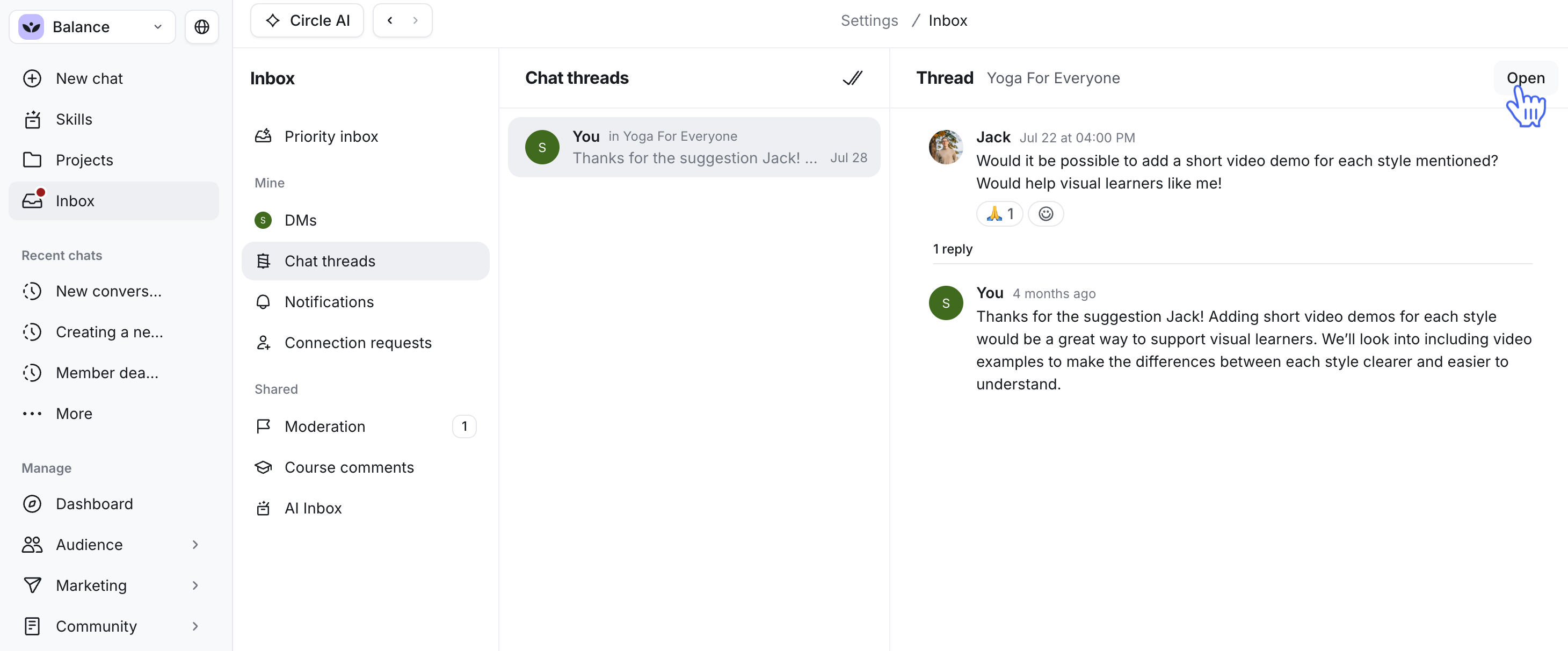
Chat threads lists the threaded conversations you've replied to or been mentioned in. A thread keeps a longer discussion under one parent message, so the main conversation stays easy to read.
You can respond to chat threads from here. Additionally, click Open in the top-left corner to open the thread in a new tab.
📚 For details on starting and replying to threads, read Understanding chat threads.
Notifications
Notifications show everything in your community that needs your attention. They’re grouped into the following tabs: Inbox, Content, Mentions, Following, Moderation, All and Archived.
Select a notification to open it. You can also manage your in-app notification settings from your community account. Learn more in Manage your in-app notifications.
Connection requests
Connection requests list members who want to connect with you through Connect. Connect lets members build their own network inside your community without starting a direct message. You can accept or ignore each request. Accepting a request adds you and the member to each other's connections. If the member included a note, accepting also creates a direct message thread with that note copied into it.
ℹ️ Note: Connection requests come from Connect, so you need Connect turned on. To turn it on, go to Settings, select Connect, and turn on the Enable connections toggle. For more on how Connect works, read Get to know Connect.
Shared section
The Shared section holds the items your admin team handles together. It has three parts: Moderation, Course comments, and AI Inbox.
Moderation
Moderation shows flagged posts, comments, and connections, so you can review and resolve them in the Inbox. Content lands here when a member reports it or when your moderation settings flag it automatically, for example, with the profanity filter. For each report, you review the details and then approve or reject the content. Rejecting content lets you leave a note that only admins and moderators can see.
📚 To learn how reviewing works, read Reviewing flagged content. To choose what gets flagged automatically, read Manage moderation settings.
Course comments
Course comments pulls comments from every lesson into a single list, with the course and lesson shown alongside each comment. You no longer need to open each course dashboard to find new comments.
📚 To learn how to reply to comments or turn them on for a lesson, read View and respond to lesson comments and Enable lesson comments.
AI Inbox
AI Inbox shows the conversations between your AI Agents and members. When a conversation needs a person, the AI Agent pauses and waits for your input. When you finish, you can hand the conversation back to the agent.
📚 To learn how to filter conversations, pause AI responses, and take over a conversation, read View and manage AI Agent conversations.
Support
The Support section is pinned to the bottom-left corner of the Inbox sidebar, separate from your other Inbox items. Use it to get help from Circle AI or the Support team. To contact Support from the Inbox:
Click Inbox in the left sidebar.
Select Support at the bottom-left of the Inbox sidebar.
Click the + button at the top of the Support window.
What happens next depends on your AI credits:
With remaining credits: The + button opens a Circle AI chat with a draft prompt. No ticket is created. Add details and send it.
Out of credits: The + button creates a support ticket and sends it directly to the Support team.
To reach a person when you have credits, ask Circle AI to connect you with the Support team.
Contact the Support team by email or live chat
When you ask Circle AI to talk to support, you can choose how you want to reach the Support team: by email or live chat. To get started:
In the Circle AI chat, ask to talk to support.
Select Email or Live chat, then click Next.
Type your message in the form. You can add attachments and remove any you don’t need.
Click Send.
After you send an email, a link appears in the chat that opens the conversation in the Inbox.
For live chat, you fill out the form before the chat starts. Once you send your message, you join the queue, and the Inbox displays a banner showing how many people are ahead of you. When a Support team member joins, you can chat back and forth in the conversation.
Manage your support conversations
Support conversations open in the Inbox with the conversation list on the left and the selected conversation on the right. You can:
Reply: Type in the conversation panel to continue an existing conversation. Replies from the Support team show up in the same conversation.
Check the status: When the Support team marks a conversation as solved or closed, its status updates in the Inbox. A live chat that has ended is marked as closed.
Filter conversations: Show only open, solved, or closed conversations. Email conversations are marked with an envelope icon.
📚 To learn about all your support options, read Getting help with your community.