Reviewing flagged content
Last updated: October, 2026
Admins and moderators play a crucial role in reviewing and acting on reported content to ensure that only content that adheres to the community guidelines remains visible. In this article, we will guide you through the steps to review content moderation reports.
Platform support
Using the desktop app and web browsers, you can access the moderation page, access all moderation reports, and review them using any option.
On Circle’s mobile apps and branded mobile apps, you can review reported content directly from the banner that appears on flagged posts and comments, or via in-app notifications for seamless moderation on the go.
Access reports
When a post or comment is flagged manually by members or automatically through moderation settings, it is added to the Moderation Inbox, and a banner appears on the content for quick visibility.
Here’s how you can access the reported content:
From notifications
You can directly access the report from these notifications:
In-app notifications: Click the Notification (bell icon) on the top navigation bar to view your notifications. Then, select the relevant notification to open the detailed report.
Email notifications: Open the notification email and click the Review button within the email body to navigate directly to the report.
From the Moderation page
To view all reports, click Community in the left sidebar, then select Moderation.
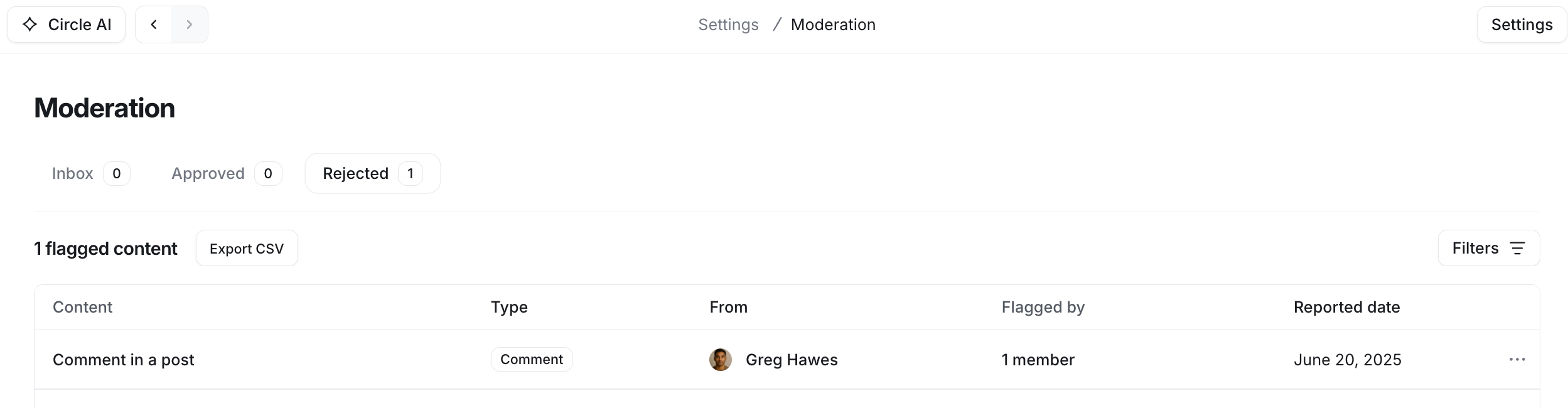
On the Moderation page, reports are organized into three tabs for streamlined management:
Inbox: Displays all pending individual report entries that require your review.
Approved: Displays reports for content that you have reviewed and approved.
Rejected: Lists reports for content that you have reviewed and rejected.
To review a specific report from any tab, hover over the reported entry, click More actions (three dots) and select Review.
Directly from posts and comments
While browsing posts or the image space in feed view, reported posts display a banner indicating they require review. When you open a post in full-page view, the banner also appears at the top.
Similarly, reported comments under a regular post, image post, and event display a banner within the thread. This allows you to review reports directly without leaving the current space.
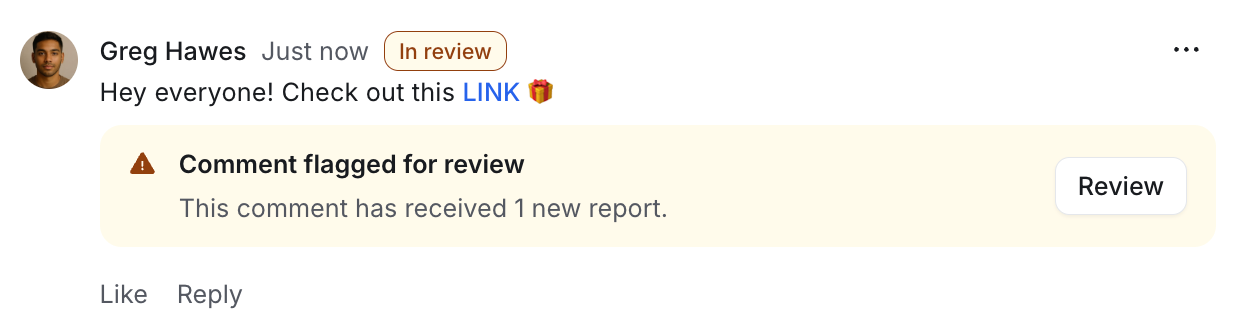
To review the report directly from a banner, click Review without leaving your current page. When reviewing reports directly from here, you will see a simplified version of the review dialog that includes all reports submitted for the content, including detailed explanations provided by the reporters and the names of the reporters.
Review reports
To review reports:
Click Community in the left sidebar, then select Moderation.
Navigate to the Inbox tab and access the report.
-
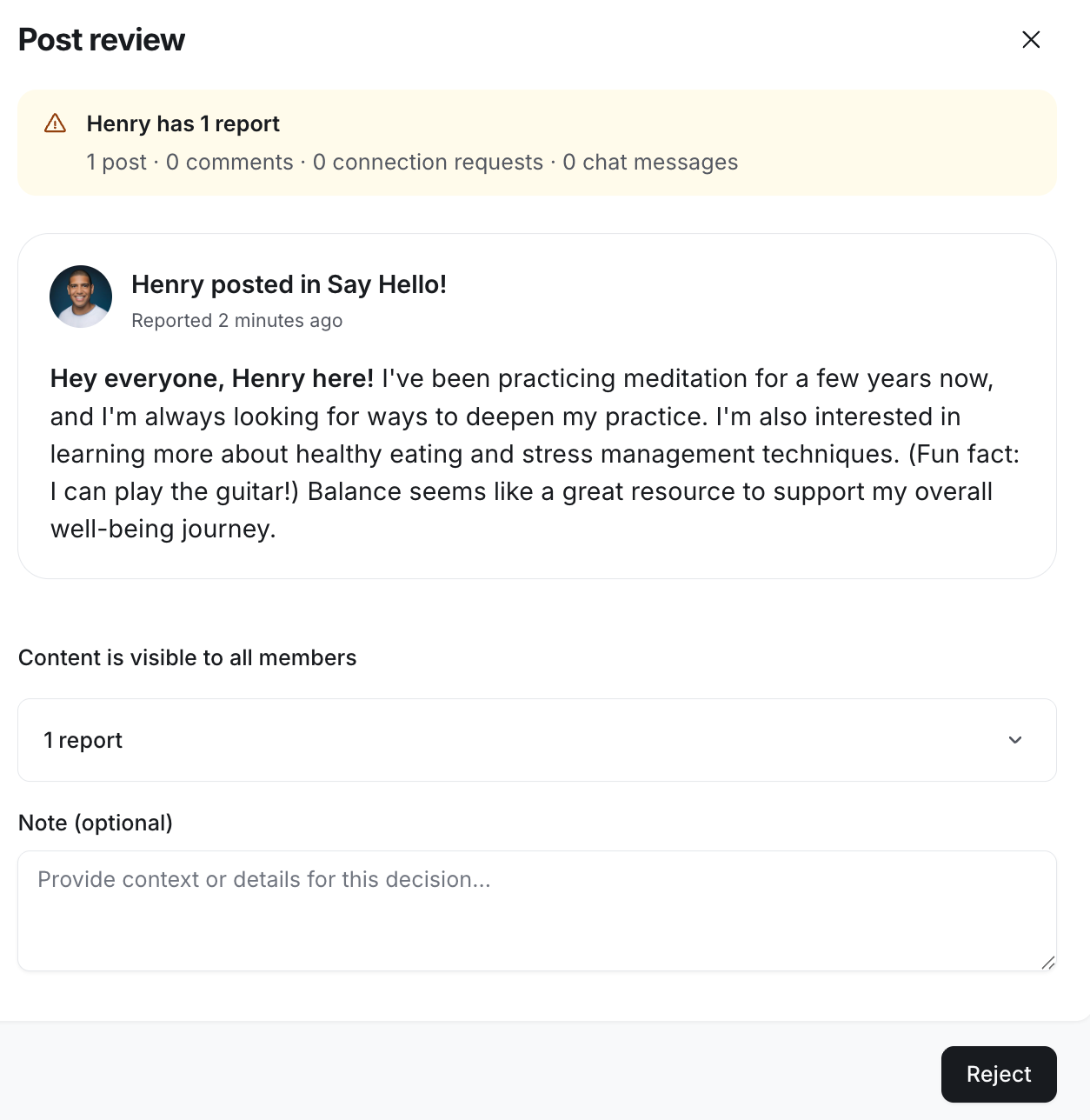
Click More actions (three dots) and select Review. The review dialog provides the following key details:
Author and location: The dialog title includes hyperlinked details about the content’s author, the post or comment, and its location within the community. Click these links to navigate directly to the associated content or user profile.
Details: This tab shows the body of the reported post or comment.
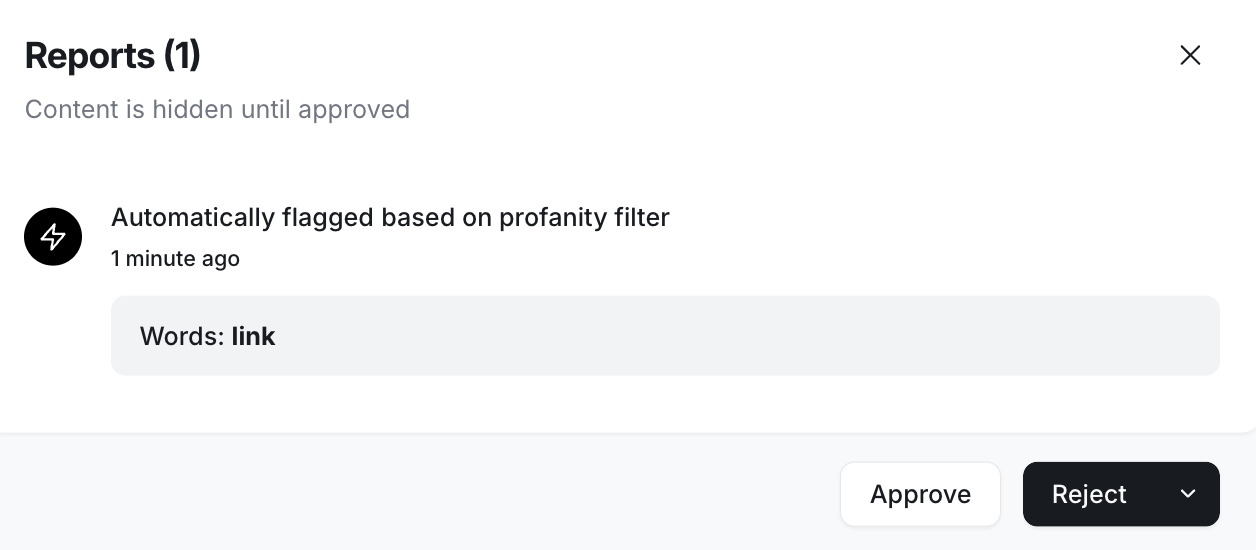
Reports: Shows all reports submitted for the content, including detailed explanations from the reporters and their names. It also includes reasons for automated flags triggered by moderation settings (e.g., profanity filters).
-
💡 Tip: At the top of the Reports tab, you can see whether the content is currently visible or hidden in the community.
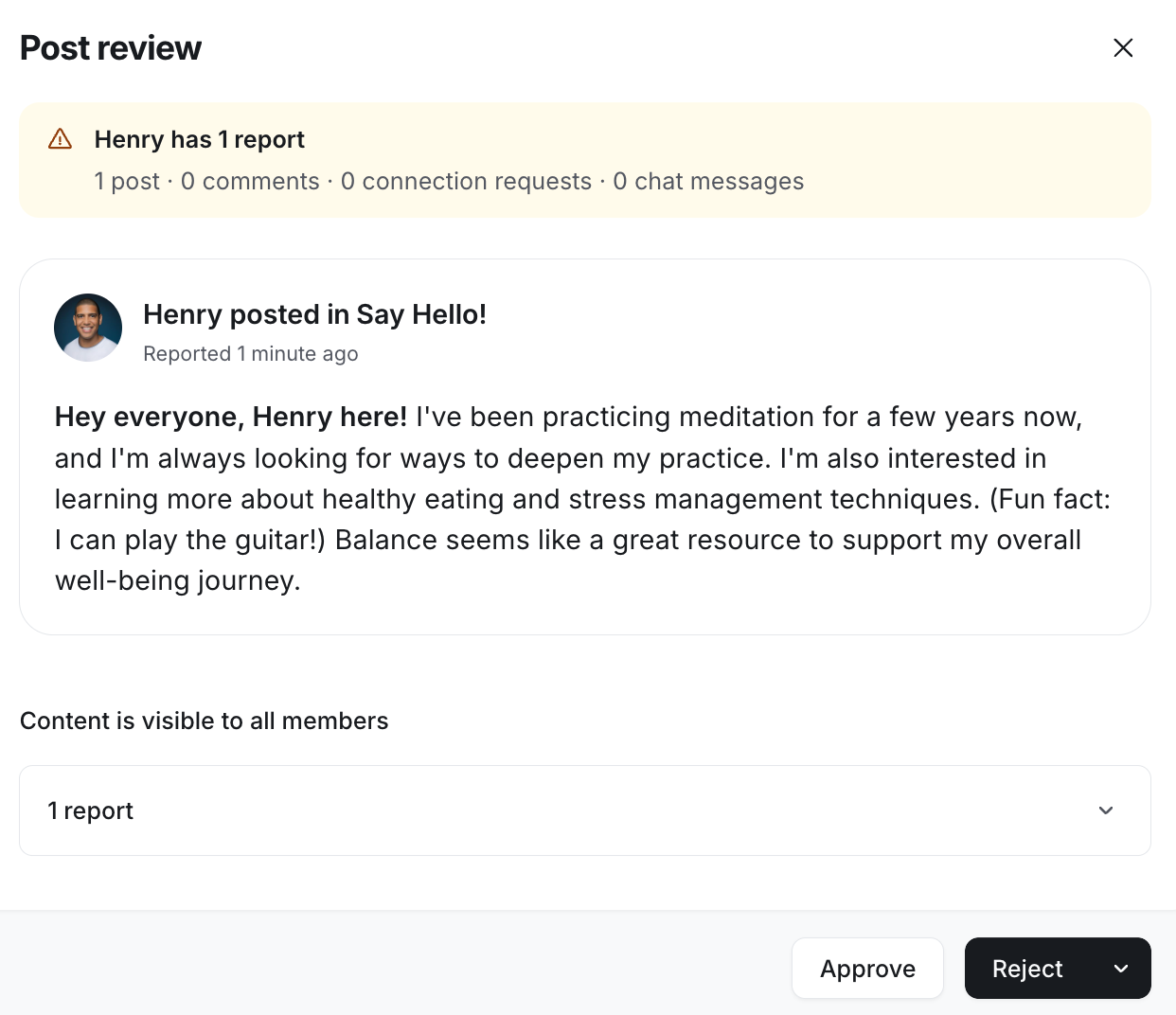
ℹ️ Note: At this time, content reviews must be completed one at a time.
Once you have reviewed all the details of the report, it’s time to make a decision. Here’s what you can do:
Approve content
If the content adheres to your community guidelines, you can approve it by clicking the Approve post or comment option in the review dialog. This action will:
Remove all related reports from the Inbox tab.
Move the approved content to the Approved tab for future reference.
Restore the content to its original location (if it was hidden) so all users can view it.
If you approve a report by mistake, locate it in the Approved tab. Hover over the reported entry, click More actions (three dots) and select Review. Then, click Reject to reverse the action.
Reject content
If the content violates your guidelines, you can reject it by clicking the Reject post or comment option in the review dialog. This action will:
Remove all related reports from the Inbox tab.
Move the rejected content to the Rejected tab for future reference.
Remove the content from the community.
You now have the ability to leave a note when you reject a comment. The rejection note will be available in the dialog when you click Review on a rejected comment and in the CSV export, along with the name of the user who performed the action.
ℹ️ Note: The rejection note is only visible to admins and moderators. It will not be visible to members.
If you reject a report by mistake, locate it in the Rejected tab. Hover over the reported entry, click More actions (three dots) and select Review. Then, click Approve to reverse the action.
💡 Tip: You can configure various moderation settings to automatically flag members’ content based on certain criteria. To learn more, see Manage moderation settings.