Flag members in your community
Last updated: October, 2026
Maintaining a positive and respectful environment is essential to your community. As an admin, you can flag members when their behavior needs review or temporary restriction.
Circle gives you three independent controls to restrict a member's activity. You can moderate their posts and comments, disable their chat and direct messaging, or apply any combination of the three.
ℹ️ Note: You can't flag other admins or moderators.
About moderation controls
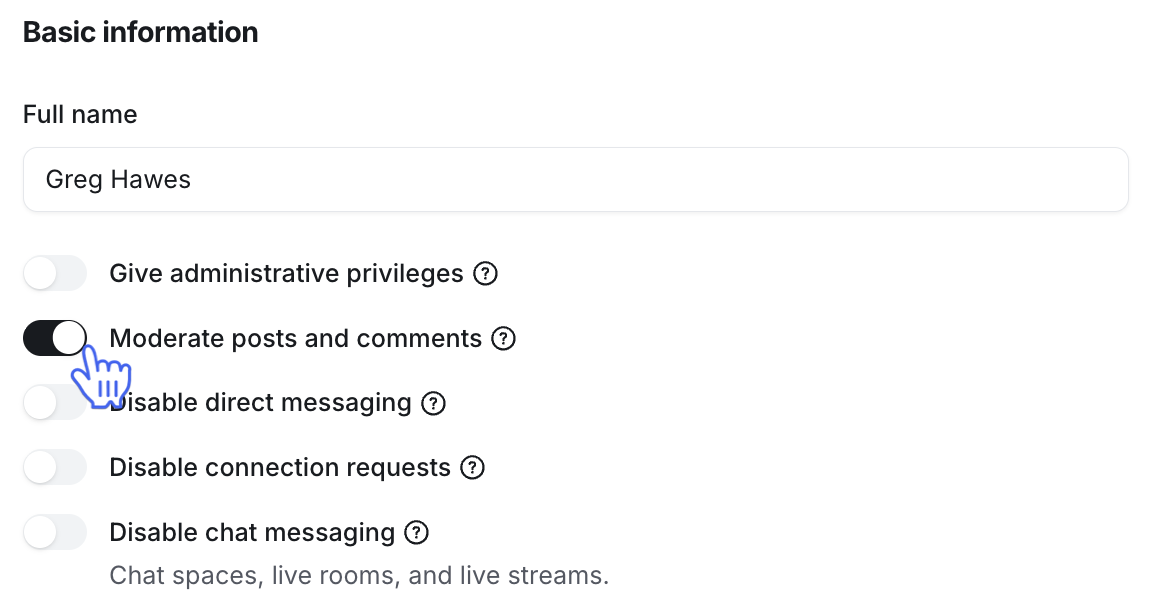
The edit account page includes three toggles that can be turned on independently:
Moderate posts and comments: Restricts the member's post and comment activity. All future content they post is flagged for review before it becomes visible.
Disable chat messaging: Blocks the member from sending messages in embedded rooms, including live rooms and chat spaces.
Disable direct messaging: Prevents the member from sending direct messages, including group DMs.
❗️Important: Each moderation toggle works independently, this means that moderating a member's posts and comments has no effect on their chat or DM access, and disabling chat or DMs has no effect on their post and comment activity.
A member can be flagged in two ways:
Manually: Admins can flag a member directly by editing their account.
Automatically: Admins can set a moderation setting that turns on the Moderate posts and comments once reports on a member’s content cross a defined threshold (flag all member activity after X reports).
📚 To learn more about automatic moderation, see Manage moderation settings.
How moderation controls restrict member activity
In this section, we’ll take a look at how moderation controls restrict member activity.
Posts and comments
When Moderate posts and comments is turned on, all future content the member posts in the following space types is flagged for review:
Post spaces: Posts and comments
Image spaces: Posts and comments
Event spaces: Comments
When enabled, all a member’s content is hidden from other members. Only the moderator, admin, and the member who posted it can see it.
Admins and moderators can review flagged content and choose to approve or reject it:
If approved, the content becomes visible to other members.
If rejected, the content is permanently removed from the community.
Direct messaging
When Disable direct messaging is enabled, the member can no longer send direct messages, including in group DM conversations.
The only exception is direct messaging with admins. When direct messaging is disabled on a member’s account, they can only continue conversations with community admins.
Connection requests
When Disable connection requests is enabled, the member can't send connection requests to other members in the community. If they try, they'll see an error message telling them the action isn't allowed.
Chat messaging
When Disable chat messaging is turned on, the member can no longer send messages in:
Chat spaces
Chat in live sessions
When restricted, members will see a banner notifying them that messaging is temporarily disabled.
Restrict a member’s activity (flag a member)
Click Audience in the left sidebar, then select Audience.
Hover over the member's name, click More actions (three dots) next to the name, and select Edit.
-
On the Info tab, turn on the toggles for the restrictions you want to apply:
Moderate posts and comments: To flag their posts and comments for review.
Disable direct messaging: To block direct messages.
Disable connection requests: To block sending connection requests to other members.
-
Disable chat messaging: To block messaging in embedded rooms.
Click Save.