Getting help with your community
Last updated: October, 2026
There are several ways to get help when you are looking for assistance with your community.
Via the Help Center
Welcome! You’re already in our Help Center! We’ve put together articles covering various features within the Circle community.
You can navigate through the Help Center sections on various features and functions from the Topics dropdown in the header. You can also use the search option to search for specific information.
Via the Circle community
As a part of your community plan, you also get full access to our private customer community at Circle.
The Circle community is packed with valuable resources to help you create and maintain a thriving community. After purchasing a community plan, when you accept the invitation and create your profile, you’ll unlock access to:
Thousands of other community builders and peers.
Dedicated space to ask questions and get help from fellow community builders.
Weekly office hours to get help, ask your community-building questions, and meet other creators.
Live workshops with top community-building experts and creators.
A vault of Circle’s event replays.
Through Circle AI
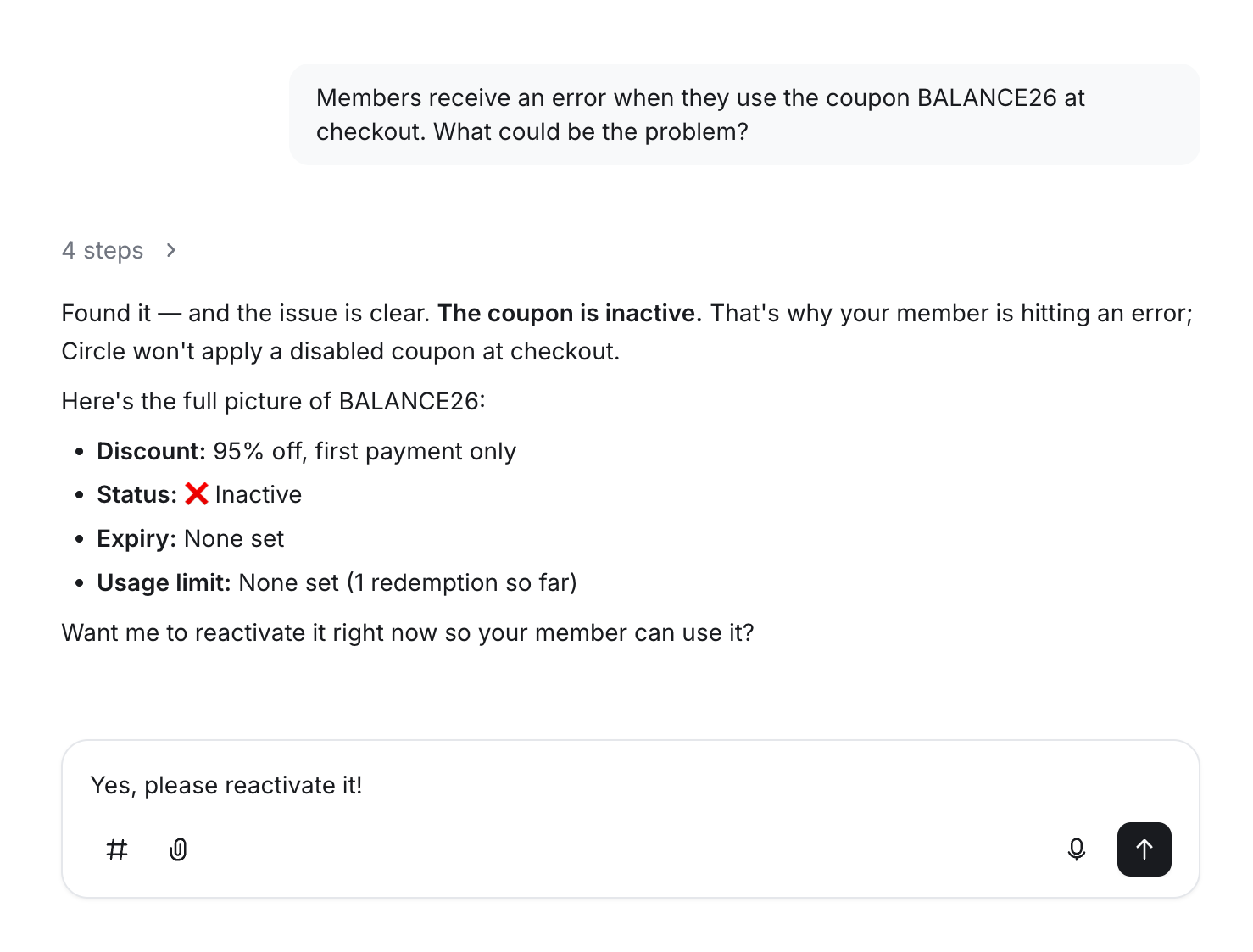
Circle AI works like a guided support partner that's always available and built into your community, so you don't have to search through help docs or guess which setting is causing an issue. Describe your problem in plain language, and Circle AI helps you understand what's happening and what to do next.
ℹ️ Note: If you’ve upgraded your community to Eclipse, you’ll notice that the previous Help widget (Need help? button) has been removed. This is intentional as Circle AI has replaced the help widget as your support portal.
How it works
Circle AI is built to do more than answer questions. It can diagnose the problem, suggest the right fix, and, when appropriate, help make the change on your behalf.
For straightforward questions, Circle AI provides step-by-step guidance and directs you to the right resources. For more complex issues, it asks follow-up questions, looks at the context of the page you're on, and helps narrow down the likely cause.
If Circle AI can't solve an issue, it will connect you with a member of the Support team.
Contact Support from the Inbox
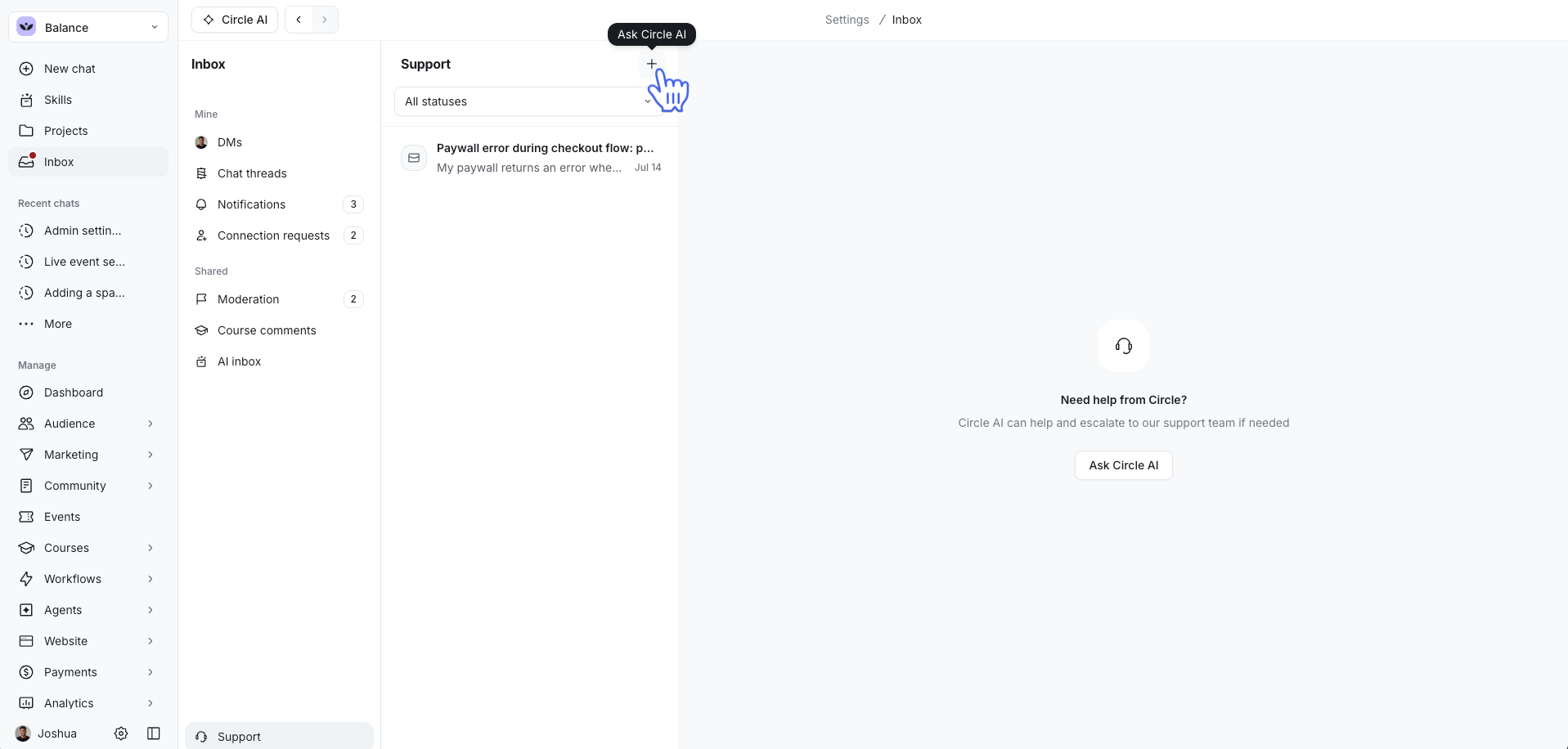
Support is always available from the Inbox. It is pinned at the bottom-left corner of the Circle Inbox sidebar, separate from your other Inbox items.
To get support through the Inbox:
Click Inbox in the left sidebar.
Select Support from the bottom-left corner of the Inbox sidebar.
Click the Plus + button at the top of the Support window.
What happens next depends on your community's AI credits:
If you have remaining AI credits: The + button opens a Circle AI chat with a draft prompt. It does not create a support ticket. Add details to the prompt and send it. If Circle AI can't resolve the issue, it will connect you with a member of our Support team via live chat or email.
If you’ve run out of credits: The + button creates a support ticket and sends your request to our Support team directly.
💡 Tip: If you expected a ticket and landed in a Circle AI chat, that's normal when your community still has AI credits. To connect with a person, ask Circle AI to connect you with our Support team.
📚 To learn more, see Access Circle AI.